
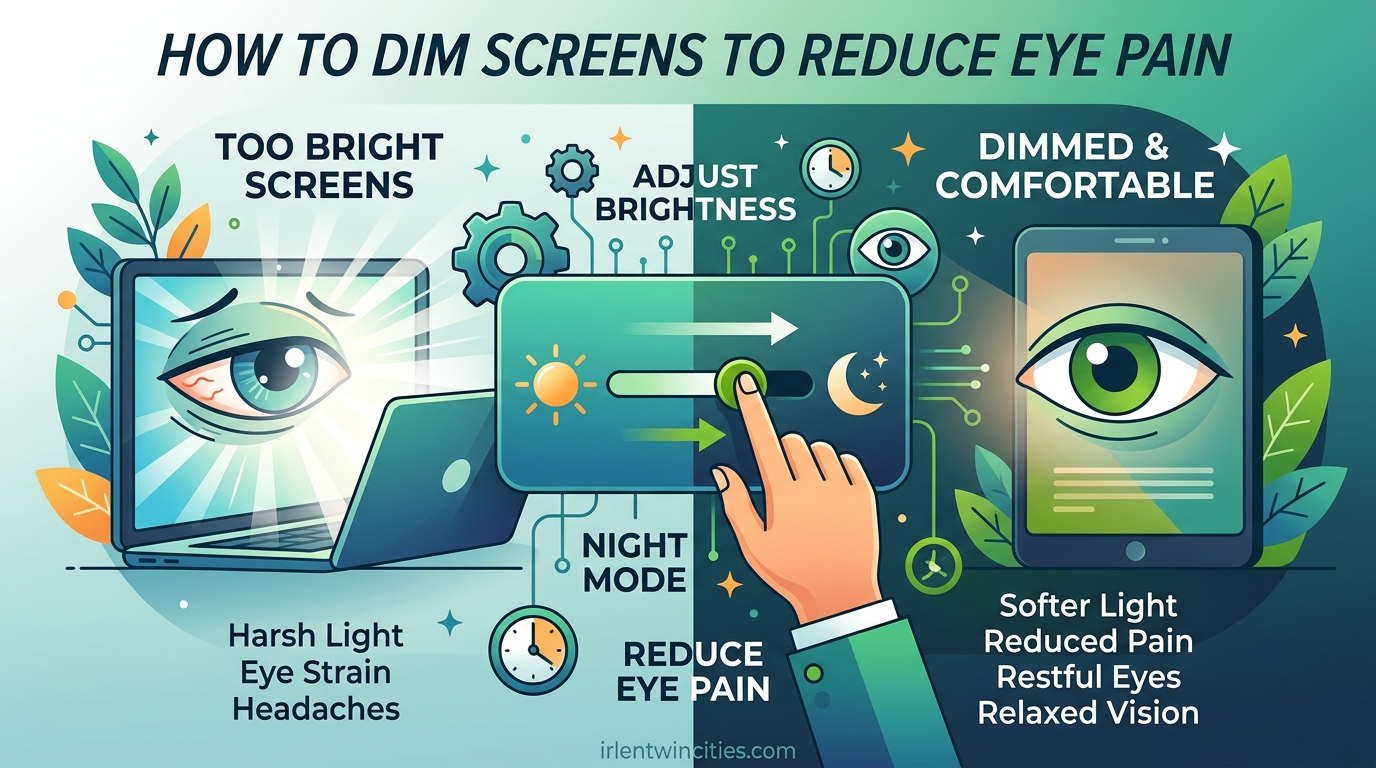
Staring at bright screens all day leaves your eyes burning, dry, and aching by evening. Learning how to dim screens to reduce eye pain is one of the simplest yet most effective ways to protect your vision and stay comfortable during long work sessions. Most of us spend over six hours daily in front of computers, phones, and tablets, making screen-related eye strain one of the most common health complaints of the modern age.
In this guide, I will walk you through everything you need to know about reducing screen brightness and adjusting display settings across all your devices. You will learn step-by-step instructions for Windows, Mac, iPhone, iPad, and Android, plus expert tips on blue light reduction, the 20-20-20 rule, and proper monitor positioning that eye doctors recommend.
Table of Contents
Understanding Digital Eye Strain
Digital eye strain, also called computer vision syndrome, is the discomfort that comes from focusing on digital displays for extended periods. Your eyes work harder when reading pixels on a screen compared to printed text because screens have less contrast, glare, and require constant refocusing.
The symptoms include burning eyes, dryness, headaches, blurred vision, and neck and shoulder pain. These issues typically worsen as the day progresses, especially if you work in a bright office environment with a high-brightness monitor. Many people also experience difficulty sleeping after evening screen use due to blue light exposure.
Screen brightness that is too high or too low relative to your ambient lighting forces your eyes to work harder to focus. This constant adjustment creates fatigue and pain. By learning to dim your screen appropriately for your environment, you can reduce eye strain significantly and work more comfortably.
How to Dim Your Screen on Any Device
Every major operating system includes built-in tools for adjusting screen brightness. Here are the exact steps for each platform so you can start reducing eye strain immediately.
Windows 10 and Windows 11
The fastest way to dim your screen on Windows is through the Action Center. Click the notification icon in the bottom-right corner of your taskbar or press Windows Key + A to open it quickly. You will see a brightness slider that you can drag left to reduce screen brightness.
For more precise control, go to Settings > System > Display. Under the Brightness and color section, drag the slider to your preferred level. I recommend starting at about 60 to 70 percent of maximum brightness and adjusting based on your comfort level and room lighting.
Windows also includes Night Light, which reduces blue light automatically. To enable it, go to Settings > System > Display > Night Light. Toggle it on and click Night Light settings to adjust the strength and schedule. Setting it to turn on from sunset to sunrise works well for most users.
macOS (MacBooks and iMacs)
On macOS, the quickest brightness adjustment is through Control Center. Click the Control Center icon in the menu bar and drag the brightness slider down. You can also use the F1 and F2 keys on your keyboard to decrease or increase brightness quickly.
For detailed settings, open System Settings and click Display. Here you can adjust brightness precisely and enable True Tone if your Mac supports it. True Tone automatically adjusts the color temperature of your display based on ambient lighting conditions, which helps reduce eye strain throughout the day.
To enable Night Shift on Mac, go to System Settings > Displays > Night Shift. You can set it to turn on automatically from sunset to sunrise or create a custom schedule. I recommend starting with the warmest setting if you use your Mac extensively in the evening hours.
iPhone and iPad
On iOS and iPadOS, swipe down from the top-right corner to open Control Center. Drag the brightness slider down to dim your screen. This works from any screen, making it the fastest way to adjust when your eyes start feeling strained.
For more control, go to Settings > Display and Brightness. Here you can adjust the brightness slider and enable Auto-Brightness, which uses the ambient light sensor to adjust your screen automatically based on your environment. This is especially helpful when moving between bright and dim rooms.
Night Shift on iPhone and iPad reduces blue light in the evening. Go to Settings > Display and Brightness > Night Shift to enable it. You can also add Night Shift to Control Center for quick access by going to Settings > Control Center and tapping the plus icon next to Night Shift.
Android Devices
Android phones vary slightly by manufacturer, but most follow similar patterns. Swipe down from the top of your screen twice to reveal the Quick Settings panel. Look for the brightness slider and drag it left to dim your display.
For more detailed settings, go to Settings > Display. Here you can adjust brightness and enable Adaptive Brightness, which automatically adjusts based on your surroundings. This feature learns your preferences over time and becomes quite accurate at predicting the right brightness level.
Most Android devices include a blue light filter or Night mode. Go to Settings > Display > Blue Light Filter or Night Mode to enable it. Set a schedule so it automatically turns on at sunset and off at sunrise, ensuring your evening screen time is easier on your eyes.
The 20-20-20 Rule
The 20-20-20 rule is a simple technique eye doctors recommend for preventing digital eye strain. Every 20 minutes, look at something 20 feet away for at least 20 seconds. This gives your eye muscles a chance to relax and refocus, reducing fatigue over the course of your workday.
This rule works because staring at screens keeps your eyes focused at a single distance for extended periods. Your eye muscles tense up and stay contracted, similar to holding a bicep curl for hours. The 20-20-20 break forces those muscles to relax and reset.
To implement this habit, set a timer on your phone or use a browser extension that reminds you every 20 minutes. I use a simple phone alarm and keep it on my desk where I can see it. Some dedicated break reminder apps exist, but a basic timer works just as well and avoids additional screen clutter.
Blue Light Reduction Techniques
Blue light from screens can disrupt your sleep patterns and contribute to eye strain, especially during evening hours. Understanding the difference between Night Shift, Dark Mode, and blue light filters helps you choose the right tool for your needs.
Night Shift and similar features reduce blue light by shifting your display colors toward warmer tones. This makes your screen appear more yellow or orange, which reduces the alerting effect of blue light on your brain. These features are ideal for evening use when you want to wind down before sleep.
Dark Mode inverts your display to show light text on dark backgrounds. This reduces overall brightness and can be easier on your eyes in dim environments. However, dark mode is not always better, as reading light text on dark backgrounds can cause your pupils to dilate and actually increase strain in bright rooms. I recommend using dark mode only in low-light conditions.
True blue light filter glasses are another option if you work across multiple devices. These glasses have a special coating that blocks blue wavelengths. While effectiveness varies by brand, many users report reduced eye strain and better sleep when wearing them during long work sessions.
Monitor Position and Distance
How you position your screen matters as much as its brightness settings. Place your monitor about an arm’s length away, roughly 20 to 26 inches from your eyes. This distance reduces the strain of focusing on close objects for extended periods.
The top of your screen should be at or slightly below eye level, with the center of the screen about 20 degrees below your natural line of sight. This positioning reduces the need to tilt your head back, which prevents neck and shoulder tension that often accompanies eye strain.
Tilt your monitor slightly backward, about 10 to 20 degrees from vertical. This angle aligns the screen with your natural downward gaze and helps you maintain good posture throughout the day. If you use a laptop as your primary computer, consider raising it on a stand and using an external keyboard and mouse to achieve proper positioning.
Ambient Lighting Adjustments
The lighting in your room should match your screen brightness as closely as possible. When your screen is significantly brighter than your surroundings, your eyes constantly adjust between the two, causing fatigue. Aim for your screen to be just slightly brighter than the ambient light in your workspace.
Position your monitor to avoid glare from windows and overhead lights. If you sit near a window, arrange your desk so the window is to your side rather than directly in front of or behind your screen. Close blinds or curtains during bright hours to reduce competing light sources.
Consider adding bias lighting behind your monitor. Bias lighting is a soft light strip placed behind your screen that illuminates the wall behind it. This reduces the contrast between your bright screen and the dark wall behind it, which significantly reduces eye strain during evening work sessions. LED bias lighting strips are inexpensive and easy to install.
Additional Eye Strain Relief Tips
Beyond dimming your screen and adjusting lighting, several other habits can help protect your eyes during long screen sessions. These small changes add up to significant comfort improvements over time.
Practice conscious blinking. When we focus on screens, our blink rate drops from about 15 times per minute to just 3 to 5 times. This causes dryness and irritation. Set reminders to blink fully and slowly several times every few minutes. You can also use lubricating eye drops if your eyes tend toward dryness.
Increase font size and contrast to reduce the effort required to read text. Most operating systems and browsers allow you to scale text size easily. Higher contrast between text and background also reduces strain, though extremely high contrast can be harsh. A medium contrast setting with slightly larger fonts often works best for extended reading.
Be aware of PWM dimming on some monitors. Pulse-width modulation is a technique some manufacturers use to dim screens by rapidly flickering the backlight. While imperceptible to most people, sensitive individuals can perceive this flicker and experience headaches or eye strain. If you suspect PWM is causing your discomfort, look for monitors advertised as flicker-free or DC dimming when you upgrade your display.
Frequently Asked Questions
How to stop eyes hurting from looking at screens?
Follow the 20-20-20 rule by taking a 20-second break every 20 minutes to look at something 20 feet away. Adjust your screen brightness to match your room lighting, position your monitor an arm’s length away at eye level, and enable blue light filters in the evening. Using artificial tears and practicing conscious blinking also helps relieve discomfort.
What is the 10-10-10 rule for screens?
The 10-10-10 rule is a variation of the 20-20-20 rule where every 10 minutes, you look at something 10 feet away for 10 seconds. While less commonly recommended than the 20-20-20 rule, it provides more frequent breaks for those experiencing significant eye strain. Choose whichever schedule you can consistently follow.
How to adjust screen to reduce eye strain?
Lower your screen brightness to 60-70 percent of maximum and match it to your ambient room lighting. Enable Night Shift on Mac/iOS or Night Light on Windows to reduce blue light exposure. Position your screen an arm’s length away with the top at or slightly below eye level, and ensure no glare from windows or overhead lights hits your display.
Conclusion
Learning how to dim screens to reduce eye pain is one of the most valuable skills for anyone who works with technology daily. By adjusting brightness settings on Windows, Mac, iOS, and Android, following the 20-20-20 rule, reducing blue light exposure, and positioning your monitor correctly, you can dramatically improve your eye comfort and prevent long-term vision problems.
Start by implementing just two or three of these tips today. Adjust your screen brightness, enable Night Light or Night Shift, and set a timer for the 20-20-20 rule. Your eyes will thank you, and you will likely notice less fatigue and fewer headaches within just a few days of consistent practice.