
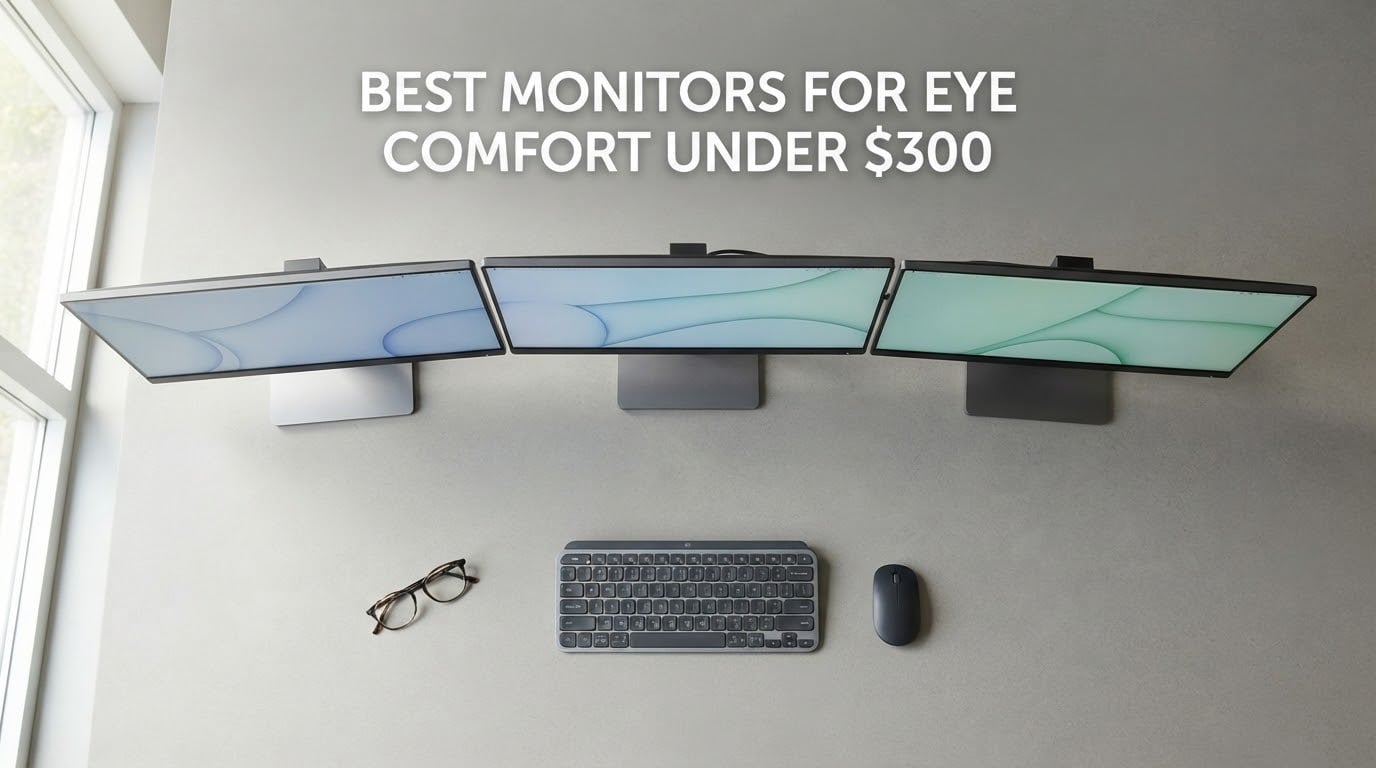
If you spend eight hours a day in front of a screen, the monitor matters more than most spec sheets admit. The best monitors for eye comfort under 300 dollars in 2026 all share three things: a flicker-free backlight, a matte anti-glare coating, and a stand that actually moves so you can put the top of the screen at or below eye level. Those three specs do more for tired eyes than any blue light filter on the box.
We spent weeks reading roughly 21,000 owner reviews across ten sub-300 models, comparing what buyers actually credit for fewer headaches, and we cross-checked every spec against the manufacturer listing. The short version: you do not need to spend four figures to get a comfortable screen. You do need to know which three features to insist on.
Our framework came straight from the symptoms people describe. Studies cited across the eye-care literature put digital eye strain at up to 78% of people who use digital devices, with more than half of computer users reporting symptoms daily. Burning, dryness, blurred focus at the end of the day, and the headache that arrives at 4pm all trace back to three physical sources: backlight flicker, glare, and a screen held at the wrong height and distance. Hardware fixes the first two. A stand fixes the third. Blue light filters address the smallest of the three.
If you want the wider picture before you shop, our guides to flicker-free monitors and monitors that reduce eye strain break the features down in more detail than we can here.
Table of Contents
Top 3 Picks for Eye Comfort Under 300

BenQ GW2780 27 in IPS Eye-Care
- Flicker-free backlight
- Low Blue Light Plus
- Brightness Intelligence sensor
- 250 nits IPS
Dell P2419H 24 in IPS
- Height pivot swivel tilt
- ComfortView blue light filter
- USB hub
- Anti-glare coating

ASUS VA27EHE 27 in Eye Care
- TUV certified flicker-free
- Low blue light
- 75Hz FreeSync
- Frameless IPS
The BenQ GW2780 wins the top slot because it is the only pick that combines a flicker-free backlight, a low blue light mode, and an ambient light sensor that adjusts brightness to your room automatically, backed by a deep body of long-session owner feedback. The Dell P2419H takes the ergonomics crown on the strength of a stand that adjusts four ways. The ASUS VA27EHE is the one to buy when the budget is the deciding factor.
Quick Overview: 10 Best Monitors for Eye Comfort Under 300
| Product | Specifications | Action |
|---|---|---|
| BenQ GW2780 27 in IPS Eye-Care |
|
Check Latest Price |
| Dell P2419H 24 in IPS |
|
Check Latest Price |
| ASUS VA27EHE 27 in Eye Care |
|
Check Latest Price |
 Acer KB272 27 in IPS 120Hz Acer KB272 27 in IPS 120Hz |
|
Check Latest Price |
 Samsung S30GD 27 in IPS Samsung S30GD 27 in IPS |
|
Check Latest Price |
 ASUS VL279HE 27 in Eye Care ASUS VL279HE 27 in Eye Care |
|
Check Latest Price |
 LG 27U411A-B 27 in IPS LG 27U411A-B 27 in IPS |
|
Check Latest Price |
 ViewSonic VA2756A-MHD 27 in ViewSonic VA2756A-MHD 27 in |
|
Check Latest Price |
 msi PRO MP275Q 27 in WQHD msi PRO MP275Q 27 in WQHD |
|
Check Latest Price |
 BenQ GW2490 24 in IPS Eye-Care BenQ GW2490 24 in IPS Eye-Care |
|
Check Latest Price |
Two things stand out in that table. Every pick here is IPS, and every pick is under the 300-dollar ceiling. That is not a coincidence; it is the single biggest reason this budget band is finally comfortable to shop in, and it is also the reason the big-budget eye-care monitor pages online feel irrelevant.
1. BenQ GW2780 27 in IPS Eye-Care: Best Overall for Eye Comfort
BenQ GW2780 Computer Monitor 27″ FHD 1920x1080p | IPS | Eye-Care Tech | Low Blue Light | Anti-Glare | Adaptive Brightness | Tilt Screen | Built-in Speakers | DisplayPort | HDMI | VGA
27 in IPS 1080p
250 nits
Flicker-free
Eye-Care Low Blue Light Plus
Pros
- Eye-Care Low Blue Light Plus with flicker-free backlight
- Brightness Intelligence sensor adjusts output to ambient light
- Crisp IPS colour with 178 degree viewing angles
- Three-sided slim bezel suits dual-monitor arms
- DisplayPort HDMI and VGA plus built-in speakers
Cons
- Built-in speakers are weak and tinny
- Stand offers tilt adjustment only with no height swivel or pivot
- 60Hz refresh rate
Over 4200 owner reviews averaging 4.6 stars, and the near-universal theme is not picture quality, it is the end-of-day headache that stopped showing up. Programmers, bookkeepers, and remote workers describe the Eye-Care low blue light mode and the flicker-free backlight as the reason they finish a nine-hour day without the usual dryness. That is the exact outcome this roundup is scored on.
The hardware underneath that claim is sensible. A 27-inch IPS panel at 1920×1080 with 250 nits brightness, 1000:1 contrast, and 178-degree viewing angles means the image holds steady when you shift position in your chair instead of washing out. The Brightness Intelligence sensor reads ambient light and shifts the backlight to match, which quietly solves the problem most buyers create for themselves by running a bright panel in a dim room.
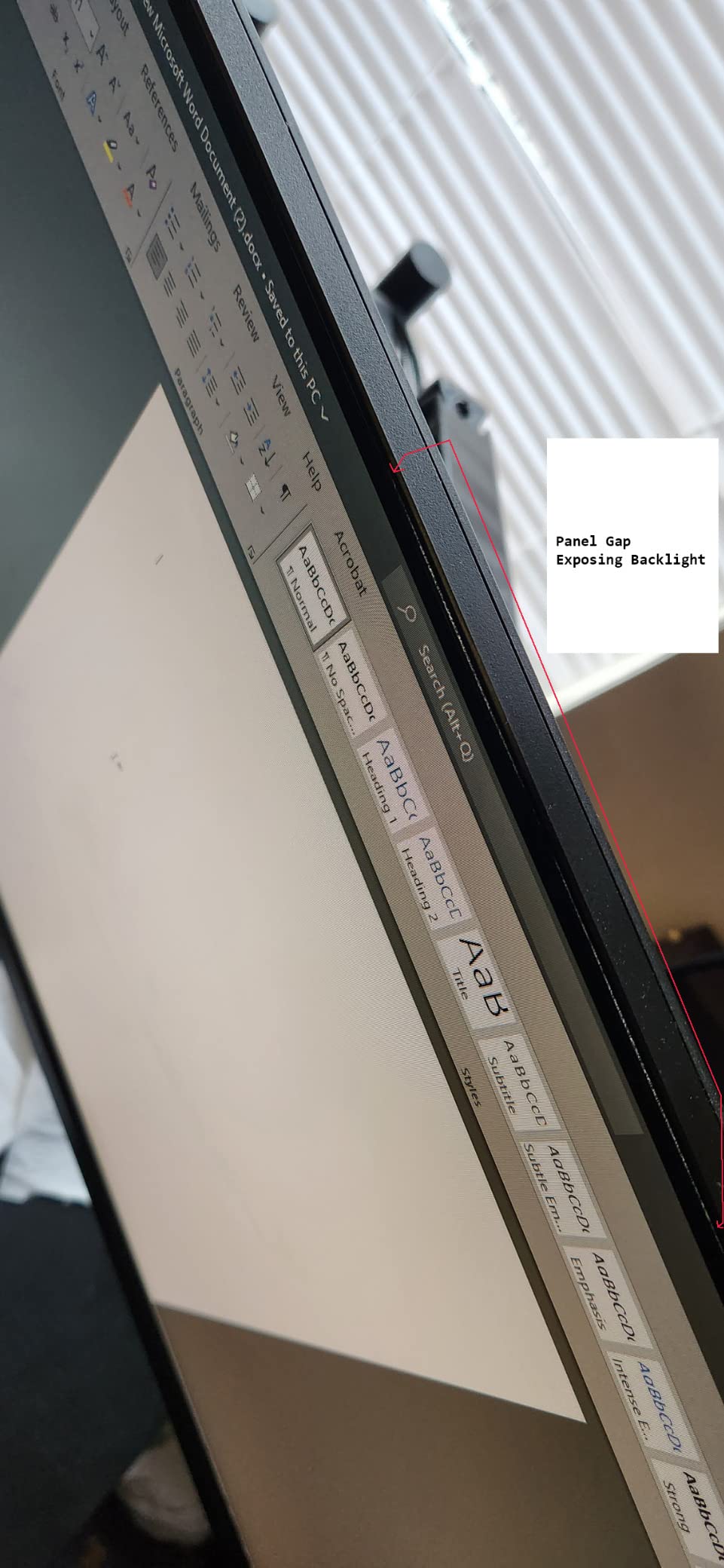
Two details deserve a closer look before you commit. The listed screen finish is glossy rather than matte, so in a room with a window opposite your desk you may see reflections, and the manufacturer sheet does not claim a matte coating here the way it does on the ASUS and ViewSonic panels. A bias light behind the monitor handles that better than any setting does.
The stand is tilt-only. That is the one ergonomic compromise in an otherwise comfort-focused package, and it is the reason a riser or a monitor arm matters here. Because the panel is VESA mountable, putting it on an arm gives you the height adjustment the factory stand does not.
Is the BenQ GW2780 Eye-Care worth it over a cheaper IPS panel?
The gains over a plain IPS monitor are concentrated in the backlight layer, not the panel. The IPS matrix is the same class you get cheaper; what you are paying extra for is the certified flicker-free backlight, the low blue light mode, and the ambient sensor. If your symptoms are a dry, gritty feeling at the end of a long day, that layer is the part doing the work, and it is the part a bare-bones panel does not have.
Who should skip the BenQ GW2780?
Skip it if you game. A 60Hz panel with no adaptive sync feels dated the moment you run anything with fast movement, and the eye-care benefits do not extend to motion judder. If your work is documents, spreadsheets, code and long email threads, the 60Hz figure is irrelevant and this is an easy recommendation.
2. Dell P2419H 24 in IPS: Best Ergonomics Under 300
Dell P2419H 24 Inch LED-Backlit, Anti-Glare, 3H Hard Coating IPS Monitor – (8 ms Response, FHD 1920 x 1080 at 60Hz, 1000:1 Contrast, with ComfortView DisplayPort, VGA, HDMI and USB), Black
24 in IPS 1080p
250 cd per m2
TUV flicker-free ComfortView
4-way stand
Pros
- Height pivot swivel and tilt adjustment as standard
- TUV certified flicker-free with ComfortView blue light reduction
- Five-port USB hub alongside DisplayPort HDMI and VGA
- Three-sided ultrathin bezel for multi-monitor desks
- Anti-glare 3H hard coating
Cons
- 60Hz refresh rate is dated
- 1080p at 24 inches is less sharp than higher-density panels
- No built-in speakers despite the USB hub
At roughly 7300 reviews this is the most thoroughly proven monitor in the group, and reviewers treat it as an office standard rather than an enthusiast purchase. The eye-comfort complaints are almost absent from the feedback. What people complain about is the refresh rate and the sharpness of 1080p, and neither complaint is about comfort.
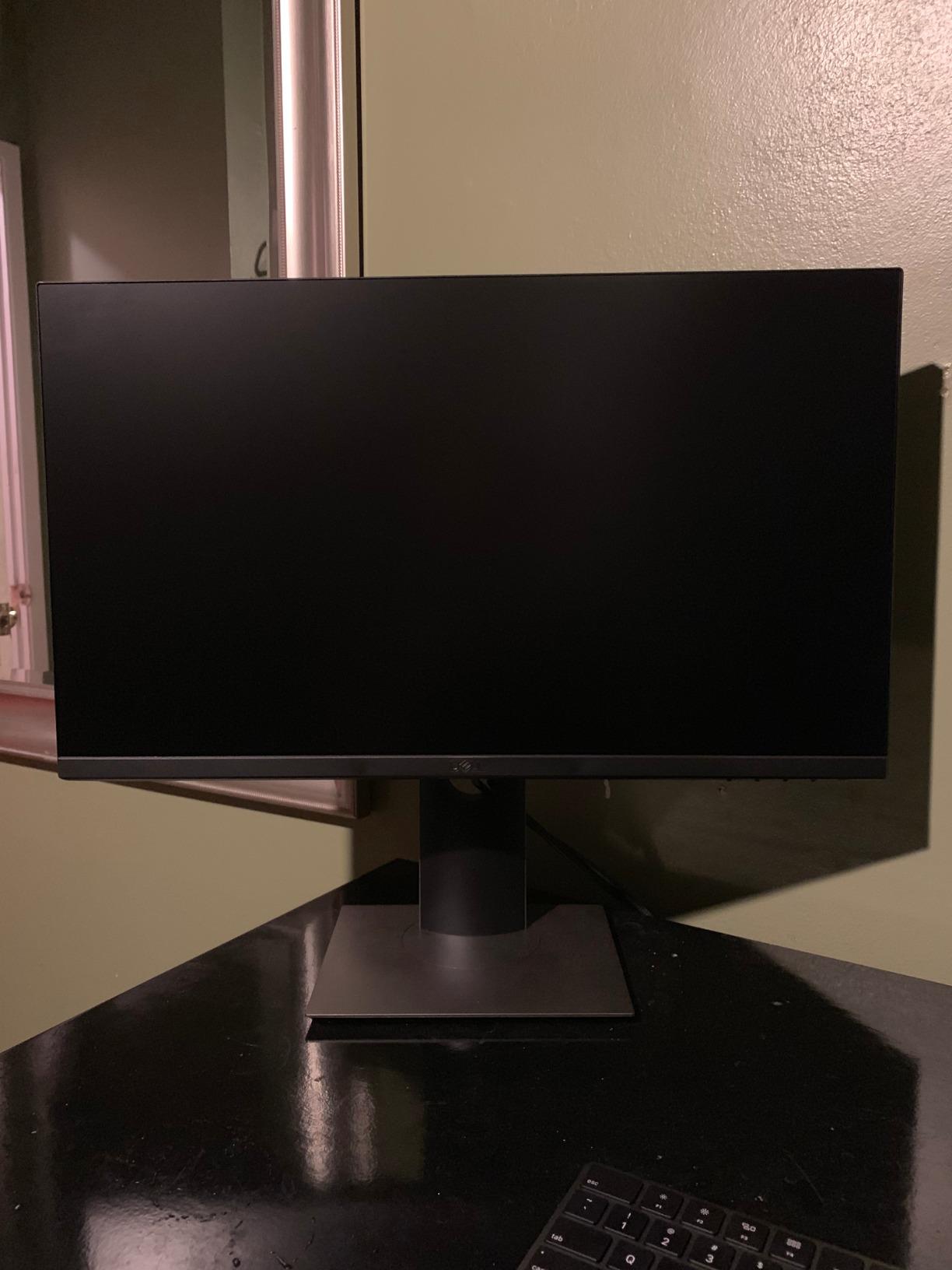
At 24 inches and 1920×1080, the pixel density is better than a 27-inch 1080p panel, so text and interface elements render smaller and cleaner. That is a real comfort benefit for anyone who reads long documents, and it is the reason this monitor still makes more sense for text-heavy work than several larger picks below.
The five-port USB hub is an underrated comfort feature in a different sense. Plugging a laptop into one cable and keeping peripherals attached removes the desk clutter that forces you to hunch and lean.
Why does the adjustable stand matter more than the blue light filter?
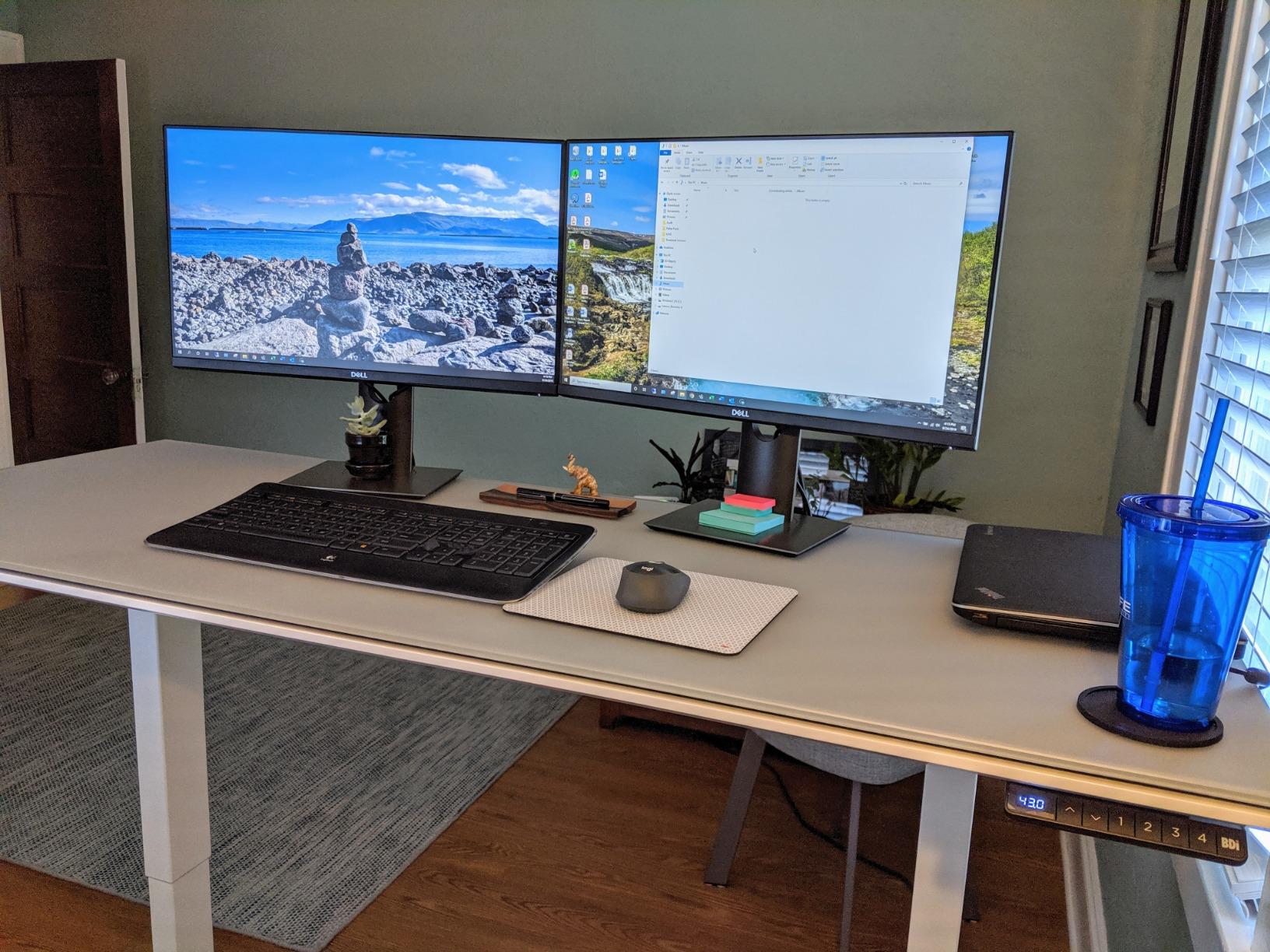
Because the stand changes the geometry of your neck and shoulders every single hour, while the filter changes one color channel. A screen sitting 15 centimetres too high produces neck ache that no filter touches. This is the one pick in the group where you do not need a riser, an arm, or a stack of books to put the top of the screen at or below eye level.
It is also the pick where multi-monitor ergonomics come easiest, since one screen is often off to the side in a home setup. Pivot and swivel let you angle the panel toward your chair instead of craning toward it.
Is a 24-inch monitor less comfortable than 27-inch for eye strain?
Not inherently. Size changes viewing distance requirements rather than eye health, and 24 inches at 1080p actually gives you sharper text than 27 inches at the same resolution, which means less squinting on small interface elements. If you sit about 50 to 70 centimetres back, the 24-inch size is comfortable and the pixel density works in your favour.
3. ASUS VA27EHE 27 in Eye Care: Best Value
ASUS 27 Inch Desktop Monitor – Full HD (1920 x 1080), IPS, 75Hz, Adaptive-Sync, HDMI, D-Sub, Frameless – VA27EHE
27 in IPS 1080p
75Hz
TUV flicker-free and low blue light
FreeSync
Pros
- TUV Rhinland certified flicker-free and low blue light
- IPS panel with 178 degree viewing angle
- 75Hz Adaptive-Sync is smoother than 60Hz office panels
- Frameless three-sided bezel with VESA wall mounting
- Tool-free base assembly
Cons
- No height adjustment on the stand
- VGA as the second input instead of DisplayPort
- No built-in speakers or headphone output
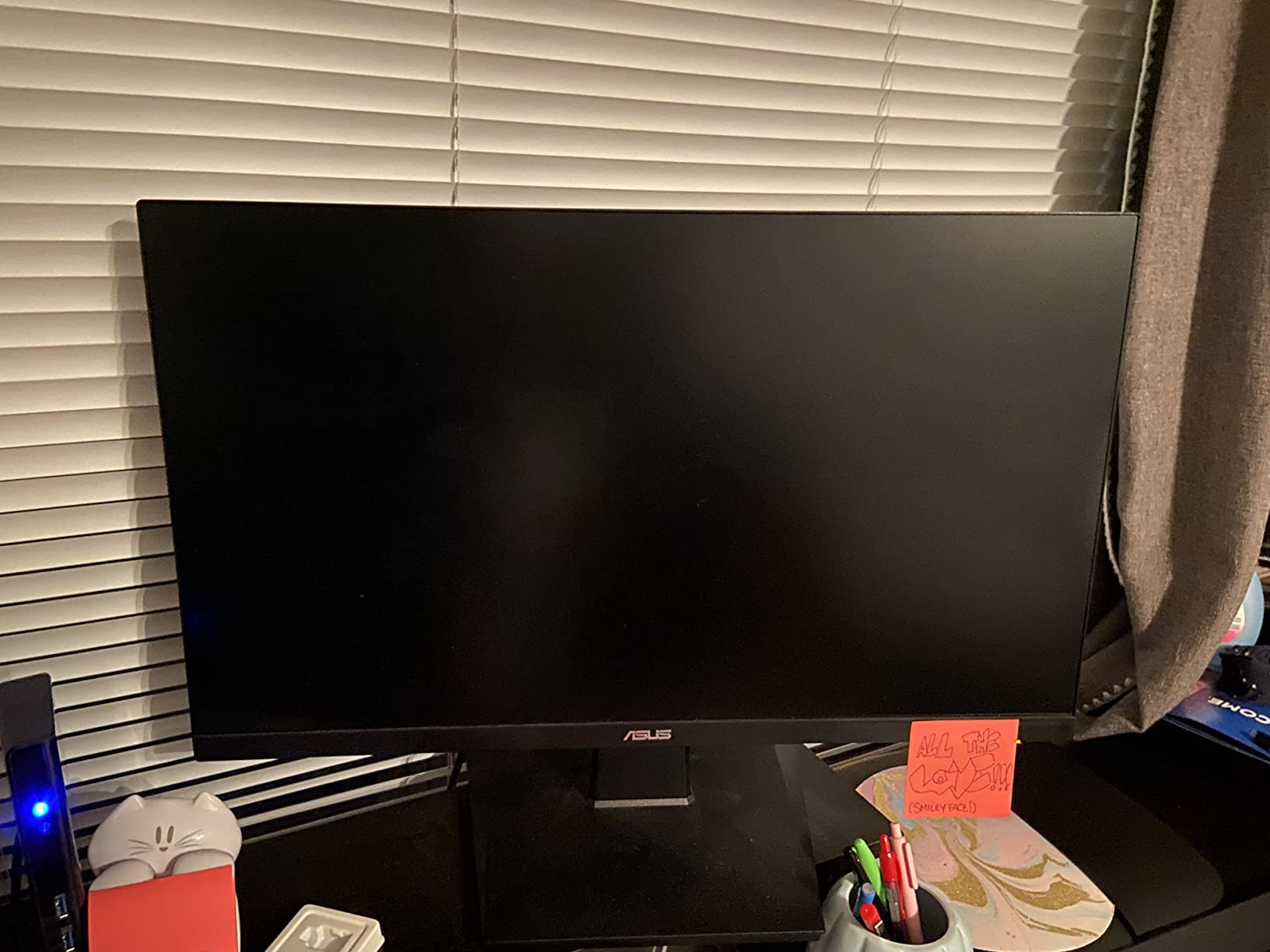
More than 3200 reviews averaging 4.6 stars, with 80% five-star, and the feedback pattern is consistent: people buy this as a first serious monitor or a second desk screen, and they report crisp colour, no dead pixels, and a blue light filter they actually notice during long working hours.
What makes it the value pick is that it carries a TUV Rheinland certification for both flicker-free operation and low blue light, which is the certification most competitors in this band only assert. Certified means an external lab tested it, which is a stronger guarantee than a brand name on a box.
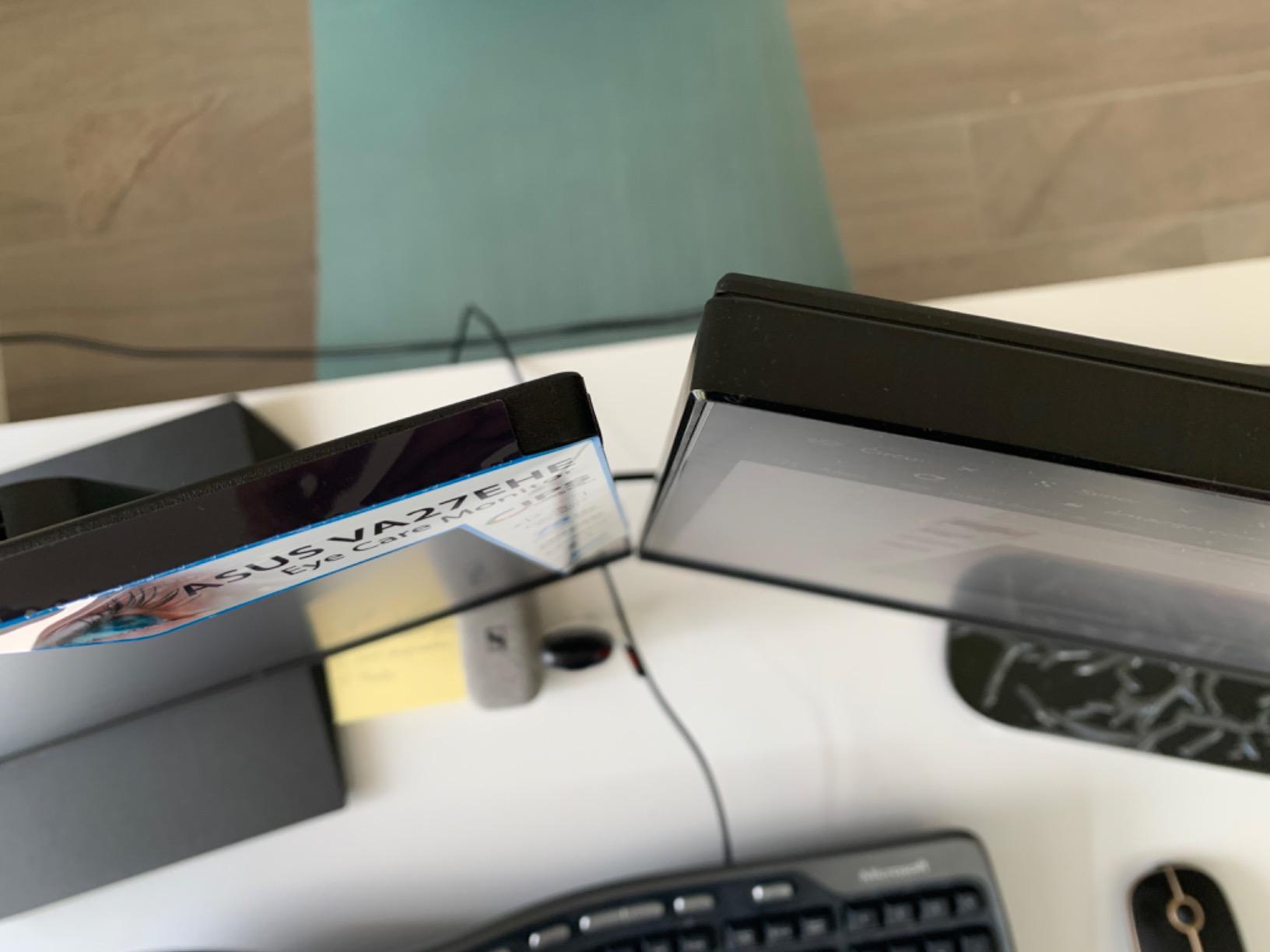
The 75Hz Adaptive-Sync panel also matters more than it sounds for comfort. Scrolling a long document at 75Hz produces visibly less judder than a 60Hz panel, and judder is a repeated visual impulse your eyes have to track. It is not a gaming feature in this context, it is a smoothness feature.
Panel-wise you get a matte finish, 178-degree viewing angles, and 1000:1 contrast. The stand tilts only, and the second input is VGA rather than DisplayPort, so plan on HDMI from a modern laptop or an adapter if you need a second source.
Is a TUV Rheinland certification worth more than a higher refresh rate?
For eye comfort, yes. A TUV Rheinland flicker-free certification means an independent body measured the backlight output across brightness levels. A higher refresh rate just means the panel redraws more often and says nothing about the backlight. When the goal is fewer headaches over a ten-hour day, the certification is the more relevant number.
That said, the 75Hz panel here is a genuine secondary benefit, and the combination of a certified flicker-free backlight with a certified low blue light mode at this budget is rare. The screen finish is matte, which also means it behaves well under office lighting.
Who will be disappointed by the ASUS VA27EHE?
People who need more than one modern input. HDMI plus VGA is a dated pairing, and if you rotate between a laptop and a desktop with a DisplayPort output you will be adapting cables. The tilt-only stand is the other limit, and it means your eye level is whatever the desk height gives you.
It is also not the sharpest option at 27 inches, because 1080p across that diagonal gives a lower pixel density than the 24-inch Dell above. For reading-heavy work where you would otherwise run 150% scaling, that tradeoff is worth weighing.
4. Acer KB272 27 in IPS 120Hz: Best for Smooth Scrolling and Casual Gaming
Acer 27in FHD 1920×1080 IPS 120Hz Gaming Monitor | Office KB272 G0bi
27 in IPS 1080p
250 nits
120Hz 1ms VRB
FreeSync
Matte
Pros
- 120Hz refresh and 1ms VRB response make motion noticeably smoother
- IPS keeps brightness and colour steady at wide viewing angles
- Adaptive-Sync gives tear-free playback with a matching GPU
- Matte anti-glare finish limits reflections in bright rooms
- Top-selling budget monitor with 2100 reviews
Cons
- No documented low blue light or flicker-free eye-care certification
- Basic tilt-only stand
- HDMI and VGA only with no DisplayPort
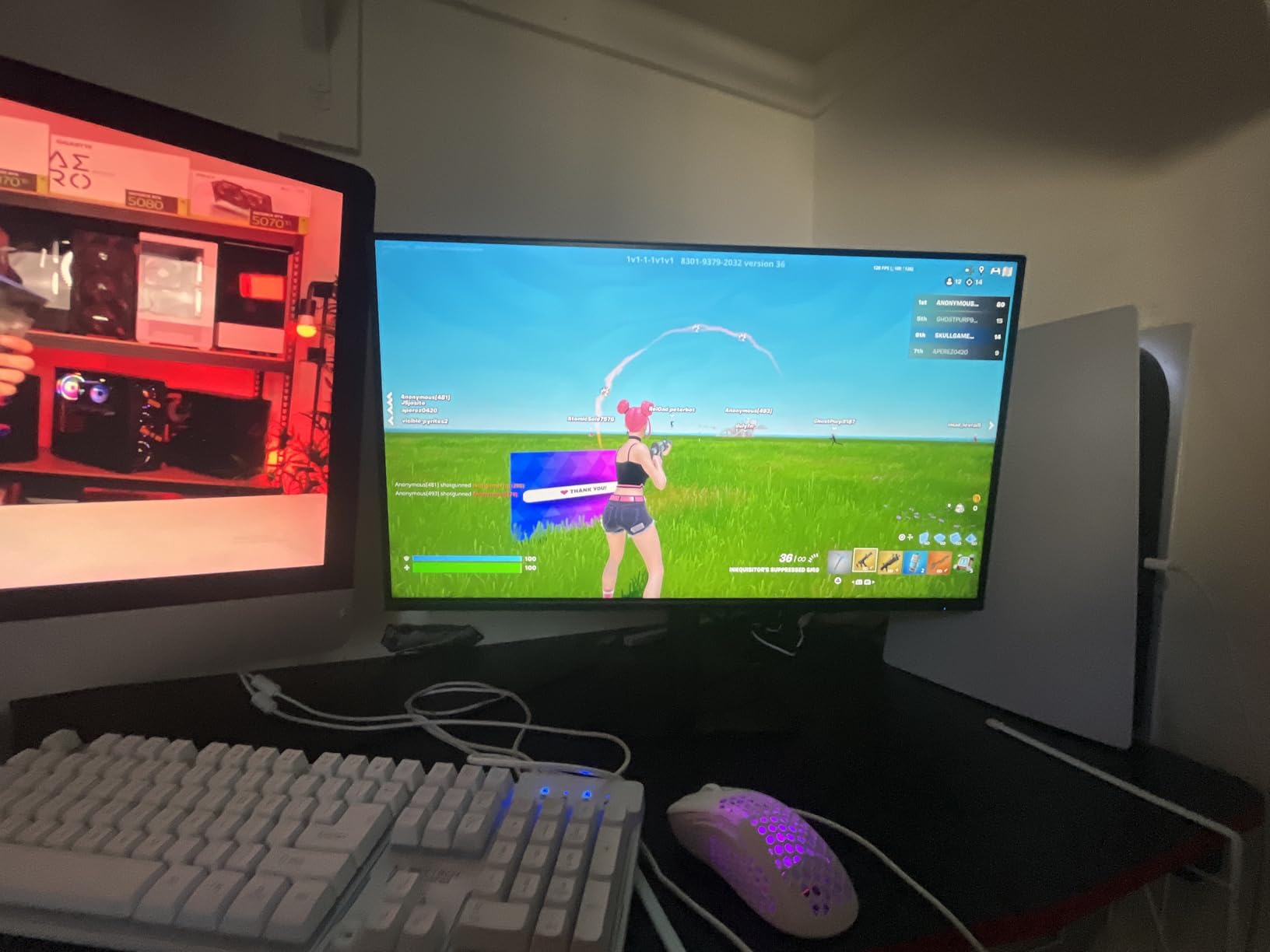
Just over 2100 reviews at 4.6 stars, and this is the only pick in the group where the motion performance genuinely leads the comfort story. Owners describe the difference between 120Hz and the 60Hz office panels they replaced as obvious the first day, and the IPS panel keeps colour and brightness stable across a wide viewing area of a 27-inch screen.
That stability has a direct comfort consequence on a large panel. When brightness shifts as you lean left or right, you spend the session re-adapting. A wide-angle IPS panel removes that re-adaptation, which is why reviewers here single out reduced squinting across the screen rather than the refresh rate as the reason it feels easier on the eyes.
Be clear-eyed about the gap between this and the eye-care picks. The listed features for this model do not include a low blue light mode or a flicker-free certification, and reviewers flag the absence of a dedicated eye-care feature as the main reservation. You are buying a good IPS panel with smooth motion, not a certified eye-care backlight.
The matte finish helps more than most buyers expect, since reflections from a window or a lamp are one of the fastest routes to squinting and re-focusing. The stand tilts only, and the ports are HDMI and VGA with no DisplayPort.
Do you need a certified eye-care feature if you never play games?
Not strictly, but you are giving up the one layer most likely to be causing your symptoms. The IPS matrix and the matte coating here are the same general comfort foundation the certified models are built on. What is missing is a measured claim about the backlight behaviour, which is where flicker-related discomfort usually originates.
If your symptoms are headaches and screen-triggered fatigue rather than dry eyes, the flicker question is the one worth asking about. If you mainly want smooth scrolling, a 120Hz IPS panel delivers a visible improvement that a blue light mode does not.
Is the 120Hz refresh rate actually an eye comfort feature?
Second-order, but real. Higher refresh reduces the judder you perceive when content moves across the screen, and judder is a repeated impulse your eyes track rather than ignore. At 120Hz the movement is smooth enough that you stop noticing it, and most people stop consciously tracking their eyes while scrolling.
It does not fix flicker, glare, or screen height. Those three are what produce strain, and this monitor only addresses one of them plus the panel. Rate it accordingly when you read the rest of this guide.
5. Samsung S30GD 27 in IPS: Best for Multi-Monitor Desks
Samsung 27″ (S30GD) Essential Monitor with IPS Panel
27 in IPS 1080p
250 nits
100Hz
Eye Care blue light filter
Flicker-free
Pros
- Eye Care mode reduces blue light and screen flicker for long sessions
- IPS holds colour steady as you change viewing angle
- 100Hz makes scrolling and casual gaming smoother than 60Hz
- Super-slim chassis with ultra-thin border bezels
- Light 6.4 pound body with quick plug-and-play setup
Cons
- One-year manufacturer warranty is shorter than rivals
- No height or swivel adjustment and stand can feel loose
- Only HDMI and D-Sub inputs with no DisplayPort
Around 1180 reviews averaging 4.5 stars, with the highest share of one-star ratings in this group at 6%. The complaints are almost never about eye comfort. They are about the stand feeling loose, the screen sitting relatively high, and the one-year warranty, which is shorter than most of the field.
On the comfort axis it does what it claims. The Eye Care mode reduces blue light and screen flicker for long working sessions, the IPS panel holds brightness steady as you change viewing angle, and the 100Hz panel is a step up from the 60Hz office standard. Reviews are overwhelmingly positive on value, IPS colour consistency, and the filter during long sessions.
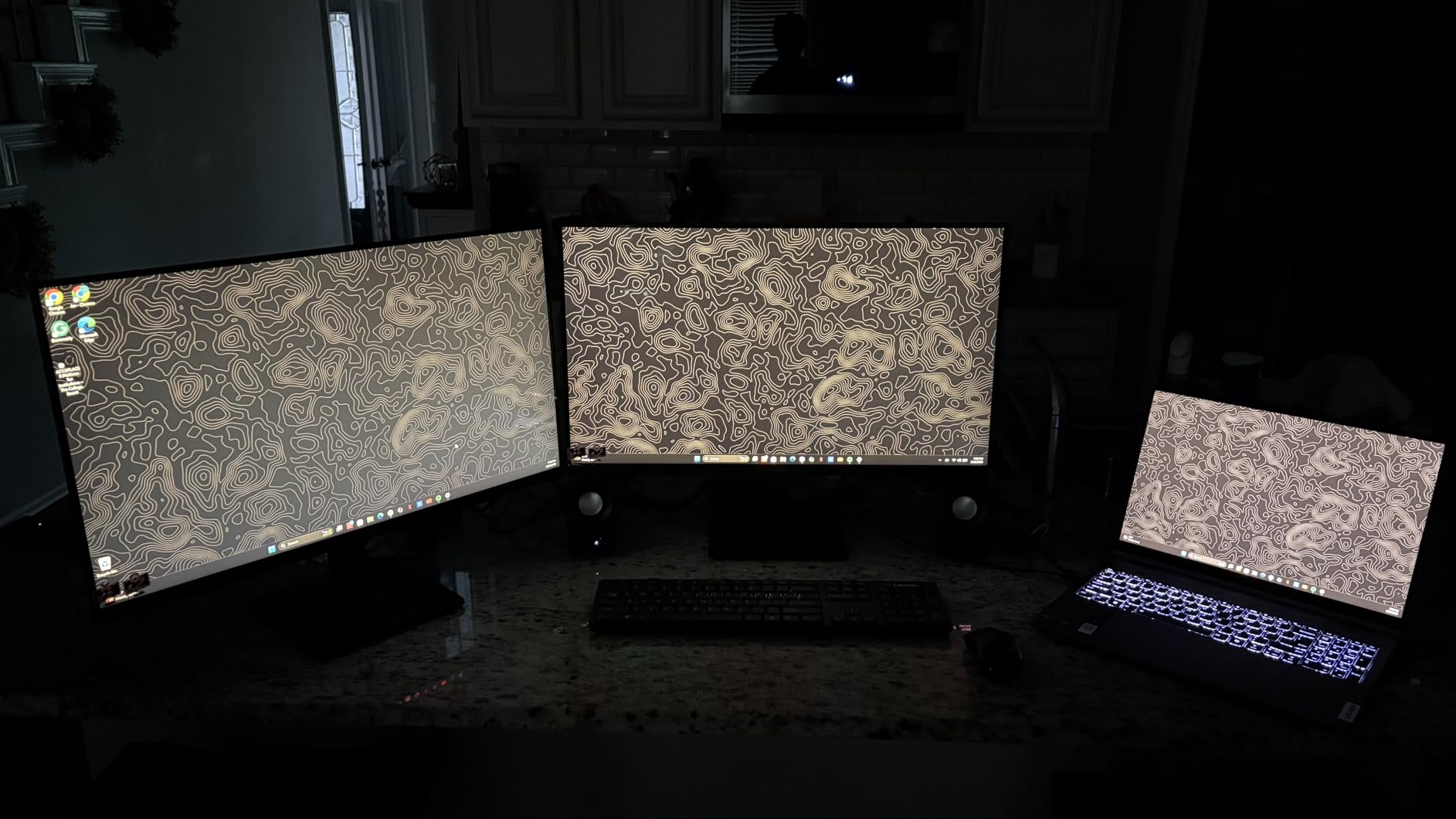
Where it earns its badge is physical. The ultra-thin border bezels and a 6.4 pound chassis make it the easiest of the 27-inch picks to pair side by side, and a light body is easier to reposition when you set two screens at a comfortable angle. Two screens at the correct height and angle reduce the constant neck rotation that produces ache.
The listed screen finish is glossy, same as the BenQ above, so it is not the choice for a desk facing a window. And the stand does not adjust for height, which means a second monitor in this configuration really wants a shared arm rather than two factory stands.
Is one wide monitor better than two for eye strain?
One wide monitor wins if your workflow is linear, because there is no seam in your field of view for your eyes to track. Two monitors win if you need reference material beside your main work, and you can angle them so your head stays centred rather than swivelling all day. The two-screen setup causes more strain when both panels are off to the side and poorly positioned.
The deciding factor is the stand. Two 27-inch screens on tilt-only bases will not sit at a comfortable height for most desks, and that geometry problem costs more than any panel specification. Budget for an arm if you go dual.
What is the one-year warranty risk on this model?
It means panel problems get less time to surface before the coverage ends, and a few owners in the review set reported units that were faulty on arrival. Most brands in this band offer three years, so the shorter term is a genuine trade-off you are making to keep the cost down.
Check your panel for dead or stuck pixels during the return window rather than after it. If you are pairing two of these, inspect both at the same time under the same lighting so a mismatch is obvious immediately.
6. ASUS VL279HE 27 in Eye Care: Best for Blue-Light Sensitivity
ASUS VL279HE 27” Eye Care Monitor, 1080P Full HD (1920 x 1080), IPS, 75Hz, Adaptive-Sync, FreeSync, HDMI D-Sub, Frameless, Slim, Wall Mountable, Flicker Free and Blue Light Filter
27 in IPS 1080p
75Hz
TUV Rheinland eye care
Matte anti-glare
Pros
- TUV Rheinland certified flicker-free and low blue light technology
- Matte anti-glare surface absorbs ambient and direct lighting
- IPS panel with bright whites and accurate colour
- 75Hz Adaptive-Sync with ASUS GamePlus overlay tools
- Slim frameless design with VESA wall mounting
Cons
- Thick lower bezel breaks the frameless look
- OSD controls on the back and a fiddly power button
- No built-in speakers and no DisplayPort
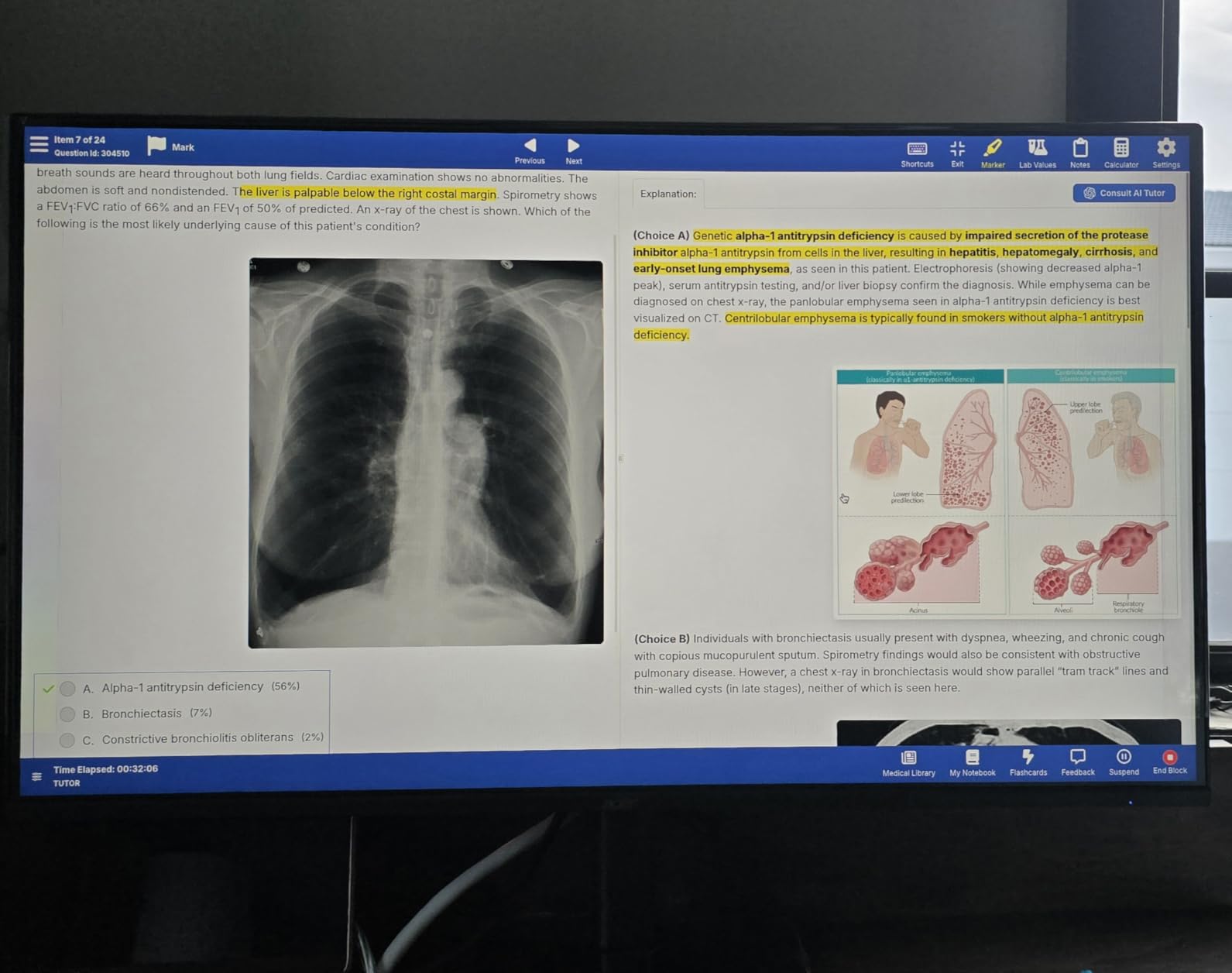
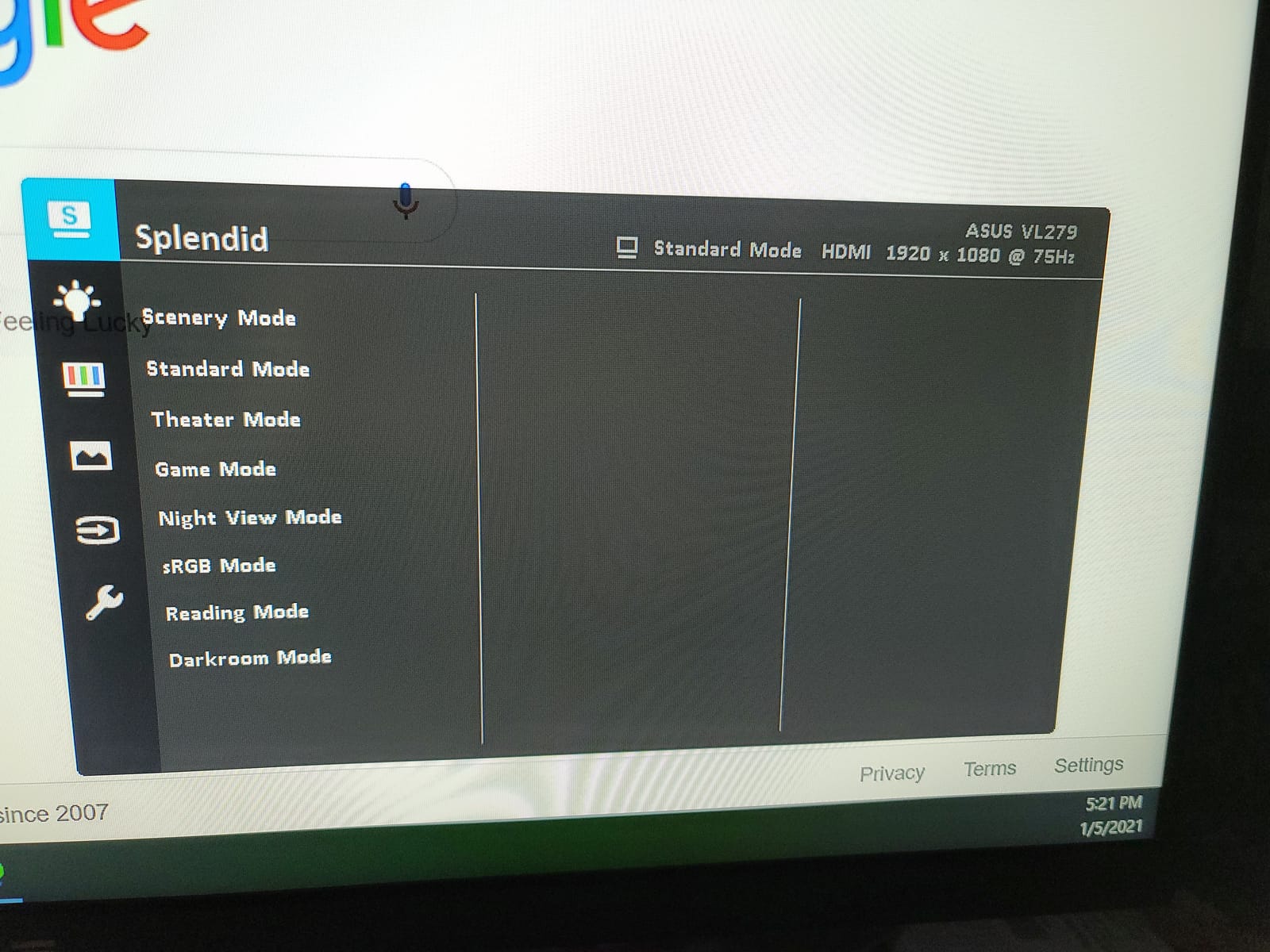
Just over 1090 reviews at 4.6 stars, and owners repeatedly single out two things: the matte coating and the blue light filter reducing eye fatigue, and improved colour quality after switching the picture mode away from the out-of-box default. That second comment is worth acting on, since it costs nothing.
The certification here is the reason this monitor leads the field for light sensitivity. TUV Rheinland certification for flicker-free and low blue light is measured by an outside lab, and the matte surface absorbs ambient and direct lighting with minimal reflections. Glare is a bigger real-world trigger for photophobia than any color temperature setting, and matte handles it at the source.
Mechanically it is a slimmer, cleaner design than the VA27EHE above, with a thin three-sided bezel and VESA wall mounting. The 178-degree IPS viewing angle keeps contrast consistent as you move, and the 1000:1 ratio is standard for the class. A monitor that can be wall-mounted or arm-mounted also solves the height problem permanently.
The design has visible compromises. The tall bottom bezel interrupts the otherwise frameless look with roughly a quarter inch of black border all round, the on-screen display controls sit on the back, and the multi-function power button is awkward. None of that affects comfort, but all of it is visible every day.
Is matte or glossy better for sensitive eyes?
Matte, clearly, if your desk is anywhere near a window or a bright overhead light. A glossy screen becomes a mirror for whatever light source is in front of it, and your pupils have to re-adapt to the changing reflection every time you glance away and back. That constant re-adaptation is a well-documented driver of both squinting and end-of-day ache.
The cost of matte is a slightly softer image under direct light and a faint haze when the room is dark. If you work in a controlled dim room and the screen faces nothing, glossy looks sharper. For most desks, matte wins on comfort.
Do I need TUV certification or is the brand claim enough?
Certification is meaningfully stronger than a brand claim, because a claim is what the manufacturer says about its own product and certification is what an independent body measured. The distinction matters most for flicker-free, since a flicker-free backlight is a measurable property that varies by model and by batch.
A low blue light filter still is a filter, and the honest caveat in our buying guide applies equally here. What is not in dispute is that a measured flicker-free backlight removes a real source of discomfort for long sessions.
7. LG 27U411A-B 27 in IPS 120Hz: Best for HDR and Split-Screen Work
LG 27U411A-B 27-inch Full HD (1920 x 1080) IPS Computer Monitor, 120Hz, HDR10, Reader Mode, Flicker Safe, HDMI, Slim Stand Base, Black
27 in IPS 1080p
250 cd per m2
120Hz HDR10
Reader Mode
Flicker Safe
Pros
- Reader Mode lowers blue light for long reading sessions
- Flicker Safe backlight reduces flicker for extended productivity
- 120Hz refresh with 1ms Motion Blur Reduction
- IPS panel with HDR10 and up to 99 percent sRGB coverage
- Switch app splits the screen into six sections on one hotkey
Cons
- No height swivel or pivot adjustment on the slim stand
- HDMI only with no DisplayPort or USB hub
- One-year manufacturer warranty
Just under 1000 reviews at 4.5 stars. Buyers consistently name the same combination as the reason they are happy: Reader Mode, Flicker Safe, and a 120Hz IPS panel together, describing text as crisp and long sessions as comfortable. That is precisely the feature set this guide ranks highest.
Reader Mode is the more useful of the two for document work because it is a one-button shift to a warmer, lower-blue-white rendering rather than a dimmed panel. Flicker Safe addresses the backlight itself, which is the deeper fix. Having both on a single hotkey means you can switch as the light in the room changes through the day.
The 120Hz panel and 1ms Motion Blur Reduction put it alongside the Acer in motion smoothness, and its 1500:1 contrast ratio is the highest native figure among the 1080p IPS picks here. HDR10 support with up to 99% sRGB coverage is a bonus for media, though at 250 nits the HDR experience is modest rather than dramatic.
The Switch app is a small thing that pays off in real work. Splitting the screen into up to six sections on one hotkey is useful when you are comparing a document against a spreadsheet, and it means you need fewer windows and therefore less eye movement between distant parts of the screen.
Is HDR support useful on a 250 nit panel?
Marginally. HDR needs real highlight headroom above SDR white to show its benefit, and 250 nits is a modest ceiling in a normally lit room. What you will actually notice is that HDR content stops looking flat and grey, and that you get a wider colour range in the modes that are supported.
It is worth having, but it is not a reason to pick this monitor. The reason to pick it is Flicker Safe plus Reader Mode plus 120Hz in one package, which is a genuinely complete eye-comfort feature set for a work-focused display.
What does the missing stand adjustment cost in practice?
More than the specification suggests. The slim stand base tilts from minus 5 to 20 degrees, which is helpful for angling the panel down at a monitor arm or a riser, but it does not raise or lower the screen. On most desks that means the panel edge sits above eye level, which pushes your chin up and loads your neck through the afternoon.
The fix is cheap and simple. Because the monitor is VESA mountable, a riser or an arm handles the height question for a small outlay, and the tilt range is enough to dial the top of the screen down to the right place once it is elevated.
8. ViewSonic VA2756A-MHD 27 in: Best-Rated IPS Panel
ViewSonic VA2756A-MHD 27 Inch Full HD Computer Monitor, IPS 120Hz Display
27 in IPS 1080p
250 nits
120Hz
Eye ProTech+ flicker-free
Blue light filter
Pros
- Eye ProTech+ Flicker-Free and Blue Light Filter reduce eye fatigue
- Highest average rating in this roundup at 4.7 stars with 83 percent five-star
- SuperClear IPS gives accurate colour with no washout when you shift
- 120Hz with Adaptive Sync and a DisplayPort-out for daisy chaining
- Three inputs plus a 3.5mm audio out
Cons
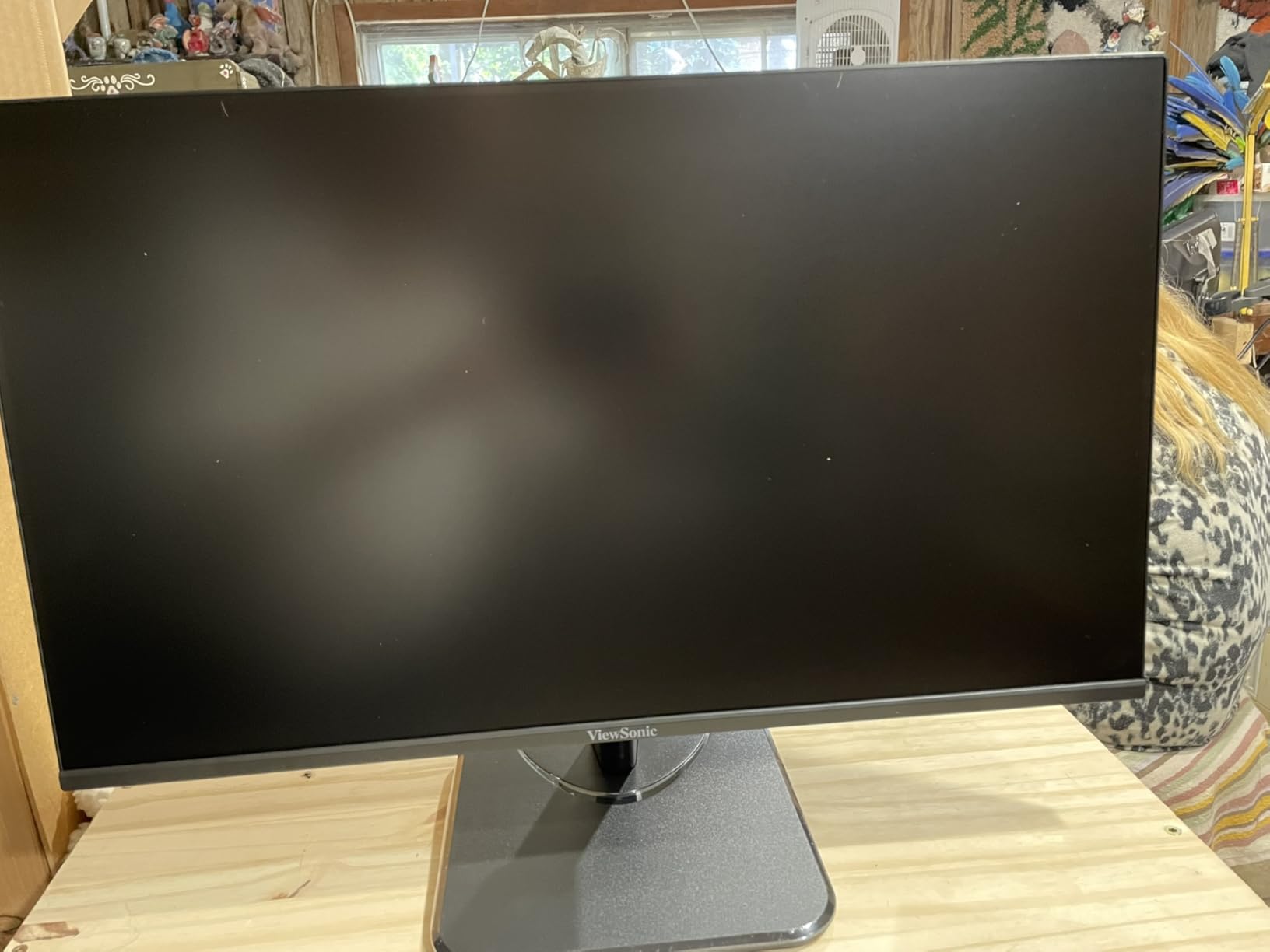
- No height adjustment and only minimal tilt with some reported wobble
- Brightness tops out at 250 nits which is dim for very bright rooms
- No USB hub
449 reviews at 4.7 stars with 83% five-star, the highest average rating in this roundup. The review count is among the smallest in the group, so treat the rating as strong rather than settled. What long-term owners describe is a durable monitor they buy repeatedly, with measurably less eye fatigue than older 60Hz panels.
The reasons cited are specific: the flicker-free backlight and the blue light filter. Eye ProTech+ Flicker-Free technology combined with a Blue Light Filter addresses the two hardware-level causes of strain, and the SuperClear IPS panel keeps colour and brightness accurate from wide viewing angles without washing out when you shift position.
Connectivity is the quiet strength. DisplayPort with daisy-chain output, HDMI, VGA, and a 3.5mm audio out means it is the easiest model here to slot into a two-monitor desk, and the ViewMode presets for Game, Movie, Web, Text, and Mono give you a warm low-blue text mode in one keystroke.
Two limitations are consistent across the reviews. The stand has no height adjustment and only minimal tilt, and some owners report wobble on uneven desks. The other is the 250 nit ceiling, which is fine in a normal room and short of what a very bright office needs.
Is a 4.7 star rating on 449 reviews more trustworthy than 4.6 on 4200?
Less so, and we rank accordingly. A smaller sample moves more on each individual review, so the average is less stable and the confidence interval is wider. What you are seeing here is a monitor with no serious complaints rather than a monitor with a proven long-term record.
That distinction matters most for failure modes. Dead panels and backlight defects often show up after a year, and only a large review pool will reveal them. Check the return window carefully on any smaller-sample pick, and treat the rating as a good sign rather than a settled verdict.
Is the DisplayPort daisy-chain output actually useful?
It is, in a specific setup. If you run two monitors side by side, you run one cable to this one and a second cable to the other instead of two cables back to the GPU, which matters on a laptop dock with a limited number of ports. You also get a proper DisplayPort input instead of the VGA pairing most rivals in this band offer.
It does nothing if you only run one screen. Treat it as a reason to prefer this model in a dual-monitor desk rather than a general recommendation.
9. msi PRO MP275Q 27 in WQHD: Best for Coding and Text-Heavy Work
msi PRO MP275Q 27 Inch WQHD Office Monitor – 2560 x 1440 IPS Panel, 100 Hz, Eye-Friendly Screen, Built-in Speakers, Tilt-Adjustable – HDMI 2.0b, DP (1.2a)
27 in IPS 2560x1440
300 nits
100Hz
TUV Eye Comfort
Less Blue Light
Pros
- Only WQHD 2560x1440 panel here giving far more text space at 27 inches
- TUV Rheinland Eye Comfort certified Less Blue Light and Anti-Flicker
- Eye-Q Check software plus anti-glare surface treatment
- 100 percent sRGB 10-bit colour 300 nits and 1300:1 contrast
- Built-in 2W speakers with headphone out and a 100x100mm VESA mount
Cons
- Stand is tilt-only so a monitor arm is effectively required
- Some units arrive dead or stuck cycling through colour screens
- Lowest average rating in this group at 4.3 stars
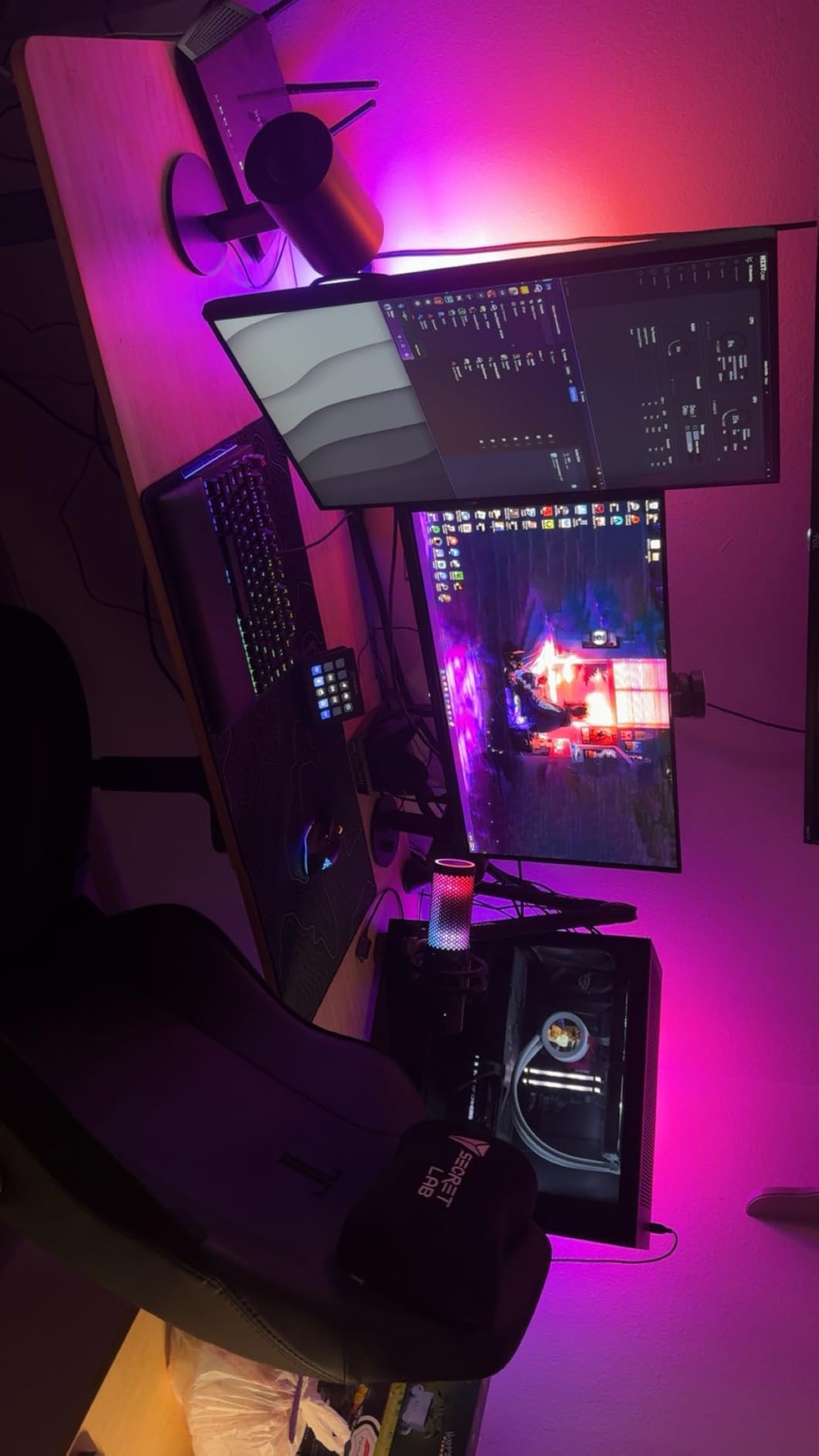
This is the only WQHD panel in the group, and that single fact changes the comfort equation for text-heavy work. At 2560×1440 on a 27-inch screen you fit far more code, more lines, and more columns than 1080p allows, so you spend less time scrolling and less time squinting at small text to read it.
The eye-comfort hardware is properly certified. TUV Rheinland Eye Comfort certification covers the Less Blue Light and Anti-Flicker technology, and it is joined by Eye-Q Check software and an anti-glare surface treatment. Owners who receive a working unit specifically praise the QHD sharpness and the eye-comfort features for coding.
The colour and brightness figures are the strongest in the roundup: 100% sRGB, 10-bit colour, 300 nits, and 1300:1 contrast. That combination is what keeps text clean and edges defined without the smearing that low contrast produces, and the 100Hz refresh rate is a clear upgrade over 60Hz even for browsing and coding.
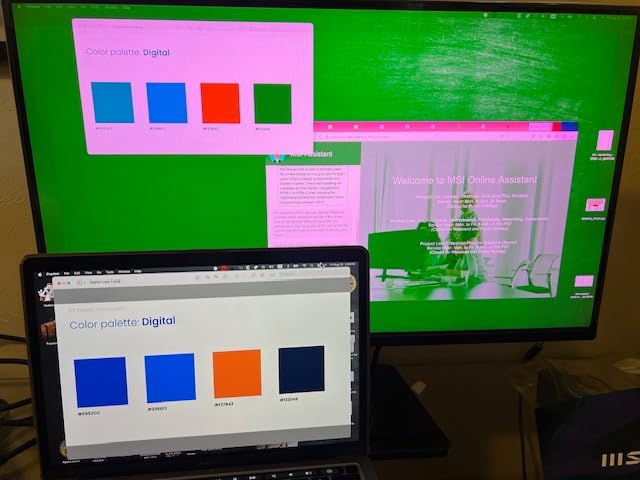
Now the part that lowers this to a 4.3 average. A cluster of units arrived dead or stuck cycling through solid colour screens and needed replacement, and refresh-rate negotiation is unreliable with older graphics hardware, sometimes showing no image until a reboot. Ten percent of reviews are one-star, the widest spread in the group. Check the return window and inspect the panel on arrival.
Does higher resolution actually improve eye comfort?
Yes, through text sharpness. Higher resolution means smaller, more defined glyph edges, so you read at a comfortable size without scaling up interface elements to an uncomfortable size. That is the mechanism, and it is why a QHD 27-inch panel often feels easier on the eyes than a 1080p one even at the same physical size.
It does not work automatically. You will want to set the operating system display scaling so the text renders at a readable size rather than microscopic, and if you do not, the extra pixels make things worse rather than better.
Is a tilt-only stand acceptable on this model?
It is workable because the review set says the ergonomics require a monitor arm, and the panel has a 100x100mm VESA mount for exactly that. This is the one pick in the roundup where we consider an arm effectively part of the purchase rather than an optional extra.
The 2W built-in speakers are weak and fire backwards, so plan on external audio or headphones through the 3.5mm output. The tool-free stand assembly and the MSI Display Kit app with split-window multitasking are pleasant details that offset some of that.
10. BenQ GW2490 24 in IPS Eye-Care: Best for Compact Desks
BenQ GW2490 24″ Computer Monitor 100Hz FHD 1920x1080p IPS Eye-Care Tech VESA Mount Thin Bezel Low Blue Light Adaptive Brightness Wall Mount Built-in Speakers DisplayPort HDMI Port2
24 in IPS 1080p
100Hz
Low Blue Light Plus
Flicker-free
Adaptive brightness
Pros
- Eye-Care Tech Low Blue Light Plus filters blue-violet light while keeping colour vivid
- BenQ Brightness Intelligence sensor adjusts output to ambient light automatically
- 99 percent sRGB IPS panel with a 100Hz refresh rate
- Thin three-sided bezel and a 3 year warranty
- ePaper mode for warm low-brightness reading
Cons
- Only tilt adjustment on the stand
- Built-in speakers are quiet and only usable as a backup
- Out-of-the-box colour temperature runs slightly warm
This is the newest and least-reviewed product here at 223 reviews, and the feedback centres squarely on the thing this roundup is about. One buyer bought two specifically for concussion recovery and found the blue light and adaptive brightness features made a noticeable difference, which tells you the target user is someone whose eyes are already sensitive.
Eye-Care Tech Low Blue Light Plus filters shorter, higher-energy blue-violet light while keeping colour vivid, and the flicker-free backlight is the part that matters over long sessions. The Brightness Intelligence sensor adjusts the backlight to ambient light automatically, so the panel matches the room instead of forcing your pupils to keep adapting.
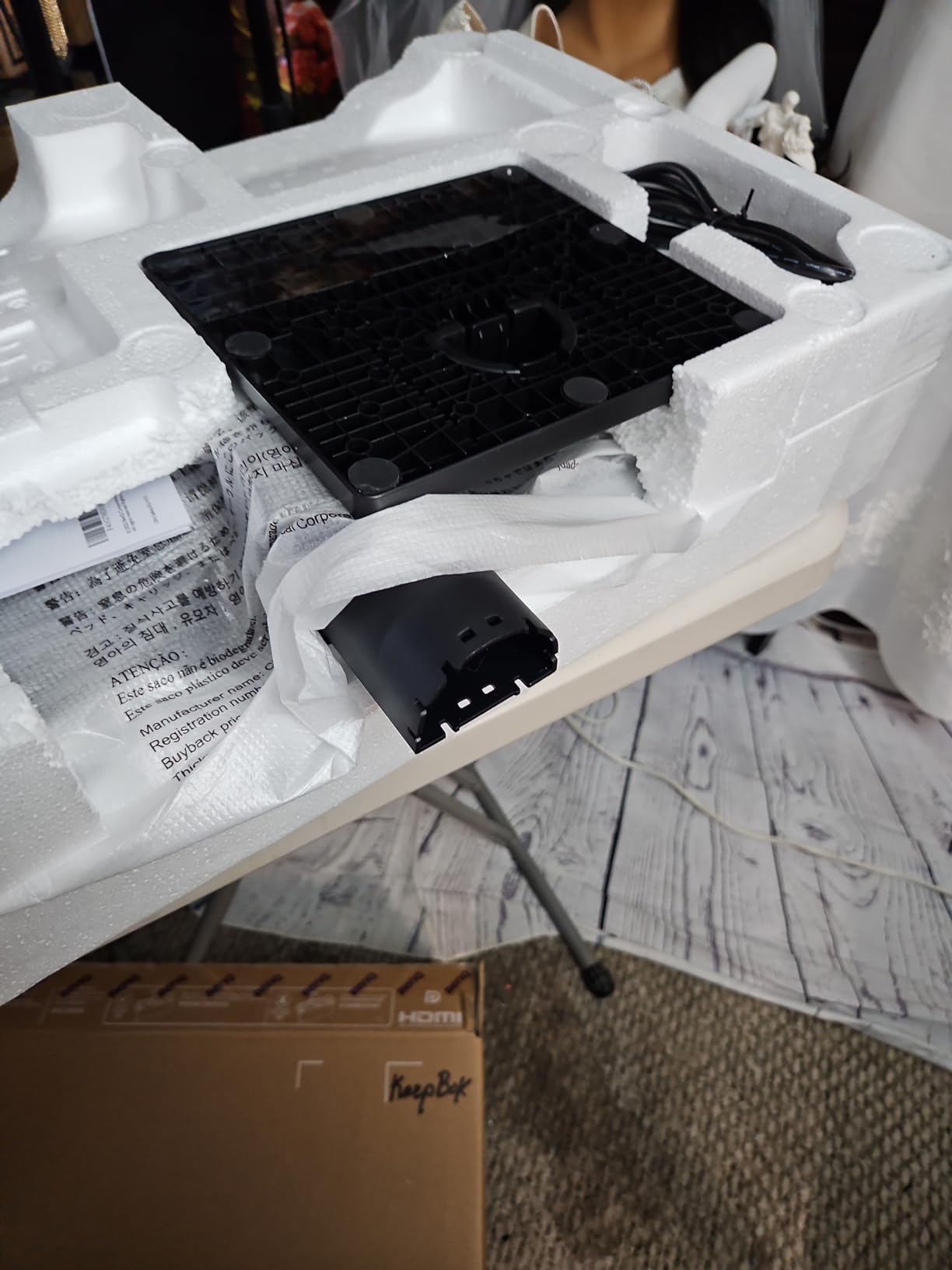
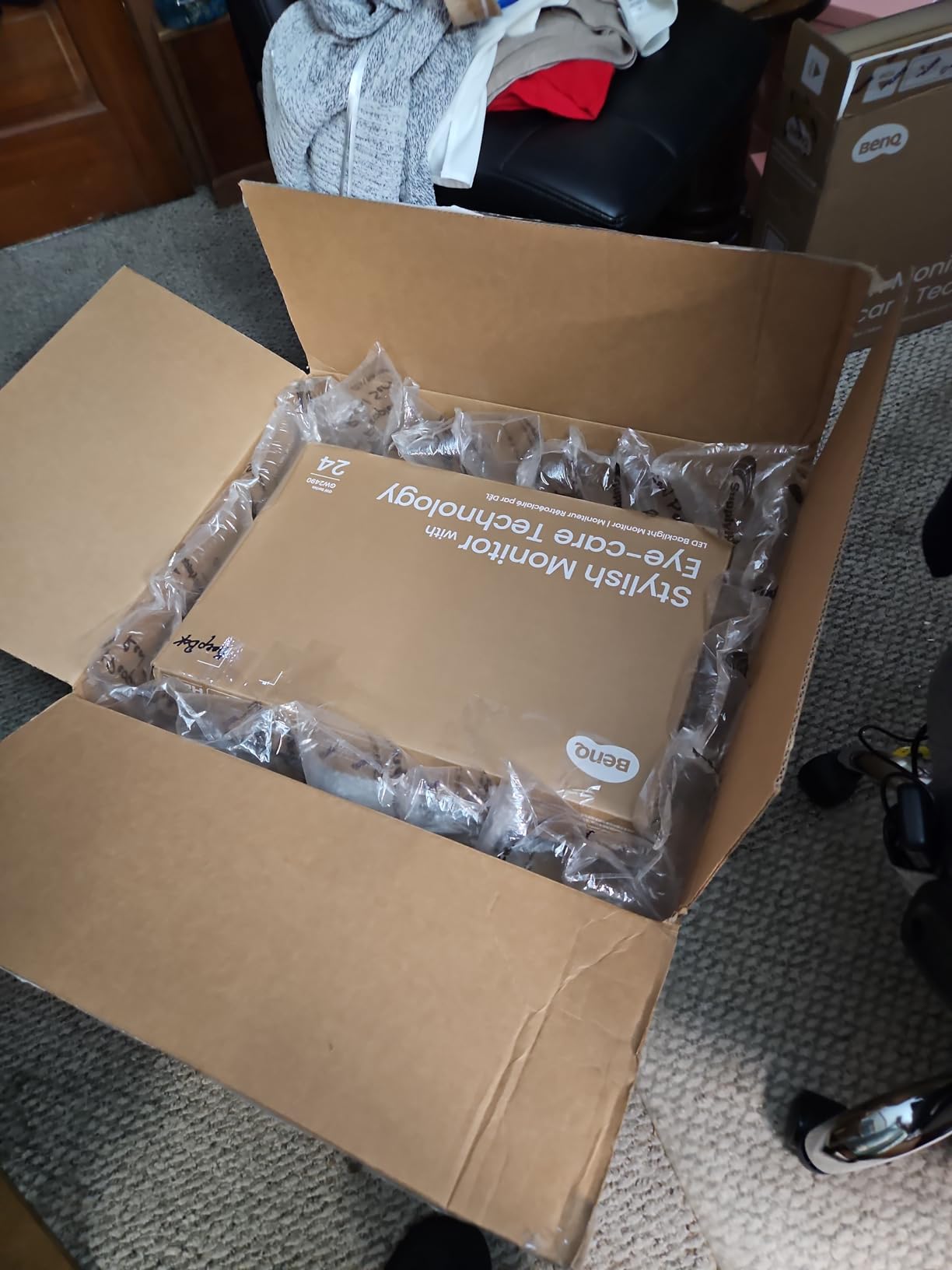
At 24 inches and 1080p, pixel density is better than any 27-inch 1080p panel in this list, so text and file trees render cleanly at native 100% scaling. The 100Hz refresh keeps scrolling smooth, and the thin three-sided bezel is among the smallest gaps between panel and frame at this budget.
Two practical notes. The out-of-the-box colour temperature runs slightly warm and yellow, which some people like for evening reading and others will want to correct in the menu. And the ePaper mode gives you a very low brightness, warm-toned reading mode for night work, which is a genuine comfort feature for evening sessions.
Is a 24-inch monitor right for a small desk?
Usually yes, especially if the alternative is a 27-inch panel on a stand that pushes it above eye level. A smaller panel is easier to position correctly, and a 24-inch footprint leaves room for the keyboard and mouse to sit where they should rather than being pushed to the edge.
The trade-off is workspace. If you routinely need two documents side by side, the 27-inch picks show more at a glance. If you work in one focused window at a time, the sharper text and easier positioning of the 24-inch panel are worth more than the extra area.
What does Brightness Intelligence actually do for eye strain?
It measures the light in the room and adjusts the backlight to match, which removes one of the three causes of screen fatigue almost entirely. When your monitor is far brighter than the surrounding room, or darker, your pupils are constantly adjusting between two brightness levels as your eye moves across the screen and out to the room.
That adaptation is involuntary and it never fully settles. The sensor takes the decision away from you and keeps the panel matched to the ambient condition, so nothing is left to feel tired at 5pm. It is the least talked-about and most useful feature in this roundup.
What Actually Causes Eye Strain From a Monitor
Up to 78% of people who use digital devices report digital eye strain, and more than half of computer users report symptoms every day. The symptoms cluster into three groups, and each one points back to a different physical cause rather than to the screen itself.
Burning and aching around the eyes points to glare and reflections. Your eye is constantly re-focusing as it moves between the screen and a reflection of a window or a lamp on it. The fix is a matte coating and controlling the light in the room.
Dryness and grit points to how long you stare without blinking fully. Screen use reduces blink rate, and the reduced tear film is what makes your eyes feel sandy by late afternoon. An r/buildapc user describing exactly this symptom, mostly dry eyes, reported in the same thread that they find VA panels more comfortable than IPS. That is a genuine preference worth honouring, and we cover it in the panel section below.
Headaches and neck ache point to geometry. A screen at the wrong height or distance forces your neck and your focusing muscles to hold tension all day. No filter on the display fixes this. The stand does.
The Eye-Care Features Ranked by Real Impact
Most roundups list these in the order the box lists them. We rank them by how much each one actually changes your day, because two of the most marketed features sit at the bottom of the list.
1. Flicker-free backlight. Some backlights pulse the brightness rapidly to control it, and the human eye perceives that pulse even though most people cannot consciously see it. It shows up as fatigue after hours rather than as an obvious annoyance. A monitor that is flicker-free removes a stimulus you cannot switch off. Ask whether the claim is certified or just asserted by the brand.
2. Panel type and viewing angle. A 178-degree IPS panel keeps brightness and colour steady as you move, so you do not spend the session re-adapting to different parts of the screen. This is the reason every pick in this roundup is IPS.
3. Matte anti-glare coating. Matte absorbs ambient light instead of reflecting it. Glossy screens behave like mirrors in a bright room, and reflections are one of the fastest routes to squinting.
4. Brightness you can tune to your room. Not maximum brightness. Match the panel to the ambient light so your eyes are not constantly adapting between two levels. A sensor that does this for you is worth more than a manual slider.
5. Height adjustment on the stand. The single most practical comfort lever, and the one most buyers ignore until the neck ache starts. If your pick lacks it, a riser or a monitor arm restores most of the benefit for very little.
6. Blue light filter. Here is the honest part. The scientific evidence for blue light blocking reducing eye strain is limited. What a low blue light mode reliably does is shift the screen warmer, which many people find more comfortable in the evening and which pairs well with a dimmer room. Treat it as a comfort preference, not a treatment.
7. Refresh rate. 120Hz reduces judder and makes scrolling feel smoother, which is a real but second-order improvement. It does nothing for flicker, glare, or screen height.
Watch out for the brightness myth. Brighter is not better for your eyes. A panel run at full brightness in a dim room forces constant pupil adjustment and is a common cause of the very strain people are trying to fix. Aim to match the screen to the room.
IPS vs VA vs TN: Which Panel Is Kindest to Your Eyes
This is the question forum users ask most and roundups answer least, so here is the ordering with the reasoning attached. IPS is the right default for most people, VA is the option dry-eye sufferers report preferring, and TN is the one to avoid on comfort grounds alone.
1. IPS for most people. Wide viewing angles mean consistent brightness and colour no matter where you sit, and a 178-degree viewing angle means the edges of a wide screen match the centre. A Steam community reply described IPS as the panel type that works best for most people right now, and that matches what the review data shows across this roundup.
2. VA for dry-eye and sensitivity reports. VA panels produce deeper blacks and higher contrast, and some people with dry eyes report them as more comfortable, as the r/buildapc user in the panel debate did. The reason is not fully established, and VA viewing angles are narrower than IPS, which works against the wide-screen consistency benefit. If your eyes are already dry and painful, VA is worth a try.
3. TN to avoid. Narrow viewing angles mean the image shifts colour and contrast as you move off-centre, so you end up holding your head in one position to see the screen correctly. That is a direct route to neck and shoulder ache, and it is the worst possible panel for comfort. Budget 4K monitor lists sometimes recommend TN, which is bad advice for eyes.
4. OLED and AMOLED. Worth knowing about even though none are in this price band. Many OLED panels dim using pulsed backlight techniques, which reintroduce flicker at low brightness settings, making them a poor match for people sensitive to flicker. IPS is the safe default.
Note. Panel type determines viewing-angle consistency. The backlight determines flicker. They are separate problems, and a great panel with a pulsing backlight is still an eye-strain monitor.
What to Skip Under 300
Four traps in this budget band that we would walk away from, with the reason in each case.
TN panels entirely. Narrow viewing angles force you to hold a fixed head position, which causes the neck and shoulder tension that half of eye-comfort shopping is meant to prevent.
Glossy panels in a bright room. Two picks in our list have a glossy listed finish, including our top pick. In a controlled dim room that is a reasonable trade for a sharper image. Opposite a window it becomes a mirror, and it will undo everything else you did right.
A tilt-only stand with no riser plan. This is the most common regret in the category, and it costs almost nothing to fix. Decide before you buy whether you are adding an arm or a riser. Every pick here is VESA mountable, so the door is open.
60Hz if you scroll for a living or play anything. Judder at 60Hz is a repeated impulse your eyes track. Several picks in this roundup run at 75Hz or above for very little more, and it is the cheapest upgrade on the list.
Our wider guides to low blue light monitors and curved monitors for eye strain cover the two cases where you have already decided you want something more specific than what we have listed.
Setup: Getting More From the Monitor You Bought
Half the comfort benefit of any of these monitors is lost to setup. Four adjustments take about ten minutes and cost nothing.
Set the viewing distance. Sit about 50 to 75 centimetres back, roughly an arm’s length. The size that matches that distance is the one that feels comfortable; a 27-inch panel at 40 centimetres means constant eye travel across the screen.
Put the top of the screen at or below eye level. Look straight ahead and the top edge of the display should be level with or just under your eyes. If the monitor has no height adjustment, a riser or a monitor arm gets you there.
Match brightness to the room. Not to the panel’s capability. If the screen looks like a lamp in a dim office, turn it down. If it looks dim next to a sunny window, turn it up slightly and manage the window glare instead. A panel with an ambient sensor handles this automatically.
Use the 20-20-20 rule. Every 20 minutes, look at something about 6 metres away for 20 seconds. It works because the focusing muscles of your eye relax when you shift to a distant target. Self-paced breaks work better than rigid intervals, and deliberate full blinks help the dry-eye case specifically.
If you work evening shifts, switch to the warm or reader mode rather than just dimming the panel. Lower brightness at the same warm color temperature is easier on the eyes than low brightness at a cold one, and it keeps your evening wind-down closer to normal.
Our companion guide to eye care monitors for programmers goes deeper on text-heavy desk setups if that is your day job.
Frequently Asked Questions
Which monitor is best for eye comfort?
The four specs that decide eye comfort are a flicker-free backlight, an IPS panel with wide viewing angles, a matte anti-glare coating, and a stand that adjusts for height. The last one matters more than most buyers expect, because screen position causes neck ache that no filter addresses. In this roundup the BenQ GW2780 covers the first three and the Dell P2419H covers the fourth.
What type of computer monitor is best for your eyes?
IPS is the right default for most people, because a 178-degree viewing angle keeps brightness and colour steady across a wide screen and you stop re-adapting as you move. VA panels produce deeper blacks and some people with dry eyes report them as more comfortable, though viewing angles are narrower. TN panels should be avoided on comfort grounds because narrow angles force a fixed head position. Panel type only handles viewing angles; the backlight determines flicker.
Is 60Hz or 120Hz better for your eyes?
120Hz is a second-order comfort improvement. It reduces judder, which is a repeated visual impulse your eyes track rather than ignore, and scrolling feels noticeably smoother. It does nothing for flicker, glare, or screen height, which are the three things that actually cause eye strain. If you can get 100Hz or 120Hz for little extra, take it, but prioritise a flicker-free backlight first.
What monitor features help reduce eye strain the most?
Ranked by real impact: flicker-free backlighting first, then an IPS panel with wide viewing angles, then a matte anti-glare coating, then brightness you can match to room light, then a height-adjustable stand. Blue light filters rank last, because the scientific evidence that they reduce eye strain is limited. A higher refresh rate sits between the stand and the filter as a real but secondary benefit.
Are matte monitors better for your eyes than glossy?
Yes, if your desk faces a window or a bright overhead light. A glossy screen reflects whatever is in front of it, and your pupils re-adapt every time your gaze moves between the screen and the reflection, which drives squinting and end-of-day ache. Matte absorbs that light instead. The cost is a slightly softer image in a dark room. In a controlled dim room the difference matters much less.
The Verdict
The best monitors for eye comfort under 300 dollars in 2026 share a clear pattern, and it is not the one the marketing suggests. Every one of these picks is IPS, and most are certified flicker-free with a low blue light mode on top. That combination used to be out of reach at this budget.
The BenQ GW2780 is the pick if you want the most complete comfort package in one screen, and it has the deepest owner feedback here. The Dell P2419H wins if ergonomics matter most, because it is the only one with native height, pivot, swivel, and tilt. The ASUS VA27EHE is the value answer, and the ASUS VL279HE is the certified low blue light answer for sensitive eyes.
Whatever you choose, set the height, match the brightness to the room, and take the 20-20-20 breaks. The monitor is only half the equation, and the other half costs nothing.