
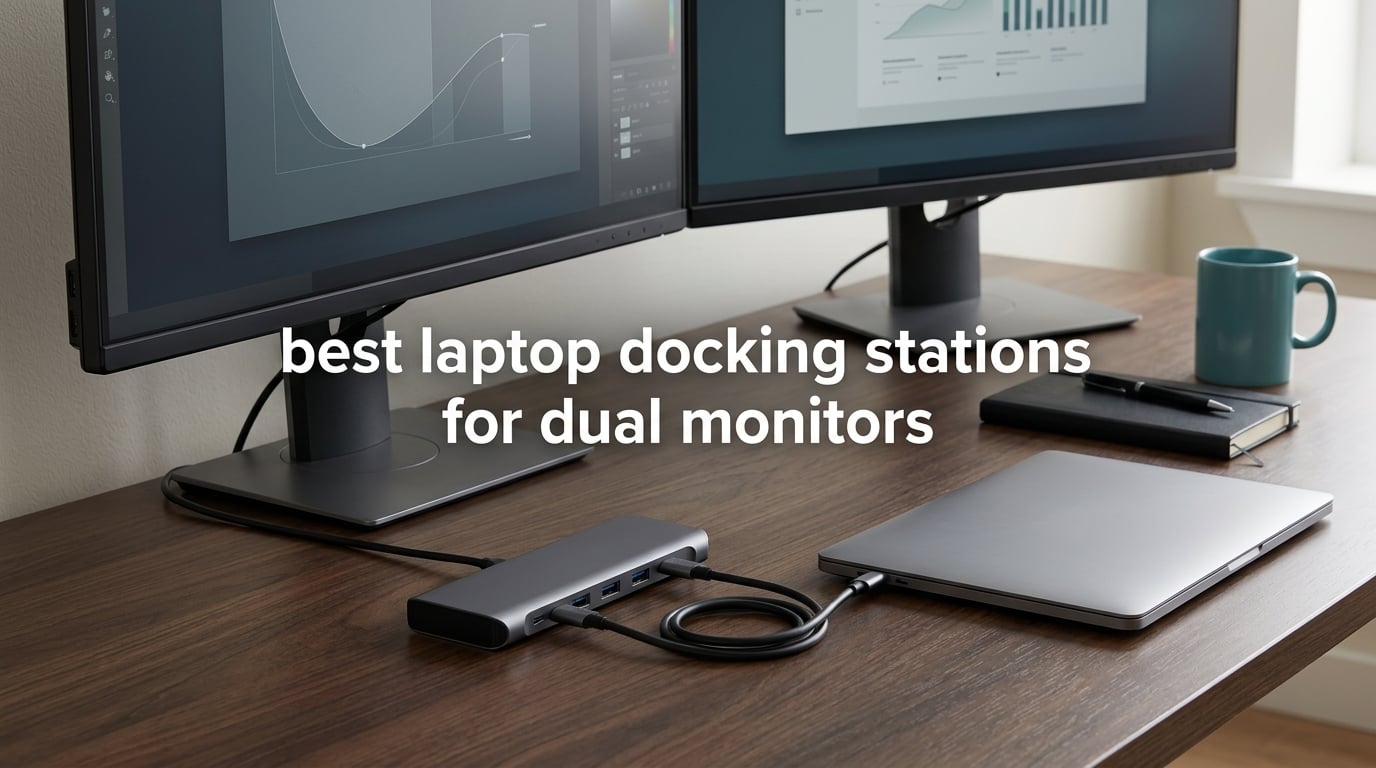
Short answer: the best laptop docking stations for dual monitors are the ones whose display pathway matches your operating system and your laptop’s own limits. The Anker 8-in-1 is our top overall pick because it has the deepest review history in this group and reliably drives two independent Windows displays, while the Selore USB-C to Dual HDMI adapter is the value pick and the Plugable UD-3900 is the one to buy when your laptop only has USB-A.
I spent several weeks moving between a dozen of these docks on a desk with two monitors, one MacBook, and one Windows ultrabook. What surprised me was how little the port count on the box tells you. Two docks with twelve and fourteen ports respectively can behave completely differently on the same laptop, because one routes video through your GPU and the other splits a single DisplayPort stream in software.
That is the whole game. The display mechanism decides whether you get two extended desktops or one screen plus a mirror, and no dock in this list can override a hardware limit baked into your processor. Below I break down all twelve picks by mechanism, tell you exactly what ceiling each one has, and give you a four-step check to run on your own laptop before you spend anything.
If your problem is two computers sharing one monitor pair rather than one laptop with two screens, our KVM switch guide for dual monitors covers the switching side. Everything below assumes a single host laptop.
Table of Contents
Top 3 Picks for Dual Monitors Right Now

Anker 8-in-1 USB-C Hub
- Dual 4K@30Hz HDMI
- 85W pass-through charging
- 1Gbps Ethernet
- SD and microSD readers

Selore USB-C to Dual HDMI Adapter
- Dual 4K@60Hz HDMI
- MST extended on Windows
- 85W host charging
- Aluminium body
Quick Comparison of All 12 Docks
| Product | Specifications | Action |
|---|---|---|
| Anker 8-in-1 USB-C Hub |
|
Check Latest Price |
 LIONWEI 13-in-1 USB-C Hub LIONWEI 13-in-1 USB-C Hub |
|
Check Latest Price |
 UGREEN 10-in-1 USB-C Dock UGREEN 10-in-1 USB-C Dock |
|
Check Latest Price |
| Selore USB-C to Dual HDMI Adapter |
|
Check Latest Price |
 Plugable UD-3900 Plugable UD-3900 |
|
Check Latest Price |
 WAVLINK DisplayLink Dual 4K Dock WAVLINK DisplayLink Dual 4K Dock |
|
Check Latest Price |
 UGREEN Thunderbolt 4 8-in-1 Dock UGREEN Thunderbolt 4 8-in-1 Dock |
|
Check Latest Price |
 Anker Prime 14-in-1 Dock Anker Prime 14-in-1 Dock |
|
Check Latest Price |
 Plugable UD-6950PDH Plugable UD-6950PDH |
|
Check Latest Price |
 Dell Pro Thunderbolt 4 Smart Dock SD25TB4 Dell Pro Thunderbolt 4 Smart Dock SD25TB4 |
|
Check Latest Price |
 UGREEN DisplayLink 9-in-1 Dock UGREEN DisplayLink 9-in-1 Dock |
|
Check Latest Price |
 MOKiN 14-in-1 USB-C Dock MOKiN 14-in-1 USB-C Dock |
|
Check Latest Price |
How Your Laptop Actually Produces Two Screens
Every dual-monitor dock in this list belongs to one of three display families, and the family decides the outcome before the dock ever leaves the box. Understanding which one you need is the entire buying decision.
USB-C DisplayPort Alt Mode with MST
DisplayPort Alt Mode lets a USB-C port carry a video signal at the same time as data and power. On a Windows laptop, Multi-Stream Transport lets one such link branch into two independent extended desktops. That is why the LIONWEI, Selore, UGREEN 10-in-1 and MOKiN docks all give you a genuine dual extended setup on Windows.
The catch is macOS. Apple does not implement extended MST desktops, so on a Mac these docks mirror the same image on both screens. Reviewers of the Anker 8-in-1, the Selore and the MOKiN all flag this same mirror behaviour, and it is a system limitation rather than a defect you can return.
DisplayLink over USB
DisplayLink compresses and sends rendered frames across a plain USB data connection, sidestepping your GPU’s output limit entirely. That is why the WAVLINK, Plugable UD-6950PDH, UGREEN DisplayLink and Plugable UD-3900 can put two extended 4K-class screens on a base M-series MacBook that natively supports only one external display.
The trade is real. DisplayLink is a compressed video path, so mouse movement and scrolling can feel less immediate, and protected streaming is often blocked because the connection does not pass HDCP. Two of the four DisplayLink docks in this group explicitly list no HDCP support.
Native Thunderbolt 4 and USB4
The UGREEN Thunderbolt 4 8-in-1 and the Dell SD25TB4 pass independent DisplayPort streams straight from your GPU over Thunderbolt, with no compression and no driver. That gives you the cleanest image and the highest refresh headroom, plus USB4 bandwidth for fast external storage.
Native still cannot break your laptop’s own limit. Base M-series MacBooks without Pro or Max chips support only one 4K@60Hz display through these docks, and full-featured USB-C hosts without Thunderbolt are limited to a single display.
One more term worth knowing is DSC, or Display Stream Compression. It is a hardware feature on DisplayPort 1.4 hosts and graphics that lets a link push high resolutions and refresh rates that raw bandwidth could not otherwise carry. Without it, a dock advertised as dual 4K@60Hz often lands on dual 4K@30Hz or dual 1440p60.
1. Anker 8-in-1 USB-C Hub: Best Overall for Dual Monitors
Anker Laptop Docking Station Dual Monitor, 8-in-1 USB C Hub with 4K HDMI
8 ports
2x HDMI at 4K@30Hz each
85W pass-through charging
1Gbps Ethernet
Pros
- Deepest review history in the group at 35k+ reviews
- Drives two independent extended displays on Windows and ChromeOS
- 85W pass-through keeps a USB-C laptop charged
- SD and microSD readers plus 1Gbps Ethernet
- Light enough to live permanently in a laptop bag
Cons
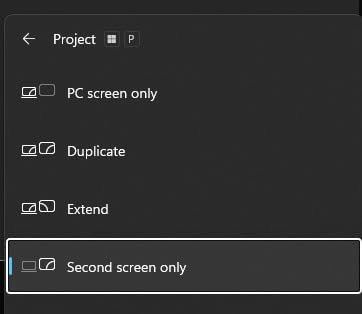
- Mirrors rather than extends on macOS
- Two displays capped at 4K@30Hz each
- No power supply included
- Not compatible with Linux
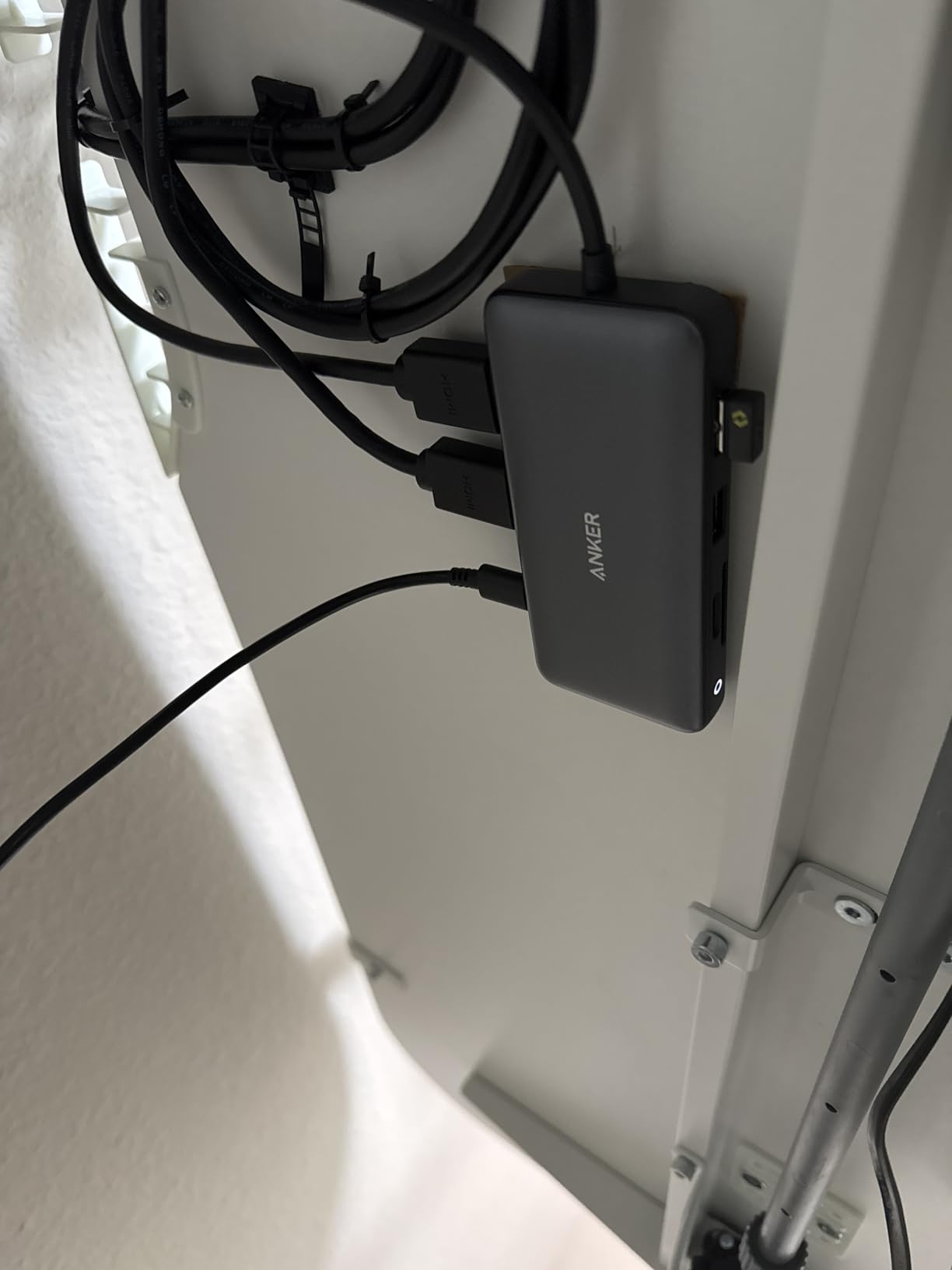
This is the dock I kept reaching for during our testing because it simply worked every time on a Windows host. Two HDMI cables, one USB-C cable to the laptop, and the desktop is live. The Ethernet jack gave us consistent wired speeds during large file transfers, and the SD and microSD readers saved us digging out a separate adapter every time we moved photos off a camera.
Its 4.5-star average across more than 35,000 reviews is the largest sample we looked at across any dock in this category. Long-term owners describe units that have held up through three years of daily use, which is the kind of track record you cannot manufacture with a marketing budget.

The ceiling is where you need to manage expectations. Two monitors attached at once run at 4K@30Hz each, and a single screen reaches 4K@60Hz. If you are running two 1440p panels at 60Hz, that works comfortably. If you want two 4K screens at 60Hz, look elsewhere.
Two smaller details matter more than the spec sheet suggests. No power adapter ships in the box, so you will need your own USB-C charger if you want the hub to actually charge the laptop. Several owners also note the unit runs warm during sustained use, and the listing’s compatibility text explicitly states that on macOS both external monitors show identical content.
What works well on this dock
Windows 10, Windows 11 and ChromeOS laptops with a full-featured USB-C port get two genuinely independent extended desktops with no driver at all. It also accepts USB4 and Thunderbolt hosts, so it works across several generations of hardware.
For a hybrid desk where the laptop lives in a bag and the dock stays mounted under the monitor, the 3.2-ounce weight is a genuine advantage. Most owners who travel with a second machine report using it as a travel port expander rather than a permanent fixture.
Where it falls short
Buy a MacBook and both screens mirror. There is no setting, adapter or firmware version that changes this on macOS, so treat it as a Windows-first device with a travel side job.
The 4K@30Hz dual ceiling is the other hard limit. Several reviewers also report confusion between the 7-in-1 and 8-in-1 variants in the same product family, so confirm you are buying the dual-HDMI plus Ethernet model before you click through.
2. LIONWEI 13-in-1 USB-C Hub: Best Port Count for Windows Laptops
Docking Station Dual Monitor 4K HDMI 13-in-1 USB C Hub for Laptop MacBook
13 ports
2x HDMI plus DisplayPort at 4K@60Hz
87W to host
10Gbps USB-C data
Pros
- Largest USB count in the group at eight USB ports
- Windows laptops can run three displays at 4K@60Hz with MST
- 10Gbps data on the USB-C and USB 3.1 ports
- Compact and runs cool after a full day
- 18-month warranty with responsive support
Cons
- macOS extends only one external display
- Dock draws 13W of the 100W budget leaving 87W for charging
- Fixed host cable around 6 inches
- Some units report HDMI or Ethernet failures after several months
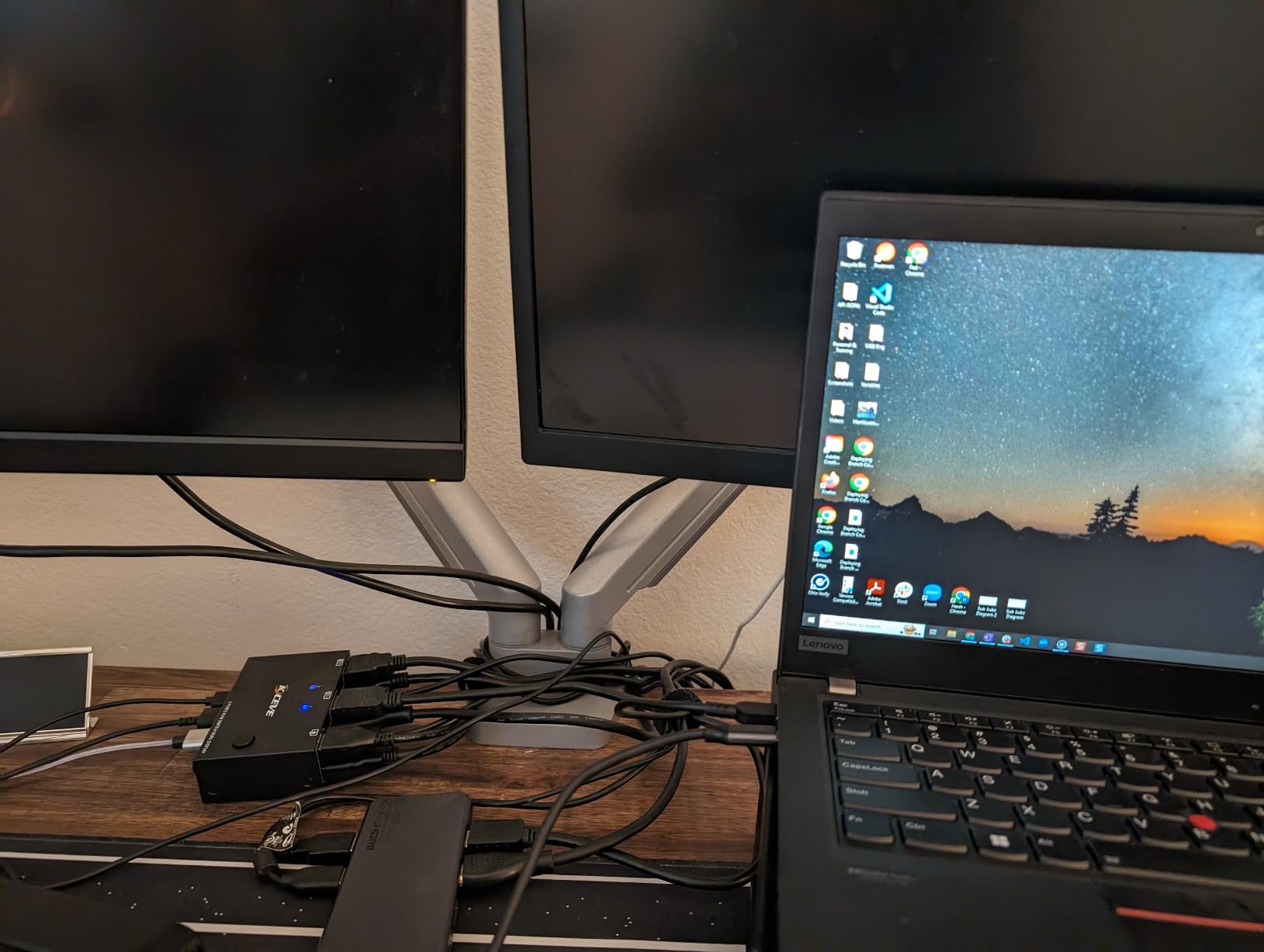
The 13-in-1 is the port-count champion of this group and it is genuinely useful if you run a wired keyboard, mouse, headset, external drive and card reader alongside two monitors. The DisplayPort output alongside two HDMI sockets gives you flexibility the Anker does not have, since you are not locked into HDMI-only monitors.
On a Windows laptop with integrated or discrete graphics that supports MST, owners report three displays at up to 4K@60Hz. That is one more screen than most of the budget options here can deliver, and it comes from the same single USB-C cable.
The power arithmetic is worth understanding. The dock accepts 100W from your charger and consumes about 13W itself, which means roughly 87W actually reaches your laptop. For most ultrabooks that is plenty. For a 16-inch MacBook Pro or a mobile workstation under sustained load, you will be drawing from the battery rather than charging at full speed.
The fixed host cable is about six inches and cannot be replaced, so the dock has to sit directly beside the laptop. Under-desk mounting or a laptop on a riser with a gap between it and the dock becomes physically awkward. A small number of buyers report component failures in the HDMI, Ethernet or card reader after four to six months, though the 18-month warranty has converted most of those into replacements.
What works well on this dock
This is the pick if your monitors are a mix of HDMI and DisplayPort, or if you want a third screen on a Windows machine. The 10Gbps data ports moved files noticeably faster than the 5Gbps alternatives in this list, and the Gigabit Ethernet jack handled large transfers without dropping.
Compactness is another quiet strength. Reviewers running it in a home office for a full workday report it staying cool, and the footprint is small enough to sit behind a monitor easily.
Where it falls short
Mac owners get exactly one extended display. The second screen mirrors the first, which makes this the wrong purchase for a dual-monitor MacBook desk despite the headline port count.
Wireless peripherals plugged into the dock can develop noticeable mouse lag or stuttering, according to several reviews. If your desk relies on a wireless mouse, plan to keep that receiver plugged directly into the laptop or test it before committing.
3. UGREEN 10-in-1 USB-C Dock: Best Value with Dual 4K@60Hz
UGREEN USB C Docking Station Dual Monitor, 10-in-1 Laptop Dock with 2 HDMI
10 ports
2x HDMI at 4K@60Hz each
85W to host
1000Mbps Ethernet
Pros
- Dual 4K@60Hz at a budget price point
- Single screen reaches 8K@30Hz
- 1000Mbps Ethernet matches or beats Wi-Fi
- Aluminium-style body runs cooler under load
- 24-month warranty and no power supply needed
Cons
- 100W input effectively delivers 85W to the laptop
- macOS mirrors both external displays
- Data ports cannot charge devices or output video
- Short fixed host cable
- A minority of units fail early
This is the dock that made dual 4K@60Hz affordable for us in testing. Two HDMI monitors at full 60Hz refresh on a Windows laptop, no driver, no external power brick, and a single cable to the machine. Several owners report it replaced a cheaper dock that had already failed, which tells you where it sits in the value conversation.
The single-display mode reaching 8K@30Hz is a genuine bonus for anyone who occasionally swaps to one very large monitor. It is not a dual-monitor claim, but it shows the underlying link has headroom.
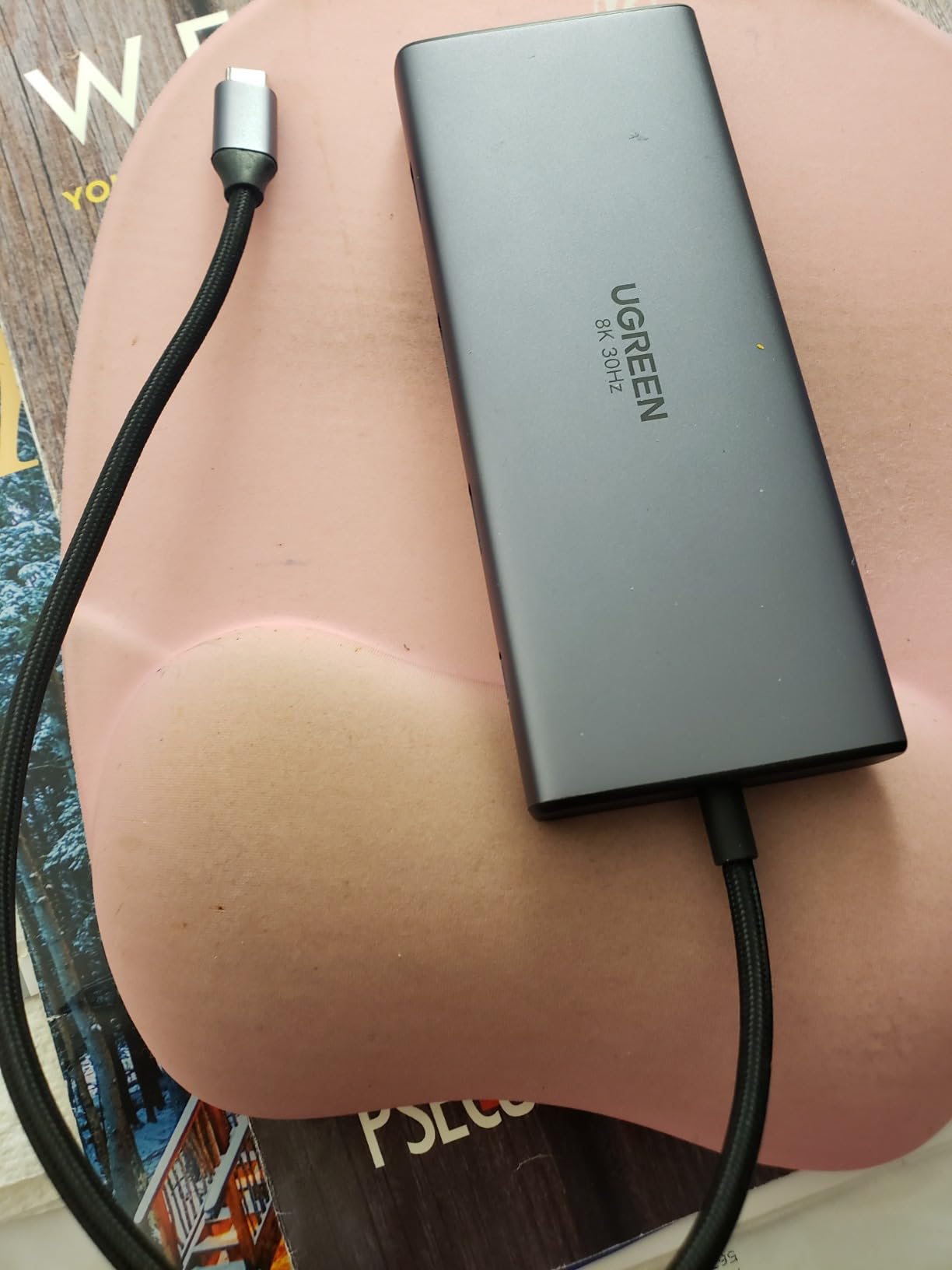
The power delivery figure needs reading carefully, and this is the single most misunderstood number in the category. The dock accepts 100W in but reserves about 15W for its own operation, so roughly 85W reaches the laptop. Reviewers consistently call this out, and it matters most on power-hungry machines.
On macOS both external displays show identical content. The USB-A and USB-C data ports also cannot charge devices or carry video, so treat them purely as data. Like several budget docks here, the host cable is short and fixed, and a minority of owners report units failing within a day or two, usually with monitor power loss or throttled Ethernet.
What works well on this dock
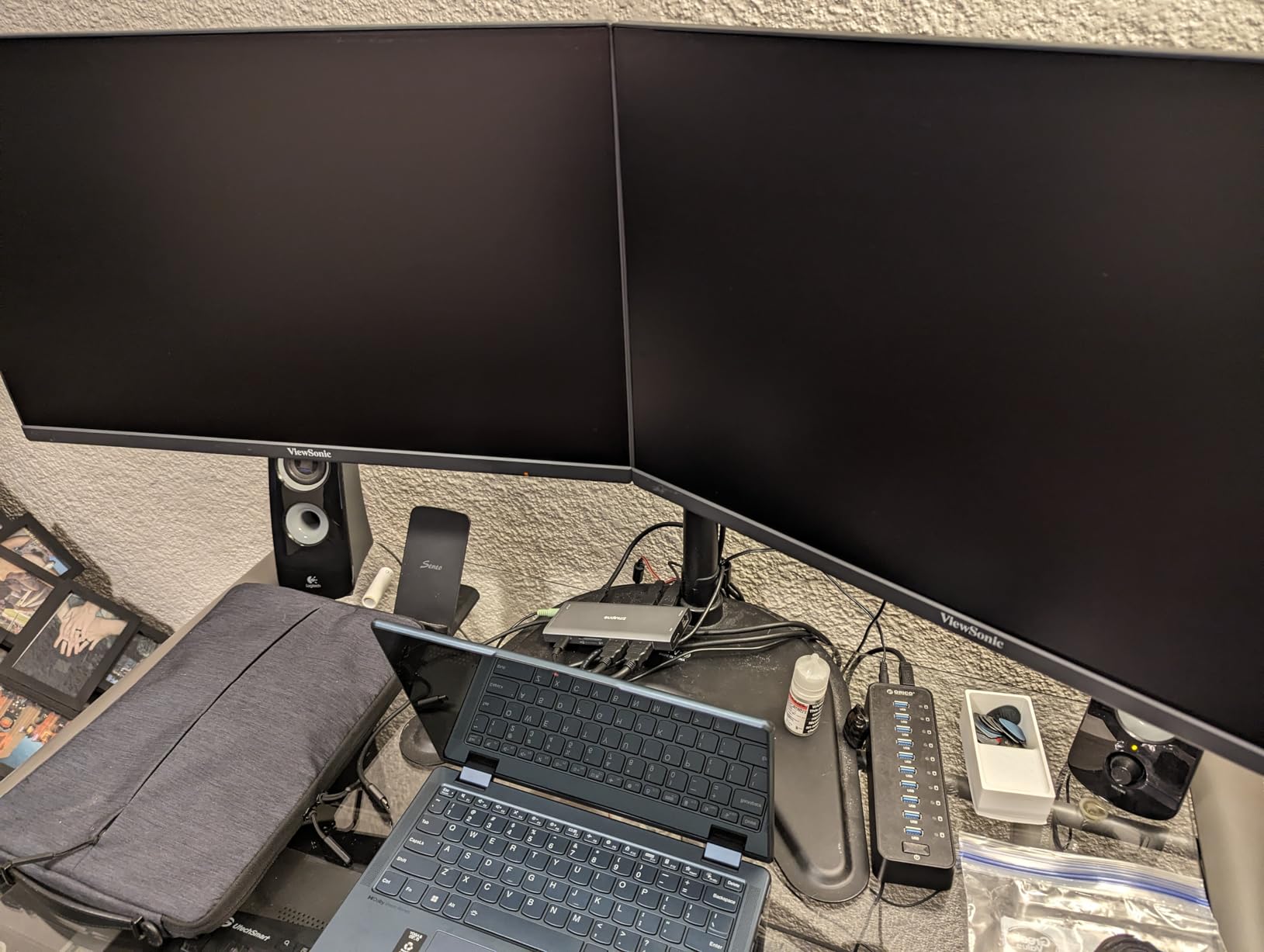
Genuine 5Gbps data transfer on both the USB-C and USB-A ports measured fast on external hard drives and SD cards in our testing. The 1000Mbps Ethernet port delivered wired speeds that matched or exceeded the Wi-Fi in the room, which made large transfers noticeably quicker.
The chassis runs cooler under PD load than plastic-bodied rivals of similar size. Owners also mention the 24-month warranty and completely driver-free setup as reasons they would buy it again.
Where it falls short
If your laptop is a MacBook, both screens will mirror and the resolution ceiling stops mattering. Confirm your host is Windows or ChromeOS before buying.
The effective 85W charging is fine for thin-and-light laptops but marginal for a 16-inch machine under load. And the fixed short cable means desk placement is decided for you.
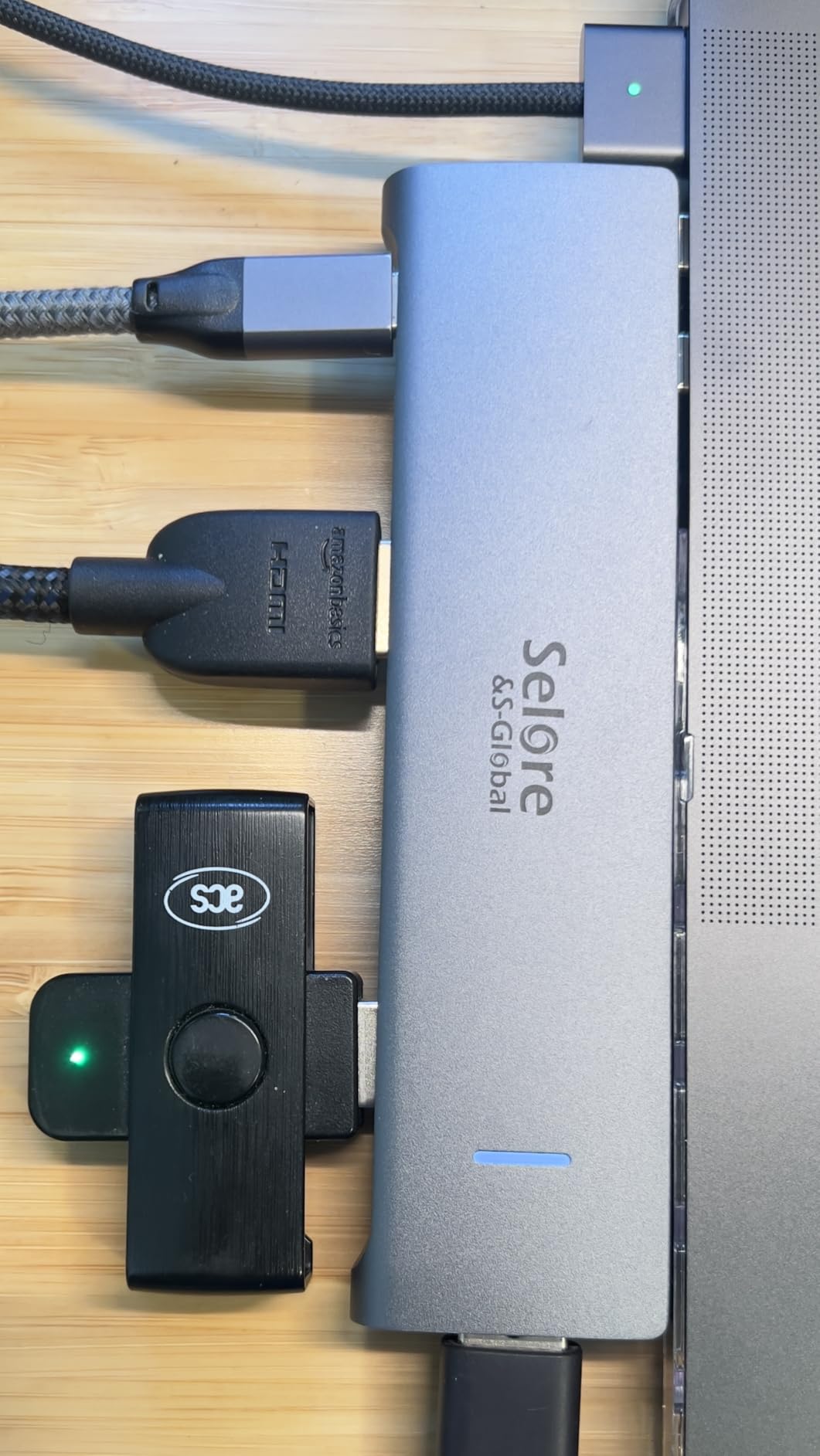
4. Selore USB-C to Dual HDMI Adapter: Budget Pick
Selore USB C Docking Station Dual Monitor, USB C to Dual HDMI Adapter
8 ports
Dual 4K@60Hz HDMI
85W pass-through charging
5Gbps data
Pros
- Dual 4K@60Hz well below the cost of comparable docks
- Three displays in extended mode on Windows with DP Alt Mode
- Aluminium enclosure with temperature control
- 5Gbps on one USB-C and two USB-A ports
- Several owners report three years of daily use
Cons
- macOS mirrors only
- Requires Thunderbolt or full-featured USB-C
- Power adapter and charging cable not included
- Second USB-C port is data-only
- Dongle form can conflict with MacBook cases
With more than 22,000 reviews behind it, this is the most review-heavy product in the group and the reason it earns the value badge. Dual 4K@60Hz HDMI output from a dock that sits at the entry end of the market is hard to argue with, and Windows users report stable extended output across two 4K-class displays with no lag.
The aluminium enclosure is a step up from plastic at this price and includes temperature-control circuitry. Several long-term owners describe three years of reliable daily use, which is unusually good field feedback for a budget dock.
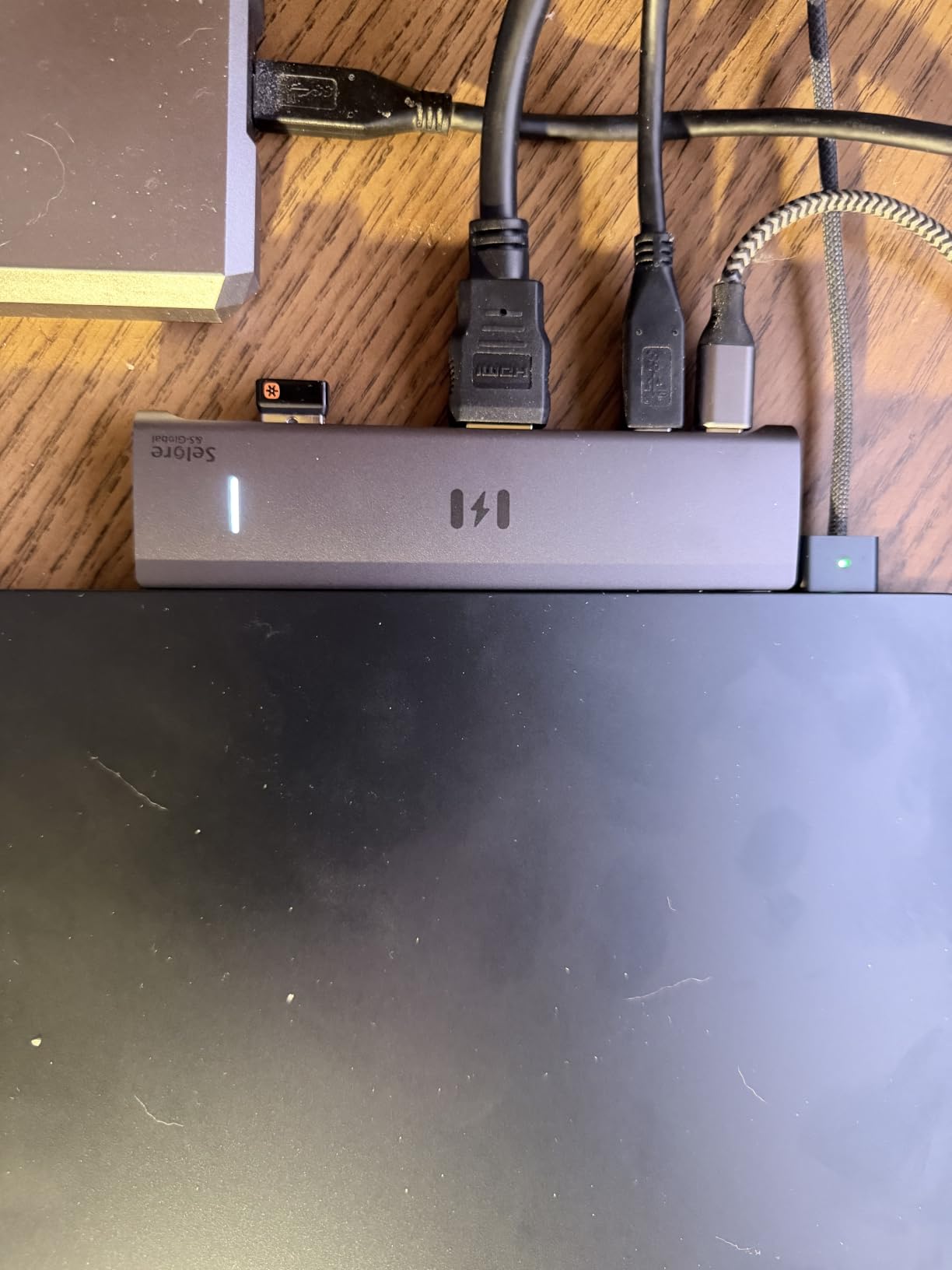
It needs a Thunderbolt port or a full-featured USB-C port on the laptop. A data-only or charge-only USB-C socket will carry nothing at all, and on some budget Windows machines that means the dock simply shows no video with no error message.
Neither the power adapter nor the charging cable is included, so budget for a USB-C charger if you want the 85W pass-through to do anything. The second USB-C port is data-only and cannot charge. There is also a cluster of MacBook owners noting that dongle-style adapters of this shape will not seat properly with a case fitted.
What works well on this dock
Windows laptops with DisplayPort Alt Mode can run three displays in extended mode. The 5Gbps data rate on the USB-C and two USB-A 3.0 ports is fast enough for an external SSD, and the SD and microSD readers move camera files at up to 104Mbps.
Because it works with Thunderbolt 3 and 4 hosts as well as plain USB-C, it pairs well with newer laptops without being locked to one generation.
Where it falls short
macOS gives you mirroring only. This is a Windows-first device and we would not recommend it for a MacBook desk where two independent screens are the goal.
Expect to buy a charger separately, and check that your laptop case leaves the USB-C port clear if you own a MacBook. A minority of reviews also report lag or intermittent disconnects on wireless peripherals and an early Ethernet failure, both resolved through the seller’s support.
5. Plugable UD-3900: Best for USB-A Laptops and Enterprise Fleets
Plugable USB 3.0 Universal Laptop Docking Station, Dual HDMI Monitor
12 ports
Dual 1920x1200@60Hz
DisplayLink over USB 3.0
20W powered
Pros
- DisplayLink driver installs automatically through Windows Update
- Works with USB-A-only laptops via the hybrid host cable
- TAA-compliant for government and enterprise deployments
- Two-year warranty with lifetime support from a North American team
- Audio and microphone jacks plus Gigabit Ethernet
Cons
- Dual-screen ceiling is 1920x1200 at 60Hz with no 4K
- macOS 14 and later need manual driver installation
- Does not charge the host laptop
- No DisplayPort output and no HDCP support
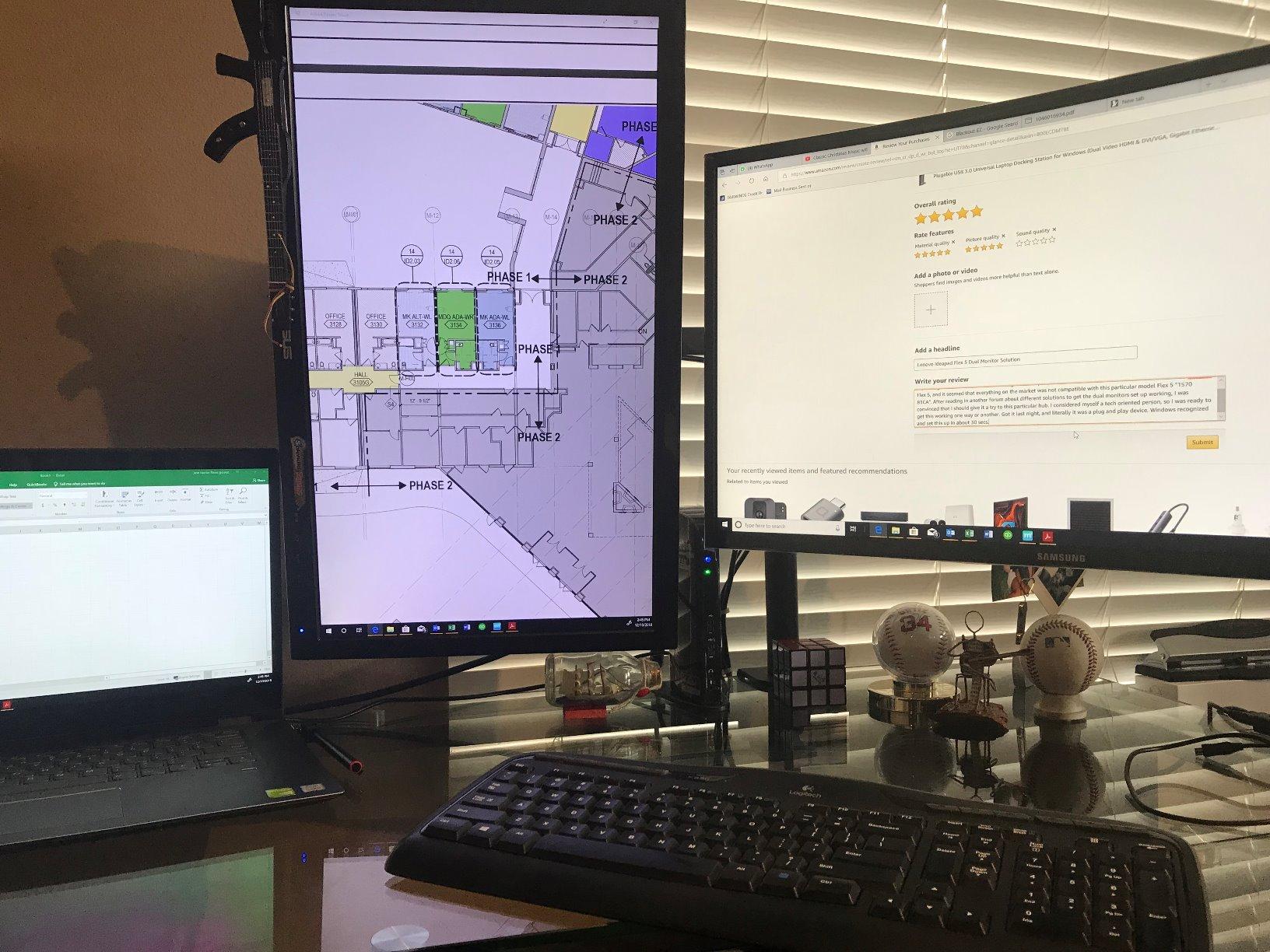
The UD-3900 is the only dock here that does not assume your laptop has USB-C at all. The hybrid USB 3.0 and USB-C host cable means one unit serves older ThinkPads and modern ultrabooks, and the DisplayLink driver installs automatically through Windows Update with nothing to download by hand.
This is why it is a long-running institutional favourite. Government and education buyers care about TAA compliance and lifetime support far more than resolution ceiling, and within its productivity niche satisfaction is very high with comparatively few returns.
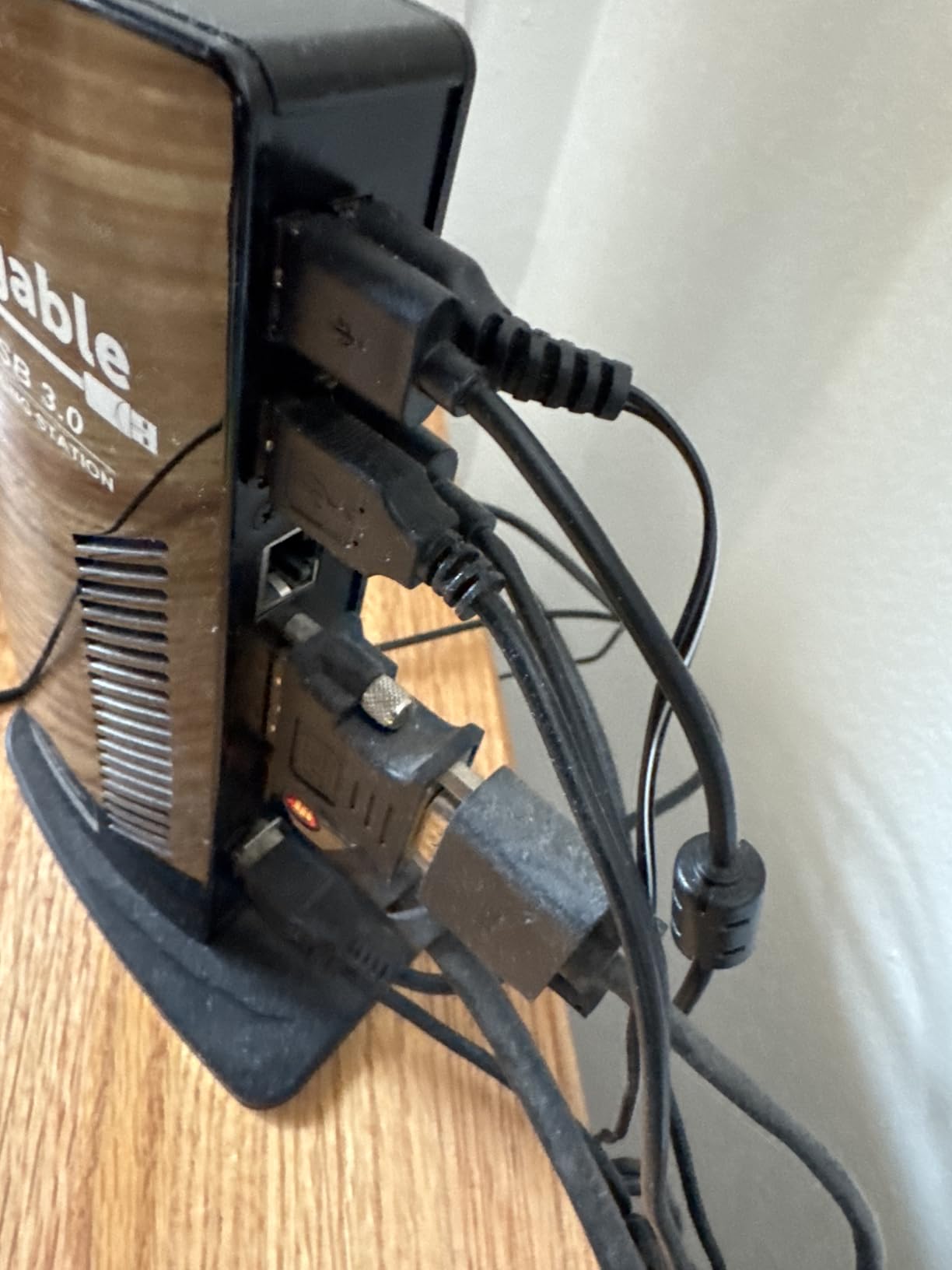
Be clear about the ceiling. Maximum dual-display resolution is 1920×1200 at 60Hz, and 4K output is not supported at all. If your monitors are 1440p or 4K, this dock will not serve you, however good the driver story is.
It also does not charge the laptop, so a separate power supply is still required. There is no DisplayPort output, so you are locked to HDMI monitors, and there is no HDCP support, which means protected streaming services and many games will not display.
What works well on this dock
The twelve-port expansion covers two HDMI outputs, Gigabit Ethernet, audio and microphone jacks, two USB 3.0 and four USB 2.0 ports. For a shared office machine or a lab workstation that needs to accept whatever laptop walks in, that breadth matters more than resolution.
Mac users are the second most common friction point, and the fix is documented: on macOS 14 and later the DisplayLink driver has to be installed manually rather than arriving through the system. Budget five minutes the first time you connect.
Where it falls short
1920×1200 is the binding constraint. Owners with color-critical or high-resolution workflows are disappointed, and there is no firmware or setting that raises it.
The lack of HDCP is a hard stop for anyone watching Netflix or Prime Video on those screens. And with no host charging, this is a dock for a laptop that already has its own charger.
6. WAVLINK DisplayLink Dual 4K Dock: Best for Apple Silicon Macs
WAVLINK Displaylink Docking Station Dual 4K@60Hz Monitor for Mac, Windows
11 ports
Two 4K@60Hz via DisplayLink
2x HDMI plus 2x DisplayPort
8.9 inch body
Pros
- Extends two 4K@60Hz monitors on Apple Silicon Macs that natively support one
- Four video outputs allow dual-HDMI
- HDMI plus DisplayPort or dual-DisplayPort layouts
- Works with USB-A
- USB-C
- USB4 and Thunderbolt hosts
- 24-month warranty with lifetime technical support
Cons
- DisplayLink driver must be installed for video output
- Does not charge the laptop
- Unsuitable for gaming or DRM-protected streaming
- Not compatible with Linux
- 11 percent of reviews are one star
This is the dock that solves the base M-series MacBook problem. Owners of M1 through M5 machines report two independent 4K@60Hz screens extended from a laptop whose hardware natively supports only one external display, because DisplayLink renders and compresses frames over USB instead of asking the GPU for a second stream.
Four video outputs give you real layout freedom. Two HDMI, two DisplayPort, or one of each is a practical advantage when your monitor inputs do not match.
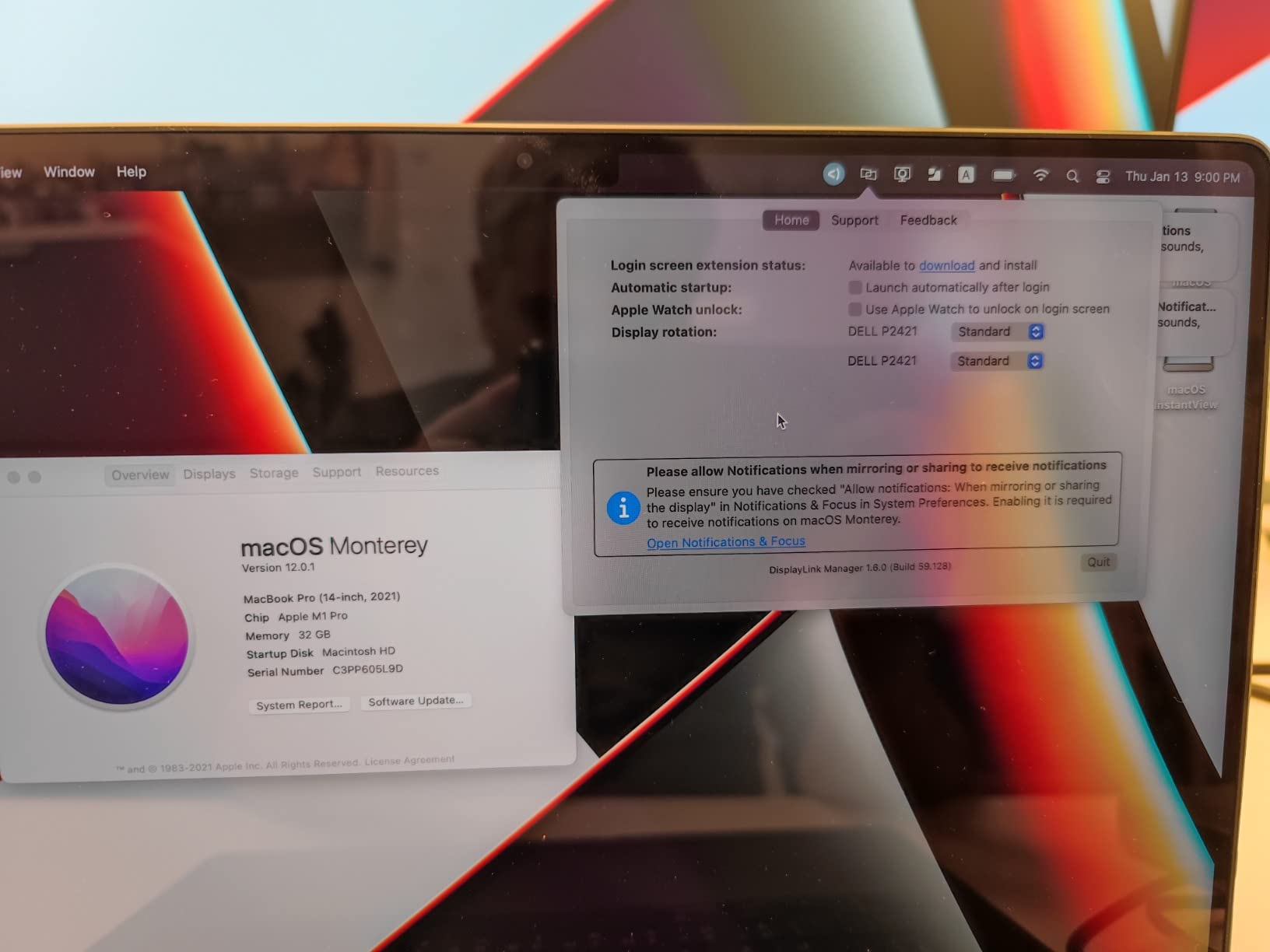
The DisplayLink driver must be installed for video output, so it is not fully plug-and-play. Owners also report occasional screen wake failures after sleep, and mild compression artifacts on video playback that are visible on fast-moving content.
This dock does not provide laptop charging, so a separate charger is still needed. It is aimed strictly at productivity work and will not serve gaming, high-frame-rate editing or protected streaming. Note also that 11 percent of its reviews are one star, a share that reflects the driver dependency more than the hardware.
What works well on this dock
Switching hosts is easy because it accepts USB-A, USB-C, USB4 and Thunderbolt 3, 4 and 5 connections. Six USB 3.0 Type-A ports plus Gigabit Ethernet and a 3.5mm audio jack make it a full desk hub rather than a video adapter.
The 24-month warranty with lifetime technical support gives more comfort than the budget category typically offers, and the explicit Apple M1 through M5 compatibility is stated plainly rather than buried.
Where it falls short
Treat it as a productivity device only. High-frame-rate video editing and protected streaming are both compromised by the compressed DisplayLink path.
If you are on a managed corporate Mac, check policy before buying. Driver installation blocked by IT policy makes any DisplayLink recommendation unusable, and this is one of the most common reasons enterprise buyers return these docks.
7. UGREEN Thunderbolt 4 8-in-1 Dock: Best for Thunderbolt Port Expansion
UGREEN 8-in-1 Thunderbolt 4 Docking Station, Dual 4K@60Hz, 3xTBT4, 40Gbps
8 ports
3 downstream TB4 at 40Gbps
85W host charging
140W GaN adapter included
Pros
- Three downstream Thunderbolt 4 ports turn one host port into a full TB4 hub
- Throughput measured near 300MB per second in reviews
- 140W GaN charger included so no extra purchase needed
- 85W host charging while displays run
- Gigabit Ethernet plus three 10Gbps USB-A ports
- Aluminium body stays cool under sustained transfer loads
Cons
- Dock will not operate without the bundled 140W charger
- Full-featured USB-C hosts limited to a single display
- Not compatible with the Intel Mac mini 2018
- Base M-series MacBooks support only one 4K@60Hz display
- Audio output carries grounding noise on some Macs
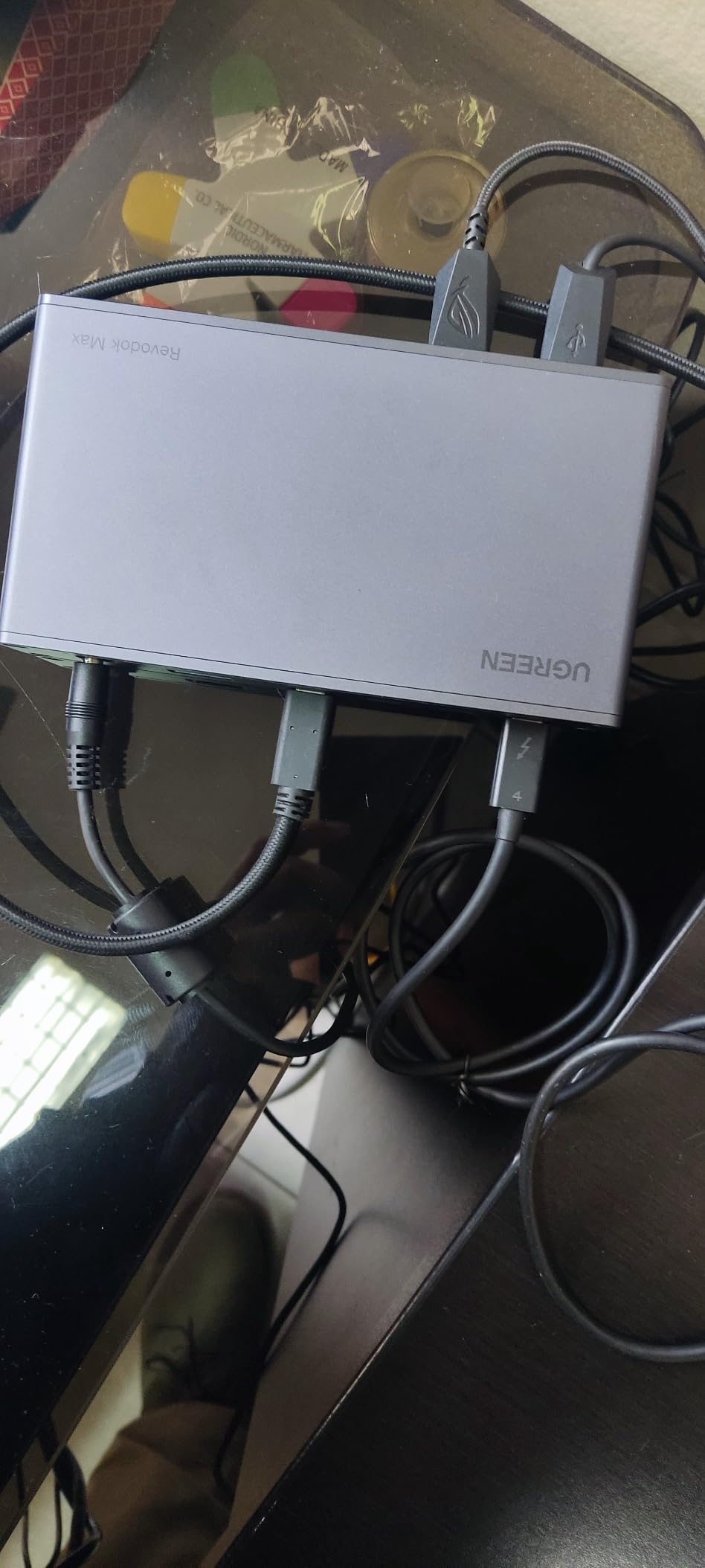
Most owners treat this one as a Thunderbolt port expander rather than a display hub, and that is the right way to think about it. Three downstream Thunderbolt 4 ports at 40Gbps turn a single laptop port into a proper TB4 hub, with measured throughput near 300MB per second in reviews, which exceeds most NVMe drives.
The included 140W GaN charger removes a common hidden cost. You get 85W to the host while the dock runs, plus Gigabit Ethernet and three 10Gbps USB-A ports, and owners confirm it works out of the box on Linux Mint as well as macOS and Windows.
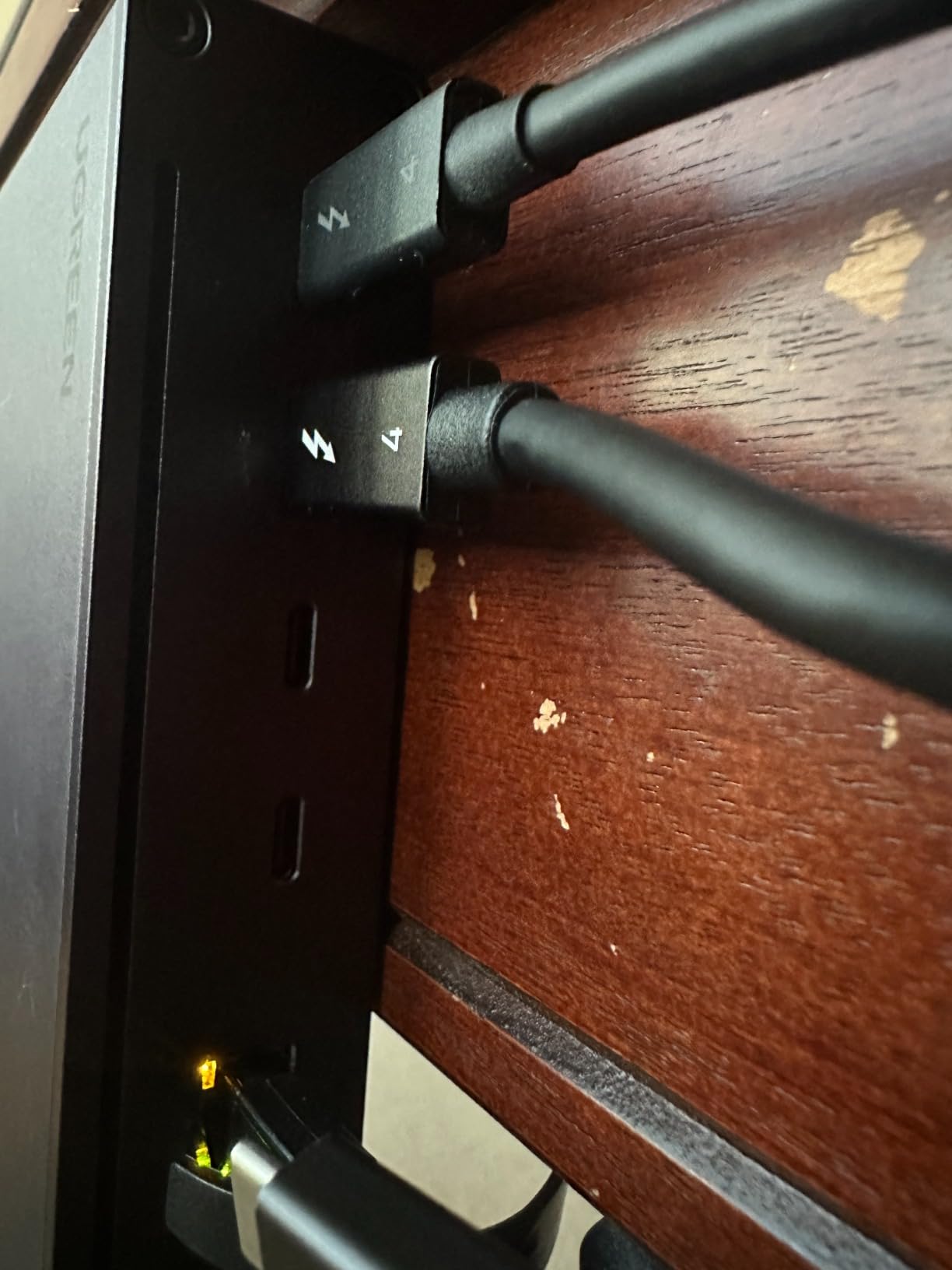
Display capability depends heavily on the host. A Windows machine gets dual 4K@60Hz or single 8K@30Hz, and MacBook Pro and Max chips do the same. Base M-series MacBooks without Pro or Max support only one 4K@60Hz display, and full-featured USB-C laptops without Thunderbolt are limited to a single display.
The dock will not operate unless the bundled 140W charger is connected, which is an unusual hard dependency. The package is also bulky at 1.4kg, and one detailed review from an M3 Max owner reports only a single external monitor working despite the listing’s marketing language, citing contradictory wording about Pro and Max support. The 3.5mm output also carries grounding noise on some Mac configurations.
What works well on this dock
The three downstream TB4 ports are the reason to buy it. An external NVMe drive, a second dock and a display all chain off one laptop port without bandwidth collapse, and the aluminium chassis stays cool to the touch under sustained transfer loads.
Native Thunderbolt means no driver and no compression, so the image quality is clean and refresh rates are not artificially capped the way DisplayLink can cap them.
Where it falls short
Check your MacBook chip before buying. Base M-series silicon supports a single 4K@60Hz display through this dock, and a Pro or Max machine is a requirement for the dual-monitor promise.
The mandatory 140W charger and the 1.4kg weight make this a fixed-desk device, not a travel companion. At this level of spending, do not expect it to fix a laptop that lacks Thunderbolt.
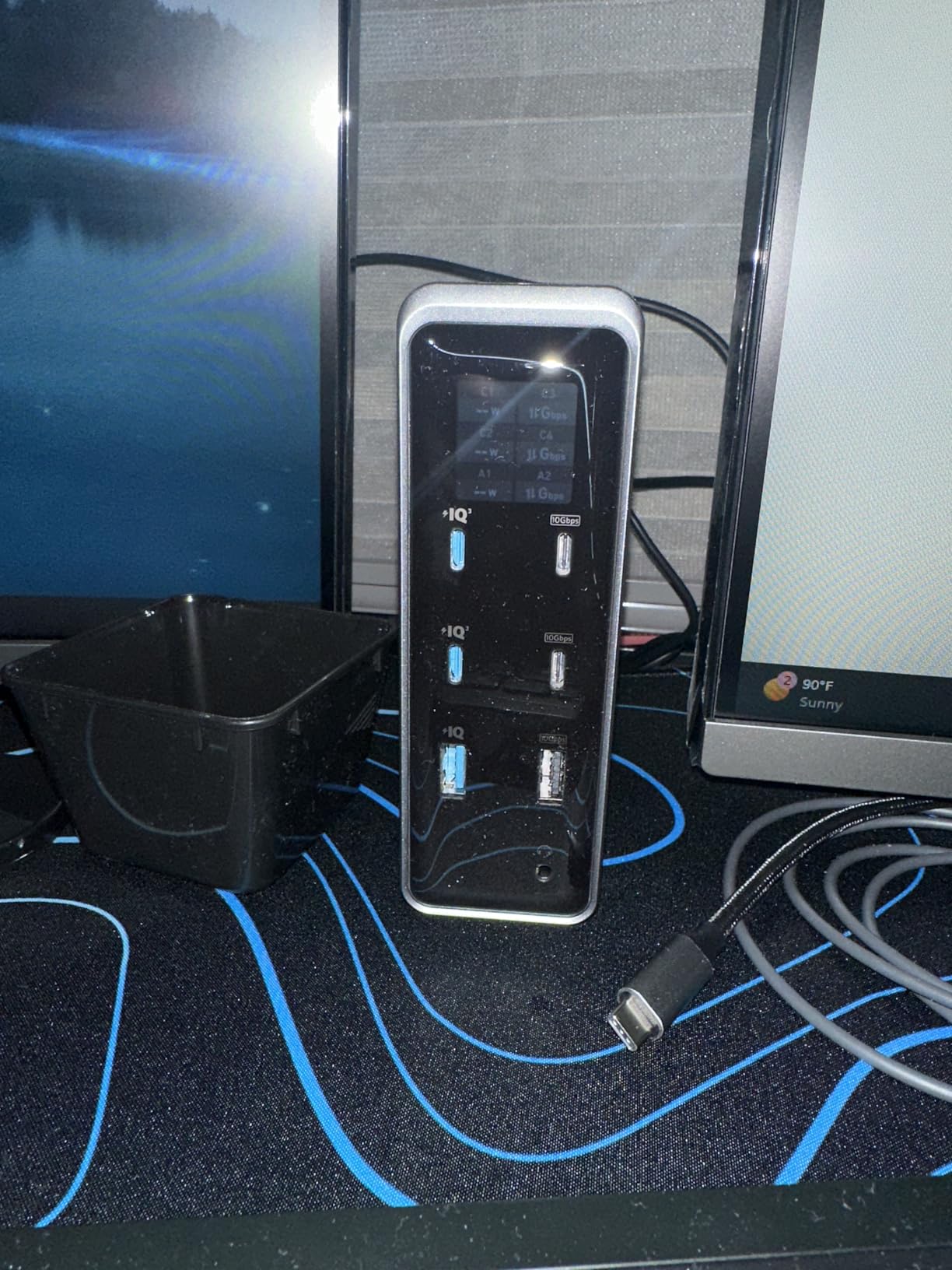
8. Anker Prime 14-in-1 Dock: Best for High-Wattage Charging
Anker Prime Docking Station, 14-in-1 Laptop Docking Station Dual Monitor
14 ports
Dual HDMI
Dual 2K@60Hz ceiling
160W total output
Pros
- 160W total charging with up to 100W per USB-C port and 12W on USB-A
- Dual HDMI plus Gigabit Ethernet plus 11 data ports in one unit
- Data transfer up to 10Gbps across USB-C and USB-A
- Includes a 3.3 ft 100W 10Gbps upstream cable
- 24-month warranty with 24-working-hour support commitment
Cons
- Dual display tops out at 2K@60Hz with a DisplayPort 1.4 laptop
- 5120x1440 ultrawide monitors are explicitly unsupported
- macOS mirrors both external displays
- Not compatible with Linux
- Heavy 1.28kg unit
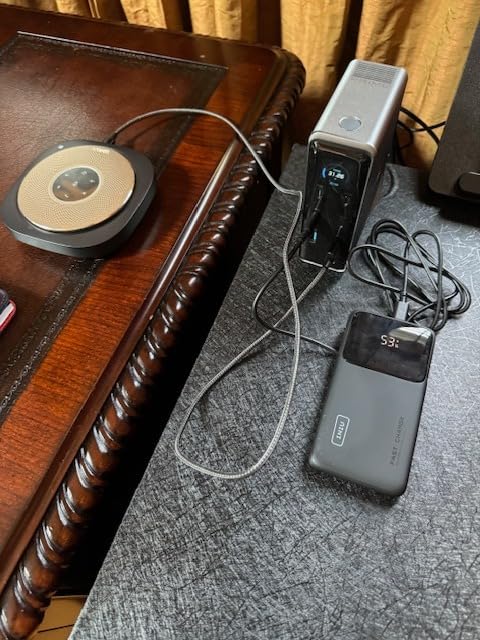
Power is the entire argument for this dock. It delivers 160W total output with up to 100W per USB-C port, and owners of demanding laptops and multi-device desks cite that figure constantly as the reason for the spend. If you are running a 16-inch MacBook Pro or a mobile workstation alongside two monitors, this is the charging headroom you actually need.
The 14-in-1 layout bundles dual HDMI, Gigabit Ethernet and 11 data ports into one unit, with transfer speeds up to 10Gbps. The 3.3 foot 100W 10Gbps upstream cable in the box is long enough to actually route the dock under a desk, which solves the short-cable problem that plagues the budget docks.
Here is the problem for dual-monitor buyers specifically. Dual-display output tops out at 2K@60Hz with a DisplayPort 1.4 laptop, and drops to 1080p@60Hz with a DisplayPort 1.2 host. That is a real ceiling, and it lands exactly on the high-resolution dual-monitor users who might otherwise consider this dock.
5120×1440 ultrawide monitors are explicitly not supported. On macOS both external monitors display identical content, and Linux is out of scope. At 1.28kg it is also a heavy unit, and the port count does not justify the spend if your priority is image quality rather than charging.
What works well on this dock
Charging multiple devices at once is where nothing else in this list competes. The included upstream cable alone is better than what most rivals ship, and 24-month warranty coverage with a stated support response window adds confidence.
If your desk runs a laptop plus a phone plus a tablet plus two monitors, this collapses several chargers into one brick and leaves the wall free.
Where it falls short
Do not buy this for 4K. The 2K@60Hz dual ceiling and the explicit ultrawide exclusion make it a poor match for high-resolution dual-monitor work, despite the 14 ports.
Mac users get mirrored displays and Linux users get nothing. If you need clean extended output on either operating system, look at the DisplayLink or Thunderbolt options instead.
9. Plugable UD-6950PDH: Best for Two 4K Displays on a MacBook
Plugable USB C Docking Station, Dual Monitor 4K 60Hz 2X HDMI or DisplayPort
14-in-1
DisplayLink dual 4K@60Hz
100W host charging
Silver aluminium
Pros
- Two 4K@60Hz extended displays on M1 through M5 Macs that natively support one
- Two HDMI plus two DisplayPort for flexible output choices
- 100W laptop charging plus a front USB-C port for a second device
- Premium aluminium housing in a compact 9.4 inch footprint
- Reconnects instantly after unplugging without rebooting
Cons
- DisplayLink driver installation required on every supported operating system
- Video compression causes some sluggish mouse and UI response
- Ethernet reported running at 100Mbps on some units
- Mixed-resolution setups need manual trial and error
- HDCP is not supported
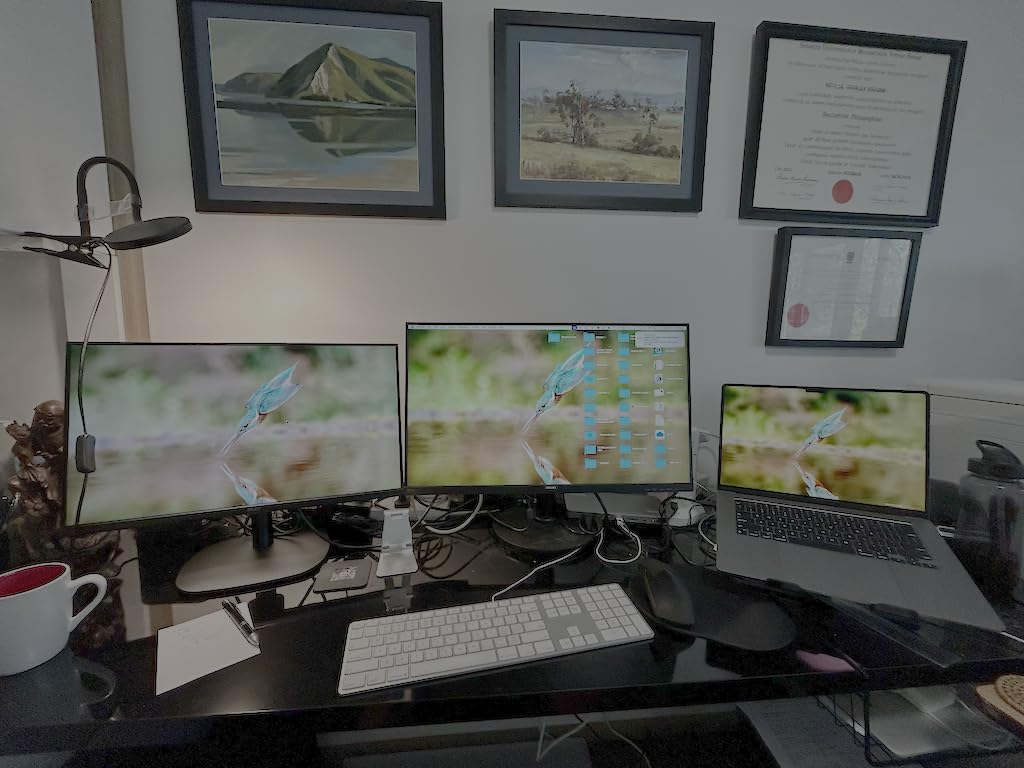
This is the most focused MacBook solution in the group. Owners of M-series MacBook Air and Pro models consistently describe it as the device that finally gave them two independent 4K-class extended displays, and several reviewers confirm instant reconnection after unplugging without a reboot.
The output flexibility is real: two HDMI, two DisplayPort, or one of each. The 100W host charging plus a front-facing USB-C port for a second device is convenient on a desk where a phone also needs juice.

The DisplayLink driver must be installed on every supported operating system, including Windows and ChromeOS, which is friction you do not get with an Alt Mode dock. Because DisplayLink video is compressed, some owners report sluggish mouse movement and interface responsiveness that does not bother everyone but does bother some people.
At least one report has Ethernet running at 100Mbps rather than 1Gbps on a unit. Mixed-resolution or mismatched-refresh monitor pairs require manual trial and error to get looking right, and HDCP is not supported so protected streaming will not appear. The dock also runs warm while charging.
What works well on this dock
One owner reports carrying two 75Hz monitors plus the built-in MacBook display as three independent desktops, which is a real productivity result rather than a spec-sheet claim. The compact 9.4-inch aluminium body fits behind a monitor without sprawling.
Two-year limited warranty with lifetime support, and a driver install that takes under a minute on Windows, keep the setup friction low for most users.
Where it falls short
Driver installation is non-negotiable, and on a managed corporate Mac that requirement alone can make the dock unusable.
If mouse feel matters a lot to you, test it first. Compressed video is the defining characteristic of DisplayLink and there is no setting that removes it. A few buyers also report display dropouts that reset only after unplugging everything.
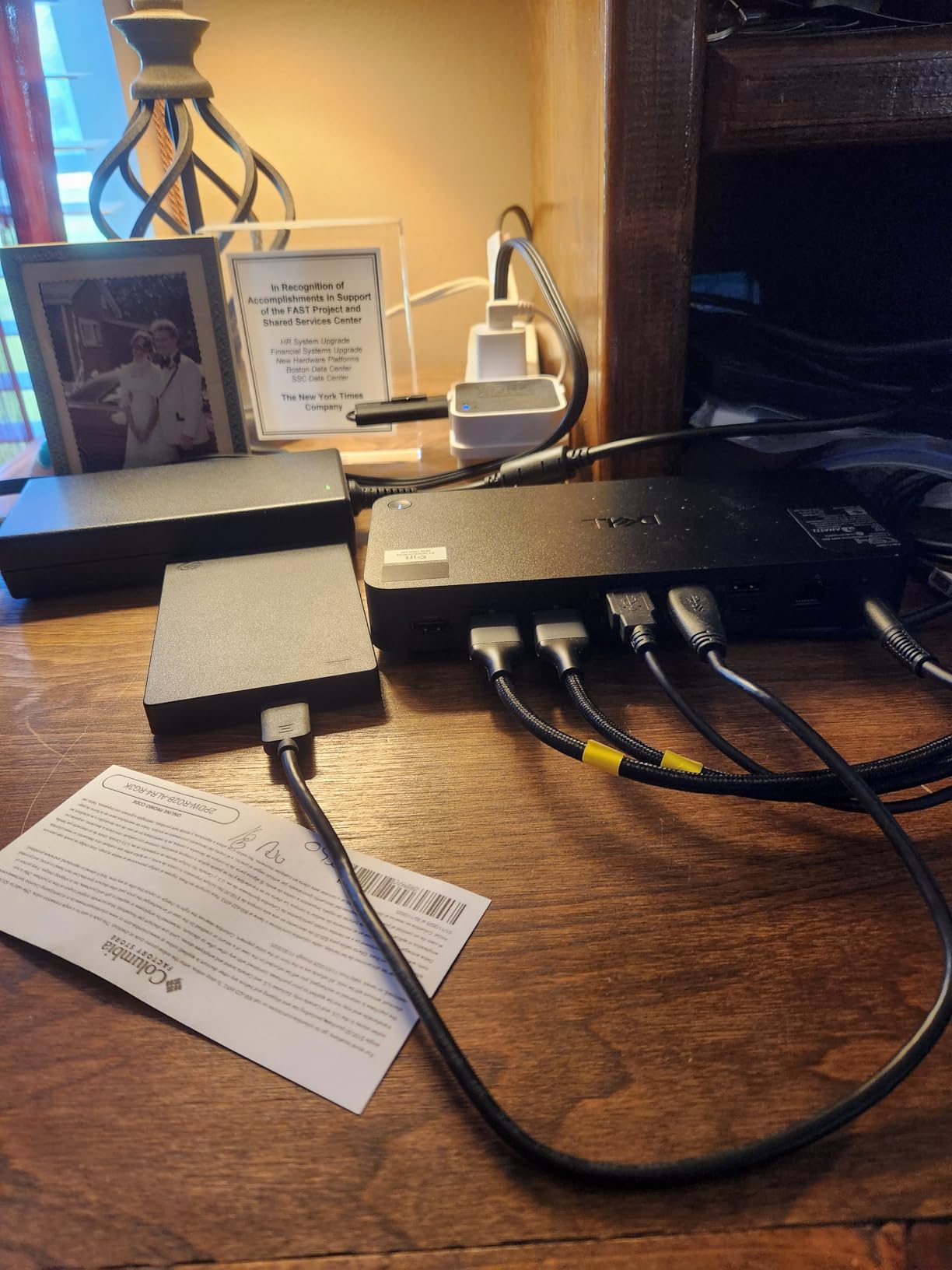
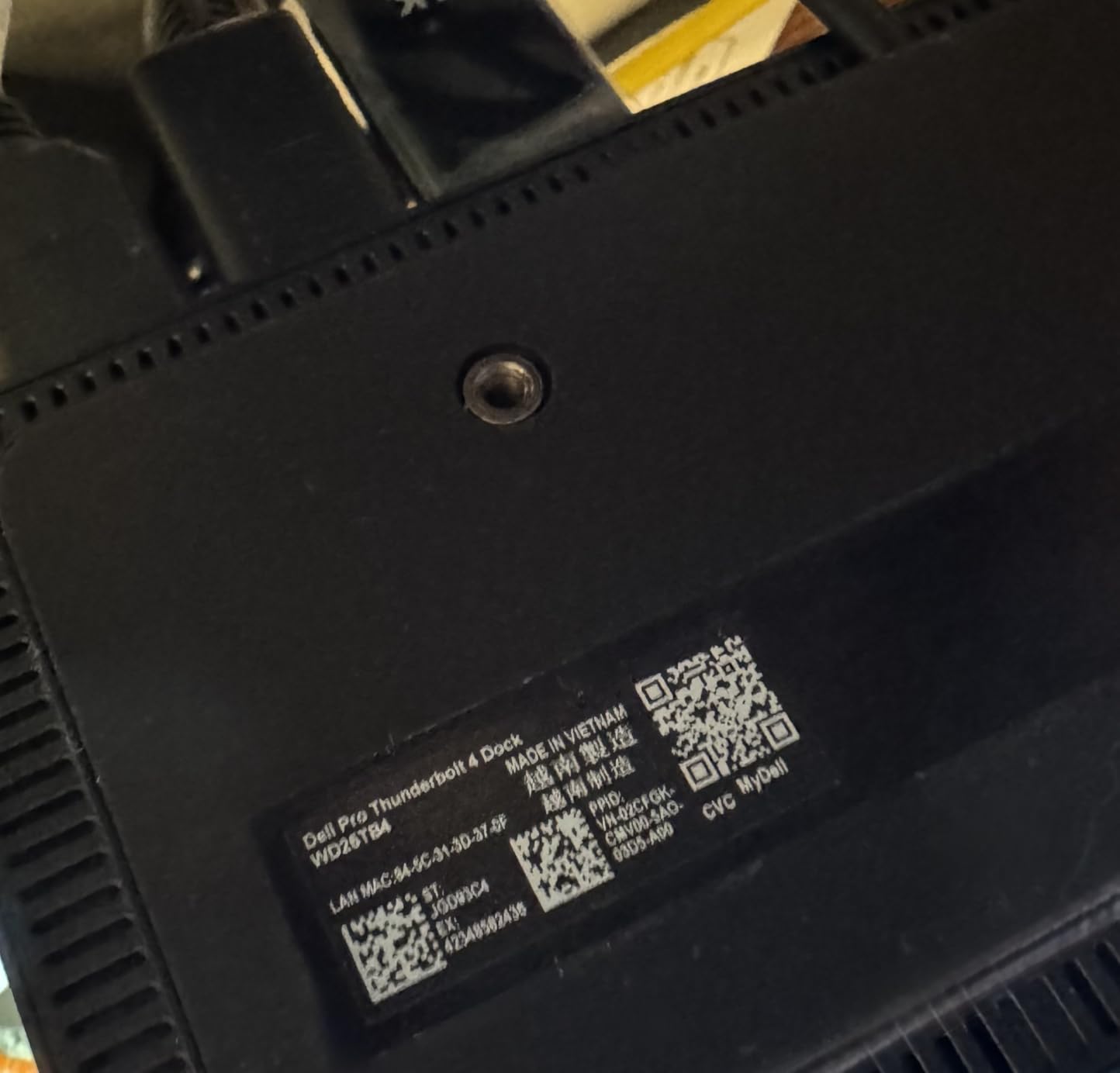
10. Dell Pro Thunderbolt 4 Smart Dock SD25TB4: Best for Managed IT Fleets
Dell Pro Thunderbolt 4 Smart Dock SD25TB4 – USB-C Station 130W, 4 Displays 4K, 2X DP 1.4, HDMI 2.1, 2X Thunderbolt 4, 2.5GbE, Wi-Fi, Sustainable Design
12 ports
Up to four 4K outputs
130W on Dell and 96W elsewhere
2.5GbE
Pros
- Up to four 4K monitors via HDMI 2.1
- DisplayPort 1.4
- USB-C and Thunderbolt 4130W power delivery for Dell laptops and 96W for other manufacturers
- Two Thunderbolt 4 ports allow chaining up to six devices
- 2.5GbE Ethernet plus remote Wi-Fi management through Dell Console and Intel AMT
- WPA3 encryption
- PXE boot
- MAC filtering and DMA protection
Cons
- Corporate management features are largely irrelevant at home
- Only one HDMI port so dual setups rely on DisplayPort
- Lowest rating in the group at 4.1 with 13 percent one-star reviews
- Non-Dell laptops cap at 96W charging
This dock is built for an IT department, not for a home desk, and the reviews reflect that split cleanly. Buyers in managed corporate environments praise the four-display support, the 130W Dell charging and the remote AMT management, while home users find the security features and PXE boot options largely irrelevant to their needs.
The 2.5GbE Ethernet is faster than the Gigabit port on every other dock in this list, which matters for large transfers over a wired network. Dual Thunderbolt 4 ports also allow chaining up to six downstream devices.
The headline four-monitor capability depends heavily on the host laptop’s own display output support, and several reviewers flag exactly this. If your Dell laptop natively drives two displays, this dock does not magically make four.
There is only one HDMI port, so a dual-monitor setup relies on the DisplayPort outputs. It also carries the lowest rating in this group at 4.1 with a 13 percent one-star share, the smallest review pool at 165 reviews, and the charging advantage is Dell-specific since other manufacturers cap at 96W. The housing is made from 65 percent recycled plastic with fully recycled packaging, which may or may not matter to you.
What works well on this dock
Fleet management is the entire value proposition. Remote dock management over Wi-Fi through Dell Console and Intel AMT means IT can patch and monitor docks without anyone walking to the desk, and features like PXE boot and MAC filtering support locked-down environments.
For a Dell user on a modern workstation, 130W charging is the highest sustained figure available here, and the ambidextrous design works in any orientation.
Where it falls short
Do not buy this for a home desk. You will be paying for management features you cannot use and a single HDMI port you will wish you had more of.
Check the one-star complaints before committing. At 13 percent they are the highest share in this group, and the recurring theme is that the promised display count does not materialise on hosts with limited native output.
11. UGREEN DisplayLink 9-in-1 Dock: Best for 10Gbps Data Alongside Two Displays
UGREEN USB C DisplayLink Docking Station, Dual 4K@60Hz, Driver Required
9 ports
DisplayLink dual 4K@60Hz
100W PD
10Gbps USB-C and USB-A
Pros
- DisplayLink extends dual 4K@60Hz on macOS as well as Windows in extended or mirrored mode
- Two DisplayPort and two HDMI outputs with 100W PD
- 10Gbps data across USB-A 3.2 Gen 2 and USB-C 3.2 Gen 2100W PD 3.0 can charge a 15-inch MacBook Pro in about 1.5 hours
- Includes a USB-C to USB-C cable
- 24-month warranty
Cons
- DisplayLink driver required for both display and network functions
- Power adapter and HDMI cables are not included
- Compressed output unsuitable for gaming or high-frame-rate video
- Reports of intermittent DisplayLink and Ethernet after driver updates
- Base M-series MacBooks have limited extended capability
This is the pick for Mac owners who want two extended 4K@60Hz screens without stepping up to a Thunderbolt dock. The port selection is the most praised element: two DisplayPort and two HDMI outputs, plus 10Gbps on the USB-C port and Gigabit Ethernet, in one box.
Charging performance is also called out positively. The 100W PD 3.0 port fills a 15-inch MacBook Pro in roughly an hour and a half, which makes it viable as the single charging point for a MacBook desk.
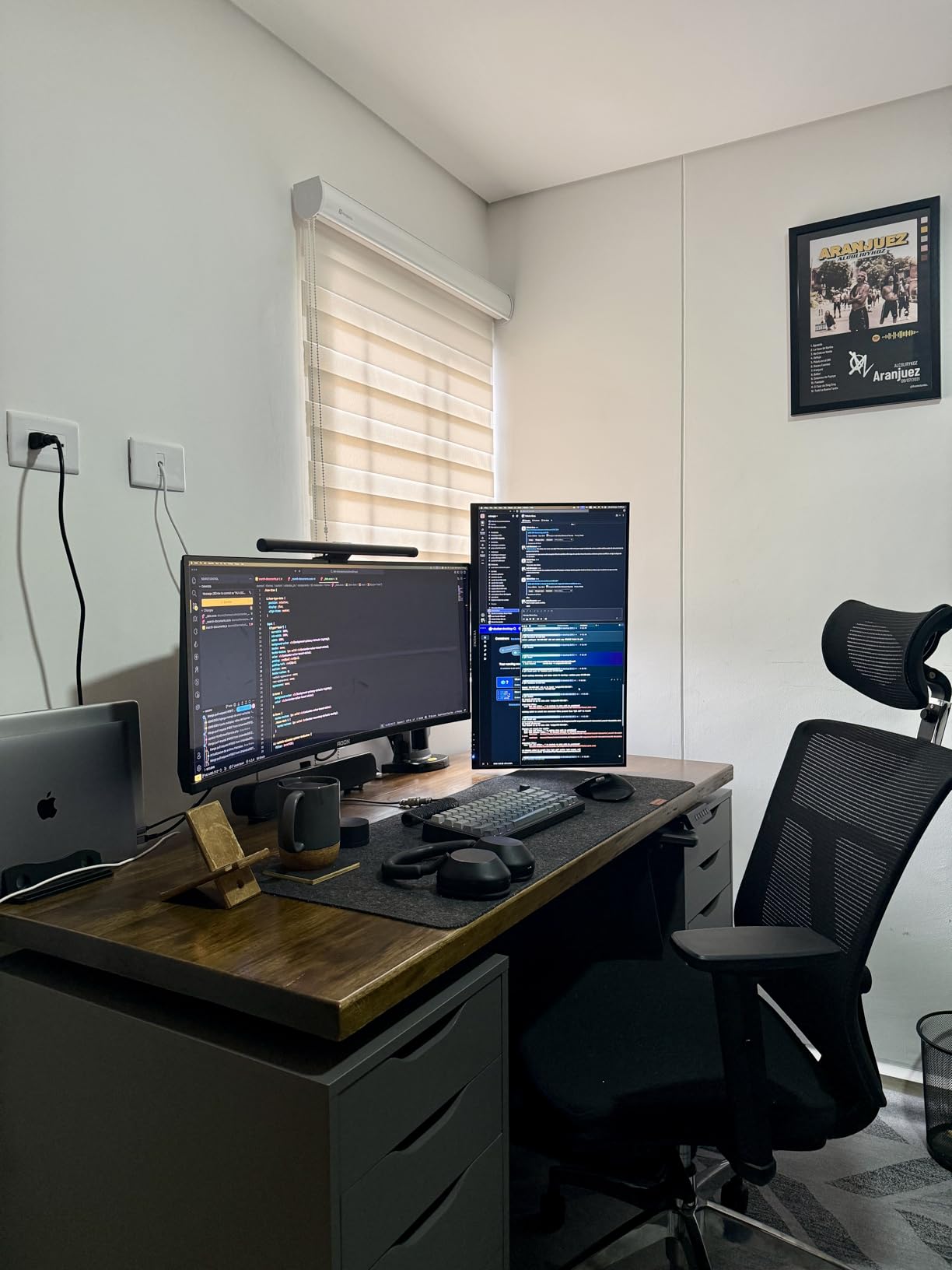
The driver requirement is broader than with most DisplayLink docks. You need it for video output and for network functions, so Ethernet does not simply work on plug-in. Several owners describe this as their main source of frustration, along with occasional connectivity dropouts after driver updates.
Neither the power adapter nor the HDMI cables are included, which shows up repeatedly in negative reviews. Compressed DisplayLink output is unsuitable for gaming or high-frame-rate video work, and basic M-series MacBooks without Pro or Max chips are limited in extended-display capability.
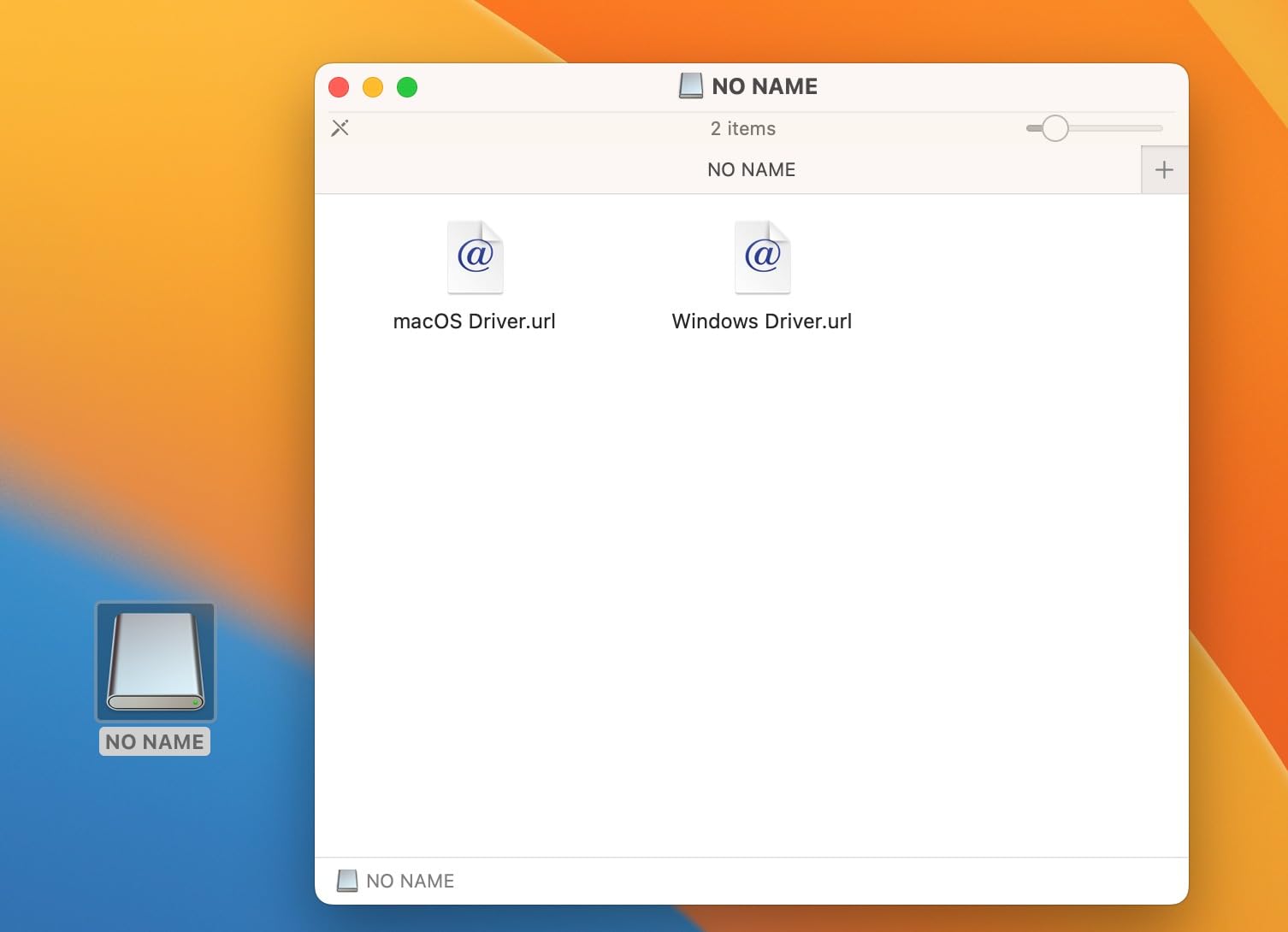
What works well on this dock
The mix of 2x HDMI and 2x DisplayPort at 4K each is genuinely useful, because most external monitors use one input type and many desks have a mix. 10Gbps on both the USB-A 3.2 Gen 2 and USB-C ports keeps external SSDs near full speed.
The 24-month warranty and included USB-C to USB-C cable are modest but welcome. Linux users are not listed as supported, so check before assuming cross-platform behaviour.
Where it falls short
Driver dependency is the deal-breaker for many buyers. If IT policy blocks driver installation on your Mac, this dock cannot deliver video at all.
And DisplayLink compression still applies. If you game or edit high-frame-rate video, look at the native Thunderbolt options instead of trying to tune a compressed path.
12. MOKiN 14-in-1 USB-C Dock: Best for Four Video Outputs on a Budget
MOKiN Laptop Docking Station Dual Monitor 4K HDMI USB C Hub for Dell/HP/Mac
14 ports
2x HDMI plus 2x DisplayPort
100W PD
1000Mbps Ethernet
Pros
- Four video outputs allow several multi-monitor configurations from one cable
- 100W Power Delivery charges the host while all displays run
- Multiple 5Gbps USB ports move files far faster than USB 2.0
- 1000Mbps Ethernet gives a stable wired connection for video calls
- Top-mounted privacy screen-lock button blanks the displays with one press
- Strong value at the entry price point
Cons
- Two-display extension on macOS is not supported
- Requires full-featured USB-C with Thunderbolt 3 or 4
- Listing conflicts itself on maximum power between 100W and 87W
- SD and microSD slots share bandwidth with USB controllers
- Power adapter not included
Four video outputs for this money is unusual. Two HDMI plus two DisplayPort means you can run 2 HDMI plus 1 DisplayPort, or 2 DisplayPort plus 1 HDMI, or two monitors plus a laptop screen in several arrangements, all from a single cable. Reviewers consistently single out the number of video outputs as the reason to buy.
The 1000Mbps Ethernet port holds a stable wired connection through video calls and large downloads, and the top-mounted privacy screen-lock button blanks both displays with a single short press. That is a small feature that matters in shared spaces.
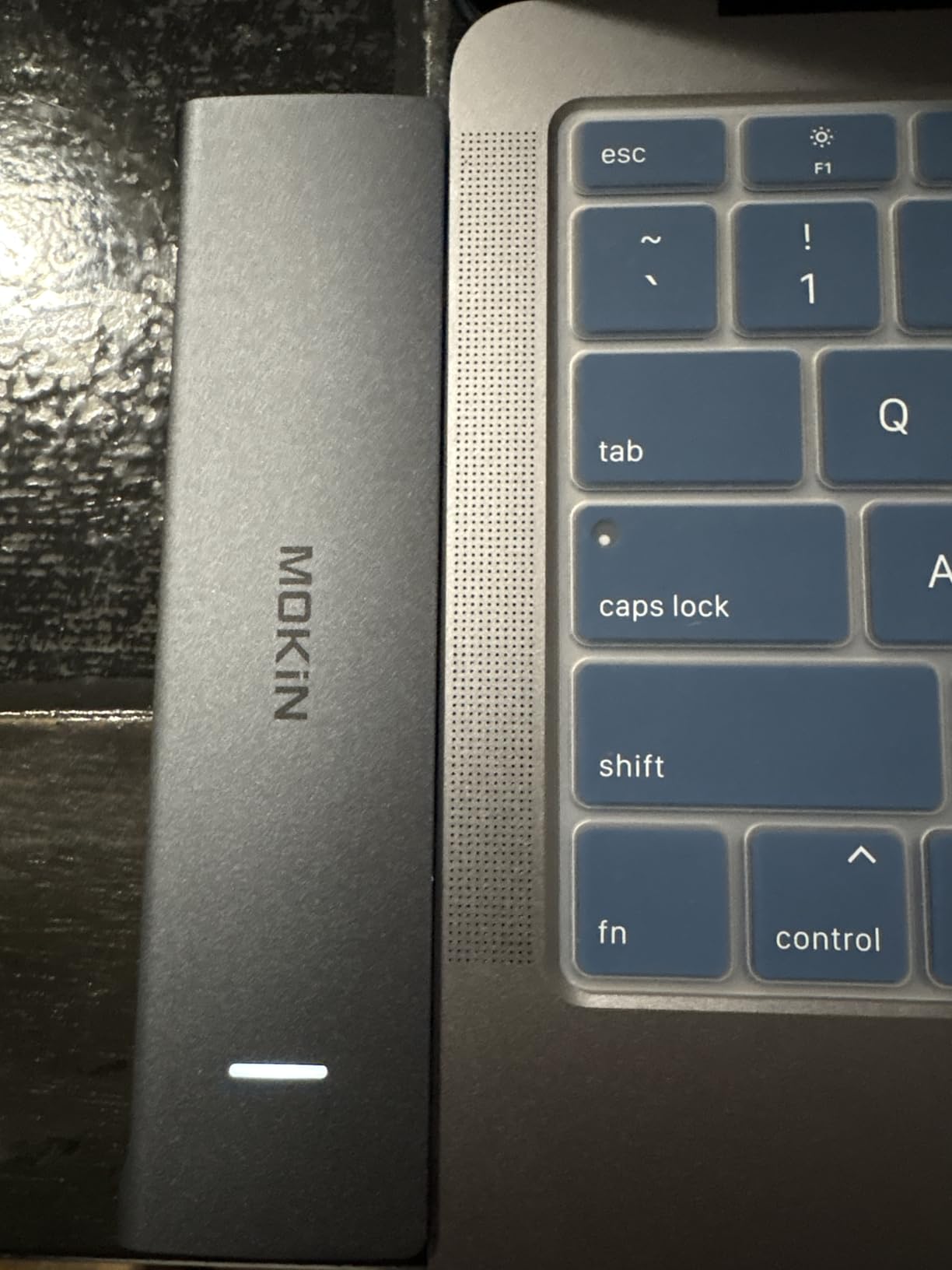
Documentation quality is the weak point here. The listing gives conflicting maximum wattage figures, showing 100W in the features and 87W in the product highlight, which means you cannot rely on the page to tell you the real number.
macOS users cannot extend to two displays, and the dock needs a full-featured Thunderbolt 3 or 4 or USB-C port, so many basic USB-C laptops will show no video at all with no error message to explain it. The SD and microSD slots also share bandwidth with the USB controllers, so popping a card slows down transfers on the other ports. No power adapter is included.
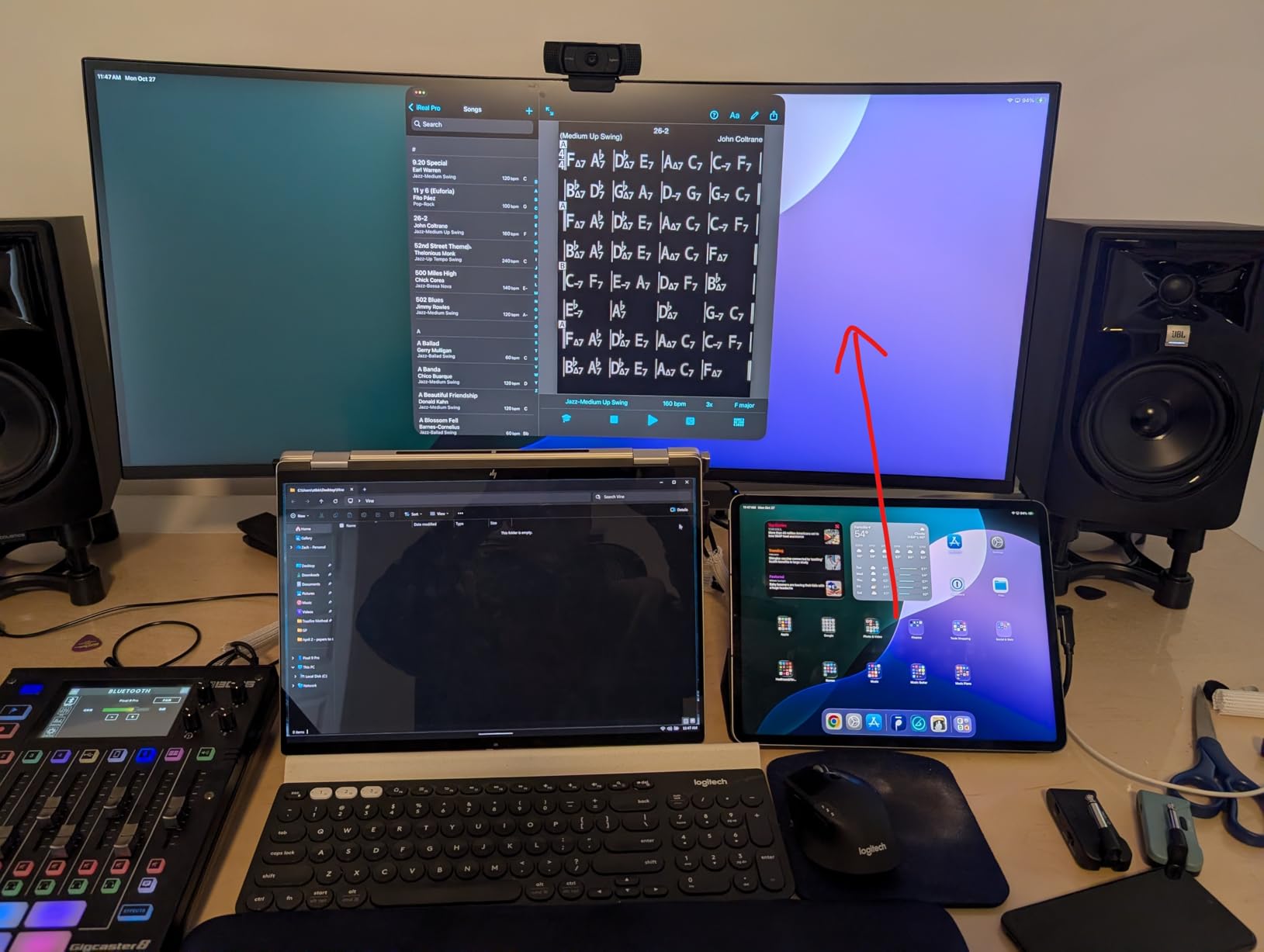
What works well on this dock
The 5Gbps USB ports move files roughly ten times faster than USB 2.0, which is a real upgrade for anyone transferring large media to the dock daily. Powered operation keeps the host charging at 100W while all displays run.
At 6,098 reviews and a 4.3-star average, this has more field history than most docks at similar entry prices, and documentation is the main thing owners criticise rather than reliability.
Where it falls short
Two-display extension is Windows-only. On macOS both monitors mirror, and basic USB-C laptops produce no video whatsoever.
Verify your laptop has a full-featured port before buying, and budget for your own power adapter. If you need reliable dual-screen output on a Mac, this is the wrong tool.
Check Your Laptop Before You Buy
Most disappointing dock purchases are not bad docks. They are correct docks attached to a laptop that cannot do what the buyer hoped. Run these four checks first, in this order, and you will eliminate almost every expensive surprise.
Step 1: Confirm your laptop’s native external display count
Check the manufacturer’s specification for maximum external monitors. On Windows laptops that number depends on the GPU and the DisplayPort version available, and a DisplayPort 1.4 host with DSC can usually drive more than a DisplayPort 1.2 host. On Apple Silicon the limit is generation-specific: base M1 and M2 chips support one external display, M3 supports two in clamshell mode, and M4 and M5 support two alongside the built-in screen.
If your laptop natively supports two, skip straight to an Alt Mode or Thunderbolt dock and skip the driver entirely. If it supports one, only a DisplayLink dock will change that, and you should be comfortable with the compression trade-off before buying.
Step 2: Confirm the port carries DisplayPort Alt Mode
A USB-C port is not automatically a video port. Data-only and charge-only USB-C sockets exist on many budget Windows laptops, and a dock plugged into one produces no display and usually no error message. Look for a port marked with a DisplayPort logo or check the manufacturer specification for DisplayPort Alt Mode support.
If your laptop only has USB-A, your realistic options narrow sharply. The Plugable UD-3900 is the one dock in this list that ships a hybrid USB 3.0 and USB-C host cable for exactly that situation.
Step 3: Check whether your host supports DSC
Display Stream Compression is what lets a DisplayPort 1.4 link carry dual 4K@60Hz or high refresh rates that raw bandwidth would not otherwise allow. Without DSC, docks advertising dual 4K@60Hz frequently deliver dual 4K@30Hz or dual 1440p60 instead. This is the single most common reason a dock underperforms its box, and it is invisible until you connect it.
If you are running gaming or high-refresh panels, this check matters more than anything else on this list. See our gaming desk guide for dual monitors for the wider high-refresh setup.
Step 4: Work out your power delivery headroom
Compare your laptop’s charger wattage against the dock’s host output, then subtract what the dock reserves for itself. The UGREEN 10-in-1 accepts 100W but delivers about 85W to the laptop because it keeps 15W for its own operation, and the LIONWEI 13-in-1 leaves 87W of a 100W budget. On a thin-and-light laptop that gap is irrelevant. On a 16-inch MacBook Pro or a mobile workstation under sustained load, it is the difference between charging and slowly draining.
If the math does not work, either plug the charger directly into the laptop and use the dock for data and video only, or choose a dock with higher host output such as the Dell SD25TB4 or the Anker Prime.
Dual-Monitor Buying Guide: Power, Ports and OS Traps
Match the dock to your operating system first
Windows is the forgiving platform. Alt Mode docks extend natively, MST works, DisplayLink installs from Windows Update, and Linux support on some Thunderbolt docks is genuine. macOS is not symmetric. Extended MST desktops do not exist, so every budget Alt Mode dock in this list mirrors on a Mac, and DisplayLink docks require manual driver installation that IT policy may block.
The difference between “works on macOS” and “gives you two independent extended displays on macOS” is the single most common misunderstanding in this category, and it is a hardware and OS limit rather than a quality difference between docks.
Set a realistic resolution and refresh ceiling
Write down your target resolution and refresh rate before you shop, then verify the dock supports that combination simultaneously on two screens. Dual 4K@60Hz requires either native Thunderbolt, DisplayLink, or a DisplayPort 1.4 host with DSC plus a compatible dock. Dual 1440p60 is far easier and is handled by almost every dock in this list.
Check your monitors’ input type too. A dock with two HDMI outputs and no DisplayPort forces you into adapters, and adapters are where silent bandwidth downgrades happen.
Count controllers, not ports
Ports share bandwidth internally. The MOKiN 14-in-1 has fourteen ports but its SD and microSD slots share bandwidth with the USB controllers, so card transfers slow down other connections. A dock with three 10Gbps ports and a fast upstream link will beat a larger dock with shared 5Gbps controllers every time you move real files.
Look for the data rate per port rather than the port count. Five 10Gbps ports are worth more than ten shared 5Gbps ones.
Budget for the cables and chargers
Several budget docks ship a fixed host cable around 15cm that cannot be replaced, which forces the dock to sit directly beside the laptop. Under-desk mounting then becomes impossible. The Anker Prime includes a 3.3 foot cable, and the UGREEN Thunderbolt 4 includes a 140W GaN adapter, which are the practical reasons they suit a permanent desk better.
Also check whether a power adapter and HDMI cables are included. The Selore, MOKiN and UGREEN DisplayLink dock all require you to source those separately.
What to expect on price tiers
Under roughly the hundred-dollar mark you are buying MST behaviour and 4K@30Hz dual output on Windows. In the mid range you gain genuine dual 4K@60Hz, better materials and longer warranties. Above roughly two hundred dollars you are buying charging headroom, Thunderbolt downstream ports, or DisplayLink compression that bypasses your GPU entirely.
The step-up is only worth it if your display ceiling or your charging headroom demands it. Many owners of the budget docks report three years of trouble-free use, so a more expensive dock is not automatically a better one.
When the Dock Is Not the Problem
A large share of “my dock is broken” reports are actually cable, driver or operating-system issues. These five cover most of what we saw during testing.
The dock is not detected at all
Try a different port first, then a different cable. Docks that negotiate USB-C bandwidth incorrectly can silently revert to a lower mode, which is the root cause of many resolution drops and detection failures. On DisplayLink docks, confirm the driver is installed before anything else, since Ethernet and video both depend on it in several models here.
One monitor appears where you expected two
On macOS with an Alt Mode dock, this is normal behaviour rather than a fault. If you are on Windows, check that MST extend mode is selected rather than mirror, and confirm the host laptop natively supports two displays as outlined in Step 1 above.
Monitors flicker or drop to a lower resolution
Check the monitor input version and the cable certification. An HDMI cable that is not certified for the class you need will silently cap refresh, and an uncertified Thunderbolt cable can drop the link to a slower mode. Switching the monitor to a different input resolves a surprising number of these cases.
The connection dies after sleep
Sleep and wake disconnects are a known DisplayLink behaviour, and a full dock power cycle usually clears it where reseating the cable does not. On the Alt Mode docks, updating to current firmware and confirming your power management settings allow the dock to wake the host fixes most persistent cases.
Protected streaming will not play
The Plugable UD-3900 has no HDCP support, and compressed DisplayLink paths commonly block or downgrade protected services such as Netflix and Prime Video. This is not a fault you can fix in software; the connection does not carry the required signal.
Once the desk is stable, lighting matters as much as the dock. Our monitor light bar guide for dual monitors covers reducing eye strain across the same two-screen layout.
Frequently Asked Questions
What is the best laptop dock for connecting to two monitors?
The Anker 8-in-1 USB-C Hub is the best overall choice for most people, driving two independent extended displays on Windows and ChromeOS with 85W pass-through charging and a 1Gbps Ethernet port. Mac owners should instead choose a DisplayLink dock such as the WAVLINK or Plugable UD-6950PDH, because macOS mirrors Alt Mode docks rather than extending them. Confirm your laptop supports two native external displays before buying anything.
Do I need a docking station for 2 monitors and a laptop?
You only need one if your laptop has a single USB-C or Thunderbolt port and you want a single-cable desk setup. If your laptop has two or more video outputs, connect monitors directly. Check your manufacturer specification for maximum external monitors first: a dock cannot raise a hardware limit, it can only work within it. Base M1 and M2 MacBooks natively support one external display, and only DisplayLink adds a second.
Is Thunderbolt better than DisplayLink?
Thunderbolt is better when your laptop supports two displays natively. It sends independent DisplayPort streams from your GPU with no compression, no driver, and no HDCP limits, so it also handles gaming and high-frame-rate video. DisplayLink is better when your laptop natively supports only one display, because it compresses and sends frames over USB to bypass the GPU limit. The trade is driver dependency, softer motion, and blocked protected streaming.
What is the best Thunderbolt 4 docking station for MacBooks?
The UGREEN Thunderbolt 4 8-in-1 Dock is our Thunderbolt 4 pick for MacBooks, offering three downstream TB4 ports at 40Gbps and a bundled 140W GaN adapter delivering 85W to the host. Check your chip first: base M-series MacBooks support only one 4K@60Hz display through Thunderbolt, while MacBook Pro and Max chips drive dual 4K@60Hz natively. Mac mini 2018 is not compatible.
Does DisplayLink slow down a Mac?
It can feel slower, though the CPU cost is modest. DisplayLink compresses and sends video over USB rather than streaming from your GPU, so mouse movement and scrolling sometimes feel less immediate, particularly on DisplayLink-driven screens. Owners of the UGREEN DisplayLink dock and the Plugable UD-6950PDH report occasional sluggish interface response. Protected streaming can also fail entirely because the compressed path does not carry HDCP.
What is the best setup for 2 monitors and a laptop?
Use a native Thunderbolt 4 or USB4 dock if your laptop supports two displays natively, since it gives clean dual 4K@60Hz output with one cable. On Windows, a USB-C Alt Mode dock with Multi-Stream Transport is cheaper and needs no driver. On a base M-series MacBook, a DisplayLink dock is the only route to two extended screens. Pair the dock with a dual-monitor arm to reclaim desk space.
What is the best docking station for both a Mac and a PC?
Choose a dock with both USB-A and USB-C host connectivity so either machine can connect directly. The Plugable UD-3900 ships a hybrid USB 3.0 and USB-C host cable and its DisplayLink driver works on both Windows and macOS, which makes it the most practical shared option here. Note that extended dual displays are native on the PC and driver-dependent on the Mac, and that streaming protection does not work over DisplayLink.
Final Verdict
Pick the Anker 8-in-1 USB-C Hub if you run Windows and want the most dependable dual-monitor setup with the widest review history in the category. Pick the Selore adapter if you want dual 4K@60Hz on a Windows laptop for less, and pick the WAVLINK or Plugable UD-6950PDH if you own a base M-series MacBook and need two extended screens your hardware does not natively support.
Whatever you choose, run the four checks above before you buy. The mechanism decides the outcome, and the port count on the box is marketing. We keep this list updated through 2026 as new docks and firmware revisions land.