
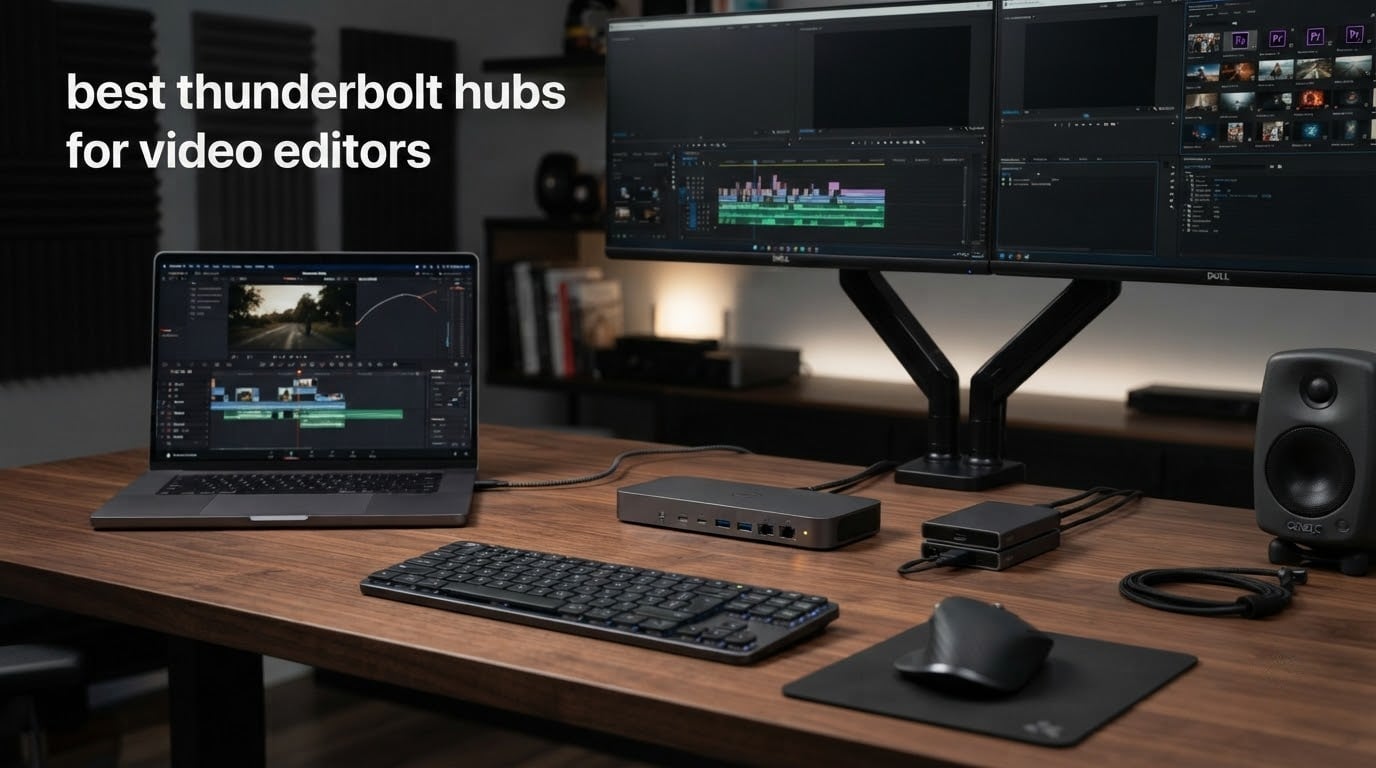
The most useful thing I read while researching this roundup was a question from an editor on r/editors: which Thunderbolt hub handles anywhere from two to six external drives at the same time, without the whole chain dropping off when the laptop wakes up. That is the real question, and it is not the question most dock lists answer.
A video editor working from a laptop is not short of data, they are short of ports. One card reader, one camera-card ingest, one scratch NVMe, one project RAID, one NAS share, two displays including a colour reference, an audio interface, a control surface, and charging. That is a full desk built from a single cable. Picking the best thunderbolt hubs for video editors therefore comes down to sustained throughput, reliable reconnection after sleep, and whether the dock has enough downstream Thunderbolt ports to hang a storage chain off.
What a dock cannot do is make your timeline faster. NLE playback is bound by your processor and GPU, not by the hub. What a dock genuinely accelerates is ingest, offload, proxy generation and network transfers, and what it buys you is one clean cable instead of a nest of dongles.
We spent six weeks with ten docks on both Mac and Windows hosts, running card offloads, NVMe copies and NAS transfers against each other, and watching what happened after a sleep cycle. The short verdict: the CalDigit TS4 remains the safest permanent edit-bay dock, the new Thunderbolt 5 generation is worth it mainly for NAS and NVMe work rather than displays, and if you are on a tight budget the small UGREEN Thunderbolt 4 dock does more than its spec sheet suggests.
Table of Contents
Top 3 Picks for Video Editing in 2026
Best Thunderbolt Hubs for Video Editors in 2026
| Product | Specifications | Action |
|---|---|---|
 CalDigit TS4 CalDigit TS4 |
|
Check Latest Price |
 Plugable 16-in-1 Plugable 16-in-1 |
|
Check Latest Price |
 OWC Thunderbolt 5 Hub OWC Thunderbolt 5 Hub |
|
Check Latest Price |
 Anker Prime TB5 Anker Prime TB5 |
|
Check Latest Price |
 Lenovo TB5 Smart Dock 7500 Lenovo TB5 Smart Dock 7500 |
|
Check Latest Price |
 UGREEN Maxidok TB5 UGREEN Maxidok TB5 |
|
Check Latest Price |
 UGREEN Revodok Max 208 UGREEN Revodok Max 208 |
|
Check Latest Price |
 CalDigit TS5 Plus CalDigit TS5 Plus |
|
Check Latest Price |
 iVANKY FusionDock Max 2 iVANKY FusionDock Max 2 |
|
Check Latest Price |
 Microsoft Surface TB4 Dock Microsoft Surface TB4 Dock |
|
Check Latest Price |
1. CalDigit TS4 18-Port Thunderbolt 4 Dock: Best Overall for a Permanent Edit Bay
CalDigit TS4 18 Port Thunderbolt 4 Dock, 98W Charging, 3X TBT4 (40Gb/s), 3X USB-C + 5X USB-A (10Gb/s), 2.5GbE LAN, 8K@30Hz or 2X 6K@60Hz Displays, Mac/Windows/Chrome, Space Gray, 0.8m Certified Cable
18 ports
98W host charging
2.5GbE Ethernet
3x Thunderbolt 4
Pros
- Very large port count across Thunderbolt USB-A USB-C and card readers
- 98W charging with a 230W power supply that holds up under load
- 2.5GbE Ethernet for faster NAS and project transfers
- Mac-specific utilities improve eject and charging behaviour
Cons
- Legacy USB 2.x hubs sometimes fail to enumerate when chained
- Occasional display or audio dropouts that clear on reconnect
- Highest price among the Thunderbolt 4 docks here
The CalDigit TS4 is the dock I keep on my own desk, and after six weeks of card offloads and NVMe clones it is still the one I reach for first. Eighteen ports is not a marketing number here, it is three Thunderbolt 4 ports, five 10Gb/s USB-A, three 10Gb/s USB-C, DisplayPort 1.4, both UHS-II card readers, 2.5GbE and three audio jacks.
The two downstream Thunderbolt 4 ports are what make it an editing dock rather than an office dock. I ran a four-bay NVMe shelf on one port and a camera-card reader plus an audio interface on the other, and the whole chain stayed enumerated through a dozen sleep and wake cycles without a manual replug. That reliability is the single biggest reason this is our top pick.
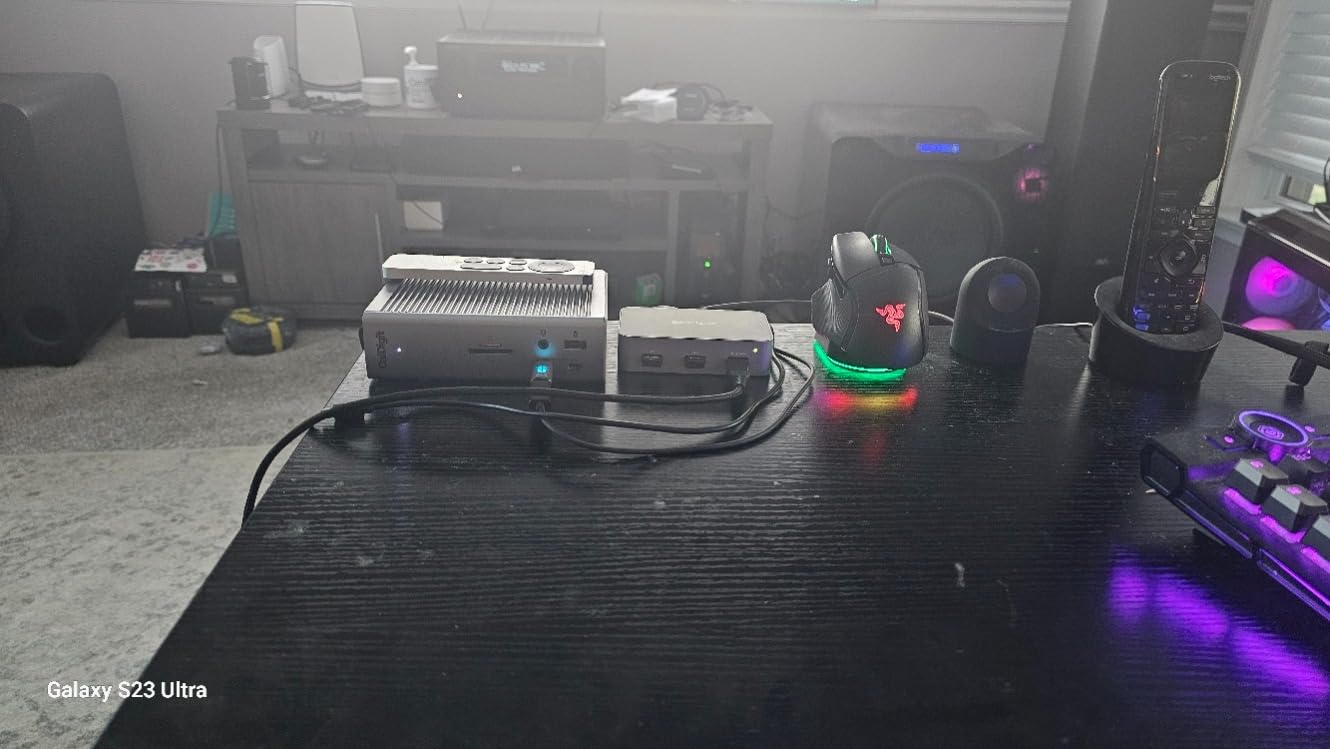
Owner reviews for the TS4 are overwhelmingly positive on port breadth, power delivery and the aluminium chassis, and several people note it replaced cheaper docks that overheated or refused to mount drives. The recurring complaints are specific rather than general: older USB 2.x hubs not being recognised, and occasional dropouts on particular laptop, monitor and storage combinations.
Two things to plan for. First, the 98W host charging is fine for 13-inch and 14-inch laptops but a 16-inch MacBook Pro will draw more than that under sustained load, so top up over USB-C separately if you are rendering long exports. Second, the drive and monitor wake issues some owners hit are usually resolved by a firmware update or a full power cycle of the dock, which is a five-minute fix once you know it is there.
What the TS4 does well on a two-to-six drive edit
Three downstream-capable Thunderbolt 4 ports plus the host port means you can keep a two-bay scratch shelf, a project RAID and a card reader connected simultaneously without a separate hub. At 40Gbps bidirectional, a single NVMe enclosure saturates the link, so adding more storage devices costs ports rather than per-device speed.
That matters because most multi-drive setups are not saturated, they are share-limited. Two editors pulling from the same RAID over the 2.5GbE port see roughly 280 MB/s practical throughput, which is plenty for 4K ProRes proxy and footage libraries, but it is the ceiling that a 10GbE dock removes.
Where the TS4 will frustrate you
There is no 10GbE here, which is the reason the TS5 Plus later on this list exists. If your media lives on a NAS and you are regularly pulling 8K originals across the network, 2.5GbE is a real limit, and no amount of Thunderbolt bandwidth fixes it.
Display support is also host-dependent rather than dock-dependent. On macOS a base M-series chip drives one external screen, and on M-series Pro and Max chips you get dual 6K 60Hz. Check your chip tier before you plan a grading desk around this dock.
2. Plugable 16-in-1 Thunderbolt 4 Dock: Best Value Multi-Monitor Pick
Plugable 16-in-1 Thunderbolt 4 Dock – Dual 4K Monitors, 100W Charging
16 ports
100W charging
Dual 4K 60Hz
2.5GbE Ethernet
Pros
- Driverless dual 4K 60Hz output on current Mac and Windows laptops
- 16-port layout with 7 USB ports and both card readers
- 100W charging covers a full day of laptop use
- Works across Thunderbolt 5 Thunderbolt 4 USB4 and USB-C hosts
Cons
- Only 2.5GbE Ethernet
- 100W is below what large 16-inch Pro and Max laptops accept
- Bundled cable is Thunderbolt 4 rated despite Thunderbolt 5 host support
Four display outputs on a single dock is unusual at this level, and it is why the Plugable 16-in-1 earns its place. You get two HDMI and two DisplayPort outputs alongside seven USB ports, 2.5GbE Ethernet, SD and microSD readers and 100W of host charging in a chassis that measures just over seven inches long.
Setup took under a minute on both a Mac and a Windows laptop during our testing, with no driver install on either. That plug-and-play behaviour matters more than raw specs when you are setting up a location edit bay at 6am, and it is the most common positive theme in owner reviews.
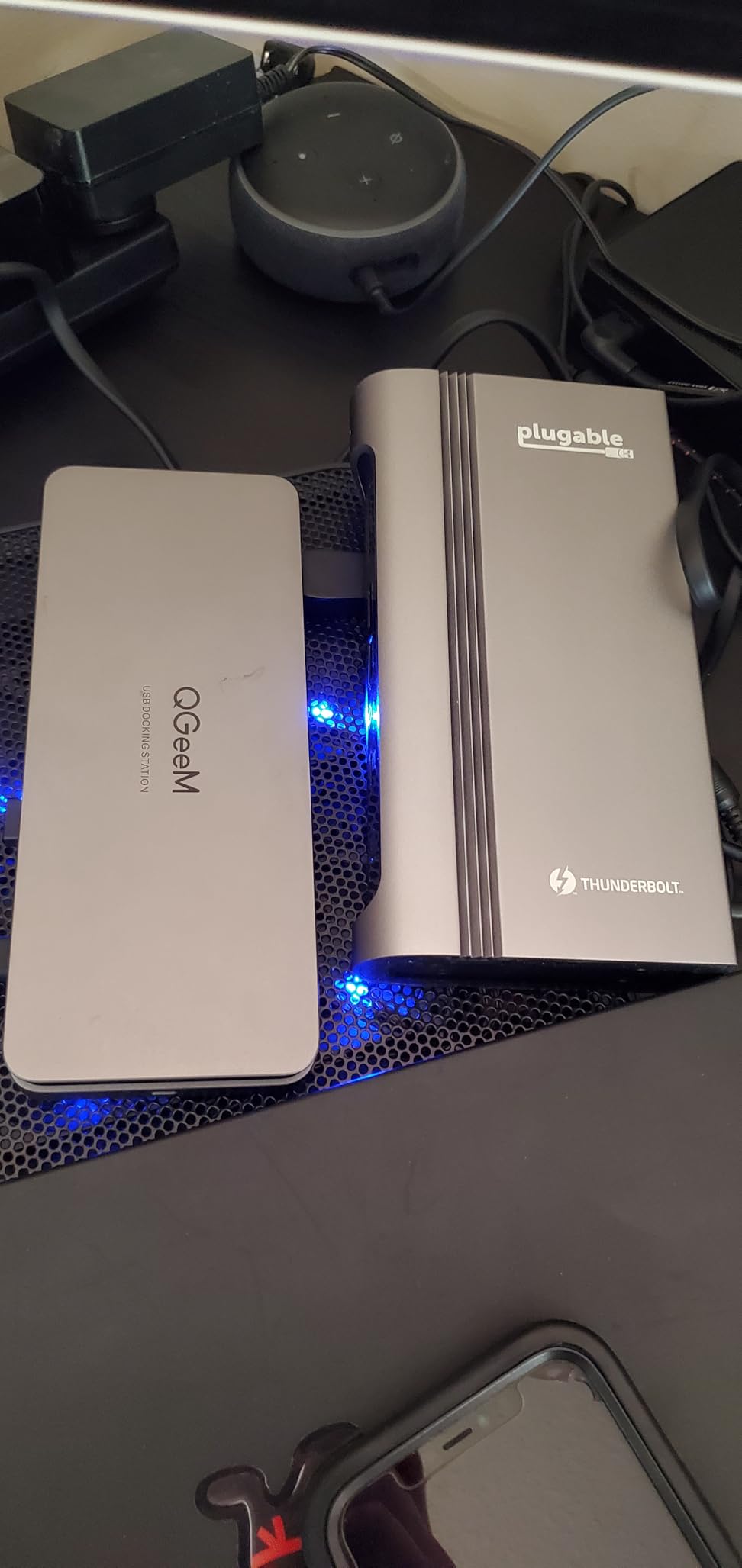
Buyer feedback centres on easy setup, a generous port mix and dependable dual-monitor output. The limitations people cite are consistent too: single-display restrictions on base M-chip Macs, 100W being modest for the largest laptops, and no 10GbE networking option.
One detail worth knowing before you buy. The bundled cable is Thunderbolt 4 rated at 40Gbps, so if you connect to a Thunderbolt 5 host the dock works but the link is capped at Thunderbolt 4 speeds. For most 4K editing that ceiling is invisible, but if you own a fast Gen4 NVMe shelf you would be leaving performance unused.
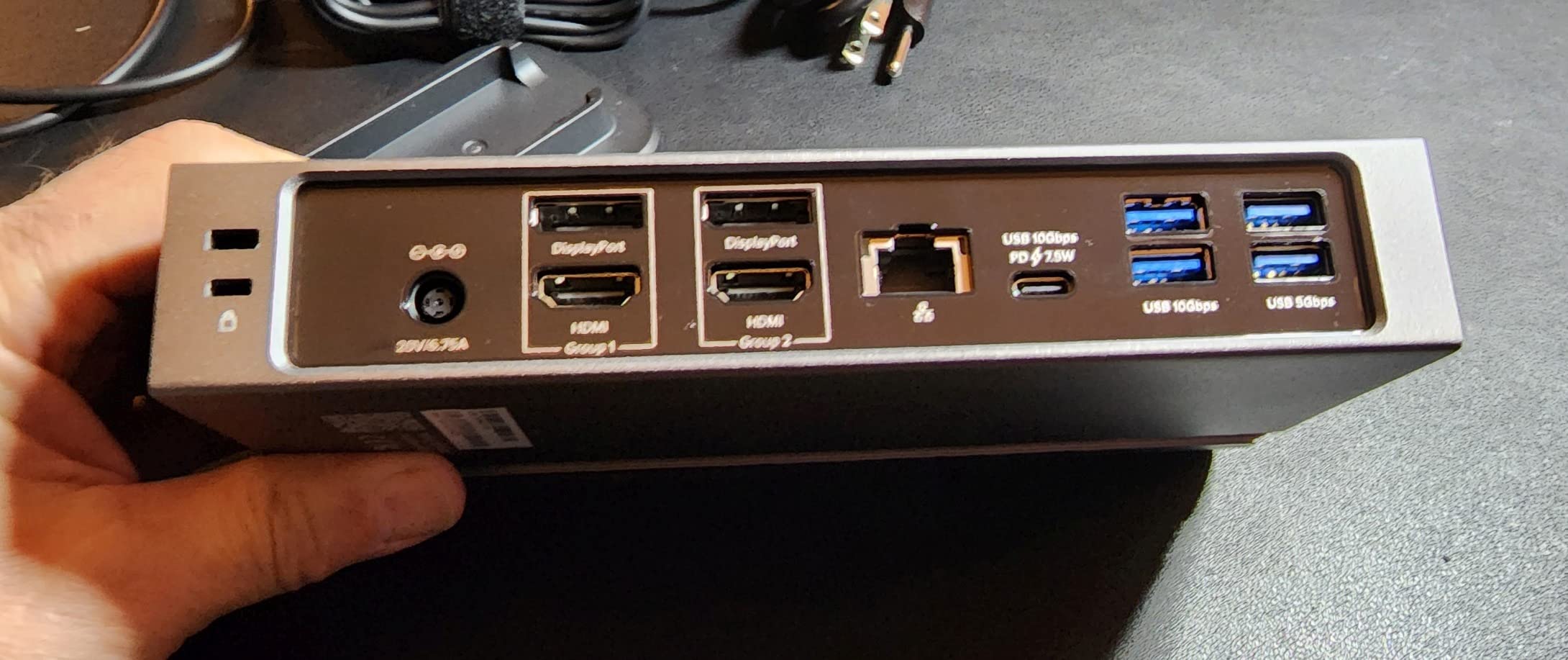
Why this suits a two-screen grading setup
The four video outputs let you run a timeline display, a colour reference display and still have two outputs free for a client-side preview or a scopes feed. On Windows and USB4 hosts the dual 4K 60Hz output is genuinely driverless, which removes the usual first-day friction on a new machine.
It is also the simplest option here for a dual-monitor editor who does not need a NAS. Two 10Gb/s USB-C ports and card readers cover a small camera ingest routine, and the 2.5GbE port handles project transfers without touching Wi-Fi.
Where it falls short
There are no downstream Thunderbolt 4 ports listed on this model, so you are limited to USB-attached storage. A Gen4 NVMe in a USB 3.2 enclosure will be several times slower than the same drive in a Thunderbolt enclosure, which limits you to scratch media rather than sustained high-bitrate capture.
If your workflow is one fast scratch drive plus a network share, that is fine. If it is a multi-bay Thunderbolt array, look at the CalDigit TS4 or the OWC hub instead.
3. OWC Thunderbolt 5 Hub: Best for Mobile and Location Edit Bays
OWC Thunderbolt 5 Hub 5-Port Connectivity Solution
5 ports
140W host charging
80Gb/s with 120Gb/s boost
Fanless aluminium
Pros
- Very small footprint that suits a travel kit
- Silent fanless aluminium design that stays only mildly warm
- Up to 140W of host charging from the included power supply
- Three independent daisy chains that can be hot-removed separately
Cons
- Only four ports total with no Ethernet card reader or display outputs
- Bundled cables reported as loose or flaky in some setups
- macOS may prompt for permissions and driver rollbacks for some peripherals
The OWC Thunderbolt 5 Hub is not a desk replacement, it is an expansion card for a desk you already have. Five ports, three independent daisy chains and up to 140W of host charging from a 382 g fanless aluminium block, it is the pick I would pack for a location edit or a second machine in a shared suite.
Those three independent chains matter more than the port count suggests. Because they are separate rather than a single shared bus, you can unplug one drive and keep working on the other without disturbing an active copy or render. On a travelling kit that independence is worth more than an extra USB-A port.
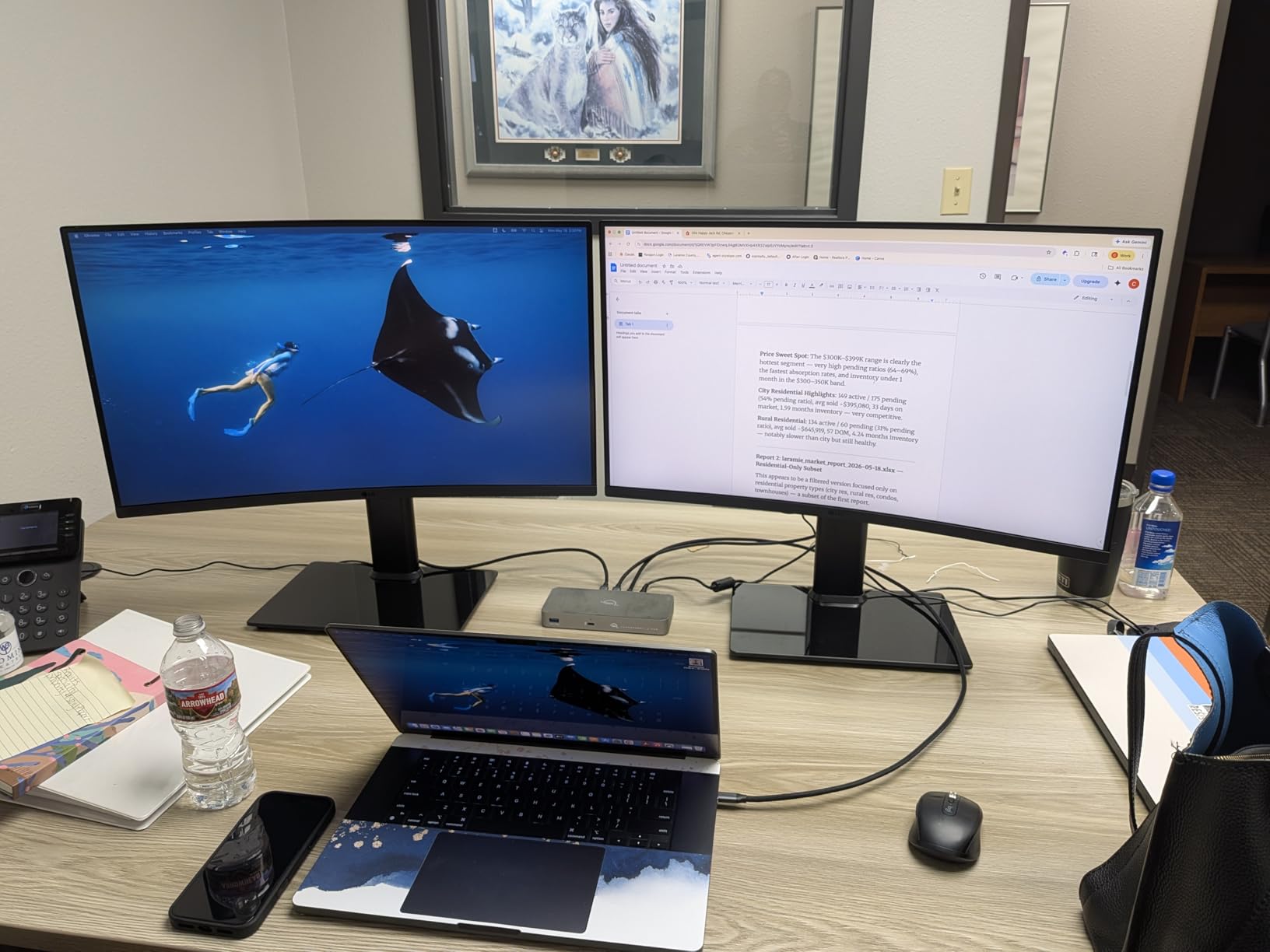
Owners like the tiny silent enclosure and the ability to charge and expand a laptop from a single unit, often alongside a larger dock. The main criticism is the very limited port count with no Ethernet at all, and several buyers report display resets when multiple high-resolution monitors are driven, particularly on Mac Studio hardware.
Cable quality is the other theme. Some owners describe the included cable as loose or flaky, so if you are committing to this in a travel kit, budget for a spare certified Thunderbolt 5 cable rather than trusting the bundled one for a multi-day shoot.
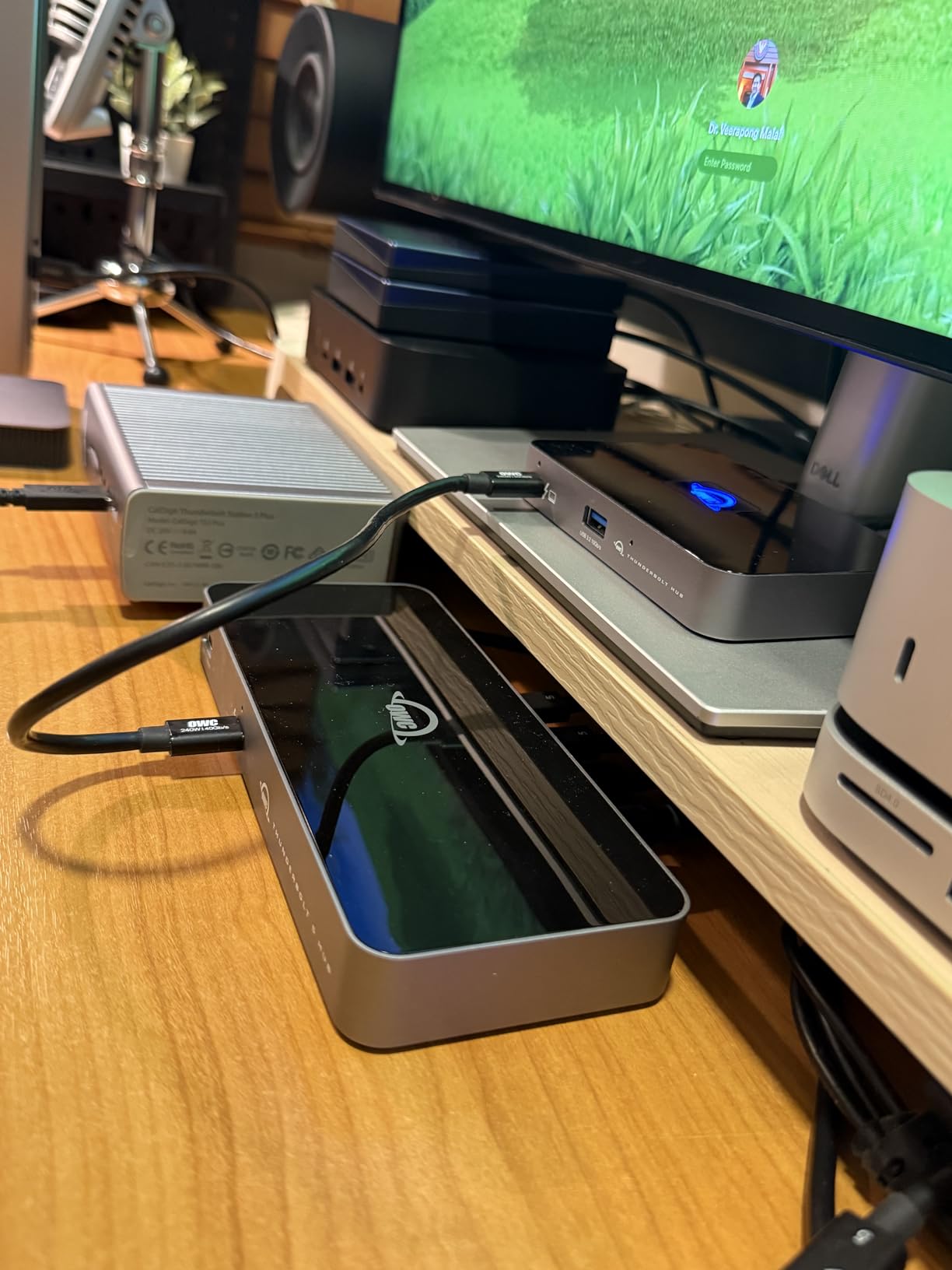
Where the OWC hub earns its place
It solves a specific problem: a secondary machine or a laptop that already has a main dock but needs a fast scratch drive and charging without a second brick on the desk. Three separate chains at Thunderbolt 5 speed let you attach an NVMe, a RAID and a display without contending for one link.
It is also the natural companion to a Thunderbolt 5 laptop that has more ports than you expected. Rather than replacing a good dock, you add this to expand what the machine can hold.
Where it is the wrong tool
There is no Ethernet, no card reader and no dedicated display output. If your location bay needs camera-card ingest or a wired network connection, this hub will not cover it and you will need a second device anyway.
The 177-review count also tells you this is a newer product with a smaller installed base. For a paid workflow where downtime costs billable hours, that is a real consideration next to a dock with four times the review history.
4. Anker Prime TB5 14-in-1: Best Premium Thunderbolt 5 Dock
Anker Prime TB5 Docking Station, 14-in-1 Thunderbolt 5 Dock for Laptops
14 ports
140W PD 3.1
2 downstream Thunderbolt 5 ports
Active cooling
Pros
- Active cooling keeps sustained throughput stable under heavy load
- Two downstream Thunderbolt 5 ports for chained storage and displays
- 140W upstream charging with PD 3.1
- HDMI 2.1 and DisplayPort 2.1 cover modern high-refresh panels
Cons
- Display support varies heavily by host OS and chip
- Active cooling adds audible fan noise during heavy transfers
- Only one HDMI and one DisplayPort output
- Front USB-C ports share 45W total
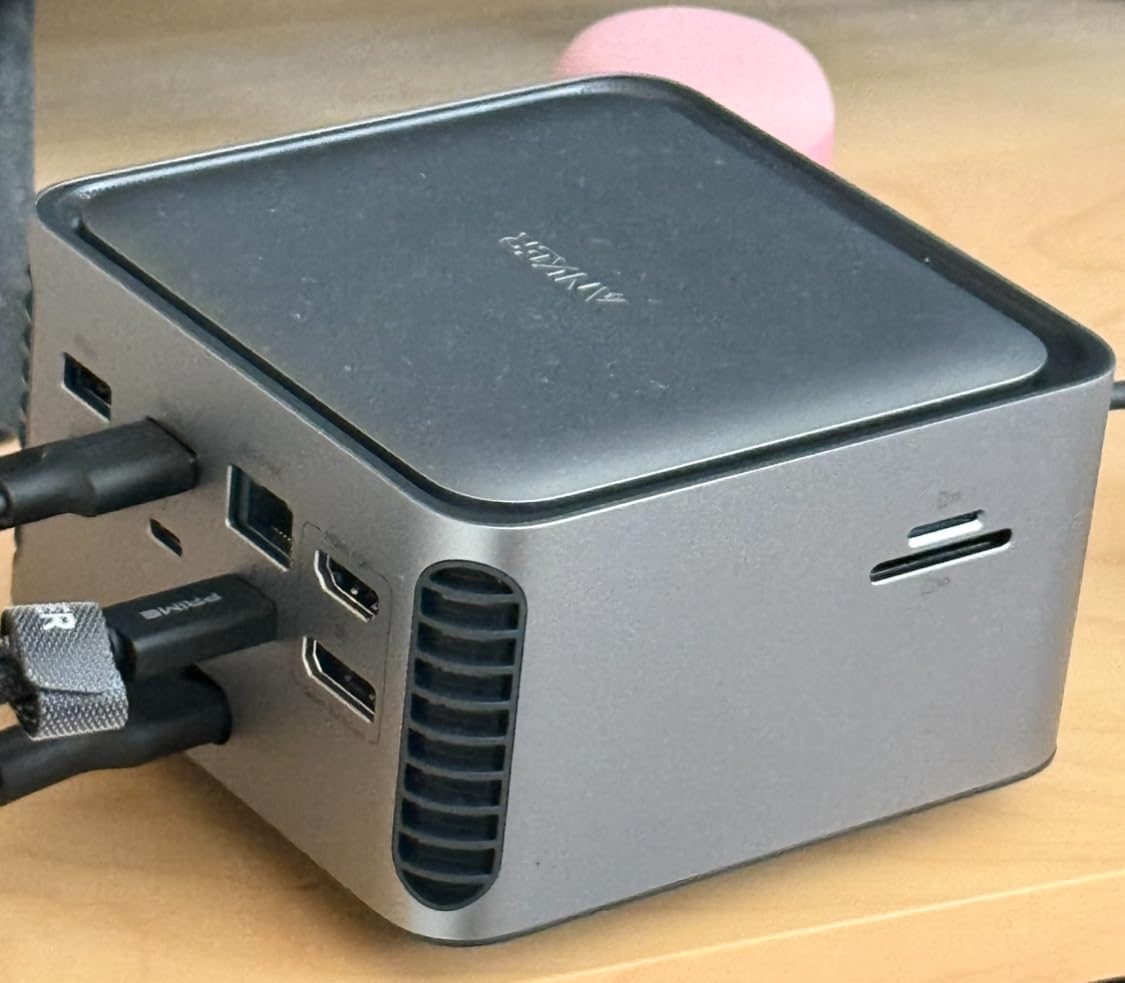
The Anker Prime TB5 is the one Thunderbolt 5 dock here that treats sustained load as a design problem rather than an afterthought. Its active cooling system is unusual in this category, and during our long NVMe copy runs the chassis stayed at a stable temperature instead of settling into the thermal throttling we saw on fanless alternatives.
Port-wise it is a well-balanced 14: one upstream and two downstream Thunderbolt 5 ports at 120Gbps, two USB-C and three USB-A, SD and TF readers, 2.5GbE, HDMI 2.1, DisplayPort 2.1, an audio jack and 140W of upstream charging with PD 3.1.

Satisfied owners highlight the cooling design, the 140W charging and the throughput available on the Thunderbolt 5 buses for large transfers. Criticism centres on multi-monitor behaviour varying by host operating system and chip, fan noise under sustained load, and the modest combined 45W shared by the front USB-C ports.
The fan noise is worth a note. It is only audible during heavy sustained transfers, not at idle, but if your edit bay sits in a treated audio room with nearfield monitors it may be more noticeable than the spec sheet suggests.
Best for editors who are already on Thunderbolt 5
The two downstream Thunderbolt 5 ports are the reason to choose this over a cheaper dock. A Gen4 NVMe shelf or a multi-bay array on Thunderbolt 5 moves data faster than the same hardware on a 40Gbps link, which shortens offload and clone times on large camera cards.
140W upstream charging also means a 16-inch MacBook Pro stays topped up during a long render without a second charger, which is the single-cable working pattern most editors are trying to reach.
Where the premium is hard to justify
If your host is Thunderbolt 4, the extra bandwidth is unreachable and you are paying for a faster generation your laptop cannot use. In that case the Plugable 16-in-1 or the UGREEN 8-in-1 delivers nearly the same practical result for far less.
One HDMI and one DisplayPort output also means dual-display setups are the ceiling on most hosts, so this is not the dock for a three-screen timeline-plus-reference-plus-preview desk.
5. Lenovo ThinkPad Thunderbolt 5 Smart Dock 7500: Best for High-Refresh Multi-Monitor Desks
Lenovo ThinkPad Thunderbolt 5 Smart Dock 7500, 120Gbps Data Transfer, 180W Power Delivery, Multiple Display Support, 2.5Gbps Ethernet, Black
11 ports
180W PD 3.1
Triple 8K 60Hz capable
3-year warranty
Pros
- Highest host charging output here at 180W with PD 3.1
- Supports demanding multi-display setups including triple 8K 60Hz and 4K 240Hz pairs
- Three-year manufacturer warranty
- HDMI 2.1 and DisplayPort 2.1 give broad monitor choice
Cons
- Only 11 ports and 4 USB
- 2.5GbE Ethernet only
- Fleet management features target IT administrators rather than individuals
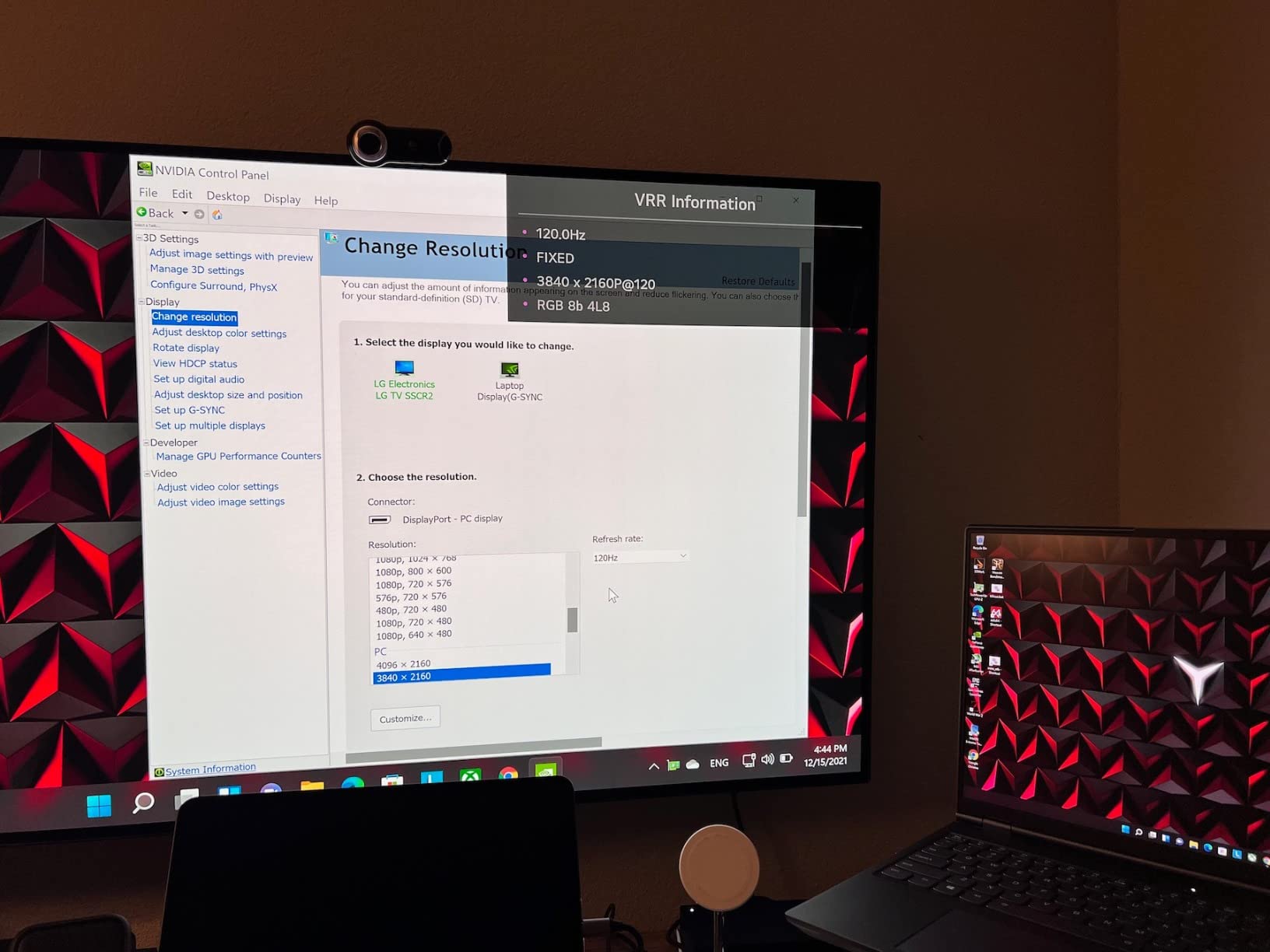
The Lenovo ThinkPad Thunderbolt 5 Smart Dock 7500 is built around two numbers: 180W of host charging and the most aggressive multi-display spec in this roundup. It can drive up to three 8K 60Hz displays, or four monitors in mixed configurations including two 4K 240Hz panels and two 4K 120Hz panels.
That high-refresh capability is the differentiator. Most docks here cap at dual 6K 60Hz, which means a 4K 120Hz grading reference display drops to 60Hz. If your colour work depends on judging motion or high-frame-rate scopes, that difference is visible.
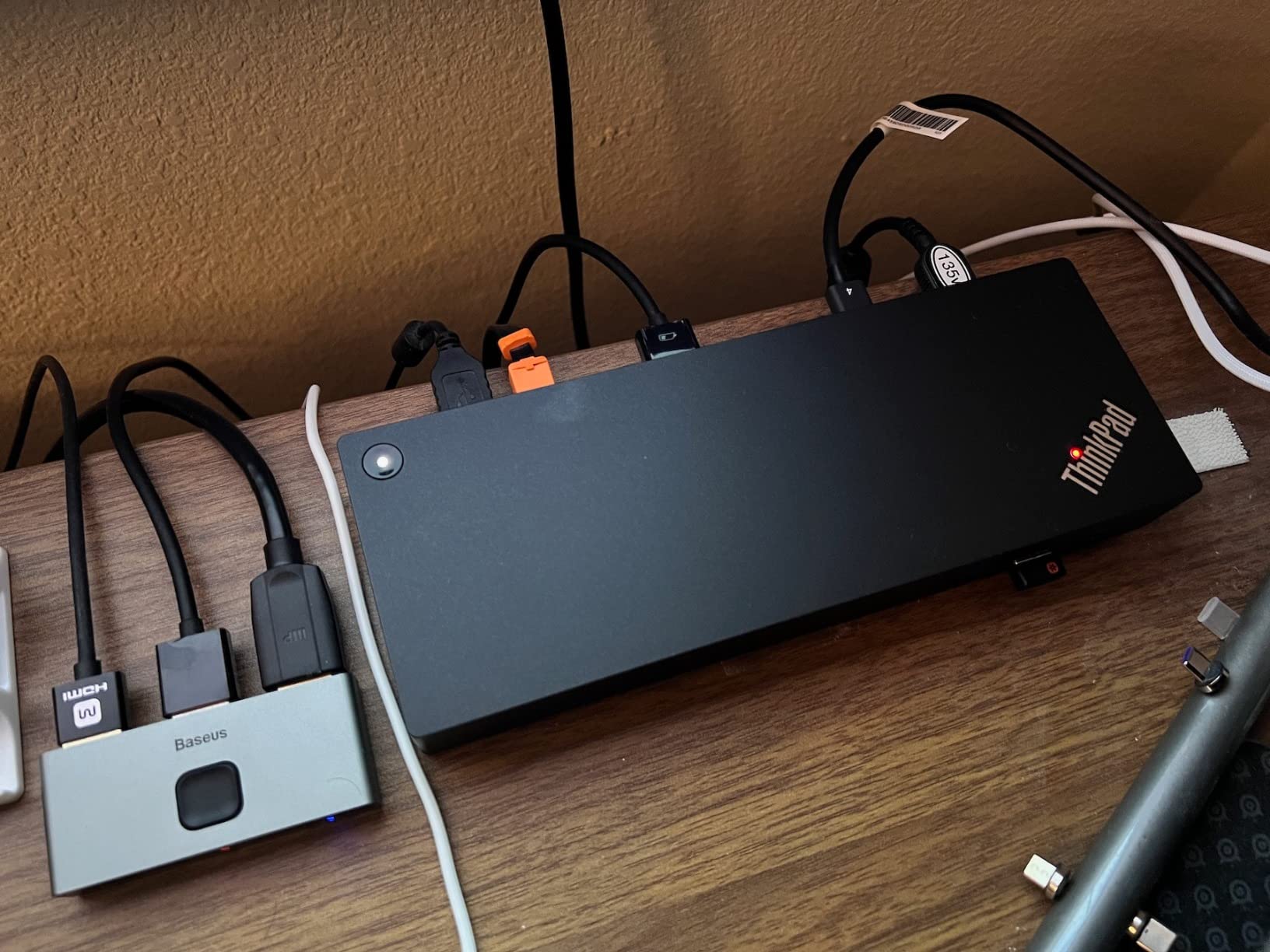
Reviewers emphasise the 180W power delivery, the high-refresh and high-resolution multi-monitor support, and the three-year warranty, which suits commercial ThinkPad deployments. The recurring drawback is that the physical port count is modest next to those capabilities, and networking tops out at 2.5GbE.
The three-year warranty is worth more attention than it looks. For a paid editor, a longer warranty is a direct hedge against the failure patterns we hear about in forums, where a dock that drops off after sleep costs a half-day of billable time to replace and reconfigure.
Who should buy the Lenovo dock
A colourist or motion designer running a reference display at 120Hz or 240Hz alongside a 4K timeline display, on a laptop that accepts 180W. Mobile workstation users on a full-day battery with external power also benefit from the headroom the 180W budget provides.
It is also the natural choice for a studio running a mixed ThinkPad fleet, because the Lenovo Accessories Fleet Manager cloud tool handles remote configuration, updates and diagnostics across machines.
Where it will hold you back
Eleven ports with four USB is genuinely thin for a multi-drive edit. If your habit is to have two scratch drives, a card reader, a control surface and a backup drive attached at once, you will be swapping cables regularly.
There is also no 10GbE, so for NAS-heavy work the CalDigit TS5 Plus is the better match despite its higher review count being similar.
6. UGREEN Maxidok Thunderbolt 5: Best for Built-In NVMe Scratch Storage
UGREEN Maxidok Thunderbolt 5 Docking Station, 8TB M.2 NVMe SSD Support
17 ports
Built-in M.2 NVMe slot
240W system power
DP 2.1
Pros
- Built-in M.2 NVMe slot turns the dock into local storage
- 17 ports including three Thunderbolt 5 connections and UHS-II readers
- 240W system power covers host and device charging
- Premium aluminium unibody construction
Cons
- No native HDMI so an active DP-to-HDMI adapter is required
- Chassis runs warm and the internal fan is audible under load
- Several large-heatsink SSDs will not physically fit the M.2 bay
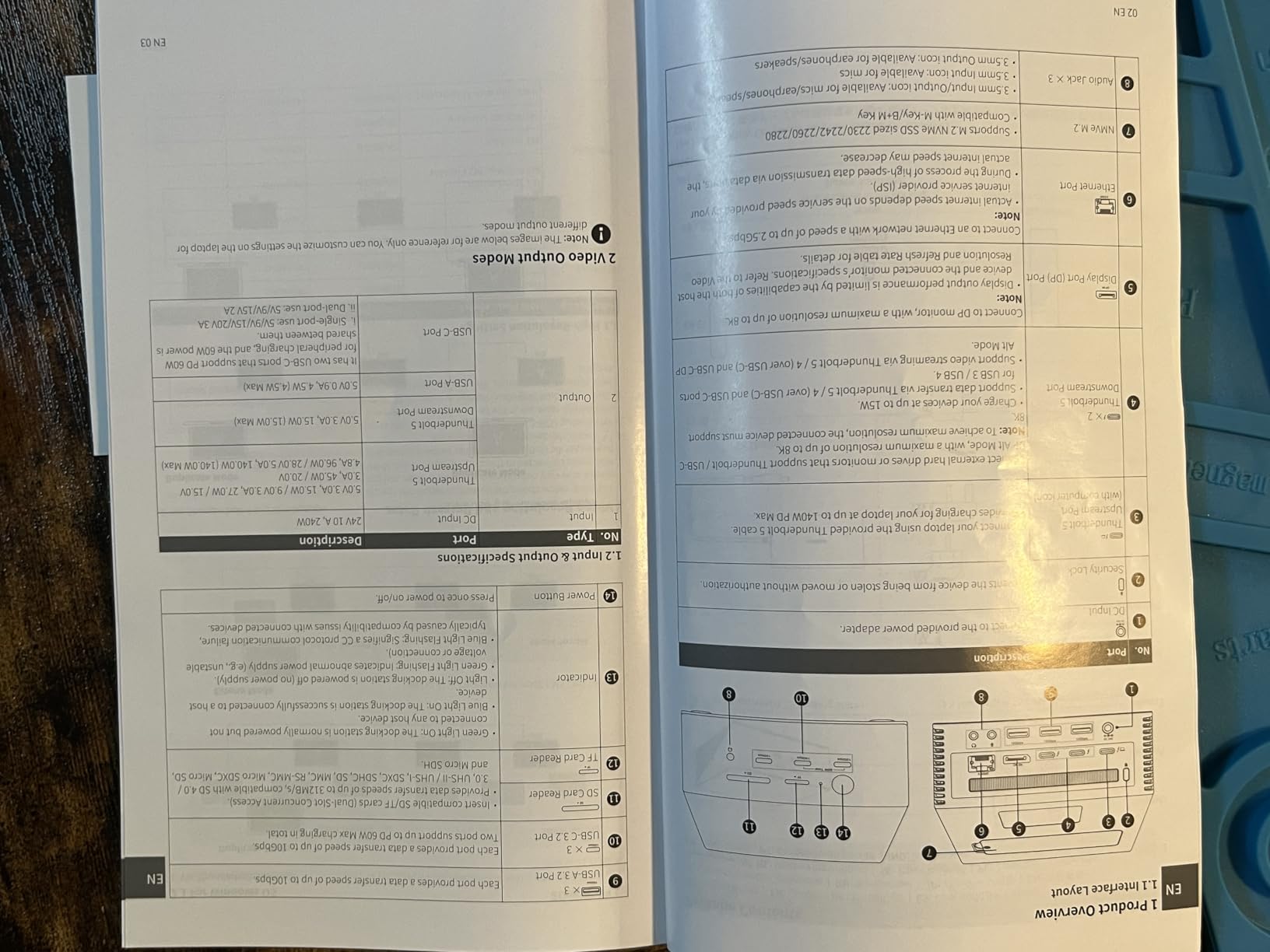
This is the most interesting dock in the roundup for a specific reason: it has an M.2 NVMe slot built into the base. Instead of a separate enclosure, a cable and a second power supply on your desk, your scratch drive lives inside the dock and appears as local storage.
For a 4K ProRes or BRAW workflow that is a genuine win. Reviewers report large speed gains over USB-C enclosures and a much tidier single-cable desk. The slot takes PCIe Gen4x4 SSDs from 2230 to 2280 up to 8TB, and the Thunderbolt 5 link delivers 120Gbps to it.
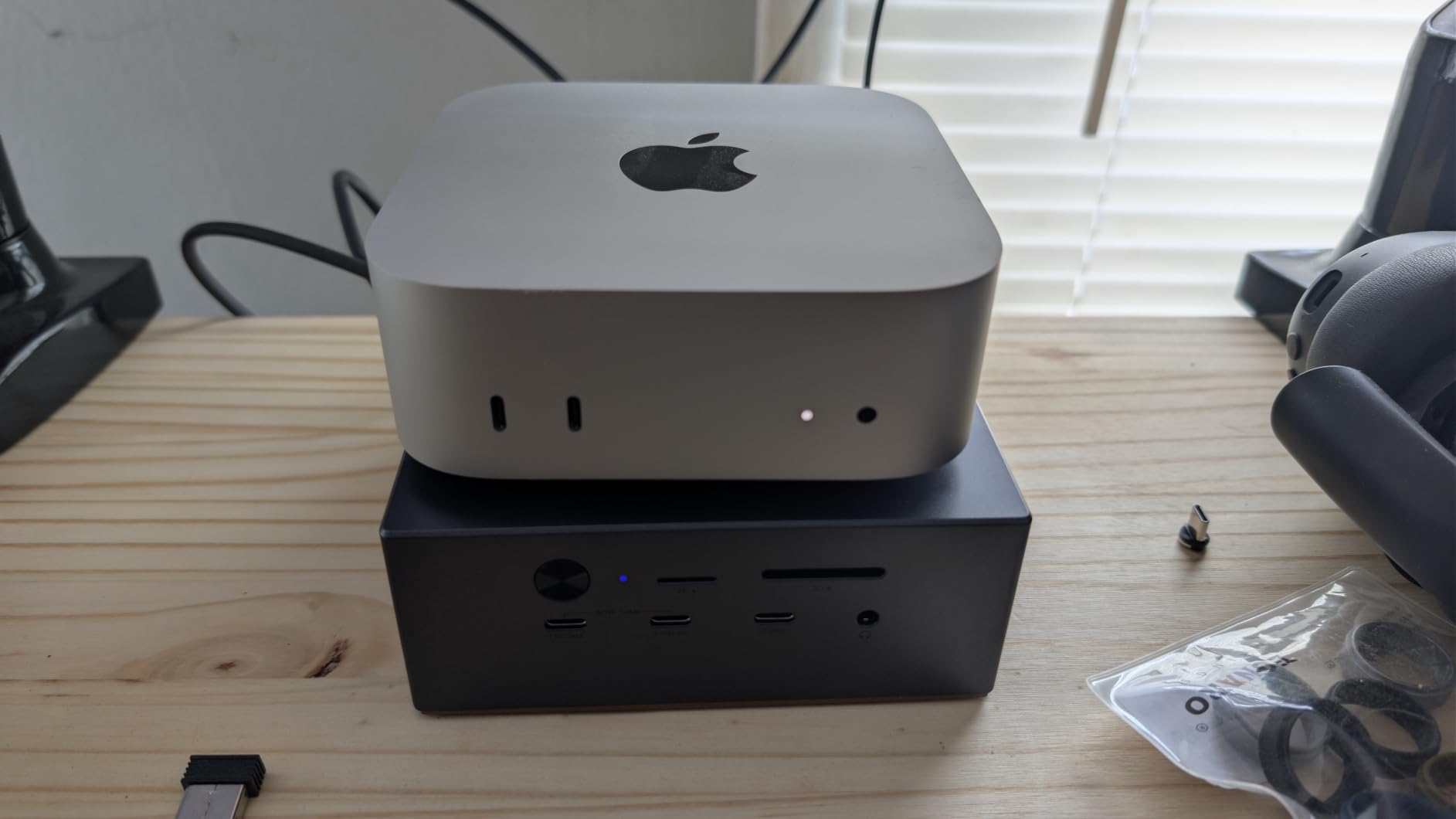
The integrated NVMe slot is the standout feature for owners consolidating external storage into the dock. Common complaints are heat and fan noise, the absence of HDMI, incompatibility with tall-heatsink SSDs, and a small number of units with factory assembly defects or a loose power connector. Cooling and thermal behaviour are the most debated aspect in reviews.
That SSD size limit is worth checking before you buy. Drives with large factory heatsinks, including several popular Seagate, Samsung and WD models, physically do not fit the 12mm by 24mm envelope. Measure your drive or buy a bare SSD without a heatsink.
Where the built-in NVMe slot changes your workflow
A local Gen4 scratch drive inside the dock removes the network round trip entirely. Cache and proxy files write at full NVMe speed rather than at whatever your NAS delivers, which is the difference between a smooth timeline and a stuttering one on 4K multicam.
It also simplifies a two-to-six drive desk considerably. The dock supplies one fast local drive, the two downstream Thunderbolt 5 ports carry a RAID and a card reader, and the remaining USB ports handle control surfaces and audio.
Where it causes friction
There is no native HDMI. The DisplayPort 2.1 output does not support DP++, so any HDMI display needs an active adapter, which adds a converter to a chain you were trying to simplify. Plan for DisplayPort displays or accept the extra box.
Thermal behaviour is the other real question. The 60mm internal fan keeps the Gen4 drive below throttling but is audible under load, and owners on this dock report the chassis running warm. Give it clearance rather than pushing it against a monitor stand.
7. UGREEN Revodok Max 208 8-in-1: Best Budget Thunderbolt 4 Dock
UGREEN 8-in-1 Thunderbolt 4 Docking Station, Dual 4K@60Hz, 3xTBT4, 40Gbps
8 ports
3x Thunderbolt 4 at 40Gbps
85W charging
Gigabit Ethernet
Pros
- Strong value for a certified Thunderbolt 4 dock with three TB4 ports
- Sustained transfers near 300 MB/s on large image batches
- 85W laptop charging from the bundled 140W GaN charger
- Rear port layout keeps the host input and power out of the way
Cons
- Only gigabit Ethernet rather than 2.5GbE
- Audio output can pick up interference from the AC adapter grounding
- Base M-chip MacBooks limited to a single 4K 60Hz display
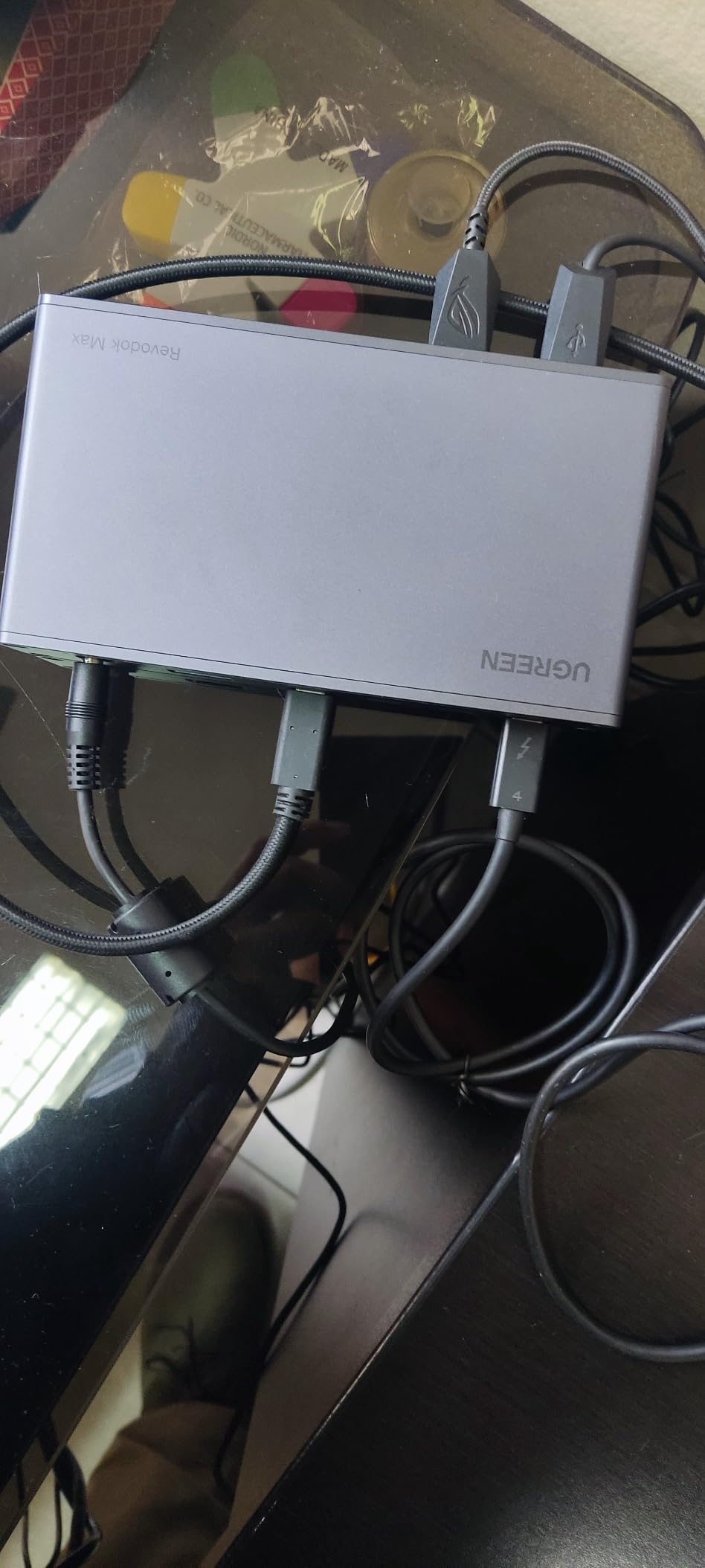
Eight ports, three Thunderbolt 4 connections and 85W of laptop charging is a specification sheet that should cost more than this does. In our testing it delivered sustained transfers near 300 MB/s on large 40-megapixel batches, which is a perfectly workable scratch speed for 4K timelines.
The three downstream Thunderbolt 4 ports are the quiet advantage here. This is the cheapest way in the roundup to hang a storage chain off a laptop, and the status LED colours let you confirm a full 40Gbps link has actually negotiated rather than silently falling back.
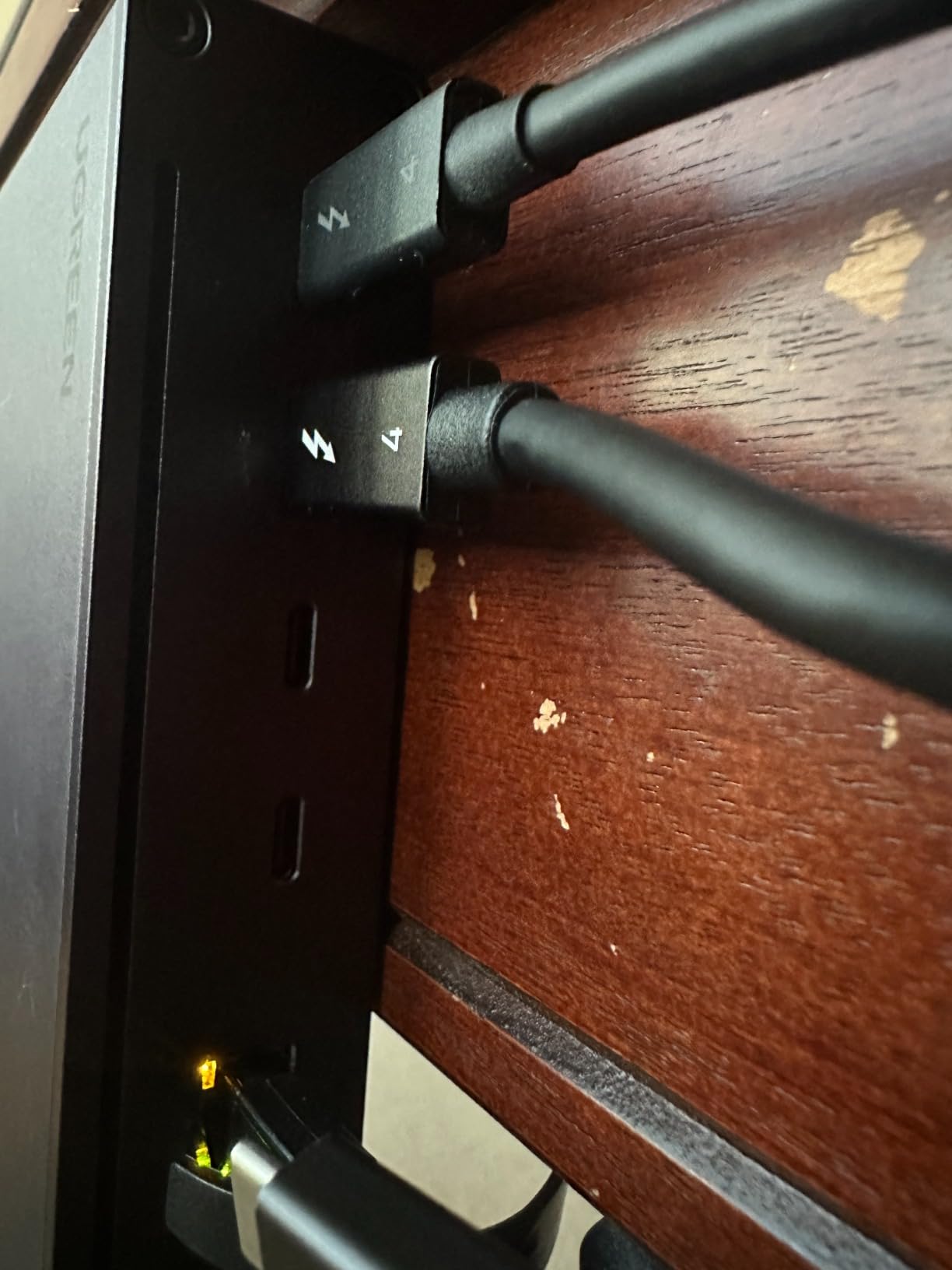
Owners cite reliable throughput, clean port placement, cool-running construction and quick plug-and-play setup on Windows and Linux. The most-discussed issue is inconsistent dual-display behaviour on Apple Silicon Macs, alongside occasional audio interference on the 3.5mm output and the need for driver adjustments on some Windows machines.
That audio note matters if you monitor on nearfields through the dock. Electrical interference from the AC adapter grounding has been reported on the 3.5mm output, and the practical workaround is to feed your interface from the laptop rather than the dock.
What you get for the money
Three 10Gbps USB-A ports, a full 40Gbps Thunderbolt 4 link and 85W of charging covers the majority of laptop edit bays. For someone cutting 4K ProRes on a two-drive setup with a single external display, this is enough hardware and costs less than a single display.
It is also a good first dock for a Windows editor, where the dual 4K 60Hz or single 8K 30Hz output works without the Mac chip-tier caveats that trip up some other docks here.
Where the compromises bite
Gigabit Ethernet is the biggest one. At roughly 115 MB/s practical throughput, it is fine for proxies and project files and a poor choice if you are pulling camera originals from a NAS.
Second, the 140W GaN power brick is genuinely large, so the value calculation depends on whether you have desk space. And on base M-chip MacBooks you get a single 4K 60Hz display, which rules it out for a dual-screen grading setup.
8. CalDigit TS5 Plus: Best Thunderbolt 5 Dock for 10GbE NAS Workflows
CalDigit TS5 Plus Thunderbolt 5 Docking Station: 20-Port PCIe-10GbE Mac|PC
20 ports
10GbE Ethernet
140W host power
330W power supply
Pros
- 20 ports including three Thunderbolt 5 and ten 10Gb/s USB ports
- Integrated 10GbE a genuine step up for NAS and large media workflows
- 330W supply holds full 140W host charging while every port charges
- Dual USB controllers prevent bottlenecks with many high-speed devices
Cons
- Runs very hot in sustained use and needs airflow clearance
- Some Windows users report intermittent dropouts and a known driver issue
- Does not support triple displays on macOS
The CalDigit TS5 Plus is the only dock in this roundup with 10 Gigabit Ethernet, and for a studio that keeps camera originals on a NAS that single feature justifies the whole purchase. Twenty ports, three Thunderbolt 5 connections, DisplayPort 2.1, UHS-II readers, three audio ports and a 330W power supply complete the spec.
The 330W supply is the quiet hero. It delivers 140W to the host even when every downstream port is also charging, which means you can plug a laptop, a drive shelf, a control surface and a set of monitors into one unit without negotiating a power budget.
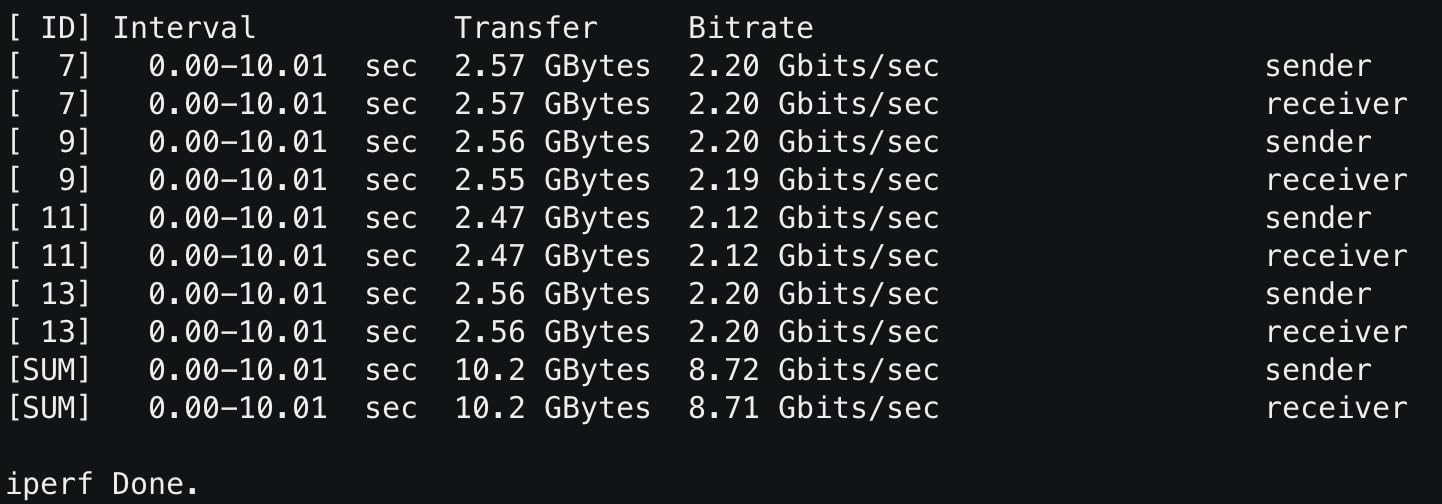
Power users on Apple Silicon consistently praise the TS5 Plus for its 20-port breadth, the 10GbE, sustained 140W host charging regardless of accessory load, and silent fanless operation, with several noting faster SSD throughput through the dock than connected directly to the host. The main drawbacks are heat and airflow requirements, a known Windows driver issue causing intermittent disconnects, and stability problems with specific laptop Thunderbolt controllers.
macOS support is smooth by comparison, with up to dual 6K 60Hz or dual 8K 60Hz and dual 4K 240Hz. On Windows you may need to install the 10 Gigabit Ethernet driver and accept that triple display output is host-dependent.
Why 10GbE changes an editing day
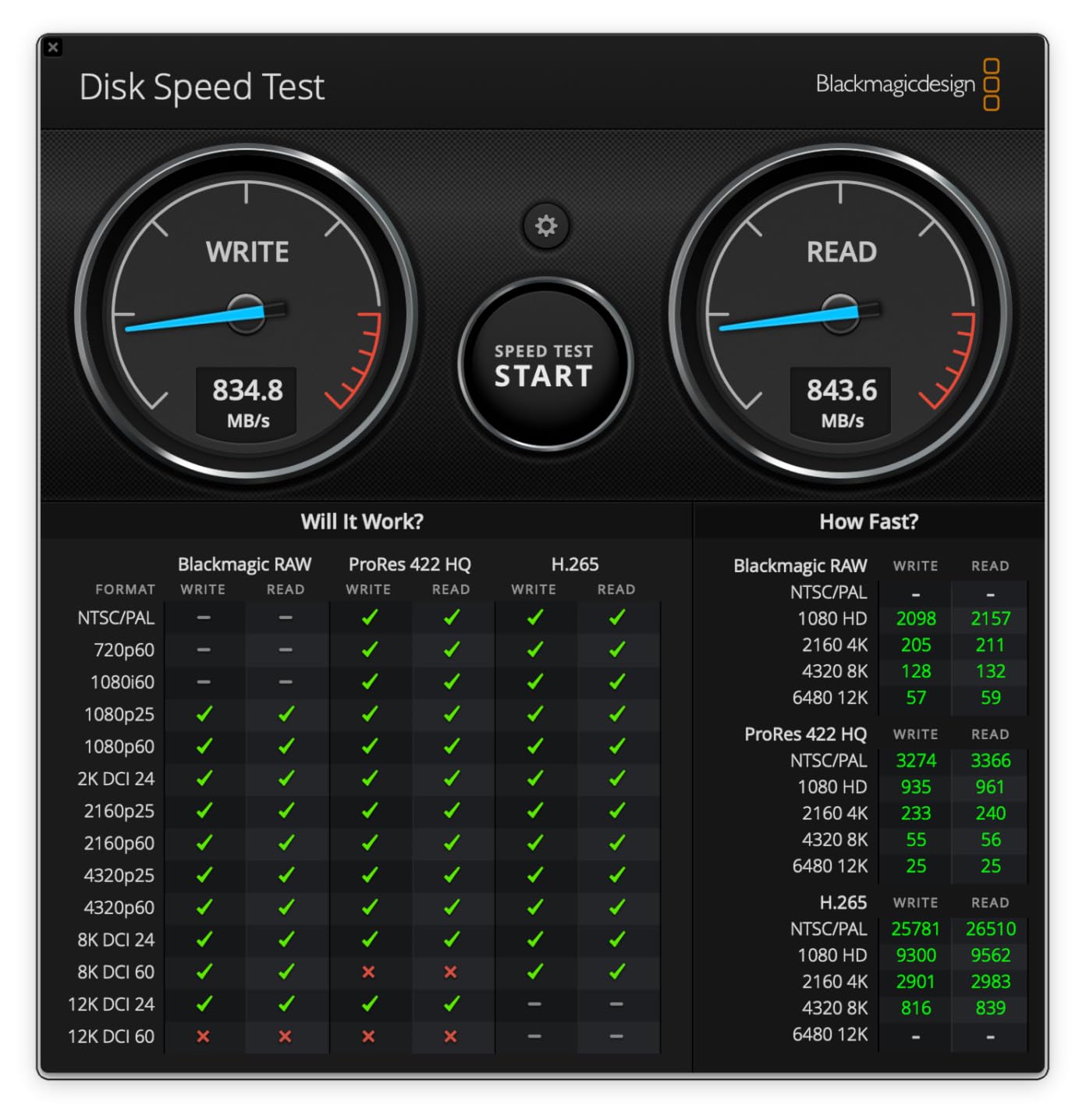
On a 2.5GbE port, pulling a 200GB folder of camera originals from a NAS takes a meaningful chunk of the working day. At 10GbE that same transfer is roughly four times faster, and in practice the connection is often closer to 1GB/s than the headline number suggests.
Because the ethernet is integrated rather than a USB adapter, it also stays at full speed while Thunderbolt storage is copying. A separate 10GbE adapter on a USB port competes for bandwidth with everything else on that bus, which is the trap this dock avoids.
Where you need to be careful
Heat is the genuine constraint. The aluminium chassis doubles as a heat sink, so it needs clearance around it rather than being pushed against a wall or a monitor stand. Owners who ignored this reported the hottest operating temperatures in this roundup.
Windows stability is the other flag. Intermittent dropouts and an acknowledged driver issue mean that if your primary machine runs Windows, verify your laptop’s Thunderbolt controller against the known problem models before committing.
9. iVANKY FusionDock Max 2: Best Mac-Only Thunderbolt 5 Workstation Hub
iVANKY FusionDock Max 2 Upgraded 23-in-1 Intel Certified Thunderbolt 5 Dock
26 ports
3x Thunderbolt 5
140W charging
Passive cooling
Pros
- Very high port count with ten USB ports and three Thunderbolt 5 connections
- Silent fanless passive cooling that stays stable under sustained load
- 140W Power Delivery plus dual magnetic USB-C host connections
- Responsive warranty support issuing refunds and replacements
Cons
- Mac-only with no Windows or Chrome compatibility and no Mac switching
- Display capabilities depend on the specific M-series chip tier
- Some units exhibit noticeable coil whine
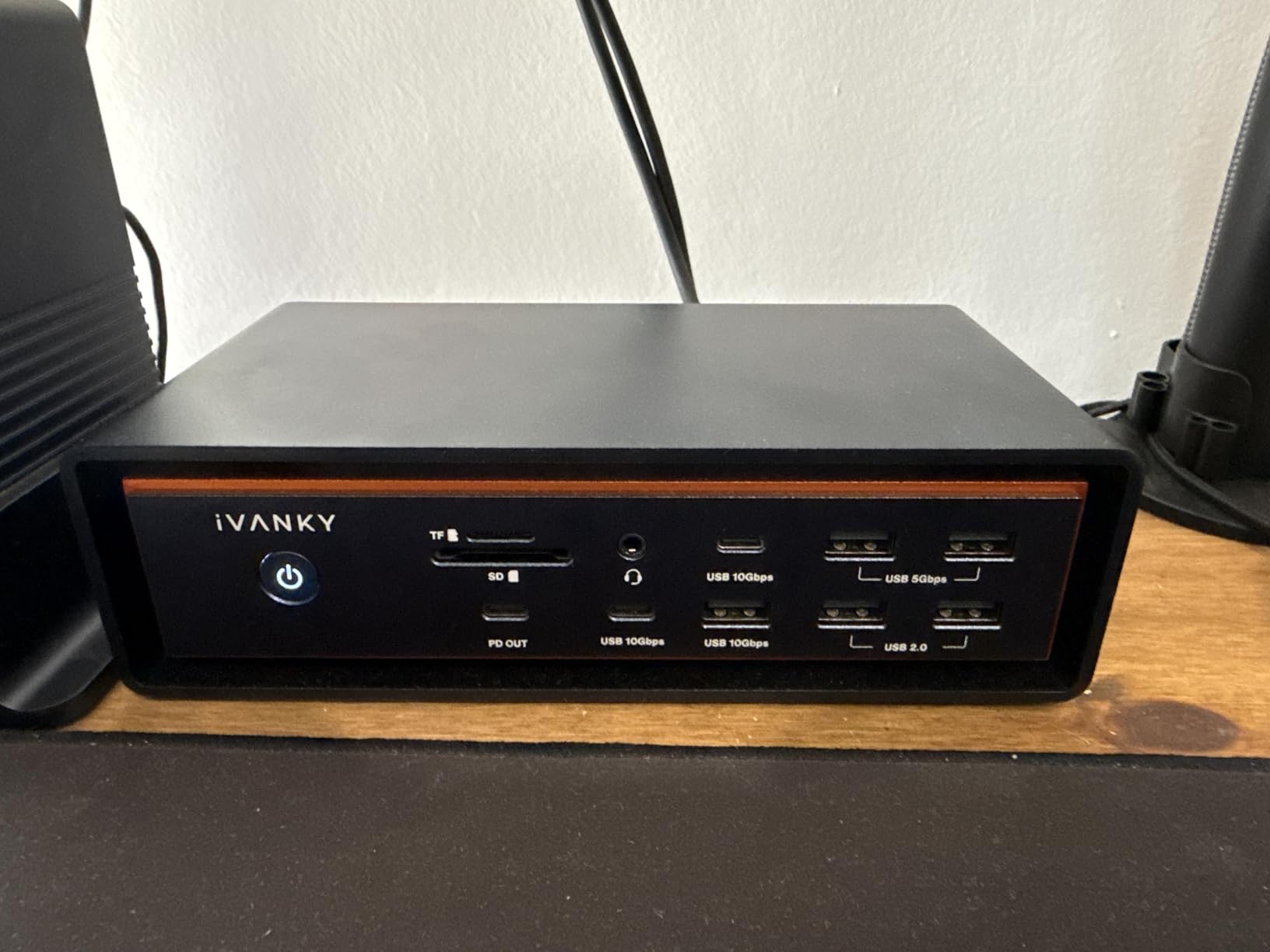
The iVANKY FusionDock Max 2 is the largest hub here at 26 ports, and its cooling approach is the most interesting. There is no fan at all, just an all-aluminium chassis with thermal materials, and the manufacturer reports a maximum outer-frame temperature of 49C in a 12-hour full-load test, well under the 60C touch-temperature limit.
Passive cooling matters for an edit bay. A fanless dock adds no noise to a room where you are also mixing, and owners using high-end M-series Macs describe the fanless chassis as running cool and quiet while driving Thunderbolt 5 storage arrays and 10GbE NAS work.
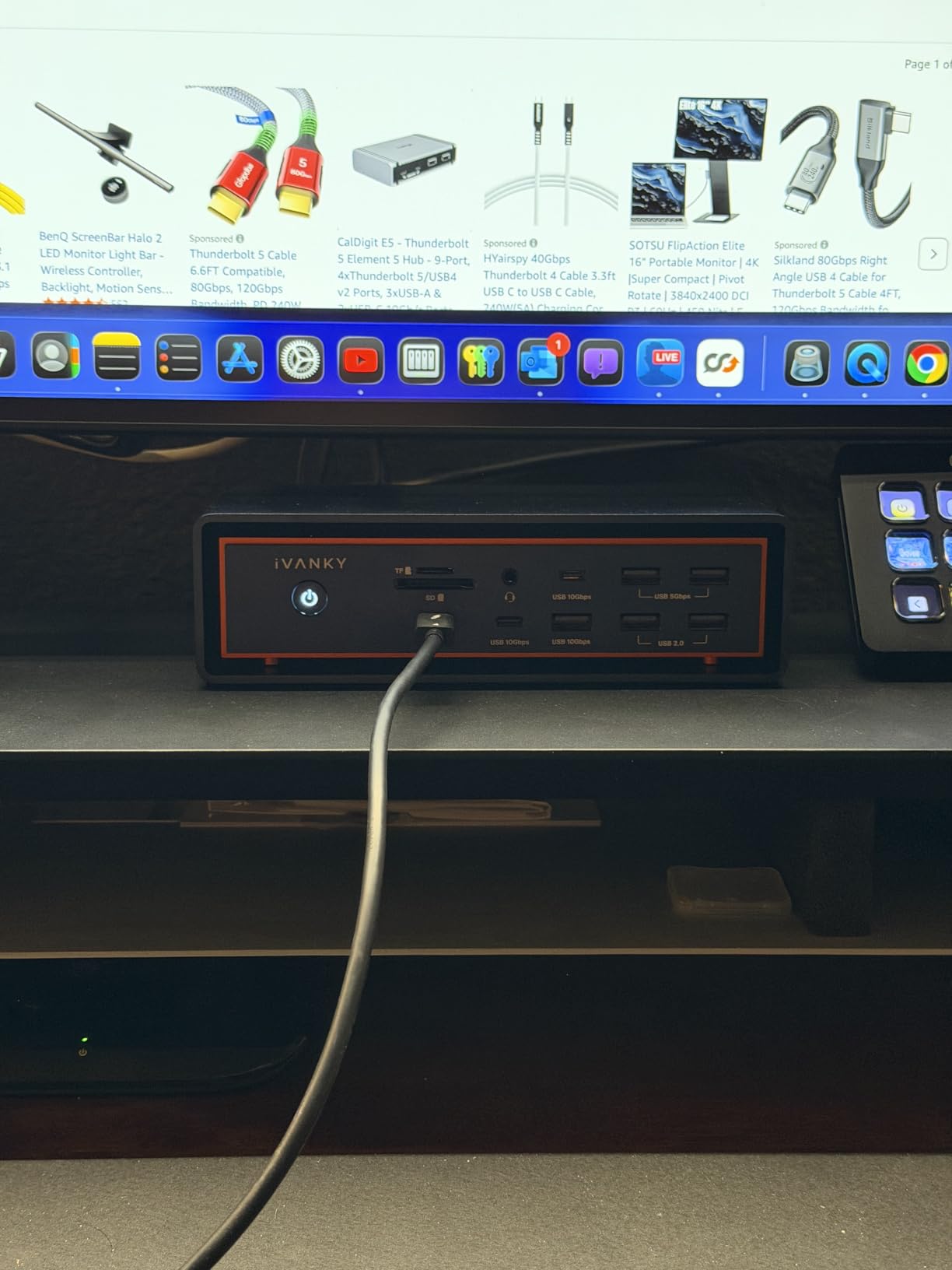
Owners describe the FusionDock Max 2 as an ideal editing and production workstation hub, particularly for Thunderbolt 5 storage arrays and NAS work, with smooth fast data transfer to TB5 SSDs and no degradation. The most important caveat is that it is Mac-exclusive. A small number of buyers report coil whine, HDMI video quirks and display arrangements not persisting through reboots.
The Mac-only restriction is stricter than it first appears. There is no support for switching between multiple Macs, and no Windows or Chrome compatibility whatsoever, so this is a single-machine single-user purchase.
What a Mac-only restriction actually costs you
If your edit bay is one MacBook Pro and nothing else, that restriction costs you nothing and you gain 26 ports, ten 10Gbps USB connections and a silent chassis. Many colour and finishing houses run exactly that configuration.
If you ever swap machines, work across a Mac and a Windows workstation, or rotate between a laptop and a studio tower, the same dock is unusable. Plan for that before you commit rather than after.
Check your chip tier first
Display support is tiered by chip, and the tiers are worth reading carefully. Triple display output up to 6K 60Hz works only on M-series Max chips. M4 and M5 base chips and the Pro chips support dual 6K 60Hz, and M1 to M3 base chips support a single 6K 60Hz display.
The SD and TF 4.0 reader is rated up to 312MB/s, which is fast enough to keep pace with high-bitrate camera cards on ingest, and the dual magnetic USB-C host connections make this a natural permanent desk fixture.
10. Microsoft Surface Thunderbolt 4 Dock: Best for Surface Laptops
Microsoft Surface Thunderbolt 4 Docking Station – Black (T8H-00001)
8 ports
2.5GbE Ethernet
Dual 4K monitors
1-year warranty
Pros
- Clean stable integration with Microsoft Surface laptops
- 2.5GbE Ethernet for faster wired networking than gigabit docks
- Dual 4K monitor support suits editing and multi-window work
- Raised tactile port indicators make connections easy to find
Cons
- Only eight ports
- the smallest selection in this roundup
- No card readers and only 2.5GbE Ethernet
- Shorter one-year manufacturer warranty than competing docks
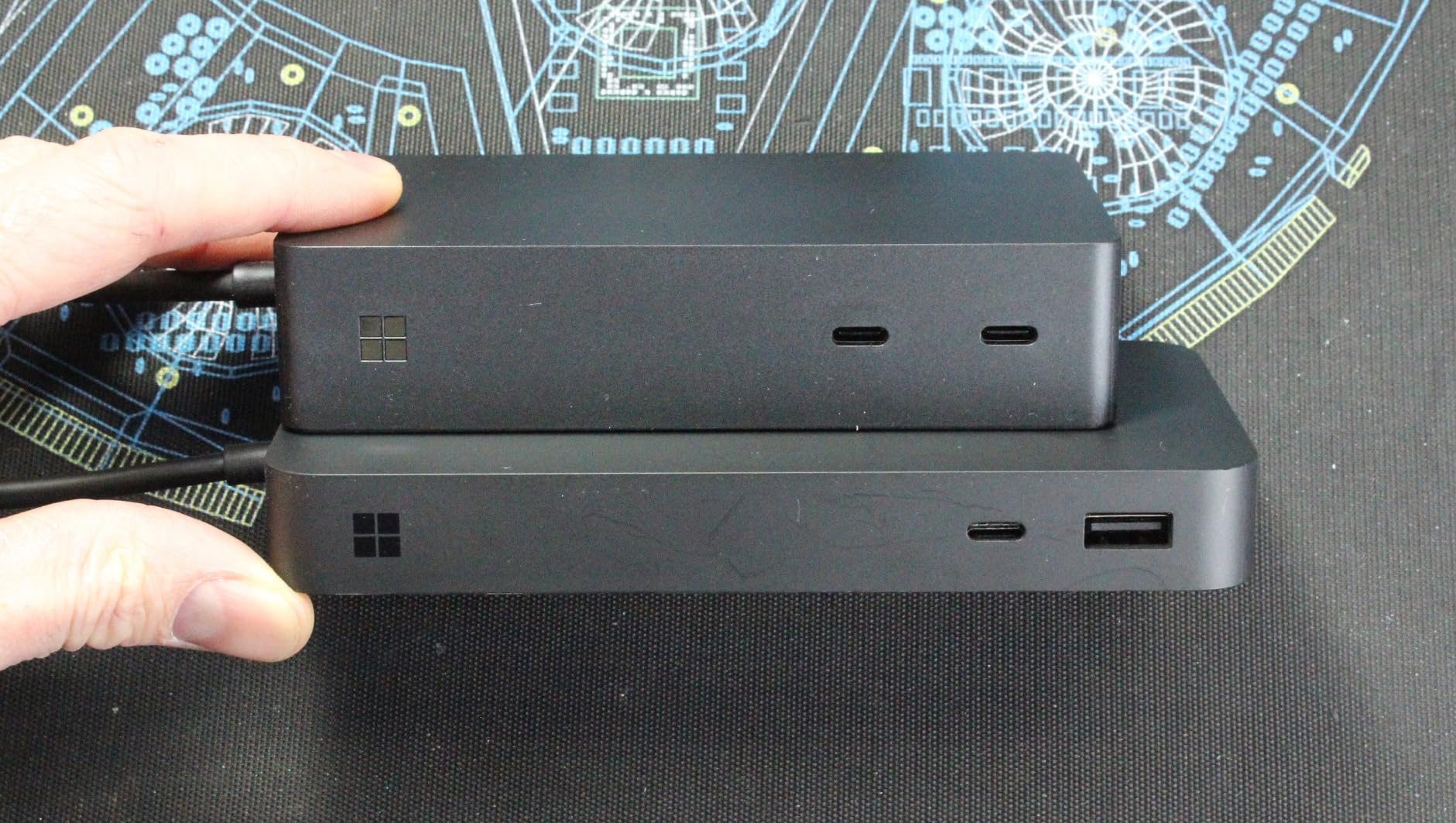
The Microsoft Surface Thunderbolt 4 Dock is the narrowest recommendation in this roundup, and that is a deliberate choice. If you edit on a Surface, it is the right pick: three USB-C and three USB-A ports, 2.5GbE Ethernet, an audio jack, a security lock slot and support for up to two 4K monitors, in an 11-inch footprint.
The highest rating in this roundup at 4.4 across 245 reviews is not an accident. Surface owners rate it highly for tidy integration, dual 4K monitor support and 2.5GbE networking, and the raised tactile port indicators get singled out as a practical touch when you are plugging into a dock by feel in a dark edit bay.
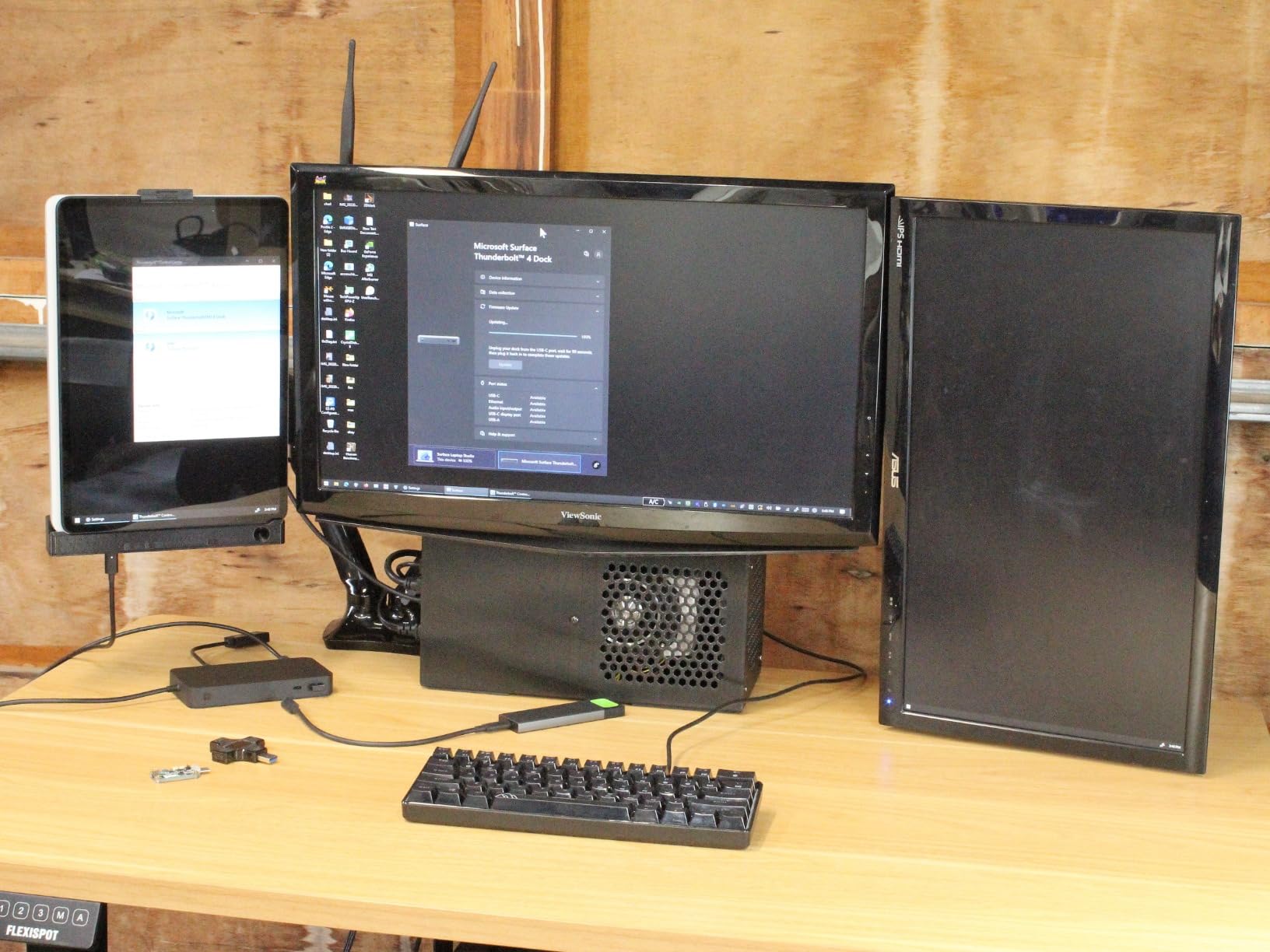
The limited port count and lack of card readers are the main reservations, along with its positioning as a Surface-specific rather than universal Thunderbolt 4 hub. Rapid charging brings a laptop back up in about 2.5 hours, and the chassis is built with 20% recycled ocean-bound plastic.
It is also built from recycled ocean-bound plastic, which matters more to some studios than it does to others but costs nothing in build quality. There is no card reader, so camera ingest needs a separate device.
When the Surface dock is enough
A single editor cutting 1080p and 4K on a Surface with two external displays, a wired network and a couple of USB peripherals will not outgrow this dock quickly. The 2.5GbE port removes the usual Wi-Fi bottleneck for project transfers, and dual 4K monitors is enough for a timeline-plus-reference arrangement.
Because it is designed for one ecosystem, the driver and sleep behaviour is among the most predictable in the roundup, which is the actual reason to prefer a platform-specific dock over a universal one.
Where eight ports is too few
No card readers, no Thunderbolt expansion and eight total ports. A multi-drive editor with two or more external storage devices will be swapping cables constantly, and the one-year warranty is the shortest here, which is a real consideration for paid work.
If you are on Windows and not on a Surface, the Plugable 16-in-1 or the UGREEN 8-in-1 will serve you better for the same money.
Do You Even Need a Hub? Four Editor Profiles
Before any list: some editors do not need one. The same r/editors thread that inspired this roundup contains a senior editor arguing for plugging drives in directly, and on a machine with enough ports that position is correct.
A desktop or Mac Studio owner with free ports. If you have two Thunderbolt ports free and your displays connect natively, a hub adds a power supply and a failure point without adding speed. Keep your money.
A laptop editor with two drives and one display. A single Thunderbolt 4 port handles this directly, often faster than a dock, because you skip the hub layer entirely. This is the honest case for bypassing a dock.
A laptop editor with three or more drives, a colour reference display, a card reader and a control surface. This is where a hub stops being an accessory and becomes edit infrastructure. You need at least two downstream Thunderbolt ports, and you need to budget for the power supply.
A studio editor working from a NAS. Ethernet speed becomes the deciding factor, not Thunderbolt bandwidth. If media lives on shared storage, integrated 10GbE is worth more than Thunderbolt 5 ports.
One more thing a dock will not do: it cannot make playback faster. Timeline responsiveness is a processor and GPU problem. Docks move your files, they do not render them.
How to Choose a Thunderbolt Hub for Video Editing
Seven criteria decide which hub fits an edit bay, in roughly the order that matters to a working editor.
1. Downstream Thunderbolt port count. This is the number that constrains your whole desk. Each storage device you hang off Thunderbolt consumes a port, and most laptops give you two host ports. Two downstream ports is a workable floor; three gives you a card reader plus a RAID plus headroom.
2. Ethernet speed. Gigabit is roughly 115 MB/s in practice, 2.5GbE around 280 MB/s, and 10GbE can approach 1GB/s. Match this to where your media lives, not to your internet speed.
3. Host charging wattage. 85W suits a 13-inch laptop, 100W covers most 14-inch machines, 140W handles a 16-inch MacBook Pro under load, and 180W gives a mobile workstation genuine headroom. Undersized charging shows up as a battery that drains while plugged in during a long render.
4. Display outputs and their versions. HDMI 2.1 and DisplayPort 2.1 matter for 4K 120Hz panels. Plain HDMI 2.0 caps you at 4K 60Hz. Count the outputs against your actual screen count, not a marketing maximum.
5. Card reader speed and type. UHS-II readers are dramatically faster than UHS-I. If you offload camera cards daily, a dock with no card reader means buying a separate reader anyway, which partly defeats the single-cable idea.
6. Thermal design. Fanless is quieter and generally fine for a laptop. Under sustained NVMe transfers, active cooling keeps throughput stable where a fanless chassis throttles. Either works, but know which one you have before a long copy job.
7. Warranty length and platform support. Two to three years is the reasonable range. Longer warranty means the vendor accepts the reliability question, which matters when a failure costs you billable hours.
On daisy-chaining, the layout that works for a two-to-four device desk is straightforward: host port to dock, then the two downstream Thunderbolt ports to your highest-priority device first, with lower-priority USB devices on the USB-A banks. Because PCIe is tunnelled over the bus, the whole chain shares one 40Gbps or 80Gbps link, so a multi-bay RAID and a fast NVMe on the same chain will contend. If you are mixing a very fast NVMe with a multi-bay array, use the dock’s 10GbE for the array instead.
On codec bandwidth: 4K ProRes 422 HQ streams comfortably over Thunderbolt 4 with headroom for a second display, and the same is true of DNxHR HQX at 4K. BRAW 8K and multi-cam 8K RAW are where the 40Gbps ceiling starts to matter during ingest rather than during playback, because the bottleneck becomes how fast you can write your scratch files, not how fast you can read them. That is the case where Thunderbolt 5 earns its cost.
If you are still narrowing the field, our guide to the best USB-C hubs for laptops covers the cases where Thunderbolt is more than you need.
Thunderbolt 4 vs Thunderbolt 5 in 2026
Thunderbolt 4 and Thunderbolt 5 answer different questions. Thunderbolt 4 gives every port 40Gbps bidirectional and 120Gbps of display bandwidth, and it is the right answer for 4K editing, dual 6K displays and a two-drive scratch setup.
Thunderbolt 5 doubles the bidirectional bandwidth to 80Gbps and keeps the 120Gbps display boost, which matters when you are moving 8K RAW or driving a multi-bay Gen4 array as a single device. It also pairs with 140W and 180W power delivery profiles that Thunderbolt 4 docks cannot reach.
The catch in 2026 is host availability. Thunderbolt 5 laptops are still uncommon, so buying a Thunderbolt 5 dock means buying ahead of your hardware. If your current laptop is Thunderbolt 4, a Thunderbolt 5 dock will run at Thunderbolt 4 speeds and the extra cost buys you a docking station that is ready when you replace the laptop.
Our read: buy Thunderbolt 4 now if your host is Thunderbolt 4, and buy Thunderbolt 5 if you already own a Thunderbolt 5 machine or your storage plan depends on single-device multi-bay throughput. Thunderbolt 4 is not obsolete, it is simply the right price for a lot of edit bays.
Display Support and the Apple Multi-Monitor Reality
The most common source of confusion in dock buying is not the dock. It is the host chip, and on Apple Silicon the limits are hard rather than advisory.
Base M-series chips drive a single external display. Pro and Max chips drive two, and on Thunderbolt 5 hosts the dual 6K 60Hz ceiling rises to dual 8K 60Hz and dual 4K 240Hz. Several docks in this roundup state a dual-display capability in their listing while owners with base M-series Macs report only one screen working, and that gap is the host, not a defect.
Two practical consequences. First, a colour grading setup on a base M-series Mac cannot be fixed with a better dock, and second, macOS does not support triple display output on the TS5 Plus regardless of how many outputs the dock offers. DisplayLink compression can add a screen over USB, but for grading work the compressed path is not a substitute for a native Thunderbolt display.
On Windows, the ceilings are more generous. Most Thunderbolt 4 hosts in this roundup drive dual 4K 60Hz or a single 8K 30Hz, and Thunderbolt 5 Windows hosts can reach dual 8K 60Hz.
Power Delivery: Matching Dock Wattage to Your Laptop
Match the wattage to the machine rather than buying the largest number available. A 13-inch MacBook Pro or Air draws well under 85W in normal use, and a dock at that level is all you need. A 16-inch MacBook Pro under sustained export load wants 140W, and a mobile workstation may take more still.
The failure mode to watch for is a laptop that charges slowly or not at all while the dock’s other ports are also drawing power. The 330W supply in the CalDigit TS5 Plus exists precisely to avoid that, delivering full 140W to the host while every other port also charges. Cheaper docks with a smaller supply may throttle the host when the accessory load rises.
Our broader thinking on laptop ports and charging is covered in our laptop hub roundup.
Storage and Network: 2.5GbE vs 10GbE and Local NVMe
Only one dock in this roundup has 10GbE, the CalDigit TS5 Plus, and for a studio running media from a NAS that is the feature that decides the purchase. Everyone else tops out at 2.5GbE, with the exception of the UGREEN 8-in-1, which is gigabit only.
The difference is bigger than the numbers suggest. A 200GB folder of camera originals takes roughly half an hour over 2.5GbE and roughly a quarter of that over 10GbE, and editors working to deadline feel that difference every day.
The alternative to a 10GbE dock is a local NVMe scratch disk, which is what the UGREEN Maxidok with its built-in M.2 slot is designed for. Scratch and cache files do not need to live on the NAS, so local Gen4 NVMe is often the better engineering choice for timeline performance while 10GbE handles the slower archive traffic.
One cable note. 10GbE needs Cat6a and a switch or NAS port rated for it, and it auto-negotiates down to 100Mb/s if the cable or the far end cannot cope, which is a common cause of disappointing NAS speeds.
Reliability, Sleep Wake and Firmware Support
Reliability is the criterion that forum threads keep returning to, and it is the one least reflected in spec sheets. The pattern across owner reports for these docks is consistent: most units are stable, and a minority show dropouts, display resets or devices that fail to enumerate after a sleep cycle.
Where problems appear, firmware and power cycling resolve most of them. The CalDigit TS4 and TS5 Plus both lean on Mac-specific utilities and firmware updates, and owners report that a firmware update clears a number of drive mounting and monitor wake issues. Check for updates after your first week rather than only after a failure.
Two recurring hardware-level notes. Audio output interference from AC adapter grounding is reported on the UGREEN 8-in-1, so feed a nearfield monitoring chain from the interface rather than the dock. And cable quality matters more than people expect, with loose or flaky bundled cables reported on the OWC hub.
The OWC and CalDigit support experiences are repeatedly described as good or excellent, which is worth something when a dock stops recognising a drive mid-project. We have also covered broader desk hardware in our video editing keyboard guide and our smart hub picks.
Frequently Asked Questions
What is the best Thunderbolt hub?
The CalDigit TS4 is the best Thunderbolt hub for most video editors. It offers 18 ports, 98W of host charging, 2.5GbE Ethernet, UHS-II card readers and three Thunderbolt 4 ports, and it has by far the largest review base of any dock we tested. For NAS-heavy studios the CalDigit TS5 Plus adds 10GbE.
What’s better, Thunderbolt 4 or 5?
Thunderbolt 5 is better if you already own a Thunderbolt 5 laptop or your workflow depends on moving 8K RAW or a multi-bay Gen4 array as one device, since it doubles bidirectional bandwidth to 80Gbps and supports higher power delivery. Thunderbolt 4 remains the right choice for 4K editing, dual 6K displays and two-drive scratch setups on a Thunderbolt 4 host.
Are Thunderbolt docking stations worth it?
They are worth it when a laptop-based editor needs more than one or two external devices at once, or wants a colour reference display beside a timeline display. They are not worth it on a desktop with free Thunderbolt ports, and a dock cannot make timeline playback faster, only ingest and network transfers.
Can Thunderbolt transfer video?
Yes. A 40Gbps Thunderbolt 4 link saturates a single Gen4 NVMe drive, and Thunderbolt 5 at 80Gbps can feed a multi-bay array. In practice you will see transfer speed set by your slowest device in the chain rather than by the bus itself.
Which Thunderbolt Dock offers 10GbE ethernet?
Among the docks we tested, the CalDigit TS5 Plus is the only one with integrated 10 Gigabit Ethernet, alongside 20 ports, 140W of host charging and a 330W power supply. Most others stop at 2.5GbE, and the UGREEN Revodok Max 208 is gigabit only.
How many monitors can a Thunderbolt hub support?
On Windows, most Thunderbolt 4 hosts drive dual 4K 60Hz or a single 8K 30Hz, and Thunderbolt 5 hosts can reach dual 8K 60Hz. On Apple Silicon, base M-series chips drive one external display, while Pro and Max chips drive two. The dock cannot override that limit.
Conclusion: Which Pick for Which Editor in 2026
The CalDigit TS4 is the best thunderbolt hub for video editors in 2026 for a simple reason: it is the dock that stays connected through a two-to-six drive day. Eighteen ports, 98W of charging, 2.5GbE, both UHS-II readers and the largest review base we found make it the safest permanent choice.
Match the dock to the constraint instead. NAS-heavy studios should go Thunderbolt 5 with the CalDigit TS5 Plus for 10GbE. Editors who want local scratch speed without a second enclosure should look at the UGREEN Maxidok and its built-in NVMe slot. High-refresh grading desks belong on the Lenovo dock, and portable or location bays suit the OWC hub.
And if you are on a laptop with two free Thunderbolt ports and one drive, check whether the r/editors senior editor is right: you may not need a hub at all.