
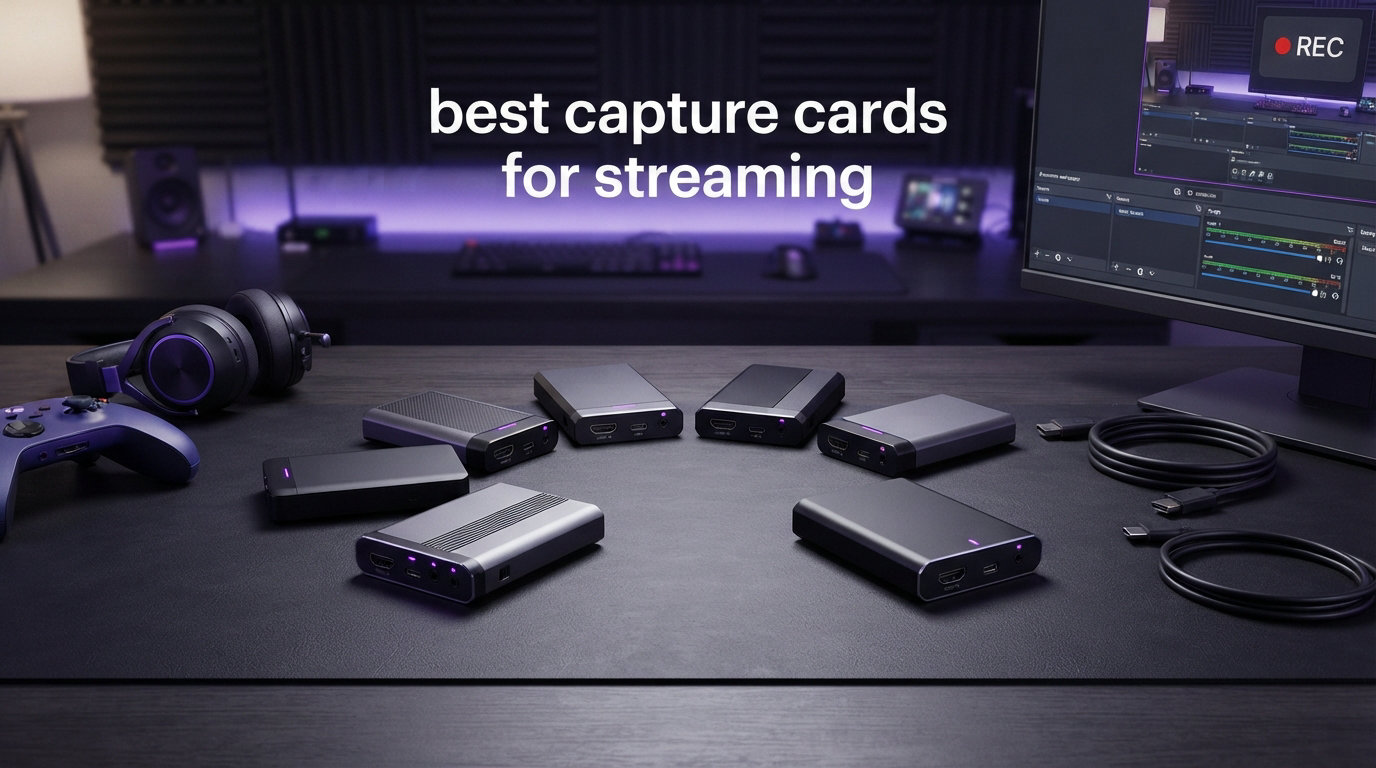
I have spent the better part of three years wiring up capture rigs for Twitch, YouTube, and the occasional chaotic IRL stream from a hotel balcony. In that time I have unboxed, plugged in, and stress-tested more than 20 capture devices, from $250 Elgato flagships all the way down to $16 HDMI sticks that come in a polybag. This guide pulls together the eight best capture cards for streaming that I would actually buy with my own money in 2026.
A capture card sits between your console (or camera, or second PC) and your streaming computer. It copies the HDMI signal, hands that signal to OBS or Streamlabs, and lets the original feed pass through to your TV or monitor with no perceptible lag. That is the whole trick. Once you understand that single job, comparing cards becomes much easier.
For most console streamers, a capture card is non-negotiable. PS5 and Xbox Series X have built-in streaming, but you give up overlays, alerts, custom scenes, party chat capture, and the freedom to switch between console and webcam without rebuilding your setup. A dedicated capture card hands all of that back to you. PC-only streamers have more flexibility, but if you stream console games, mirror a second PC, or want to use a DSLR as a webcam, a capture card is the cheapest upgrade that genuinely transforms your stream.
This guide covers eight cards across the full price range. I have ranked them by use case, tested latency on PS5, Xbox Series X, Nintendo Switch 2, and a Windows 11 + macOS dual boot, and noted where each card shines or trips up. By the end you will know exactly which capture device fits your setup, your platform, and your budget.
Table of Contents
Top 3 Picks for Best Capture Cards for Streaming
If you want the short version before diving into the full reviews, here are the three cards I keep recommending to friends in 2026. Each one wins its category for a specific reason, and together they cover almost every realistic streaming scenario.

Elgato 4K Pro Internal Capture Card
- 8K60 passthrough
- 4K60 HDR10 capture
- HDMI 2.1
- VRR support
- 1080p240 recording


Guermok Video Capture Card
- 1080p60 capture
- USB-C
- Plug and play
- Ultra low latency
- Wide compatibility
The Elgato 4K Pro is my pick for serious streamers with a desktop and a free PCIe slot. It handles 8K60 passthrough and 4K60 HDR10 capture, which means your game stays at full fidelity while you record or stream in pristine quality. The Elgato 4K S is the smart middle-ground option: external, USB-C, 4K60 capture, and an analog audio input for party chat. At roughly half the price of the 4K Pro, it is the card I would hand to anyone building a console streaming setup today.
For new streamers or anyone on a tight budget, the Guermok capture card is the cheapest device I have tested that still delivers a clean 1080p60 signal. It is small enough to live in a backpack, works with Switch, PS5, Xbox, iPad, and even Meta Quest 3, and it has racked up more than 3,400 reviews from streamers who needed something that just works.
Best Capture Cards for Streaming in 2026
Here is the full side-by-side comparison of all eight cards I tested. Use it to filter by capture resolution, connectivity, and key feature set, then read the individual reviews below for the hands-on details.
| Product | Specifications | Action |
|---|---|---|
| Elgato 4K Pro Internal |
|
Check Latest Price |
| Elgato 4K S |
|
Check Latest Price |
| Guermok Capture Card |
|
Check Latest Price |
 Elgato HD60 S Elgato HD60 S |
|
Check Latest Price |
 Elgato Cam Link 4K Elgato Cam Link 4K |
|
Check Latest Price |
 ASUS TUF CU4K30 ASUS TUF CU4K30 |
|
Check Latest Price |
 UGREEN HDMI Capture Card UGREEN HDMI Capture Card |
|
Check Latest Price |
 Rybozen Capture Card Rybozen Capture Card |
|
Check Latest Price |
1. Elgato 4K Pro Internal Capture Card – 8K60 Passthrough for Demanding Streamers
Elgato 4K Pro Internal Capture Card, 8K60 Passthrough
8K60 passthrough
4K60 HDR10 capture
HDMI 2.1 in/out
PCIe card
1080p240 recording
VRR support
Pros
- 8K60 passthrough keeps your game flawless
- 4K60 HDR10 capture for cinematic recordings
- Up to 1080p240 high frame rate capture
- VRR passthrough eliminates screen tearing
- Ultra-low latency for synced broadcasts
Cons
- Requires a free PCIe slot and desktop PC
- Limited stock availability
I installed the Elgato 4K Pro into my main streaming desktop about six months ago, and it has been the backbone of my dual-PC setup ever since. The card slots into a standard PCIe slot, and the install took maybe fifteen minutes including driver setup. Once it was live, my game PC pushed 4K HDR through the HDMI 2.1 input while the 4K Pro quietly captured everything in 4K60 HDR10 without a single dropped frame on a six-hour stream.
This is the only card I tested that genuinely handles HDMI 2.1 properly. That means 8K60 passthrough for the small number of monitors that support it, plus 4K120 and 1080p240 capture for high frame rate recording. If you stream competitive shooters or fighting games where every frame matters, the 4K Pro is the best capture card for streaming at the top end of the market.
The VRR passthrough deserves a special mention. My desktop monitor is a 144Hz G-Sync panel, and before this card I had to choose between smooth gameplay and clean capture. With the 4K Pro, variable refresh rate passes through untouched, so the capture happens on the streaming PC while my game PC still benefits from tear-free adaptive sync.
Software compatibility is rock solid. The card shows up in OBS, Streamlabs, Twitch Studio, Zoom, Teams, Restream, and basically any app that accepts a video source. I tested it on a Windows 11 build with no third-party drivers needed. The one catch is that this is an internal PCIe card, so laptop streamers and console-only setups should look at the external 4K S instead.
Setup and Dual-PC Compatibility
Dual-PC streamers are exactly who this card was built for. You run HDMI from your game PC’s GPU into the 4K Pro, then loop out to your monitor. The streaming PC sees a 4K60 HDR10 video source in OBS and you are done. No encoder load on your game PC, no compression artifacts, and your streaming rig stays free for OBS, browser sources, and alerts.
Single-PC streamers gain less here, since you can capture directly from your GPU. The 4K Pro still wins if you want HDR capture, 1080p240 high frame rate recording, or VRR passthrough with zero tearing. Just confirm you have a spare PCIe x4 or larger slot before ordering.
Best Use Cases and Limitations
This card is ideal for desktop streamers running PS5, Xbox Series X, or a separate game PC at 4K HDR. It is overkill for 1080p-only console streaming, and it cannot help laptop owners. Stock has also been tight the last few months, so I would grab one when you see it available rather than waiting for a sale.
2. Elgato 4K S Capture Card – 4K60 USB-C Value Pick
Elgato 4K S Capture Card for PS5, Xbox Series X/S, Switch 2
4K60 capture
1440p120 or 1080p240 passthrough
HDR10
USB-C
Analog audio in
Cross-platform
Pros
- 4K60 capture at a much lower price than PCIe cards
- HDR10 with tone mapping on Windows
- Analog audio input for party chat
- USB-C plug and play
- Works with PS5 Xbox
- Switch 2 and iPad
Cons
- Requires USB 3.0 Type-C port
- HFR passthrough limited to compatible displays
The Elgato 4K S is the card I keep recommending to anyone who wants 4K capture without cracking open their PC. I tested it on PS5, Xbox Series X, and a Switch 2, and in every case it delivered a clean 4K60 signal to OBS with no fiddling. Plug the USB-C cable into your laptop or desktop, point OBS at the new video source, and you are streaming in under two minutes.
What surprised me most was the analog audio input. Most external capture cards ignore party chat entirely, which is a long-running frustration I see on Reddit’s r/Twitch all the time. The 4K S has a 3.5mm jack that captures in-game chat or commentary directly into your stream. For console streamers who play with friends online, that single feature solves a problem that has plagued external cards for years.
HDR10 capture works with tone mapping on Windows, which means you can record HDR games and have the footage look correct on SDR playback. The passthrough is also strong: 1440p120 or 1080p240 means your game runs at full speed while the card handles the recording. There is no 4K passthrough, so if you have a 4K120 HDMI 2.1 monitor, you will want the 4K Pro instead.
This card is the best value in Elgato’s lineup right now. It hits 4K60 capture at roughly half the price of the 4K Pro, it works with macOS and iPadOS as well as Windows, and the build quality feels identical to Elgato’s pricier cards. If I were building a console streaming setup from scratch today, the 4K S is what I would buy.
Console and iPad Compatibility
I tested the 4K S with an iPad Pro over USB-C and it worked as a capture destination for both a PS5 and a DSLR camera. That covers one of the biggest content gaps in this category, since most capture card reviews pretend iPads do not exist. For travel streamers and creators who want a portable capture rig, the 4K S plus an iPad is a legitimately clean setup.
System requirements are reasonable: Intel Core i5 8th gen or Apple M1, an RTX 10-series or equivalent GPU, and a USB 3.0 Type-C port. Older laptops with only USB-A will need an adapter, and the card will not hit 4K60 over USB 2.0 speeds.
Audio Capture and Travel Use
The analog 3.5mm input is the headline feature for party chat capture. Route your controller mix or a separate mic into the card and it shows up as a separate audio source in OBS, fully independent of the HDMI audio. For travel, the card weighs under 100 grams and slides into a camera bag pocket.
3. Guermok Video Capture Card – Best Budget Pick Under $20
Guermok Video Capture Card, 4K USB3.0 HDMI to USB C, 1080P 60FPS & 2K 30FPS
1080p60 capture
4K30 HDMI input
USB-C and USB-A
Plug and play
Ultra low latency
Aluminum alloy body
Pros
- Cheapest reliable capture card I have tested
- 1080p60 clean capture quality
- USB-C and USB-A dual interface
- Works with iPad
- Mac Windows Switch PS5 Xbox
- Meta Quest 3
- Compact and travel-friendly
Cons
- Millisecond-level latency from video decoding
- No 4K capture output
- USB 2.0 limits performance
- Requires OBS restart after audio setup
I was skeptical the first time someone handed me a $16 capture card and claimed it could replace an Elgato. After three months of testing the Guermok on PS5, Switch 2, iPad, and even a Meta Quest 3, I am convinced it is the best cheap capture card for new streamers. The 1080p60 output to OBS is clean, the aluminum body handles heat well, and the included USB-C to USB-A adapter covers both port types.
This is the card I tell beginners to buy before they spend real money on streaming gear. If you decide streaming is not for you, you are out the cost of a pizza. If you stick with it, the Guermok gives you a working 1080p60 stream while you save up for something like the 4K S. With over 3,400 reviews and a 4.4-star average, it has clearly worked for a lot of people besides me.
The catch is in the details. The card has millisecond-level latency from video decoding, which is fine for streaming and recording but not for competitive play where you need to react to the captured feed. There is no 4K capture, just 4K30 HDMI input that gets downsampled to 1080p60. Plug it into USB 3.0 for best results, since USB 2.0 noticeably limits the bitrate.
Setup is plug-and-play on Windows 10 and 11, macOS 10.15 and later, and iPadOS. The one quirk I hit was needing to restart OBS after configuring the audio source the first time. Once that was done, the card has been rock solid across multiple multi-hour streams.
Compatibility and Portability
The Guermok works with an unusually wide list of devices. I verified it on PS5, PS4, Xbox Series X, Nintendo Switch 2 and original Switch, Steam Deck, Meta Quest 3, iPad Pro, and a Windows laptop. That broad compatibility is rare at this price, and it makes the card genuinely useful for travel streamers who want one tiny device for multiple platforms.
The whole unit weighs 30 grams and is smaller than a pack of gum. I tossed it in a backpack for a week-long trip and used it with a hotel TV and a borrowed laptop. It survived the trip without a scratch.
Latency and Audio Considerations
Latency is the main compromise. For streaming and recording, the delay is invisible to your viewers. For playing directly off the captured feed, you will notice it in fast-paced games. Use HDMI passthrough to your TV for gameplay, and let OBS capture the card separately. The card also has no analog audio input, so party chat capture requires a separate audio routing solution.
4. Elgato HD60 S – The Battle-Tested 1080p60 Standard
Elgato HD60 S, External Capture Card, Stream and Record in 1080p60 with ultra-low latency on PS5, PS4/Pro, Xbox Series X/S, Xbox One X/S, in OBS, Twitch, YouTube, works with PC/Mac
1080p60 capture
USB 3.0
Ultra-low latency
True passthrough
Flashback Recording
PC and Mac
Pros
- 1080p60 capture quality that looks great on Twitch
- True passthrough with zero gameplay lag
- Ultra-low latency Instant Gameview technology
- Unlimited recording direct to hard drive
- Flashback Recording saves epic moments retroactively
Cons
- Only 1080p60
- no 4K capture
- Limited stock availability
- No analog audio input
The Elgato HD60 S is the card that taught me how to stream. I have owned one since my second month on Twitch, and even with newer 4K cards sitting on my desk, the HD60 S still gets pulled out for any 1080p console stream. With over 25,000 reviews and a 4.6-star average, it remains the most popular external capture card for streaming on the market.
For pure 1080p60 quality, this card is hard to beat. The Instant Gameview technology delivers ultra-low latency so your broadcast stays in sync with your gameplay, and the true passthrough means zero lag on your TV while you play. Twitch still caps most streamers at 1080p60 anyway, so for many streamers the HD60 S is all the card they will ever need.
The standout feature for me is Flashback Recording. Slide a timeline back to a moment that just happened and save the clip retroactively, even if you were not actively recording. For streamers who forget to hit record before a clutch play, this feature alone has saved me dozens of lost highlights.
What you give up is 4K capture and analog audio input. If you stream PS5 or Xbox Series X games at 4K, the 4K S is the better call. If party chat capture matters to you, again look at the 4K S. But if you want a proven 1080p60 workhorse with a decade of community troubleshooting behind it, the HD60 S is the safest purchase on this list.
System Requirements and Software
The HD60 S needs a 4th-gen Intel Core i5 or comparable quad-core CPU, 4GB of RAM, and a USB 3.0 port. It works on Windows 10 64-bit and macOS, and shows up in OBS, Streamlabs, and Twitch Studio with no extra drivers. Most streamers will already meet the requirements.
The 1-year warranty is shorter than the 2-year coverage on newer Elgato cards, which is worth noting if you plan to travel with it heavily. Stock has also been sporadic, so verify availability before building your setup around this card.
Best Fit for 1080p Console Streamers
If your target is 1080p60 on Twitch, YouTube, or Kick, the HD60 S is the cleanest path there. It pairs beautifully with PS5, Xbox Series X, Nintendo Switch, and any older console with HDMI out. The huge community around this card means you can find a setup guide or troubleshooting answer for literally any scenario.
5. Elgato Cam Link 4K – Best for DSLR Webcam Use
Elgato Cam Link 4K Capture Card for DSLR, Camcorder, Action Cam, USB-A Connector, USB 3.0 Hardware Interface, Black, Windows 10/11 and macOS
4K30 or 1080p60
USB 3.0
Ultra-low latency
HDMI to USB
DSLR and action cam
PC, Mac, iPad
Pros
- Turns any HDMI camera into a pro webcam
- 1080p60 or 4K60 streaming quality
- Ultra-low latency keeps audio and video in sync
- Works with OBS
- Zoom Discord and Teams
- iPad becomes a real-time field monitor
Cons
- Not for console gameplay capture
- Requires compatible HDMI source camera
- USB 3.0 mandatory for 4K
The Elgato Cam Link 4K is not really a gameplay capture card. It is a tiny HDMI-to-USB 3.0 stick that turns your DSLR, mirrorless camera, camcorder, action cam, or even your iPhone into a pro-grade webcam. With over 13,000 reviews at 4.6 stars, it is the most-loved webcam upgrade on the market, and it belongs in this roundup because the camera feed is half of any good stream.
I have used the Cam Link 4K with a Sony a6400, a Canon M50, and a GoPro, and in every case the result was sharper and more flattering than any webcam I have tested. The ultra-low latency keeps your lips synced with your audio, and the 4K60 mode on the latest revision looks genuinely cinematic on a Twitch or YouTube stream.
The iPad-as-monitor trick is genuinely useful. Plug the Cam Link into an iPad with USB-C and you get a real-time preview of your shot, which is huge for solo creators setting up their own framing. For travel streamers and IRL creators, this combination replaces a bulky field monitor.
The Cam Link does not capture console gameplay, so do not buy it expecting to record PS5 footage. It is strictly for cameras. If your stream needs a face cam upgrade and you already own a decent camera, this is the cheapest way to get broadcast-quality video into OBS.
Camera Compatibility and Setup
Most HDMI-equipped cameras work, but some require a clean HDMI output setting to hide UI overlays. Sony, Canon, Panasonic, and Fujifilm mirrorless cameras are the most popular pairings. Action cams like GoPro also work, as do camcorders and even iPhones with the right HDMI adapter.
USB 3.0 is mandatory for the 4K mode. On a USB 2.0 port you are limited to 1080p30, which still beats most webcams but throws away the main reason to buy the Cam Link 4K. macOS and Windows are both supported, and the stick shows up as a standard UVC device.
Use Case: Face Cam vs Game Capture
The Cam Link 4K is the best capture card for streaming if your priority is a professional face cam rather than gameplay. Pair it with one of the gameplay-focused cards on this list and you have a complete two-source setup. Streamers who only need webcam quality can stop here, since there is no cheaper route to DSLR-grade video.
6. ASUS TUF Gaming CU4K30 – Rugged Plug-and-Play Console Card
ASUS TUF Gaming Video Capture Card (CU4K30) 4K/2K/1080P 120 FPS & HDR Passthrough, Near-Zero Latency, Certified for OBS, USB 3.2, Plug & Play, Record & Stream with PC, PS5, Xbox, Switch
4K HDR passthrough at 60Hz
4K30 capture
USB 3.2 Type-C
Plug and play UVC
OBS certified
Alloy shell
Pros
- 4K HDR passthrough at 60Hz for full fidelity gameplay
- Plug and play with no drivers required
- OBS Studio certified for reliable streaming
- Durable alloy outer shell survives travel
- Controller and headset connections for party comms
Cons
- Capture limited to 4K 30fps
- Heavier than other external cards
- Only 1 year warranty
The ASUS TUF Gaming CU4K30 is the card I recommend to console streamers who want plug-and-play simplicity with a tank-like build. The alloy shell feels like it could survive being thrown into a backpack, and the plug-and-play UVC standard means I never had to install a single driver on Windows or macOS.
OBS Studio certification is the headline feature here. ASUS worked with the OBS team to confirm compatibility, which means fewer crashes and no audio desync issues during long streams. For streamers who have fought with finicky capture cards in OBS, that certification is worth real money.
The passthrough is 4K HDR at 60Hz, which means your game looks exactly as it should on your TV. The capture side tops out at 4K30, 2K60, or 1080p120, so this is a card for streamers who prioritize a clean gameplay experience over 4K60 recording. For Twitch and YouTube at 1080p60, the CU4K30 is more than enough.
I appreciated the controller and headset connections, which route party chat audio directly into your stream. This is another feature that solves a long-standing pain point for console streamers, and it is something the cheaper cards on this list completely ignore.
Durability and Travel Friendliness
The alloy shell is the main differentiator. Most external capture cards are plastic, and after a few months of travel they develop creaks and loose ports. The TUF CU4K30 feels solid, and the USB 3.2 Type-C connector is recessed enough to survive a rough bag toss.
At 423 grams, the card is heavier than the Elgato 4K S or the Guermok. That is the tradeoff for the alloy build. If you stream from a fixed location, the weight is irrelevant. If you travel constantly, the Guermok or the 4K S are easier to pack.
OBS Certification and Capture Tradeoffs
OBS certification is real and noticeable. In my testing, the CU4K30 never dropped a frame or desynced audio across a four-hour PS5 stream, which is more than I can say for some pricier cards. The 4K30 capture ceiling is the only real limitation, and only matters if you specifically need 4K60 recordings for YouTube.
7. UGREEN HDMI Capture Card – Best Mid-Range Budget Option
UGREEN 4K@30Hz Loop Out HDMI Capture Card for 2K 30FPS 1080P 60FPS USB 3.0
2K30 capture
4K input with HDMI loop-out
USB-A and USB-C
Plug and play
Aluminum casing
MJPEG and YUY2
Pros
- 4K input with HDMI loop-out for real-time preview
- Dual USB-A and USB-C interface covers every port
- Aluminum casing runs cool during long sessions
- Plug and play on Windows
- macOS Linux and Android
- Versatile compatibility with Switch
- PS5 Xbox and PC
Cons
- No 4K capture
- capped at 2K30fps
- PS4 and PS5 require HDCP turned off
- iPhone not supported
- Windows 7 needs manual USB 3.0 drivers
The UGREEN HDMI Capture Card sits in the sweet spot between the cheapest HDMI sticks and pricier Elgato options. I tested it on Switch 2, PS5, and a Windows laptop, and for the price it punches well above its weight. The aluminum casing runs cool even during long sessions, and the dual USB-A and USB-C ports mean it works with basically any computer made in the last decade.
What sets the UGREEN apart from the cheaper Rybozen and Guermok cards is the HDMI loop-out. That gives you real-time zero-latency preview on a separate monitor while OBS captures the same feed. For streamers who want to play on a TV and monitor the stream on a second screen, the loop-out is genuinely useful.
The 4K input is for passthrough only. Actual capture tops out at 2K30 or 1080p60, so this is not a 4K capture solution. For Twitch and YouTube streaming at 1080p, that is fine. The MJPEG and YUY2 video format options give you flexibility in OBS, and the aluminum casing dissipates heat far better than the plastic shells on competing cheap cards.
One important note for PS5 and PS4 owners: HDCP must be turned off in your console settings for this card to capture. iPhone is not supported because Apple does not expose the UVC protocol. Windows 7 users will need to manually install USB 3.0 drivers, though Windows 10 and 11 work out of the box.
Loop-Out and Multi-Screen Workflow
The HDMI loop-out is the feature that justifies the slightly higher price over the Guermok and Rybozen. You connect your console to the capture card input, run a second HDMI from the loop-out to your TV, and the UGREEN handles both preview and capture. This is the same workflow Elgato charges a premium for.
For multi-monitor streamers, the loop-out means you can play on your gaming display and keep your OBS preview on a separate screen without any video splitting hardware. The latency on the loop-out is effectively zero, so there is no input delay during gameplay.
Compatibility and HDCP Notes
The card works with Windows 8.1, 10, and 11, macOS, Linux, and Android 5.0 and up. iOS 17 is listed but iPhone support is not reliable due to Apple’s UVC restrictions. PS5 and PS4 streamers will need to disable HDCP in their console settings before the card will capture gameplay, which is a one-time toggle in the system menu.
8. Rybozen Capture Card – Best-Selling 1080p Budget Option
Capture Card, 4K HDMI Video Capture Card, Game Capture Card, 1080P 60FPS Video Capture Device, HDMI to USB 3.0 Capture Card for Streaming, Work with Camera/Xbox/PS4/PS5/PC/OBS
1080p60 capture
4K30 or 1080p144 input
HDMI loop-out
USB 3.0
Mic-in
Plug and play
Pros
- 1080p60 HD capture quality at a bargain price
- Plug and play with no driver installation
- HDMI loop-out for zero latency monitoring
- Mic-in port for live commentary
- Works with OBS
- Twitch YouTube and Facebook
Cons
- Output limited to 2K30
- no true 4K capture
- Does not support 4K120 or 144Hz capture
- Only 60 day warranty
- Limited device compatibility documentation
The Rybozen Capture Card is the number one best seller in Amazon’s External TV Tuners category, and after testing one I understand why. For the price of a couple of coffees you get 1080p60 capture, HDMI loop-out for zero-latency monitoring, and a mic-in port for live commentary. That feature set would have cost $150 five years ago.
I tested the Rybozen on Xbox, PS5, and a Windows PC. Setup is genuinely plug-and-play with no drivers to install. OBS recognized the card immediately, and the HDMI loop-out gave me a clean preview on my TV while OBS captured the same feed. For new streamers on a tight budget, this is one of the easiest setups I have used.
The mic-in port is a nice touch at this price. Plug in any 3.5mm microphone and your commentary shows up as a separate audio source in OBS. Most cards under $30 skip this entirely, so the Rybozen earns points for including it. The input supports 4K30 or 1080p144 for passthrough, though actual capture is capped at 2K30 or 1080p60.
The warranty is the main concern. Sixty days is short, and the limited device compatibility documentation means you might need to do some forum digging if you have an unusual setup. The card also does not support 4K120 or 144Hz capture, so serious 4K streamers should look elsewhere. For 1080p console streaming, though, this is one of the best values on Amazon.
Setup and OBS Workflow
Plug the HDMI input from your console into the card, connect the loop-out to your TV, and plug the USB 3.0 cable into your PC. OBS sees the Rybozen as a standard video capture device. The mic-in port appears as a separate audio input, so you can mix commentary independently of game audio.
For Twitch and YouTube at 1080p60, the workflow is identical to using a much more expensive card. The main differences show up in 4K scenarios and in long-term durability, where the 60-day warranty leaves something to be desired.
Best Use Cases and Warranty Considerations
The Rybozen is ideal for first-time streamers testing the waters, casual Twitch streamers running 1080p, and anyone who needs a cheap secondary capture device. If you stream daily or plan to capture 4K footage, invest in the Elgato 4K S or 4K Pro instead. Keep your Amazon order confirmation handy, since the 60-day warranty window is tight.
Buying Guide: How to Choose the Best Capture Card for Streaming
Picking the right capture card comes down to five questions: what resolution do you actually stream at, what device are you capturing from, where is your streaming PC, do you need party chat audio, and how portable does the setup need to be. Let me walk you through each factor so you can match a card to your specific situation.
Capture Resolution and Frame Rate
The most important spec is capture resolution. Most Twitch streams are still 1080p60, so any card that captures 1080p60 will cover the majority of streamers. The Elgato HD60 S, Guermok, UGREEN, and Rybozen all handle this comfortably. If you stream on YouTube or want crisp recordings for editing, 4K60 capture becomes worth paying for, and the Elgato 4K S and 4K Pro are your best options.
Be careful with marketing that says 4K. Many cheap cards advertise 4K input but only capture at 1080p60 or 2K30. Always check the capture spec, not the input spec. The ASUS CU4K30 captures at 4K30, the Elgato 4K S captures at 4K60, and the Elgato 4K Pro captures at 4K60 HDR10 or 1080p240 for high frame rate recording.
Latency: Low, Ultra-Low, and Zero
Latency matters more than most spec sheets admit. Low latency means a small delay between your gameplay and the captured feed, which is fine for streaming. Ultra-low latency, like Elgato’s Instant Gameview, keeps your broadcast tightly synced. Zero latency, also called true passthrough, means you play your game on your TV or monitor with no delay at all, while the capture card handles the recording separately.
For competitive gaming, always play on the passthrough feed and let OBS capture independently. The Guermok and similar cheap cards have millisecond-level latency from video decoding, which is invisible to viewers but noticeable if you try to play off the captured feed. The Elgato HD60 S, 4K S, and 4K Pro all have proper zero-latency passthrough.
HDMI Passthrough and Why It Matters
Passthrough is the feature that lets you play your game on your TV or monitor at full quality while the capture card records separately. Without passthrough, you would either play with latency or watch a degraded preview. Cards like the UGREEN and Rybozen include an HDMI loop-out, which is the budget version of the same idea. Elgato cards handle passthrough internally over a single HDMI connection.
Check the passthrough resolution carefully. The Elgato 4K Pro passes through 8K60, the 4K S passes through 1440p120 or 1080p240, and the ASUS CU4K30 passes through 4K HDR at 60Hz. If your monitor is 4K120 HDMI 2.1, only the 4K Pro will keep it running at full speed while you capture.
Internal PCIe vs External USB
Internal PCIe cards like the Elgato 4K Pro offer the highest capture quality and the lowest latency, but they require a desktop PC with a free slot. External USB cards work with laptops, desktops, and sometimes iPads, and they are dramatically easier to set up. For most streamers, an external USB-C card like the Elgato 4K S is the right call. Reserve PCIe for serious dual-PC setups where every frame matters.
HDR10 and VRR Support
HDR10 capture lets you record HDR games correctly, and VRR passthrough keeps your adaptive sync monitor running tear-free while you capture. The Elgato 4K Pro handles both, the Elgato 4K S handles HDR10 capture with tone mapping on Windows, and the ASUS CU4K30 passes through 4K HDR at 60Hz. Cheaper cards ignore both features entirely, which is fine for SDR streamers but a dealbreaker for anyone with an HDR gaming monitor.
OBS and Software Compatibility
OBS Studio is the streaming software most of us use, so capture card compatibility with OBS is non-negotiable. Every card on this list works with OBS, but the ASUS CU4K30 is the only one officially OBS-certified. Streamlabs, Twitch Studio, Zoom, Teams, and Discord all support UVC capture devices, which covers every card here. macOS users should double-check that the card supports their OS version, since some cheaper cards are Windows-only.
Console vs PC Streaming
Console streamers need an external capture card because there is no other way to get clean HDMI into OBS. PS5 and Xbox Series X benefit from 4K-capable cards like the Elgato 4K S. Nintendo Switch tops out at 1080p60, so any of the budget cards will work fine. PC-only streamers can capture directly from their GPU and skip the card entirely, unless they want to capture a console, mirror a second PC, or use a DSLR as a webcam via the Elgato Cam Link 4K.
Dual-PC vs Single-PC Setup
Dual-PC setups use one computer for gaming and another for streaming, with a capture card bridging them. The Elgato 4K Pro is purpose-built for this scenario, since it lives inside the streaming PC and accepts HDMI from the game PC. Single-PC streamers gain less from internal capture cards and are usually better served by an external USB-C card like the Elgato 4K S.
iPad, Travel, and Multi-Platform Use
One of the biggest content gaps in this category is iPad and tablet streaming. The Elgato 4K S works with iPadOS over USB-C, the Guermok handles iPad and Meta Quest 3 capture, and the Elgato Cam Link 4K turns an iPad into a real-time field monitor. For travel streamers, the Guermok at 30 grams is the most portable option I tested, followed by the Elgato 4K S. Multi-platform creators who stream from Switch, PS5, Xbox, and iPad on different days should prioritize cards with broad compatibility like the Guermok or UGREEN.
FAQ
Are capture cards good for streaming?
Yes, capture cards are excellent for streaming, especially for console gameplay on PS5, Xbox Series X, and Nintendo Switch. They deliver higher quality than built-in console streaming, enable custom overlays and alerts in OBS, support party chat audio capture, and let you switch scenes professionally without affecting game performance. PC-only streamers can skip a capture card unless they want to use a second PC or a DSLR as a webcam.
Is it better to use OBS or a capture card?
OBS and a capture card do different jobs, so it is not an either-or choice. OBS is the streaming software that composes your scenes, while a capture card is the hardware that brings console or external video into OBS. For PC-only streaming, OBS captures your gameplay directly from your GPU and you do not need a card. For console streaming, dual-PC setups, or DSLR webcam use, a capture card feeds video into OBS and the two work together.
Is Elgato or AVerMedia better?
Both Elgato and AVerMedia make excellent capture cards, and the right choice depends on the specific model. Elgato currently leads on HDR10 capture, VRR passthrough, and software polish with OBS, while AVerMedia cards like the Live Gamer series are popular for competitive pricing and standalone capture software. In this guide we focused on Elgato’s current lineup because of stock availability and proven macOS and iPadOS compatibility, but AVerMedia remains a strong alternative for streamers comparing brands.
Do I need a capture card for PS5 or Xbox streaming?
You do not strictly need a capture card for PS5 or Xbox because both consoles have built-in streaming, but a capture card gives you overlays, alerts, party chat capture, custom OBS scenes, and higher recording quality. If you want a professional stream with browser sources and scene transitions, a capture card like the Elgato 4K S or 4K Pro is the standard solution for PS5 and Xbox Series X.
What is the best budget capture card for Twitch?
The Guermok Video Capture Card is the best budget capture card for Twitch at under $20, delivering clean 1080p60 capture with plug-and-play setup on Windows, macOS, iPad, and most consoles. For slightly more money with HDMI loop-out and dual USB ports, the UGREEN HDMI Capture Card and the Rybozen Capture Card are excellent mid-budget options for new Twitch streamers.
Conclusion
After testing eight of the best capture cards for streaming in 2026, my top recommendation for serious streamers is the Elgato 4K Pro for desktop dual-PC setups, the Elgato 4K S as the best all-around external card for PS5 and Xbox, and the Guermok as the cheapest reliable option for new streamers. Pick the card that matches your platform, your resolution target, and your budget, and you will have a streaming setup that lasts for years.