
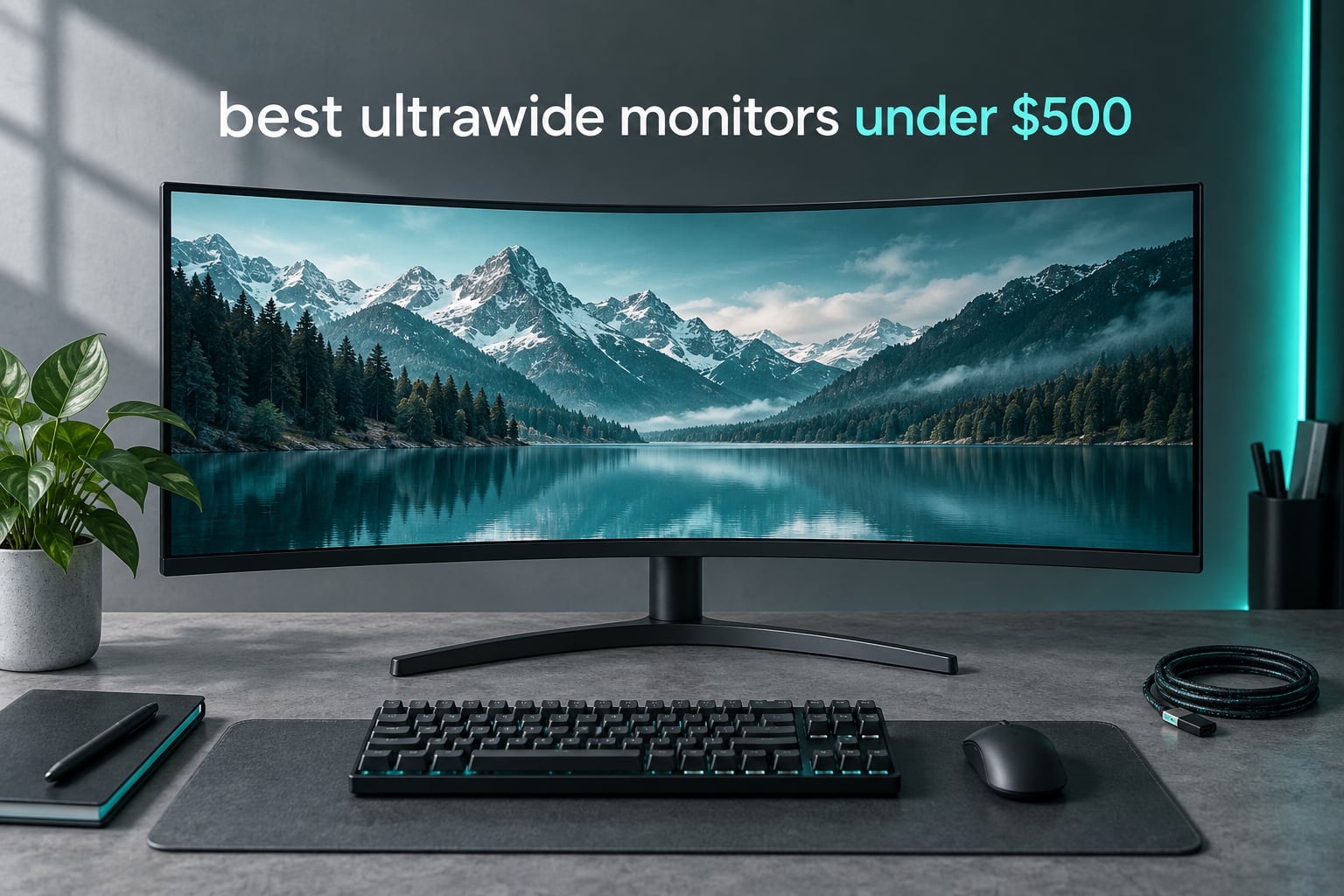
The KOORUI 34E6UC is the best ultrawide monitor under 500 dollars overall: a 34-inch 3440×1440 VA panel running up to 200Hz over DisplayPort, 4000:1 contrast, 400 nits, FreeSync Premium plus G-Sync, and a stand that actually adjusts for height. If colour accuracy matters more to you, the Alienware AW3425DWM takes the crown on paper with DCI-P3 95% coverage and VESA DisplayHDR 400 certification at 180Hz.
That is the short version. Below I break down all ten monitors we considered, what each one does well, where each one falls short, and how to pick the right 21:9 panel for your desk, your GPU and your eyes.
Table of Contents
Top 3 Picks for the Best Ultrawide Monitors Under 500

KOORUI 34 Inch 200Hz Curved WQHD
- 34-inch 3440x1440 VA at 200Hz
- 4000:1 contrast
- FreeSync Premium and G-Sync
- height adjustable stand

Alienware AW3425DWM
- 34-inch 3440x1440 curved at 180Hz
- 1ms gray-to-gray
- DCI-P3 95% and DisplayHDR 400
- console mode

KTC H34S5 180Hz Ultrawide
- 34-inch 1500R HVA panel
- 180Hz over DisplayPort
- adjustable stand with pivot
- 3-year warranty
Our picks reflect how differently people use an ultrawide. A competitive player wants headroom in refresh rate, a stock trader wants screen width and calm eye comfort, and a laptop user cares more about a single USB-C cable than anything printed on the box.
The roundup below covers every pick in the same order, with the specifications, the review consensus, and the situations where each panel is the wrong tool.
All 10 Ultrawide Monitors Compared Side by Side
| Product | Specifications | Action |
|---|---|---|
| KOORUI 34E6UC 200Hz Curved |
|
Check Latest Price |
| Alienware AW3425DWM |
|
Check Latest Price |
| KTC H34S5 |
|
Check Latest Price |
 ASUS TUF VG34VQL1B ASUS TUF VG34VQL1B |
|
Check Latest Price |
 Amzfast AMZG34C8 Pro Amzfast AMZG34C8 Pro |
|
Check Latest Price |
 Dell S3425DW Dell S3425DW |
|
Check Latest Price |
 Samsung ViewFinity S50GC Samsung ViewFinity S50GC |
|
Check Latest Price |
 Sceptre C345B-QUT168 Sceptre C345B-QUT168 |
|
Check Latest Price |
 SANSUI ES-G34C5 SANSUI ES-G34C5 |
|
Check Latest Price |
 CRUA CR340HDM CRUA CR340HDM |
|
Check Latest Price |
1. KOORUI 34E6UC 200Hz Curved WQHD – Our Best Overall Pick
KOORUI 34 Inch 200Hz Ultrawide Curved WQHD 3440×1440p Gaming Monitor 1000R
34-inch 3440x1440 VA
Up to 200Hz over DisplayPort
400 nits, 4000:1 contrast
DCI-P3 95%, HDR 400
Pros
- Largest review base in this group at 14K-plus ratings
- Sharp 3440x1440 VA panel with 200Hz over DisplayPort
- 400 nits and 4000:1 contrast
- Height tilt and swivel adjustable stand
- Owners report no dead pixels and no flicker over long ownership
Cons
- Colour needs manual calibration out of the box
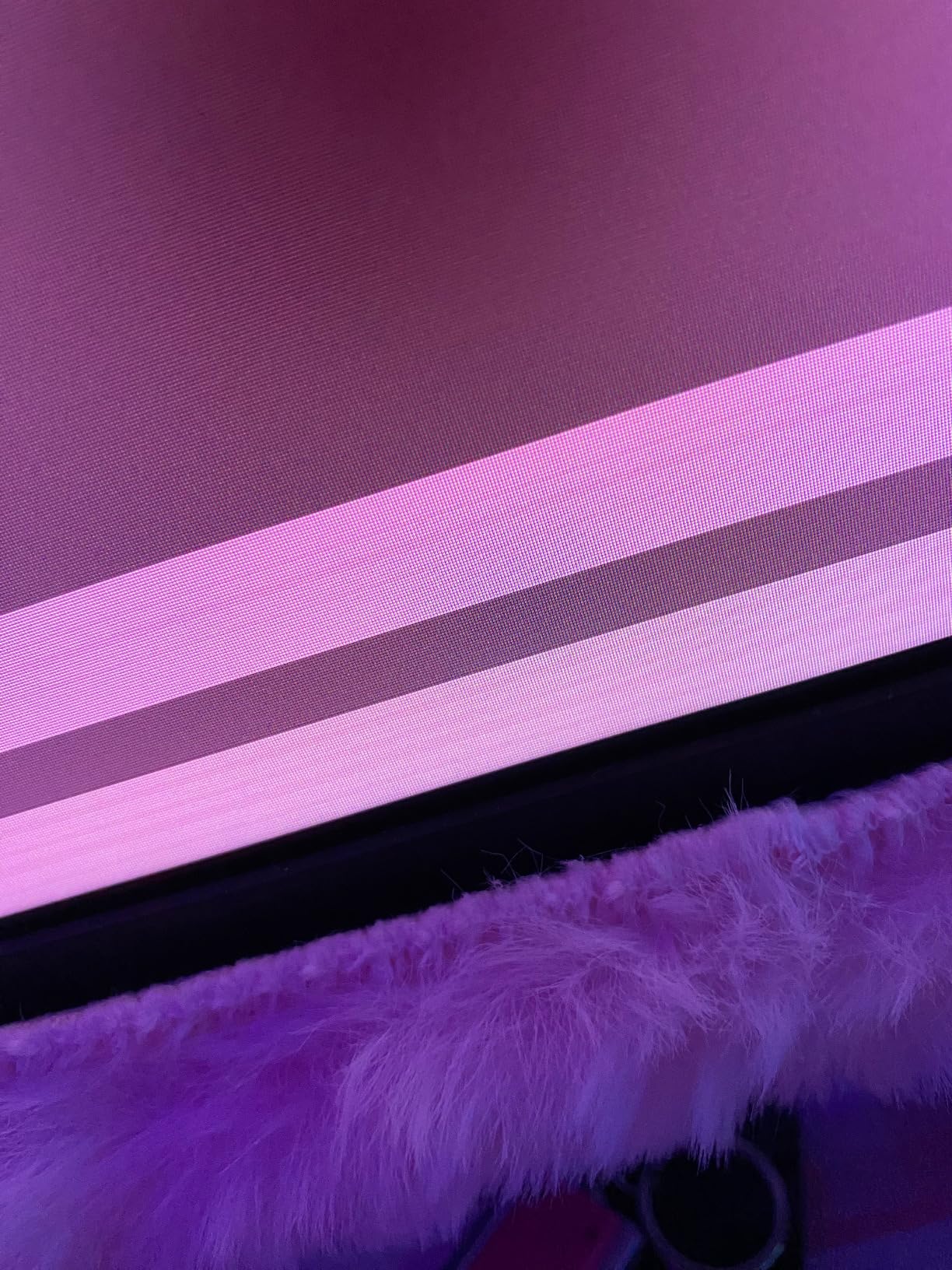
- Some units flash brightness briefly with FreeSync enabled
- VA panel shows dark corners off-axis
We spent weeks with the KOORUI 34E6UC as the daily driver, and it is the one we kept reaching for. The 34-inch 3440×1440 VA panel is sharp at native resolution, and it drives the full 200Hz over DisplayPort 1.4, which is a rare headline in this bracket.
The stand is the quiet differentiator. It offers tilt, swivel and 110mm of height adjustment, so the panel actually lines up with a laptop screen or a pair of side displays rather than forcing you to stack books under the base.
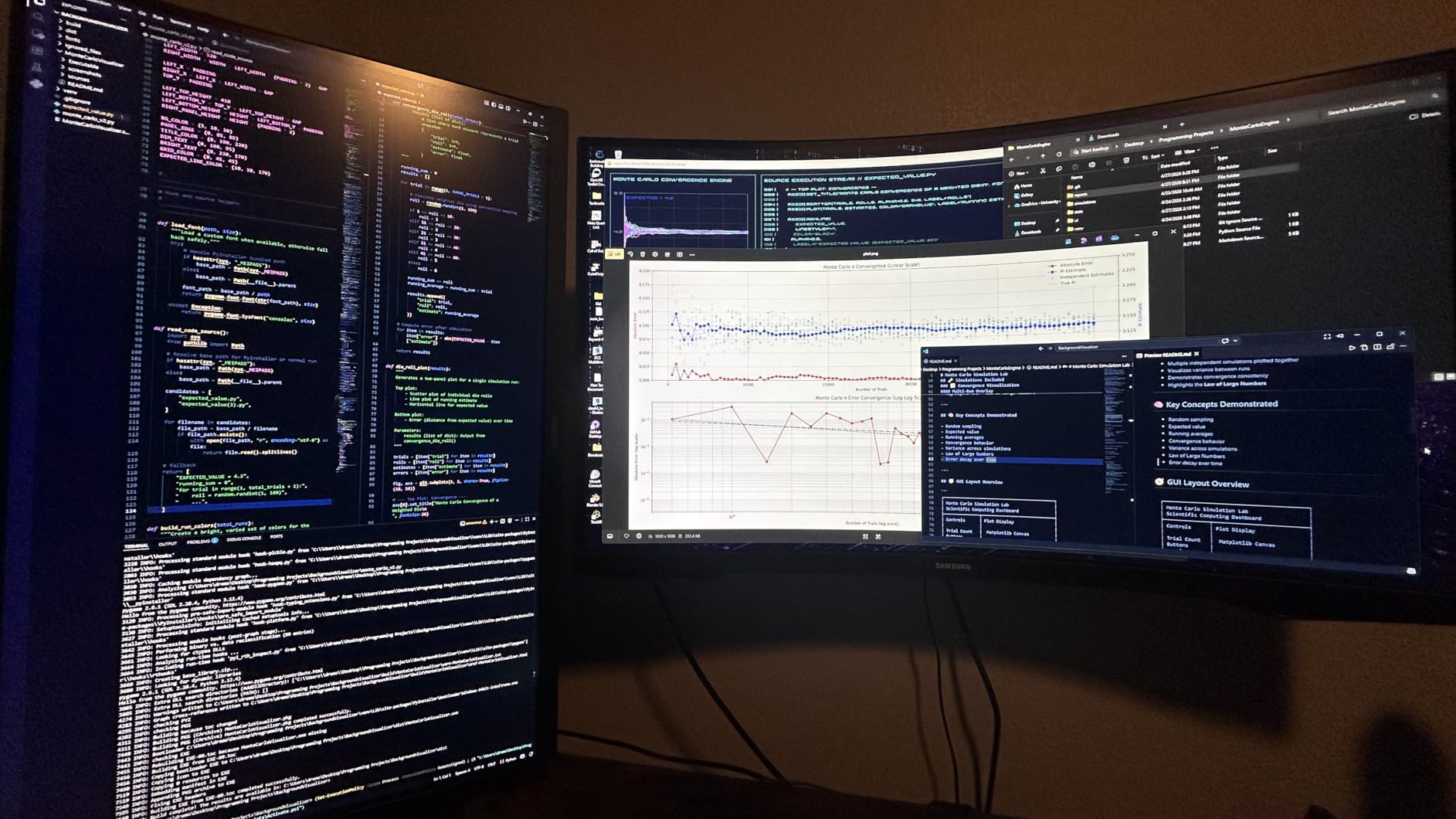
On the numbers, 400 nits of brightness, 4000:1 contrast and DCI-P3 95% coverage put it comfortably ahead of most 34-inch panels in this group, and HDR 400 is a modest but honest label rather than a wild promise. Owners consistently describe the blacks as accurate and the picture as needing a short calibration pass before it reaches its best state.
Adaptive sync covers both FreeSync Premium and G-Sync compatibility. A handful of owners report a brief brightness flash when FreeSync is switched on, which resolves when adaptive sync is turned off in the on-screen display.
Who the KOORUI 34E6UC suits
It suits anyone replacing a dual-monitor arm with a single panel, which is the reason most buyers in this bracket come looking. Sim racers and single-player players get the extra horizontal field of view, and the 200Hz ceiling gives fast games headroom even when the GPU is the limiting factor.
Owners on r/Monitors routinely cross-shop models in this same value bracket and treat review counts in the thousands as the real trust signal, and this listing has more ratings than any other monitor we reviewed here.
Who should skip it
Skip it if you sit at an angle to the screen or share it with someone sitting beside you, because VA dark corners are visible off-axis. It is also the wrong pick if you want a monitor to arrive looking perfect out of the box, since a colour pass is part of the ownership experience.
2. Alienware AW3425DWM 180Hz – Best for Color Accuracy and HDR
Alienware 34 Curved Gaming Monitor – AW3425DWM – 34-inch WQHD 180Hz 1ms Display, 1500R, AMD FreeSync Premium, VESA AdaptiveSync.
34-inch 3440x1440 1500R curved
180Hz, 1ms gray-to-gray
DCI-P3 95%, DisplayHDR 400
400 nits, 3000:1 contrast
Pros
- Highest average rating in the group at 4.6 stars
- 180Hz refresh paired with 1ms gray-to-gray response
- DisplayHDR 400 certification and DCI-P3 95% coverage
- Console mode and hardware low blue light filter
- Height and tilt adjustable stand with VESA cover
Cons
- Heaviest unit here at 21 pounds
- Costs more than every other 34-inch in the set
- This listing returned little written customer review detail
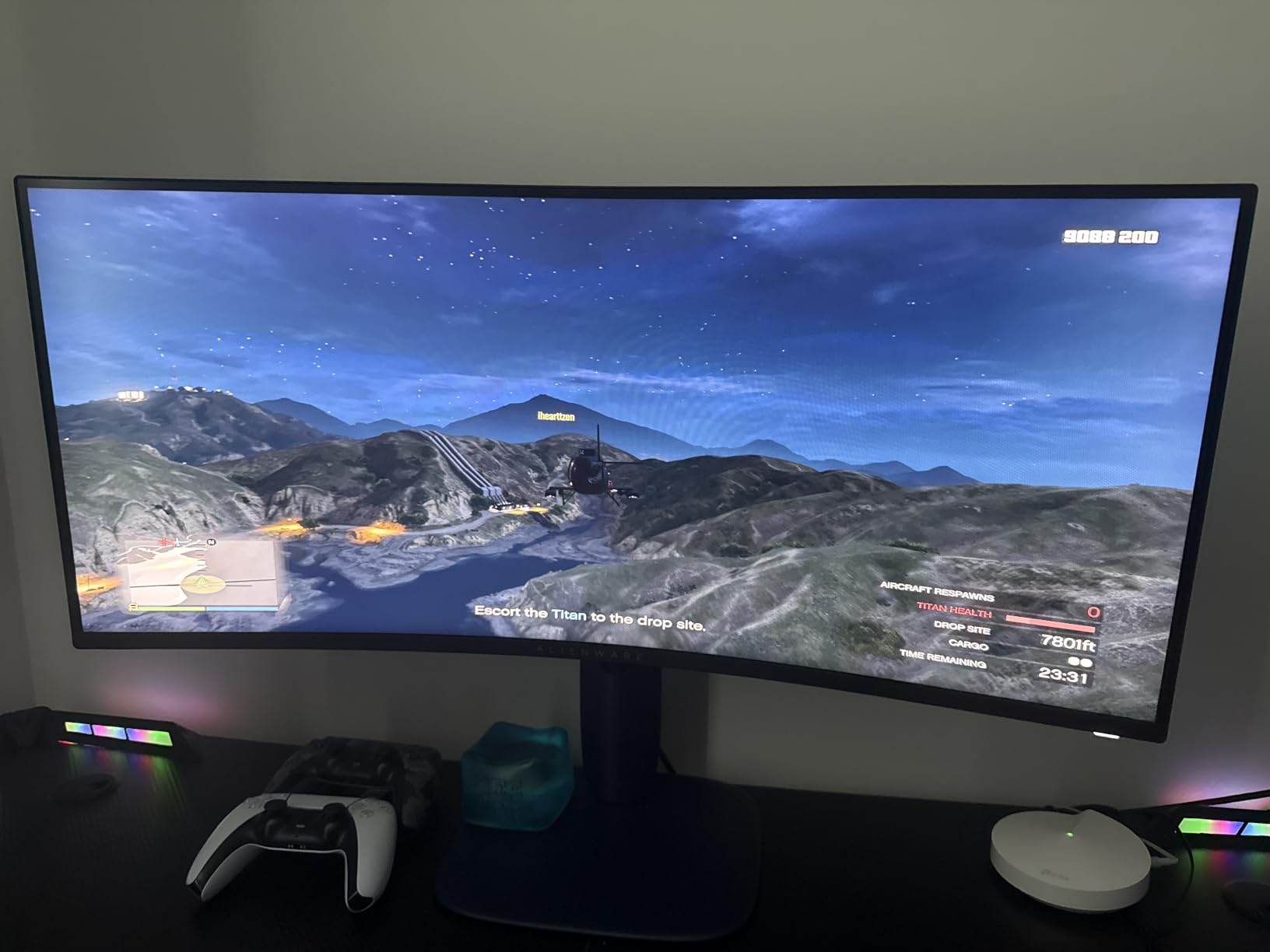
The Alienware AW3425DWM is the pick when the picture itself is the priority. DCI-P3 95% colour coverage with VESA DisplayHDR 400 certification is the strongest colour claim across these ten monitors, and 400 nits of brightness gives HDR content genuine headroom rather than a grey wash.
Gaming performance is equally serious: 180Hz with 1ms gray-to-gray response, backed by AMD FreeSync Premium and VESA Adaptive Sync. A dedicated console mode is a small touch that matters more than it sounds when you switch between a PC and a console source.
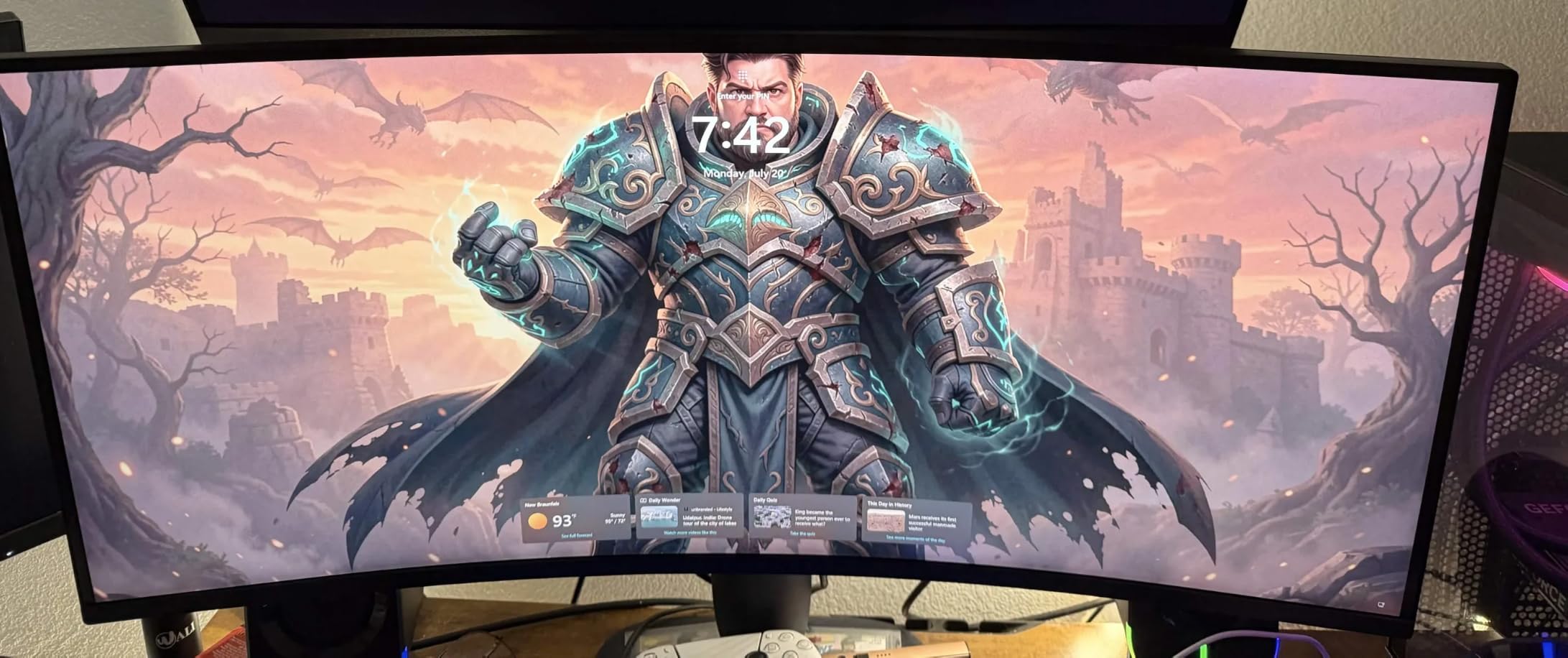
The hardware low blue light filter runs at the panel level, so it does not wash out the image the way a software filter can. That makes it a sensible choice for long evening sessions, and for anyone who does photo or video work on the same screen.
The stand adjusts for height and tilt and ships with a VESA cover to tidy the cable run. At 21 pounds this is the heaviest panel in the group, so repositioning takes more effort than the lighter models.
Who the Alienware AW3425DWM suits
It suits colour-sensitive work: photo editing, video timelines and HDR gaming all benefit from the wide gamut and the certified brightness. Console players get a mode designed for the job and a panel wide enough to show more of a racing cockpit.
A three-year warranty is included, which is longer than several rivals at this bracket offer.
Who should skip it
Skip it if the budget is the deciding factor, because it carries the highest ticket of the ten. It is also not the option to pick if you want a huge pool of written owner feedback, since this listing returned far less customer review text than the value-tier monitors.
3. KTC H34S5 180Hz Ultrawide – Best Value for the Money
KTC 34 Inch Ultrawide Curved Gaming Monitor, 3440×1440 UWQHD 180Hz, H34S5
34-inch 3440x1440 1500R HVA
180Hz, 1ms MPRT
FreeSync and G-Sync
4000:1 contrast, 125% sRGB
Pros
- Highest average rating among the well-reviewed picks
- 180Hz over DisplayPort is stable and consistent
- Stand adjusts for tilt swivel pivot and 110mm height
- 125% sRGB suits text-heavy productivity work
- 3-year manufacturer warranty
Cons
- Out-of-box image is washed out and needs adjustment
- VA-type smearing still visible in dark scenes
- Short bundled DisplayPort cable
The KTC H34S5 is the monitor we recommend to people who want one panel to do everything. The HVA panel is a VA variant tuned for response, and in practice it holds up better in motion than a standard VA panel at the same price.
180Hz arrives over both DisplayPort 1.4 inputs, and the stand is the most adjustable in the group: tilt, 45-degree swivel in each direction, pivot and 110mm of height. On a curved 34-inch that much adjustment is genuinely useful rather than decorative.
Colour coverage of 125% sRGB with 4000:1 contrast is a strong pairing for text rendering, and the panel produces crisp type at 3440×1440 native. The one thing every owner mentions is the out-of-box picture, which arrives washed out and needs a quick gamma, saturation and contrast pass through the on-screen display.
Ports are straightforward: two DisplayPort 1.4 inputs for the 180Hz path, two HDMI 2.0 inputs running 3440×1440 at 100Hz, plus PIP and PBP modes. VESA 100×100 mounting is supported, and the warranty runs three years.
Who the KTC H34S5 suits
It suits mixed workloads, which is the majority case at this budget. The 4.5 average rating across more than two thousand reviews is the strongest combination of score and sample size we found, and buyers frequently describe it as a dual-monitor replacement.
Sim-racing communities treat a curved ultrawide at this spend level as the sensible upgrade, and the field of view plus the adjustable stand fit a steering wheel setup or a wide desk nicely.
Who should skip it
Skip it if you refuse to touch display settings, since the picture needs work before it looks right. Those who watch very dark scenes and cannot tolerate any smearing should look at an IPS-based alternative instead.
4. ASUS TUF VG34VQL1B 165Hz – Best Build Quality with a USB Hub
ASUS TUF Gaming VG34VQL1B 34 Inch 1440p 165Hz Ultrawide HDR Gaming Monitor
34-inch 3440x1440 1500R curved
165Hz with ELMB 1ms MPRT
DisplayHDR 400, 120% sRGB
4-port USB hub, 3-year warranty
Pros
- Colour accuracy repeatedly praised as the best in this tier
- DisplayHDR 400 certification with 120% sRGB coverage
- 4-port USB hub for peripherals and charging
- Sturdy height-adjustable stand
- HDMI and DisplayPort cables included
Cons
- Typical VA smearing in dark scenes
- 10-bit color requires dropping to 144Hz
- Built-in speakers are tinny
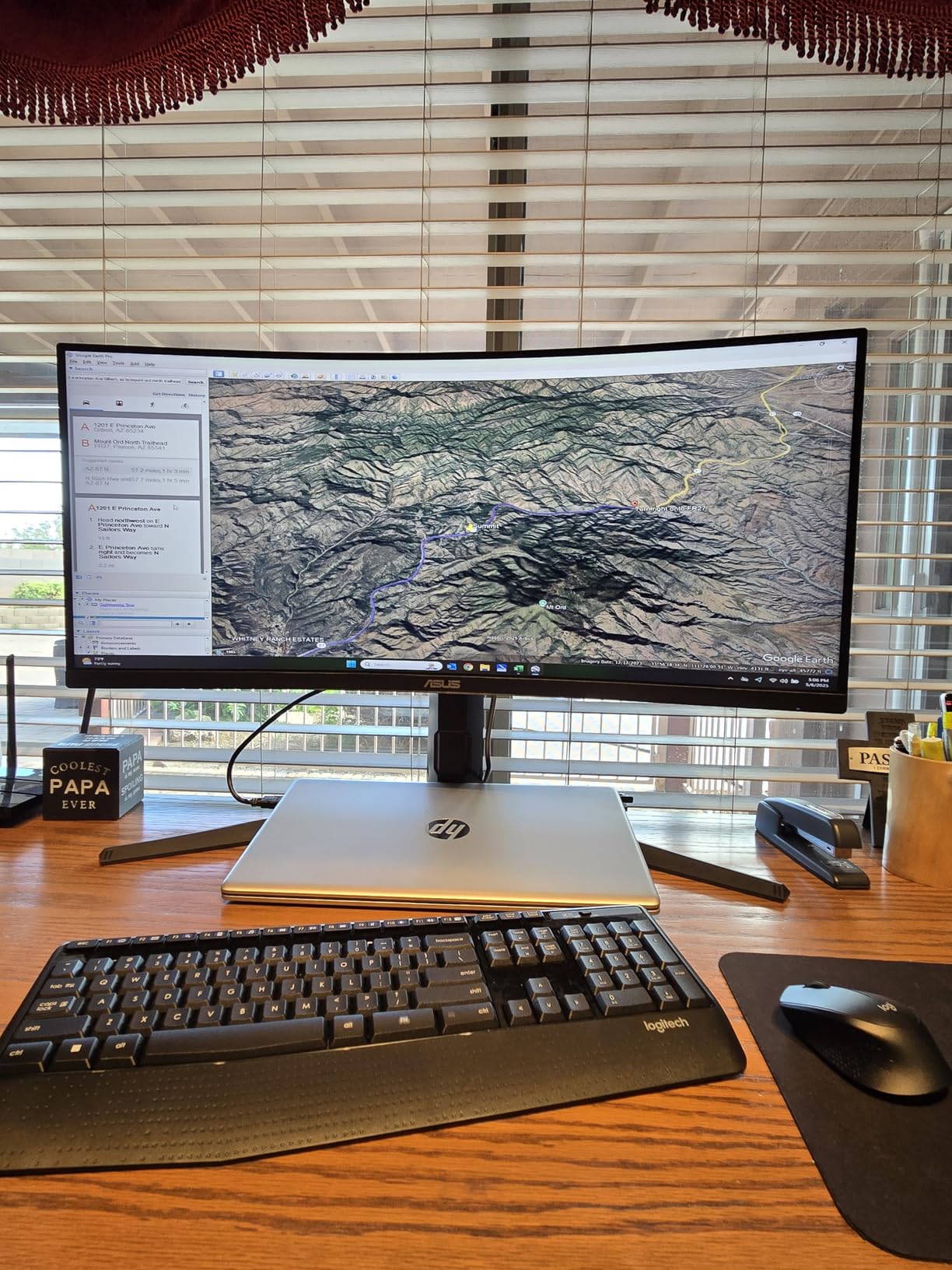
The ASUS TUF VG34VQL1B is the one we recommend when build quality and colour matter more than headline refresh rate. Owners repeatedly single out its colour accuracy and saturation as the best in the ultrawide value tier, which is a more useful trait than a number on a box.
At 165Hz with ASUS Extreme Low Motion Blur for 1ms MPRT response, it sits comfortably below the 200Hz and 240Hz models here but comfortably above the 100Hz and 120Hz ones. FreeSync Premium handles variable refresh rate.
The standout hardware feature is the built-in 4-port USB hub, two of which are USB 3.2 Type-A. On a desk with a keyboard, mouse and headset, that removes a hub from the equation entirely, and the stand adjusts for height with swivel and tilt.
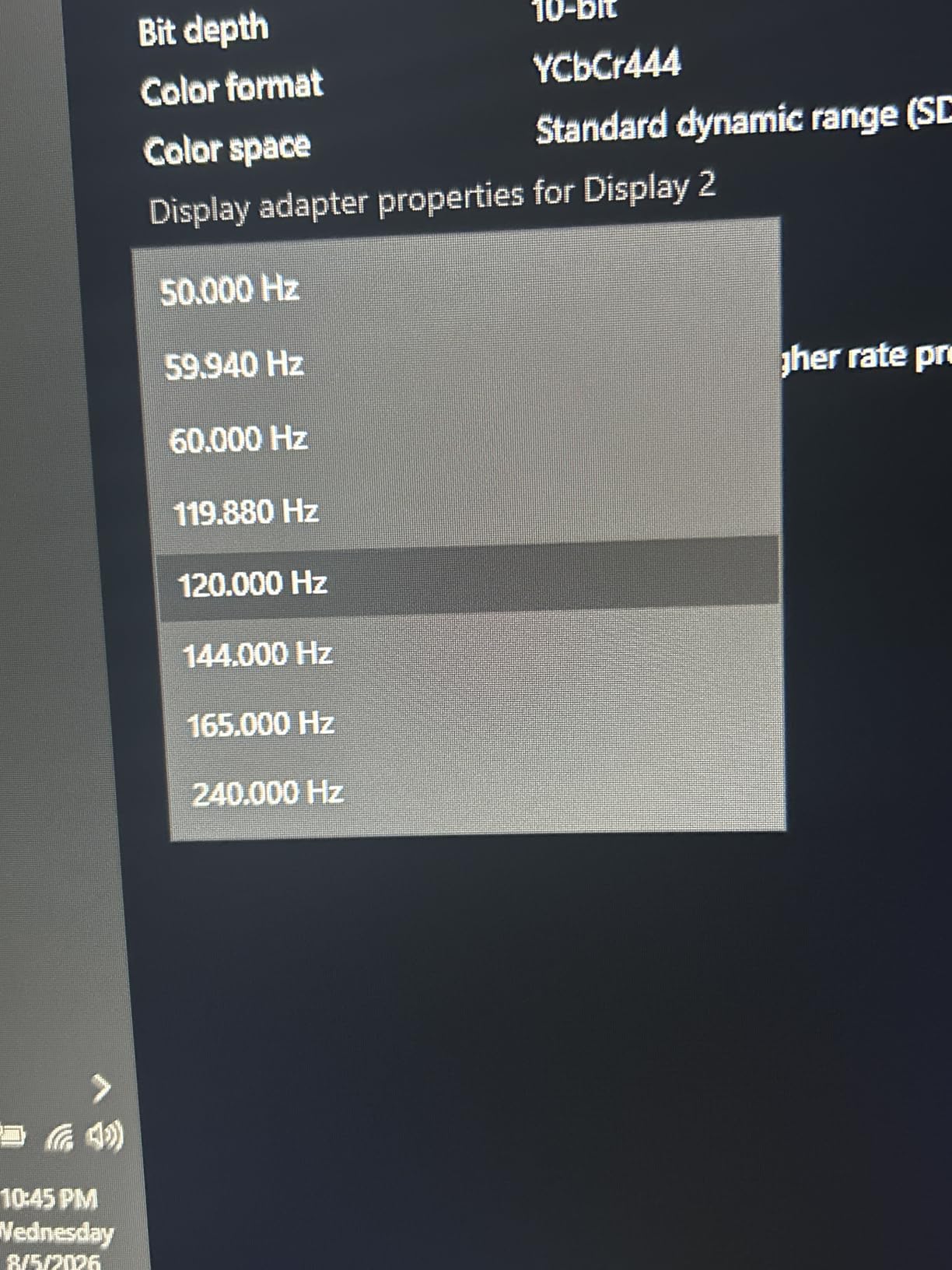
HDR carries VESA DisplayHDR 400 certification at 120% sRGB. One tradeoff to know: 10-bit colour is not available at 165Hz, so you have to drop to 144Hz if you want the deeper colour depth.
Who the ASUS TUF VG34VQL1B suits
It suits people with a cluttered desk who want ports on the monitor rather than a separate dock, and anyone who edits images or video on a budget. The warranty runs three years with an advanced replacement and repair service, which is a real difference when something goes wrong.
Both HDMI and DisplayPort cables are included, and the VESA holes are positioned so common arms fit without adapters.
Who should skip it
Skip it if you want 10-bit colour at full refresh rate, since the two do not coexist at 165Hz. Competitive players chasing the highest possible frame rates in this bracket will find faster options here.
5. Amzfast AMZG34C8 Pro 240Hz – Best for Maximum Refresh Rate
Amzfast 34 Inch 240Hz Curved Gaming Monitor UWQHD (3440×1440), AMZG34C8 Pro
34-inch 3440x1440 1500R curved VA
240Hz, 1ms OD response
450 nits, 10-bit color, DCI-P3 96%
HDMI 2.1 x2, DisplayPort 1.4 x2
Pros
- 240Hz is the highest refresh rate in this group
- 450 nits with 10-bit color for a punchy image
- Stand adjusts for height pivot swivel and tilt
- TUV Rheinland low blue light certified
- PIP and PBP plus AI gaming overlays
Cons
- Built-in speakers are unusable
- Reverse ghosting if MPRT overdrive is enabled
- PBP halves the refresh rate to 60Hz per side
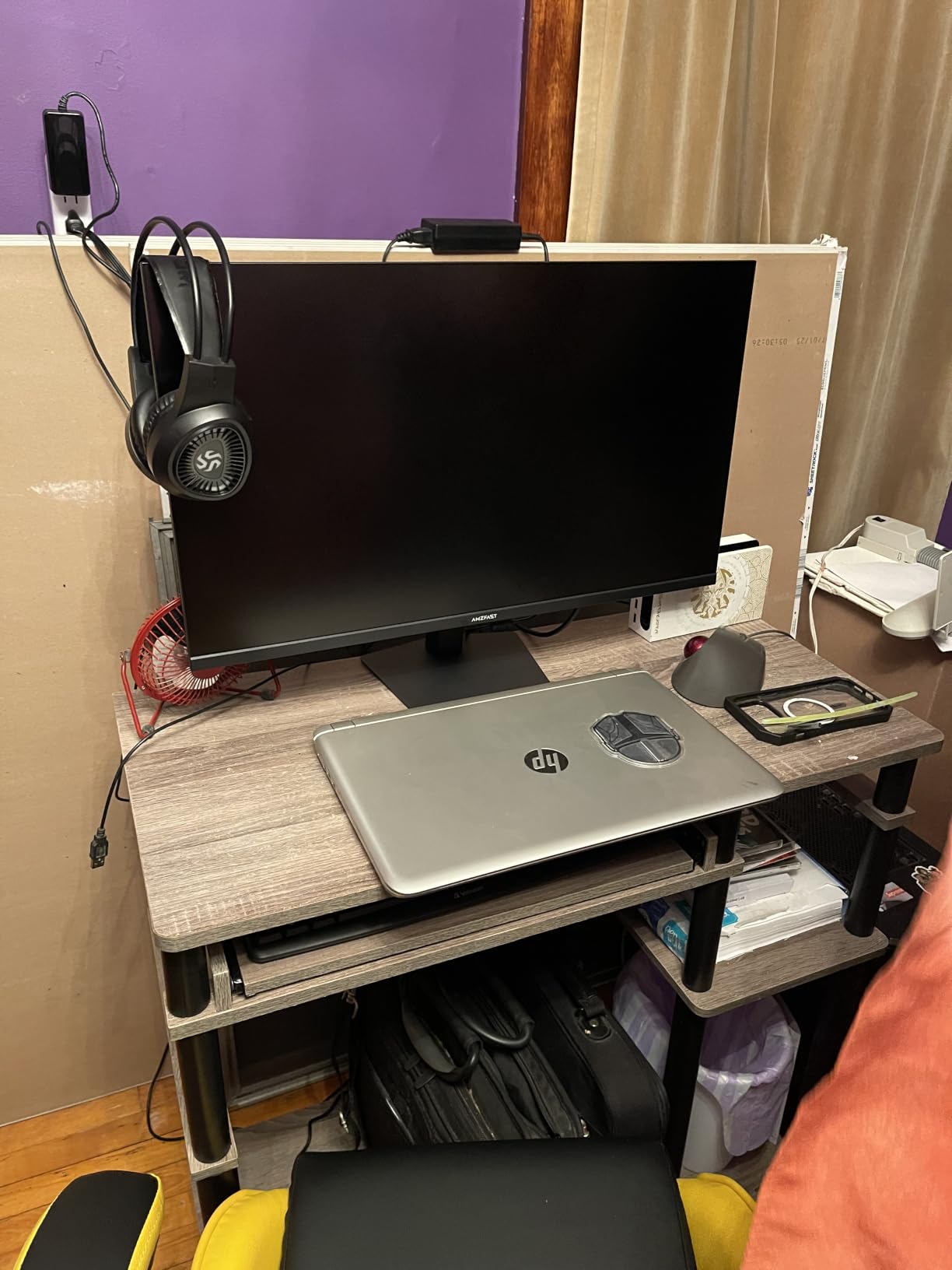
The Amzfast AMZG34C8 Pro is the fastest panel on this list, running 240Hz at 3440×1440. No other 34-inch we reviewed claims more, and both DisplayPort 1.4 and HDMI 2.1 inputs carry the full rate rather than dropping you to a lower mode.
Brightness is 450 nits, which is the highest here, and colour runs at 10-bit through frame rate conversion with 96% DCI-P3 and 131% sRGB coverage. That combination makes it the most colour-capable of the high-refresh options.
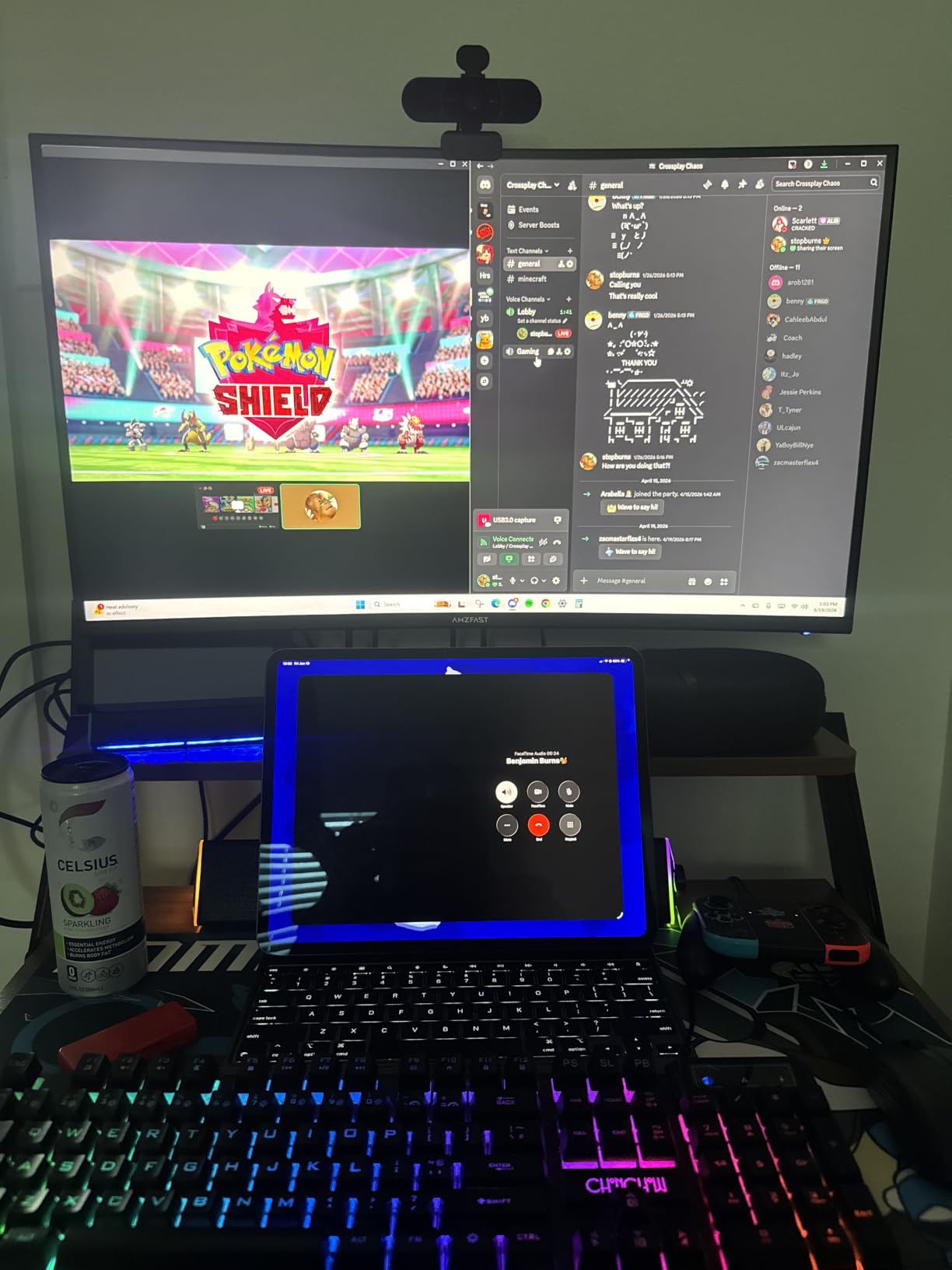
The eye-care stack is unusually thorough: TUV Rheinland low blue light certification, dynamic blue light reduction, anti-flicker and anti-glare. The stand adjusts 0 to 130mm of height with pivot, 30 degrees of swivel each way and tilt, and VESA 100×100 mounting is supported.
Reviewers raise three consistent warnings. Leave the MPRT overdrive disabled, because it introduces reverse ghosting. Do not expect the built-in speakers to be usable. And avoid PBP if frame rate matters, since each split input drops to 60Hz.
Who the Amzfast AMZG34C8 Pro suits
It suits competitive and high-refresh players who want headroom, and anyone who values brightness and 10-bit colour at the same time. AI overlays including a crosshair, night vision and a sniper scope cover the usual competitive shooters.
Those who need a USB-C laptop connection should look elsewhere, since the connectivity here is display-oriented rather than docking-oriented.
Who should skip it
Skip it if your graphics card cannot push meaningful frame rates at 3440×1440, because a 240Hz panel cannot invent frames. Several owners also flag an oily-looking finish on the back panel, which matters if your monitor sits on a glass desk.
6. Dell S3425DW 120Hz – Best for USB-C Laptop Setups
Dell 34 Monitor S3425DW, WQHD VA, 120Hz, FreeSync Premium, Eye Comfort
34-inch 3440x1440 curved VA
120Hz with FreeSync Premium
USB-C with 65W power delivery
ComfortView Plus eye comfort
Pros
- Single-cable USB-C with 65W laptop charging
- Tool-free stand assembly takes about a minute
- Sharp text rendering with good viewing angles
- ComfortView Plus cuts blue light to 35% or less
- Advanced Exchange Service and Premium Panel Exchange
Cons
- No DisplayPort and fewer ports than older Dell 34-inch models
- Recessed VESA bracket complicates third-party arms
- Speakers are distorted
- VA panel is not suited to colour-critical work
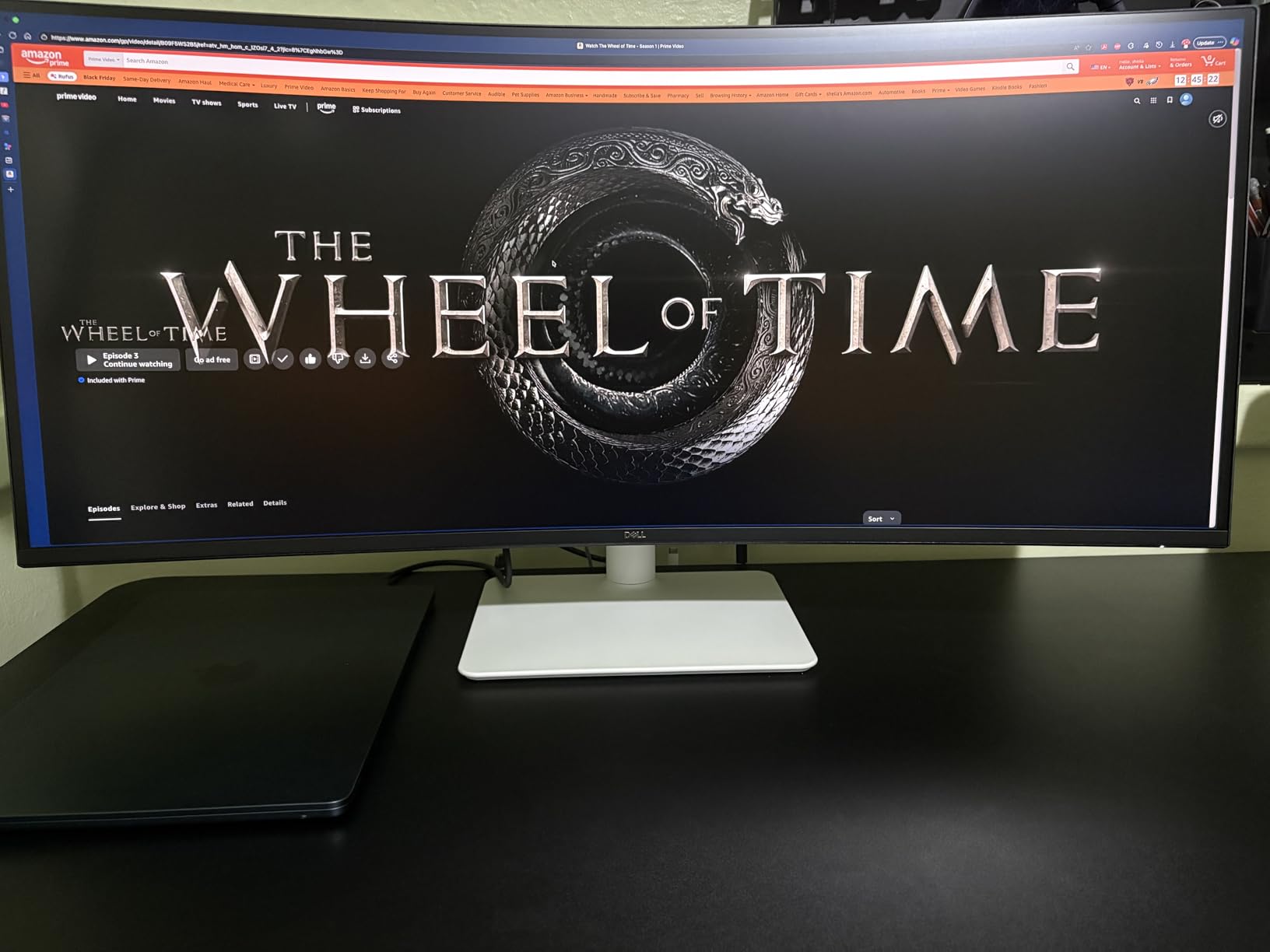
The Dell S3425DW solves a problem none of the other nine monitors here addresses: a true one-cable laptop workflow. USB-C with up to 65W of power delivery means a single lead carries video, data and charging, which Mac users in particular call out as the reason they bought it.
Refresh rate is 120Hz with AMD FreeSync Premium, and colour coverage sits at 99% sRGB and 95% DCI-P3 with 3000:1 contrast. That is a productivity-first specification set rather than a competitive one.
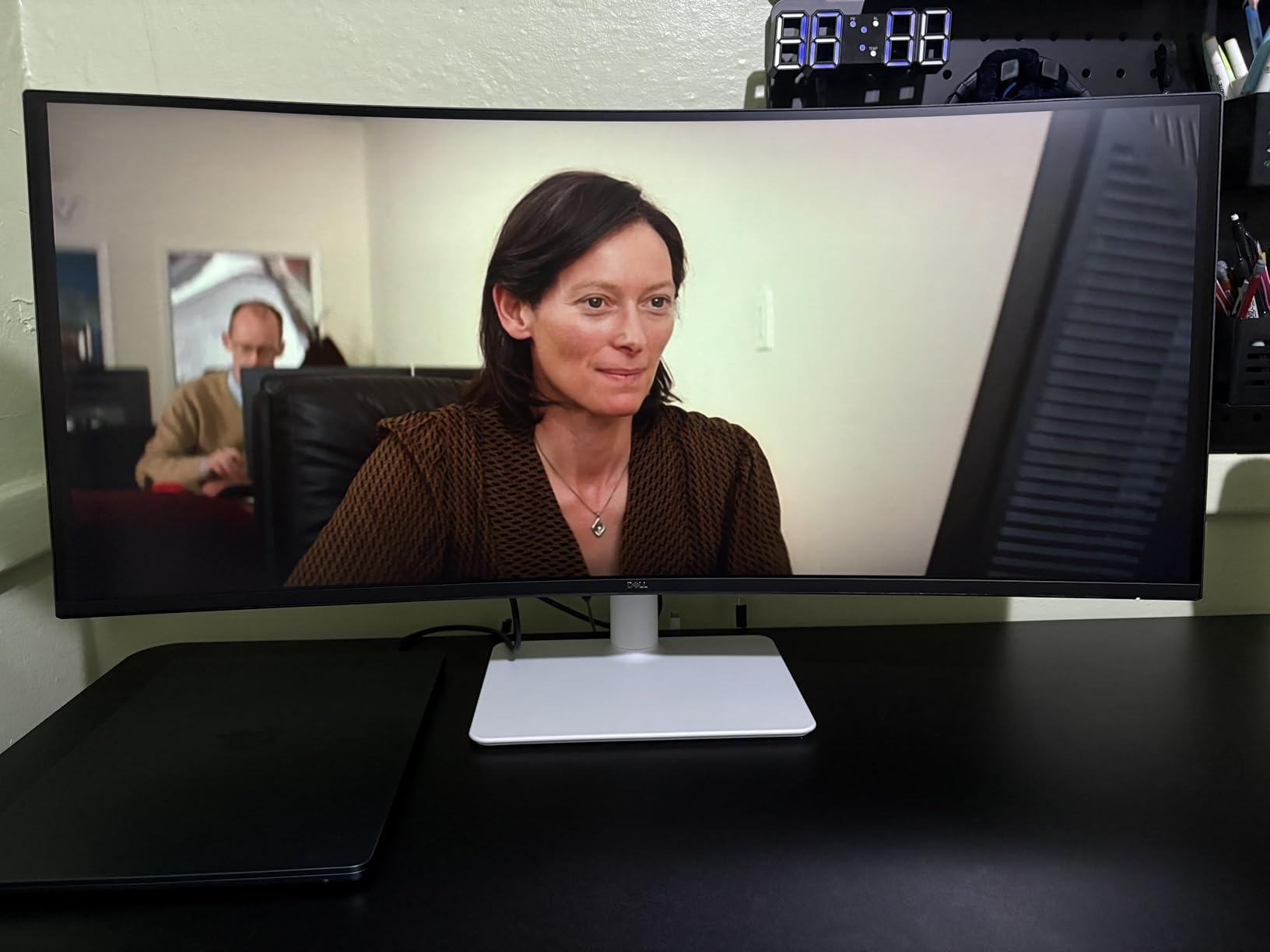
ComfortView Plus is the underrated feature here. It reduces blue light emissions to 35% or less at the hardware level, which matters if the screen is on for nine hours a day. The stand assembles tool-free in about a minute and adjusts for height and tilt, and the ash white finish looks sharp on a light desk.
The port selection is the compromise. There is no DisplayPort, only two HDMI ports alongside USB-A and USB-C, and the VESA bracket sits recessed about a quarter inch, which makes third-party arms awkward to fit.
Who the Dell S3425DW suits
It suits laptop-first users, hybrid workers and anyone who wants to arrive at a desk with one cable and start working. The one-year Advanced Exchange Service and Premium Panel Exchange coverage is a genuine trust signal, since a failed panel gets replaced rather than argued about.
Dell support has resolved hardware issues for owners who reached out, and the built-in speakers were re-engineered for this model even though they remain tinny.
Who should skip it
Skip it if you need DisplayPort for a high refresh target, since 120Hz is the ceiling here and the inputs available are limited. Colour-critical photo work is also a poor fit, because a VA panel is not the right technology for it.
7. Samsung ViewFinity S50GC 100Hz – Best for Long Workdays
SAMSUNG 34″ ViewFinity S50GC Series Ultra-WQHD Monitor, 100Hz, 5ms, HDR10, AMD FreeSync, Eye Care, Borderless Design, PIP, PBP, LS34C502GANXZA, 2023, Black
34-inch 21:9 Ultra-WQHD 3440x1440
100Hz, 5ms response
Ambient light sensor, Eye Saver Mode
PIP and PBP, HDR10
Pros
- Excellent screen real estate for multitasking and timelines
- Ambient light sensor auto-adjusts brightness
- FreeSync keeps playback tear-free
- Automatic scaling handles 1080p sources cleanly
- Minimal three-sided bezel suits dual setups
Cons
- 100Hz and 5ms are the lowest figures in this group
- Stock stand is cumbersome and monitor arms are often recommended
- PIP mode is janky
- Modest colour coverage and basic HDR
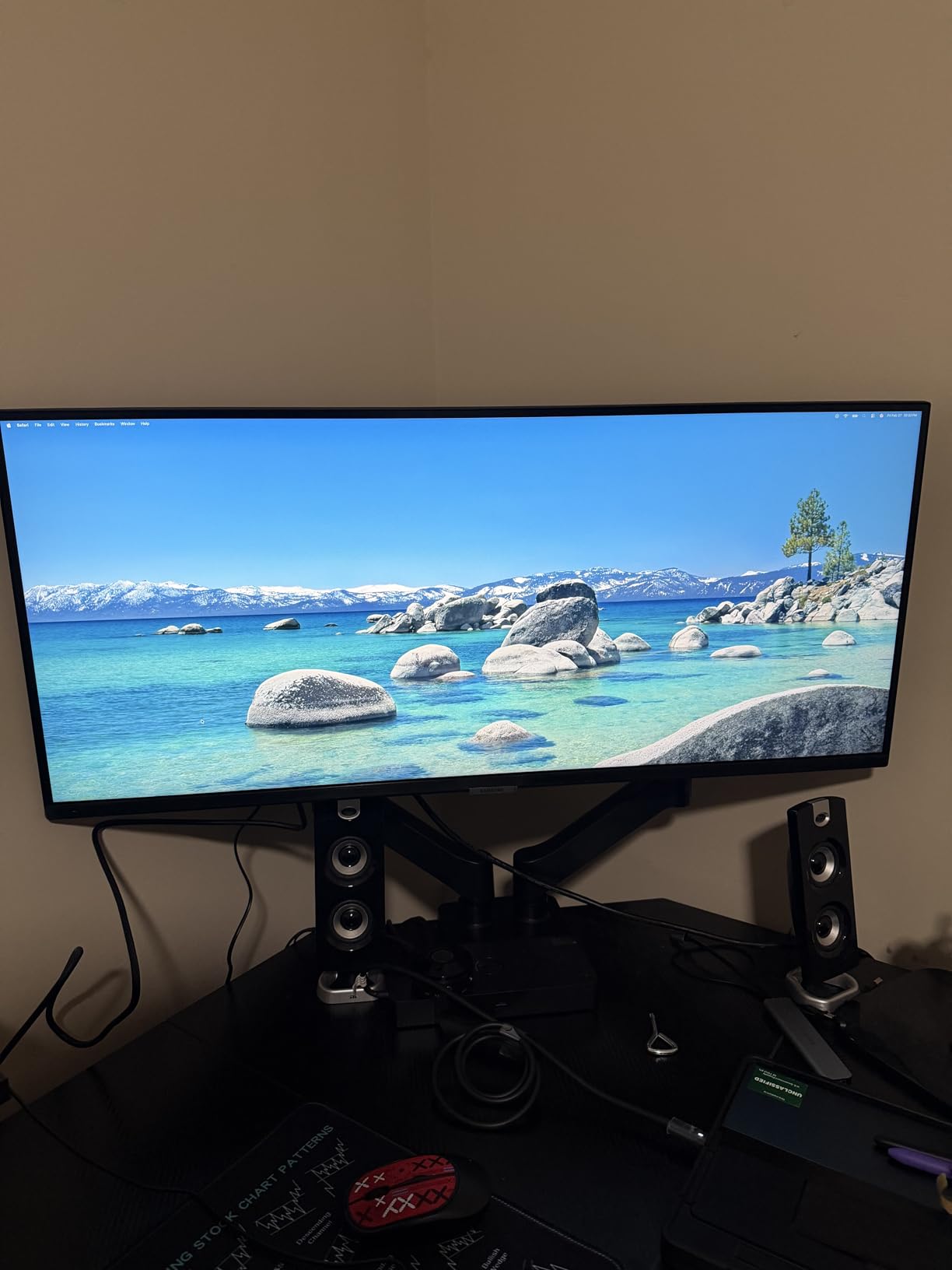
The Samsung ViewFinity S50GC is the productivity pick. Owners consistently describe it as a screen real estate machine, and if your day is built from a code editor, a terminal, a video call and a browser, the width is the feature that changes how you work.
Refresh rate is 100Hz with 5ms response, the lowest performance pair in this group, and VA response still feels quicker than that number suggests in ordinary use. AMD FreeSync keeps scrolling and playback tear-free.
The eye-care features are the real differentiator: an ambient light sensor that adjusts brightness automatically, Eye Saver Mode and flicker-free dimming. For a monitor that runs eight hours a day, that combination does more for comfort than another 80Hz of refresh rate.
PIP and PBP let you display two sources at native resolution, and the three-sided minimal bezel keeps the edge tight if you later pair it with a second display. Cables for both DisplayPort and HDMI are included.
Who the Samsung ViewFinity S50GC suits
It suits traders, editors and developers who keep many windows open and who spend long hours at the desk. Automatic scaling of mixed 1080p sources is a practical detail that matters more than it sounds when sources come from different machines.
If you also write, our broader guide to ultrawide monitors for productivity covers the workflow angles in more depth.
Who should skip it
Skip it if you play competitive shooters, where 100Hz and 5ms will feel sluggish next to the 165Hz to 240Hz models in this list. The stock stand is also awkward, and most owners move to a monitor arm quickly.
8. Sceptre C345B-QUT168 – Best Budget Pick
Sceptre 34-inch Curved ultrawide WQHD Monitor (3440 × 1440), R1500, up to 180Hz/165Hz, DisplayPort x2, 99% sRGB, 1ms, Built-in Speakers, Machine Black, 2025 (C345B-QUT168)
34-inch 3440x1440 R1500 curved VA
Up to 180Hz/165Hz, 1ms MPRT
DisplayPort x2, HDMI x2, audio out
99% sRGB, built-in speakers
Pros
- Curved 3440x1440 panel replaces a dual-monitor setup
- 180Hz with 1ms MPRT keeps motion clean
- Long-term owners report years without reliability problems
- Phone tech support repeatedly praised as fast and helpful
- Wall-mountable and stable on the included stand
Cons
- Visible horizontal lines and a lighter backlight band at close range
- Some smearing and tearing in fast movement
- Weak built-in speakers
- Single bottom button for power menu and navigation
The Sceptre C345B-QUT168 is the cheapest way into a genuine 34-inch 3440×1440 curved panel, and it delivers more than the price suggests. The R1500 curve and 21:9 format give roughly 30% more screen space than a conventional display, enough to retire a second monitor.
Refresh rate runs up to 180Hz with 1ms MPRT response and AMD FreeSync Premium support. Connectivity is sensible: two DisplayPort inputs, two HDMI ports and an audio out.
Long-term owners report two-plus years without reliability problems, and the support experience stands out: buyers repeatedly describe Sceptre phone tech support as fast and genuinely helpful, which is unusual in this tier.
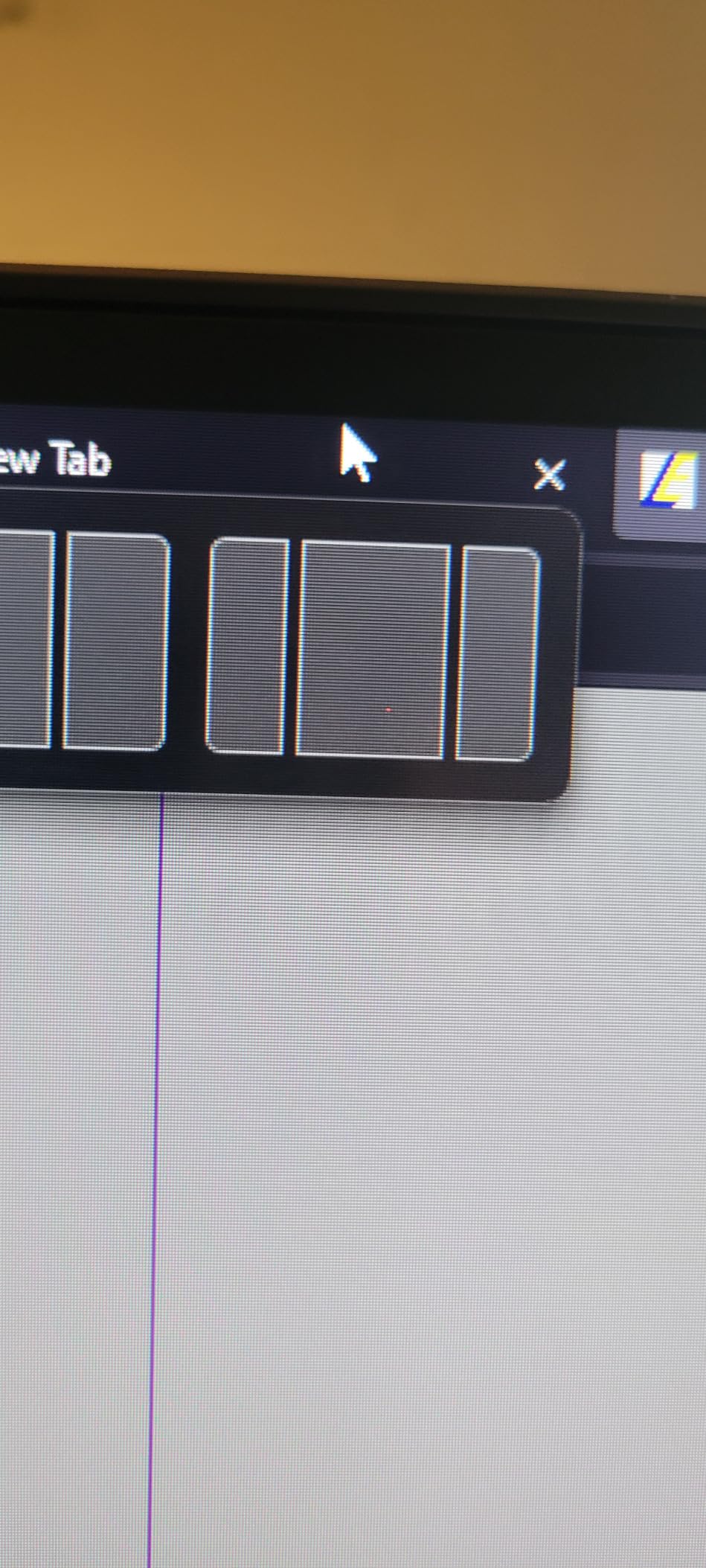
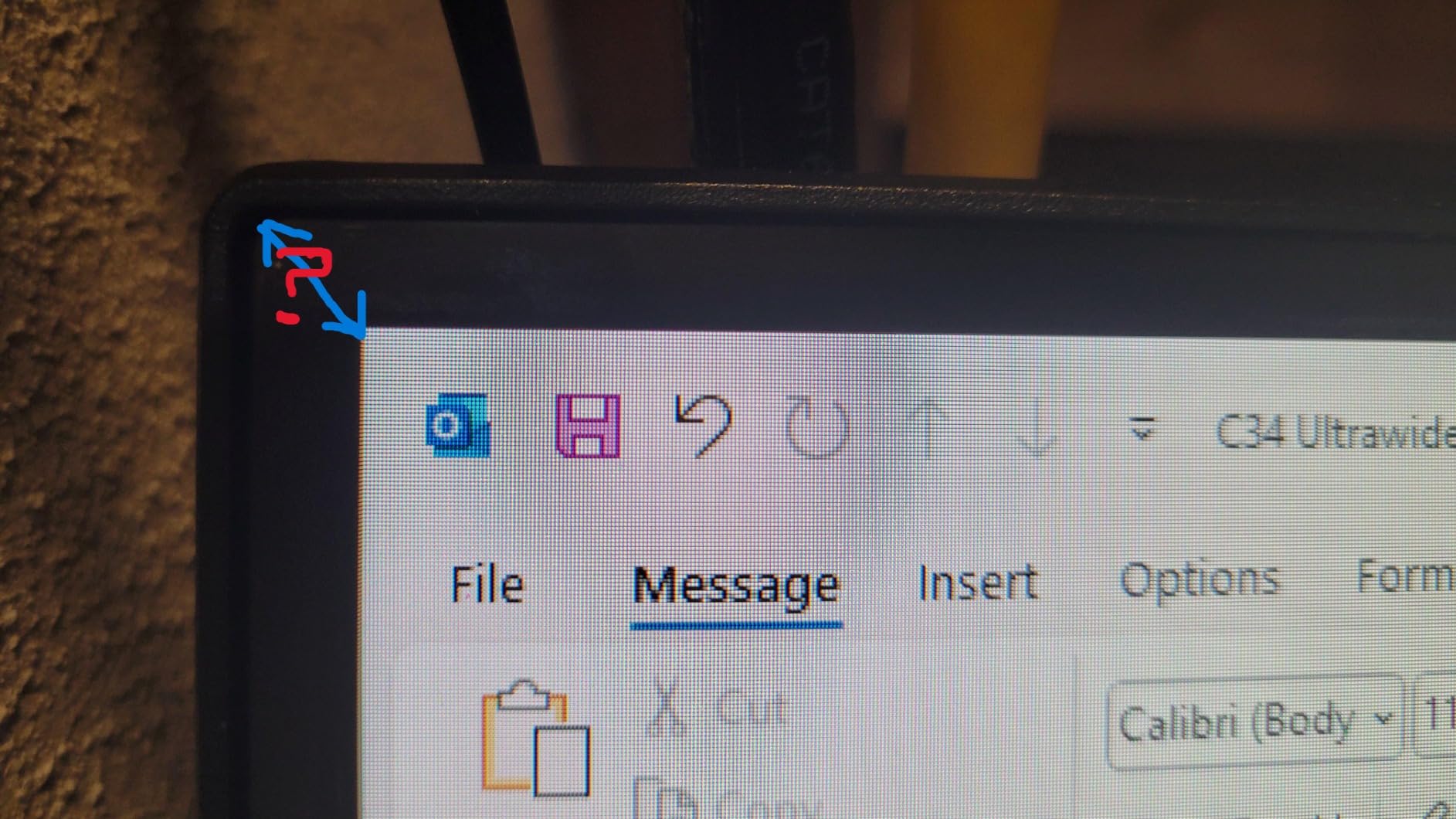
Panel uniformity is the weak point. Some owners see visible horizontal lines and a lighter backlight band in the curved area at close viewing distance, and a minority report smearing during fast movement. Colour coverage is 99% sRGB at 280 nits, the dimmest here.
Who the Sceptre C345B-QUT168 suits
It suits buyers spending the least possible on a real ultrawide, and anyone replacing a dual-monitor setup on a strict budget. It is also the practical choice if a known brand is not a deciding factor for you.
Deal hunters should note that discount activity on 34-inch ultrawides is heavy through the year, with price drops showing up on large retail events, and this panel has historically been among the most responsive.
Who should skip it
Skip it if you sit close to the panel, because the panel uniformity issues show up at short distances. One-bottom-button navigation is also a real annoyance once you are adjusting settings regularly.
9. SANSUI ES-G34C5 200Hz – Best for Multi-Device Inputs
SANSUI 34-Inch Curved Gaming Monitor UWQHD 3440 x 1440P 200Hz Ultrawide
34-inch 3440x1440 1500R Fast VA
200Hz, 1ms OD response
HDMI 2.1 x2, DisplayPort 1.4
FreeSync, PIP/PBP, 3.5mm audio out
Pros
- 200Hz refresh and 1ms OD response in this price band
- HDMI 2.1 and DisplayPort both carry full 200Hz
- Immersive 1500R curve for gaming and multitasking
- Fast and communicative customer support
- Useful AI gaming aids including crosshair and sniper scope
Cons
- No built-in speakers
- Stand offers tilt only with no height adjustment
- Off-axis darkening on the VA panel
- Isolated cluster of reliability complaints within about 10 months
The SANSUI ES-G34C5 is unusual at this budget because both HDMI 2.1 inputs and the DisplayPort 1.4 input carry the full 200Hz. Plenty of cheaper monitors cap HDMI at 100Hz or 120Hz, and this one does not.
The panel is a Fast VA at 1500R with 1ms OD response, and the colour figures are 131% sRGB with 96% DCI-P3 coverage at 300 nits and 3000:1 contrast. FreeSync covers variable refresh rate, and PIP/PBP handles a second source.
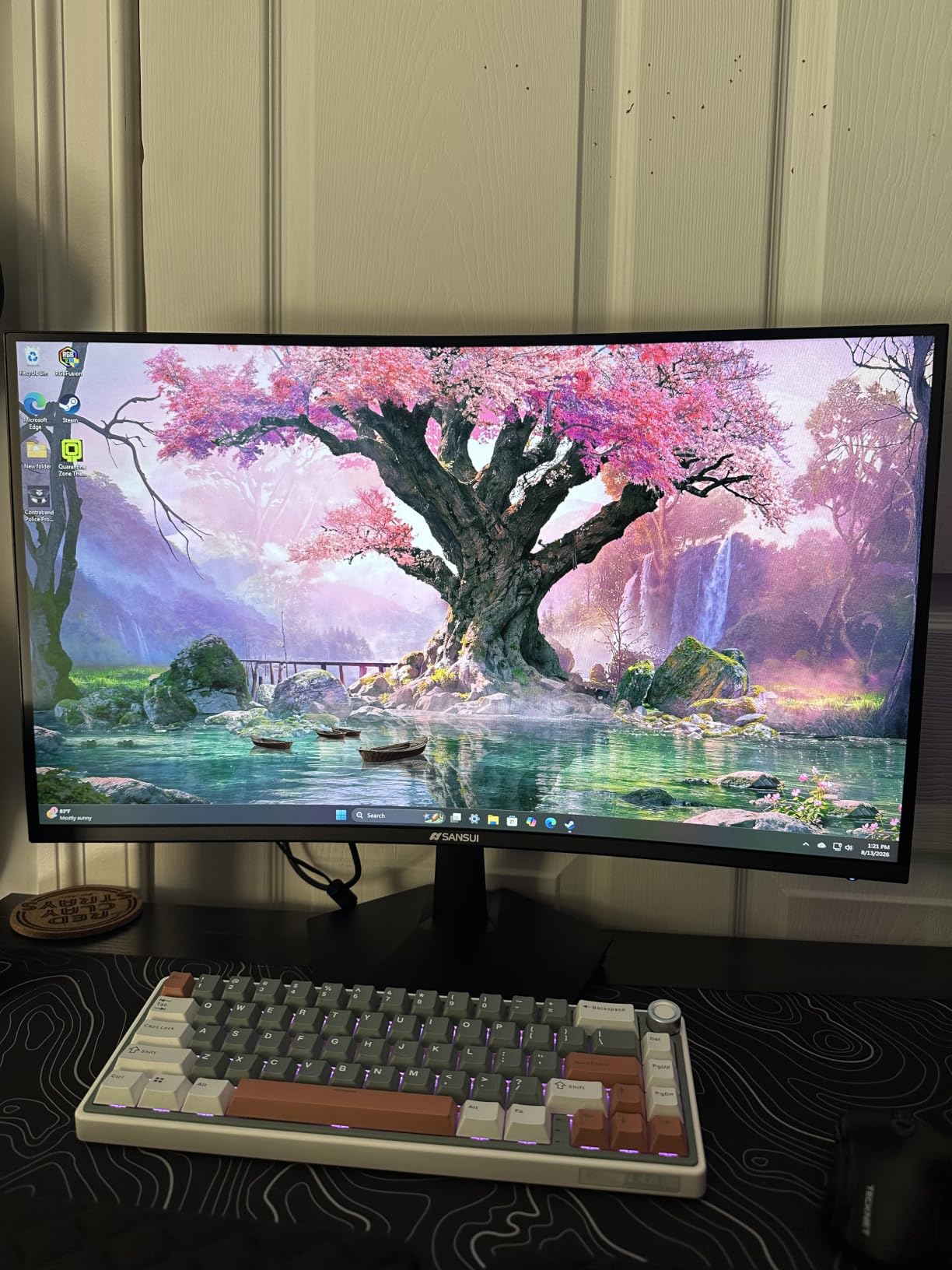
The gaming overlays are extensive: crosshair, night vision, scope, plus AI blue light reduction, anti-flicker and anti-glare. Several owners describe the picture as needing brightness, sharpness and contrast work before it settles into place.
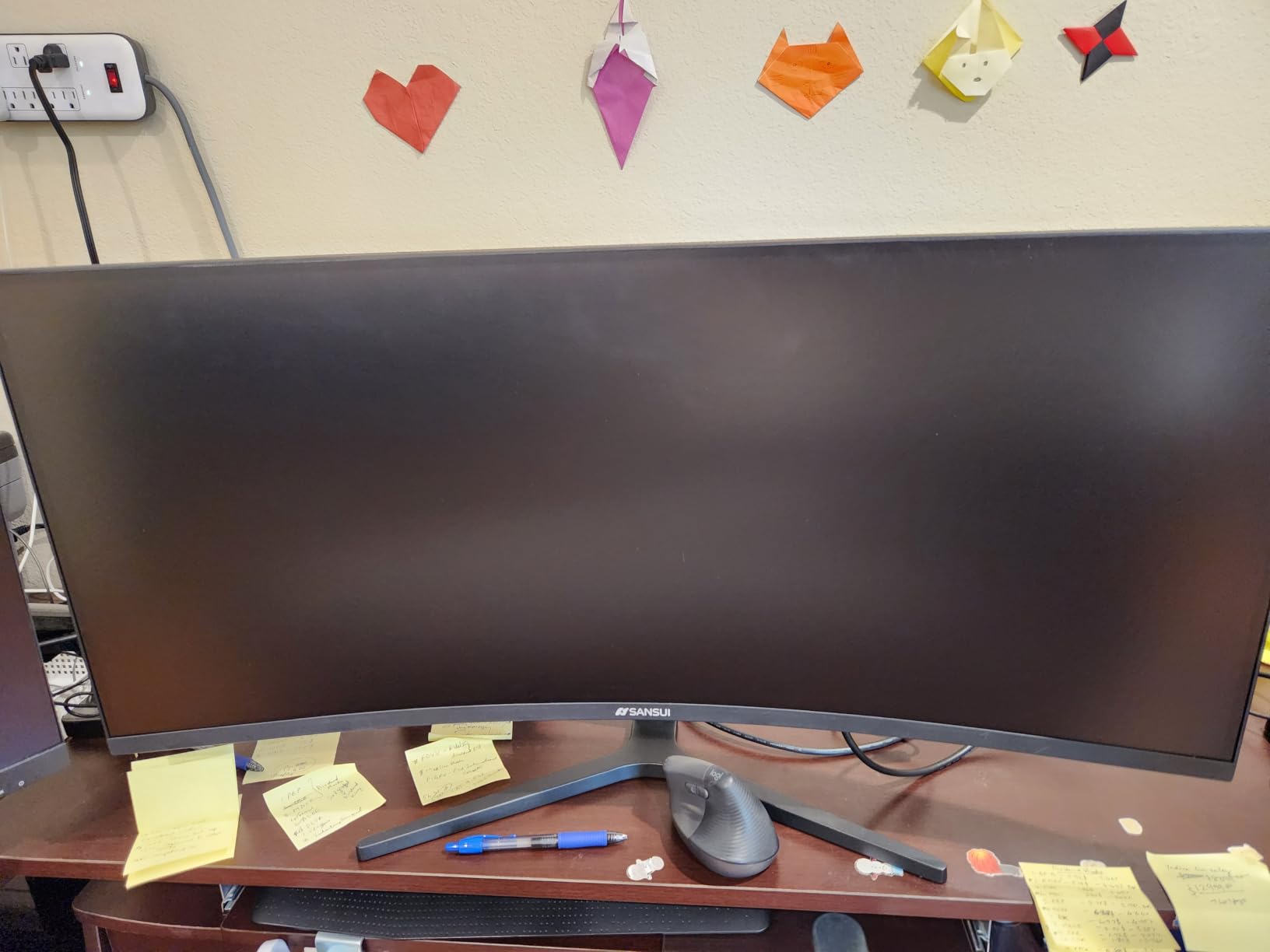
Two ergonomic limits stand out. There is no height adjustment on the stand, only tilt, and no built-in speakers, so audio comes through the 3.5mm headphone output. A small but detailed cluster of owners also report power or reliability failures inside about ten months alongside unresponsive support.
Who the SANSUI ES-G34C5 suits
It suits people switching frequently between a gaming PC, a console and a laptop, since the input selection is handled by the monitor rather than by a hub. Multi-monitor and small-desk owners frequently call it a dual-screen replacement.
For gaming-focused setups in general, our ultrawide gaming monitor guide covers refresh rate and latency in more detail.
Who should skip it
Skip it if you need to position the screen at eye height without a separate arm, because there is no height adjustment. Anyone sensitive to off-axis darkening on VA panels should test it in person first.
10. CRUA CR340HDM 165Hz – Best for a White Desk Setup
CRUA 34″ UWQHD 165Hz White Curved Gaming Monitor, 21:9 Ultrawide, 1500R VA
34-inch 3440x1440 1500R VA in white
165Hz, 2ms response
FreeSync adaptive sync
2x HDMI 2.0 and 2x DisplayPort 1.4
Pros
- White housing stands out against black monitor designs
- Dual HDMI and dual DisplayPort simplifies multi-device hookup
- Sharp 3440x1440 image with good 4000:1 contrast
- Flicker-free panel with a low blue light mode
- Tool-free quick-release stand
Cons
- Dull colours reported by some owners even after adjustment
- Glare is noticeable in bright rooms
- Stand offers tilt only
- Occasional reports of a high-pitched whine or a missing stand base
The CRUA CR340HDM is the only white-chassis ultrawide in this group, and on a light desk that is a bigger deal than it sounds. The housing is clean, and the 1500R curve frames the panel without looking out of place in a bright room.
Underneath, it is a 165Hz VA panel at 3440×1440 with 2ms response and FreeSync adaptive sync. Contrast is rated at 4000:1, which is a strong figure at this tier, and the image is sharp at native resolution.
Connectivity is the practical strength: two HDMI 2.0 ports and two DisplayPort 1.4 ports, plus a 3.5mm audio output. The tool-free quick-release stand tilts from minus 5 to 20 degrees, and a low blue light mode sits alongside flicker-free technology for long sessions.
Colour is where opinions split. A number of owners report dull colours and weak contrast that persist after adjustment, and glare is noticeable in bright rooms because the finish is matte but not highly reflective.
Who the CRUA CR340HDM suits
It suits buyers whose desk setup is a design decision, and anyone who wants two DisplayPort and two HDMI ports for a multi-machine or console setup. VESA 75×75 mounting is supported for wall or arm use.
Buyers on r/Monitors increasingly treat value-tier ultrawides like this as a serious alternative to established brands, and at 165Hz with this port selection the case is easy to make.
Who should skip it
Skip it if you work in a bright room near a window, or if saturated colour matters. Tilt is the only stand adjustment, and a small number of owners report a high-pitched whine or a shipment that arrived without the stand base.
How to Choose a 34-Inch Ultrawide Monitor on a 500-Dollar Budget
Every pick above sits under a five-hundred-dollar budget, and the differences between them come down to five decisions. Make them in this order and the choice makes itself.
34 inch, 40 inch or 49 inch: the size math most buyers skip
A 34-inch 21:9 panel is the default for a reason. At 3440×1440 it works on a standard desk, keeps text at a readable size at normal Windows scaling, and does not force you to turn your head. A 40-inch model needs roughly 80cm of desk depth to sit at a comfortable distance, and a 49-inch super-ultrawide is a two-person or dedicated-sim-racing purchase rather than a desk replacement.
All ten monitors here are 34-inch. That is not laziness, it is the correct default for this budget.
3440×1440 versus 4K: how sharp is sharp enough
A 34-inch 3440×1440 panel works out to roughly 109 pixels per inch, which is comparable to a 27-inch 2560×1440 display. A 32-inch 4K panel lands near 138 PPI, so text is visibly crisper, but it costs more and demands a stronger graphics card.
For a five-hundred-dollar budget, 3440×1440 is the right trade. Windows renders it as a native wider desktop rather than a scaled one, so nothing looks soft, and a mid-range graphics card can actually drive the refresh rates listed above.
VA versus IPS: the panel choice that decides blacks and viewing angles
Nine of the ten monitors here use a VA-type panel, and one listing here is Fast VA. VA gives you deep blacks and 4000:1 contrast, which is what makes dark games and movies look good on a dark desk. The cost is off-axis darkening, where the image dims noticeably when viewed from the side.
IPS panels trade that contrast for wider viewing angles and more accurate colours, but the 34-inch IPS options in this category generally cost more than the budget allows. If you share a screen or work in a bright room, that tradeoff is worth researching before you buy.
Refresh rate versus GPU: matching 165Hz, 180Hz and 200Hz to real frame rates
This is the question buyers ask most and sellers answer least. A 240Hz panel does nothing if your graphics card renders 60 frames per second. Match the panel to the card: entry-level cards will not push high frame rates at 3440×1440, while current mid-range hardware has the headroom for 165Hz to 200Hz in competitive titles.
For single-player and sim racing, frame rate matters less because the field of view does the work. For competitive shooters, the 180Hz and 200Hz options here are the ones worth paying up for.
Curvature, desk depth and arm mounting
The R number describes how tightly the panel wraps. 1000R and 1500R are noticeably curved, 1800R is gentler. A tighter curve feels more immersive in games and reduces the gap between the edge of the screen and your line of sight, but it can make text at the far edges feel slightly distorted.
Plan for 70 to 80cm of desk depth with a 34-inch curved panel. If your desk is shallower, mount it on an arm and pull it forward. Check the VESA pattern before buying: this group is split between 75x75mm and 100x100mm, and the Dell and KOORUI mounts sit recessed enough to need spacers on some third-party arms.
HDR, 1ms claims and other spec-sheet filler
Two numbers on these boxes are mostly marketing. A 1ms response time is almost always measured with overdrive or motion blur reduction enabled, and it produces visible reverse ghosting on VA panels, so it is better disabled. And HDR400 on a 300-nit panel is a modest label, useful but not transformative.
Judge the picture on brightness, contrast ratio and colour gamut coverage instead, and check the review consensus for calibration needs, because several panels in this group arrive looking washed out.
Frequently Asked Questions
Is 3440×1440 as good as 4K?
For most people, yes. A 34-inch 3440×1440 panel works out to about 109 pixels per inch, close to a 27-inch 1440p display, and Windows treats it as a native wider desktop so nothing looks scaled. A 32-inch 4K panel reaches roughly 138 PPI, so text is visibly crisper, but it costs more and needs a stronger graphics card. At this budget, 3440×1440 is the better trade.
What is the best ultrawide monitor under 500 dollars?
The KOORUI 34E6UC takes our overall pick: a 34-inch 3440×1440 VA panel running up to 200Hz over DisplayPort, 400 nits, 4000:1 contrast, DCI-P3 95% coverage, and a stand that adjusts for height, tilt and swivel. If colour accuracy and certified HDR matter most, the Alienware AW3425DWM with DCI-P3 95% and DisplayHDR 400 is the alternative.
What is the best 34-inch ultrawide monitor on a budget?
The Sceptre C345B-QUT168 is the cheapest credible way into a real 34-inch 3440×1440 curved panel, running up to 180Hz with 1ms MPRT, two DisplayPort ports and two HDMI ports, plus built-in speakers and wall mounting. Panel uniformity issues show up at close viewing distances, so it suits buyers who will sit a normal distance back.
What is the best ultrawide monitor for gaming under 500 dollars?
For competitive play, the Amzfast AMZG34C8 Pro runs at 240Hz at 3440×1440 with 450 nits and 10-bit colour, while the ASUS TUF VG34VQL1B offers 165Hz with FreeSync Premium, DisplayHDR 400 and a 4-port USB hub. Check that your graphics card can push meaningful frame rates at this resolution before paying for the faster panel.
Which ultrawide monitor is the most reliable?
Warranty length and support quality are the practical reliability signals here. The ASUS TUF VG34VQL1B and the Alienware AW3425DWM both carry three-year warranties, the ASUS with advanced replacement and repair. The Dell S3425DW includes Advanced Exchange Service and Premium Panel Exchange, and Sceptre phone support is repeatedly praised by owners. The Dell S3425DW is the only pick with USB-C power delivery for single-cable laptop setups.
The Verdict: Which Ultrawide Monitor Under 500 Should You Buy
The best ultrawide monitors under 500 dollars all land in the same place: a 34-inch 3440×1440 curved panel with adaptive sync and a refresh rate between 100Hz and 240Hz. The KOORUI 34E6UC is the one we would buy, thanks to 200Hz over DisplayPort, 4000:1 contrast, DCI-P3 95% coverage, a properly adjustable stand and the largest owner base we found.
Buy the Alienware AW3425DWM if colour accuracy and certified HDR lead your list, the KTC H34S5 if you want the strongest rating from a large sample at a fair price, and the ASUS TUF VG34VQL1B if a USB hub and a three-year warranty matter. Laptop users should look at the Dell S3425DW, and the Amzfast AMZG34C8 Pro wins outright if you need 240Hz and 450 nits.
Check the latest price on any of them before you commit, since 34-inch ultrawides move often, and every pick here stays inside the five-hundred-dollar ceiling we set.