
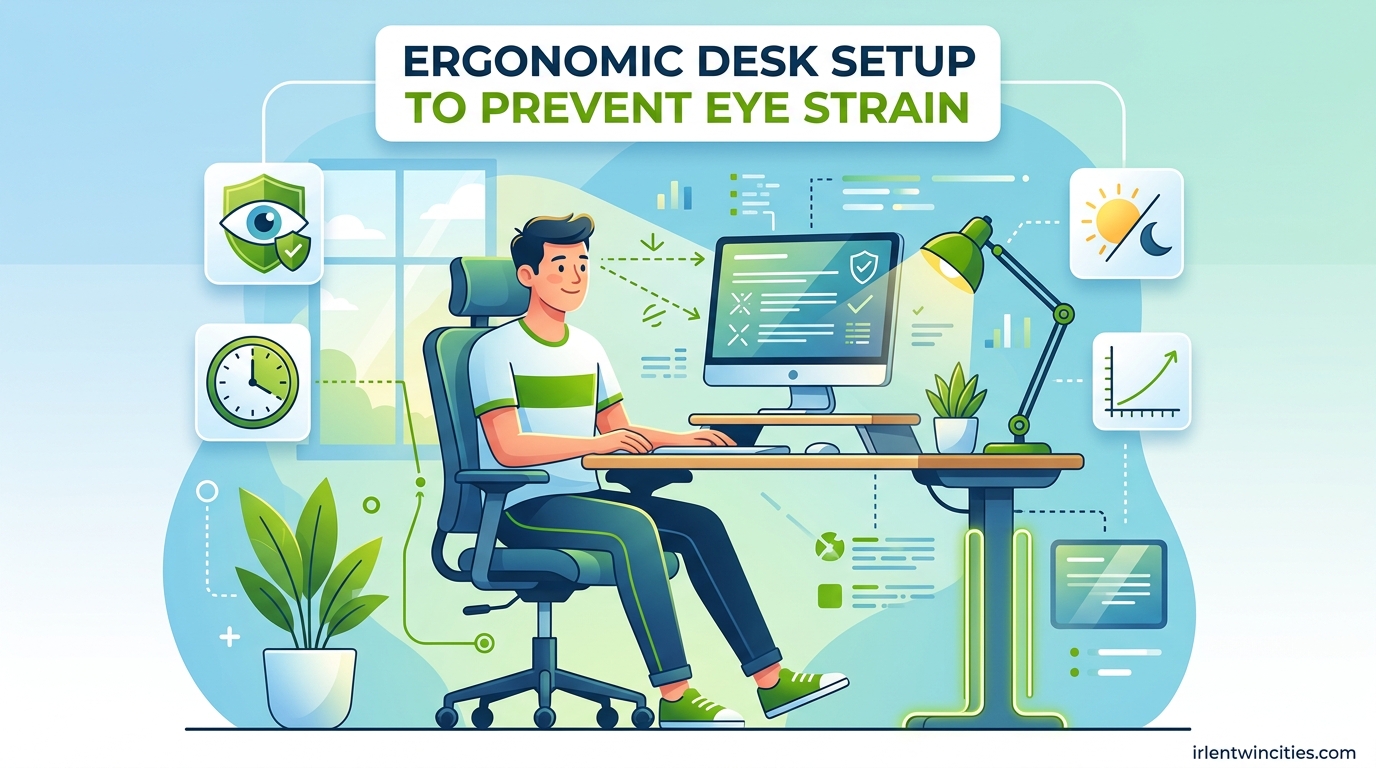
If you spend hours at your computer each day, you’ve likely experienced the burning, blurred vision, and headaches that come with digital eye strain. The good news is that the right ergonomic desk setup can dramatically reduce these symptoms and protect your long-term eye health.
I’ve spent years researching and testing workspace configurations, and I’ve learned that small adjustments to your monitor position, lighting, and work habits can make a massive difference in how your eyes feel at the end of the day.
Table of Contents
Understanding Digital Eye Strain
Digital eye strain, also known as computer vision syndrome, affects up to 90% of computer users. Symptoms include dry eyes, blurred vision, headaches, neck pain, and difficulty focusing. These issues occur because your eyes work harder to process digital images than printed text.
When you stare at screens for extended periods, you blink less frequently—about 66% less than normal. This reduced blinking causes your eyes to dry out and feel irritated. Poor workspace setup exacerbates these problems by forcing your eyes to constantly refocus and adjust to glare, improper distances, and awkward angles.
The right ergonomic desk setup addresses these root causes by optimizing how your eyes interact with your workspace throughout the day.
Monitor Positioning: Distance, Height, and Angle
Proper monitor positioning is the foundation of an eye-healthy workspace. Your screen should be positioned to minimize eye muscle fatigue and maintain natural posture.
The optimal distance between your eyes and monitor is 20-28 inches, or roughly arm’s length. This distance allows your eyes to focus comfortably without strain. If you find yourself leaning forward to read text, move your screen closer. Conversely, if you’re reclining to see the entire screen, pull it back slightly.
Screen height matters just as much as distance. Position the top of your monitor at or slightly below eye level, about 2-3 inches above your natural sight line when sitting upright. This slight downward angle encourages your eyelids to cover more of your eye, reducing tear evaporation and dryness.
Your monitor should also be tilted back 10-20 degrees. This angle prevents glare from overhead lights while maintaining a comfortable viewing position. Avoid placing your monitor too low, which forces you to tilt your head down and strain your neck muscles along with your eyes.
To test your setup, sit comfortably in your chair and close your eyes. When you open them, you should be looking directly at the top third of your screen without any head movement. If you need to adjust your neck position, reposition your monitor accordingly.
Lighting and Glare Reduction Strategies
Proper lighting is crucial for preventing eye strain. The goal is to eliminate harsh contrasts between your bright screen and dark surroundings while minimizing glare that forces your eyes to work harder.
Ambient lighting should be roughly equal to your screen brightness. Avoid working in a dark room with only your monitor illuminated—this extreme contrast causes significant eye fatigue. Instead, use overhead lights or a desk lamp to evenly illuminate your workspace.
Position your monitor perpendicular to windows rather than facing them directly. This prevents sunlight from creating glare on your screen while still allowing natural light to illuminate your workspace. If this isn’t possible, use adjustable blinds or curtains to control direct sunlight.
Overhead fluorescent lights often cause flicker and glare that contribute to eye strain. If possible, replace them with LED panels or use a desk lamp with a warm bulb (around 3000K) positioned to the side of your monitor rather than directly above it.
One often-overlooked solution is bias lighting—a soft light source placed behind your monitor that illuminates the wall behind it. This reduces the contrast between your bright screen and dark background, making it easier for your eyes to adjust. Bias lighting bars are inexpensive and can dramatically improve comfort during evening work sessions.
Anti-glare screen protectors can also help, especially if you can’t control ambient lighting. These matte films reduce reflections without significantly affecting image quality.
Screen Settings for Eye Comfort
Your monitor’s built-in settings can significantly impact eye strain. Adjust these settings to match your environment and reduce visual stress.
Screen brightness should match your ambient lighting. A simple test: look at a white background on your screen. If it appears as a light source in the room, it’s too bright. If it appears dull and grayish, it’s too dark. Most people find comfort around 25-35% brightness in typical office lighting.
Contrast ratio affects how easily your eyes distinguish between text and background. Aim for high contrast (dark text on light background or vice versa) rather than mid-tones that require more focus to read.
Blue light from screens can disrupt sleep patterns and contribute to eye fatigue. Enable your operating system’s night mode or use f.lux software to automatically reduce blue light in the evening. Many monitors also include built-in blue light filters in their settings menu.
Refresh rate matters for eye comfort, especially during prolonged use. Higher refresh rates (120Hz or above) reduce flicker and make scrolling smoother, which can decrease eye strain during extended work sessions.
The 20-20-20 Rule and Break Habits
The most effective ergonomic adjustment costs nothing and requires no special equipment. The 20-20-20 rule, recommended by optometrists worldwide, is simple: every 20 minutes, look at something 20 feet away for 20 seconds.
This practice relaxes your eye’s focusing muscles, which become fatigued from maintaining near-focus on your screen. The 20-foot distance is crucial because it allows your ciliary muscles to fully relax—you can’t achieve the same benefit by looking across the room.
Implementing this rule consistently can be challenging. I recommend using break reminder software like Stretchly, Workrave, or Eye Care Plus. These applications gently remind you to take breaks at customizable intervals and can even guide you through quick eye exercises.
Beyond the 20-20-20 rule, take a complete break from screens every hour. Stand up, stretch, and focus on distant objects through a window if possible. Your eyes will thank you, and these micro-breaks also improve posture and circulation.
Conscious blinking is another simple but effective habit. We naturally blink less when staring at screens, so make a conscious effort to blink fully and frequently. Consider using artificial tears if you experience persistent dryness, especially in air-conditioned environments.
Seating and Posture Impact on Eye Health
Your chair and posture directly affect your eye position and comfort. Poor seating forces you into awkward positions that strain both your body and your eyes.
Your chair should support your lower back while allowing your feet to rest flat on the floor or a footrest. This stable base prevents you from leaning forward or slouching, which changes your viewing distance and angle. Adjust your chair height so your elbows are at 90-degree angles when typing.
Monitor distance often changes unintentionally due to poor keyboard placement. If your keyboard is too far forward, you’ll find yourself leaning toward your screen throughout the day. Use a keyboard tray to maintain consistent positioning.
Document holders are essential for reference materials. Place documents between your keyboard and monitor at the same distance as your screen. This prevents constant refocusing between paper and screen, which is a major source of eye strain.
Your mouse should be positioned close enough that your upper arm remains relaxed by your side. Reaching for your mouse causes subtle shifts in posture that affect your viewing angle over time.
Multi-Monitor and Laptop Ergonomics
Modern workspaces often include multiple monitors or laptops, which present unique ergonomic challenges not addressed in most guides.
For dual-monitor setups, position both screens at the same distance and height. Arrange them in a gentle curve centered on your body, not in a straight line. This prevents constant head turning. If you use one monitor significantly more than the other, place it directly in front of you and angle the secondary monitor 15-30 degrees toward you.
Triple-monitor configurations should follow the same curved arrangement principle. Avoid placing monitors at extreme angles that require significant head movement—this defeats the purpose of having multiple screens and strains both your neck and eyes.
Laptop users face the biggest ergonomic challenge because the screen and keyboard are fixed together. The best solution is a laptop stand with external keyboard and mouse. Raise the laptop screen to eye level while keeping the keyboard at a comfortable typing distance. This simple addition transforms an ergonomically poor laptop into a proper workstation.
If you use a standing desk, maintain the same monitor positioning principles. Your screen height should adjust along with the desk surface. Some users find standing actually increases their viewing distance, which can be beneficial as long as the screen remains at eye level.
Ultra-wide monitors can reduce eye strain by minimizing the need for head movement. With a single wide screen, you can keep all content within your optimal viewing zone without turning your head constantly between multiple displays.
Quick Setup Checklist
Use this step-by-step checklist to verify your ergonomic desk setup:
Monitor Position:
- Screen is 20-28 inches from your eyes (arm’s length)
- Top of monitor is at or slightly below eye level
- Screen is tilted back 10-20 degrees
- Monitor is centered on your body, not to the side
Lighting Check:
- Room lighting matches screen brightness
- No visible glare on screen
- Monitor is perpendicular to windows
- Consider bias lighting behind monitor
Seating Position:
- Feet flat on floor or footrest
- Lower back fully supported
- Elbows at 90 degrees when typing
- Documents at same distance as screen
Screen Settings:
- Brightness matches ambient light
- High contrast for text readability
- Blue light filter enabled for evening work
- Refresh rate set to maximum available
Common mistakes to avoid: positioning your monitor too high (causes neck strain), working in complete darkness (causes excessive contrast), placing your desk directly facing a window (causes glare), and ignoring the 20-20-20 rule because you “don’t have time.”
If you consistently experience eye strain despite proper ergonomics, schedule an eye exam. You may need prescription computer glasses or have an underlying vision issue that requires professional attention.
FAQ
How far should my computer screen be from my eyes?
Your computer screen should be positioned 20-28 inches from your eyes, or roughly arm’s length. This distance allows your eyes to focus comfortably without strain. To test your setup, sit comfortably in your chair and extend your arm—you should be able to touch your screen with your fingertips while maintaining a relaxed posture.
What is the 20-20-20 rule for eye strain?
The 20-20-20 rule is a simple eye exercise recommended by optometrists: every 20 minutes, look at something 20 feet away for 20 seconds. This practice relaxes your eye’s focusing muscles, which become fatigued from maintaining near-focus on screens. The 20-foot distance is crucial because it allows your ciliary muscles to fully relax.
What is the best monitor position for eye comfort?
The best monitor position places the top of your screen at or slightly below eye level, about 2-3 inches above your natural sight line when sitting upright. Your monitor should be 20-28 inches away and tilted back 10-20 degrees. This setup encourages your eyelids to cover more of your eye (reducing dryness) and prevents neck strain.
How do I reduce eye strain from my computer?
Reduce eye strain by positioning your monitor properly (20-28 inches away, top at eye level), matching screen brightness to ambient lighting, eliminating glare, using the 20-20-20 rule, enabling blue light filters, and taking complete breaks from screens every hour. These adjustments address the root causes of digital eye strain rather than just treating symptoms.
What lighting is best for computer work?
The best lighting for computer work is ambient illumination that matches your screen brightness, eliminating harsh contrast. Use overhead lights or a desk lamp with a warm bulb (around 3000K) positioned to the side of your monitor. Avoid working in darkness with only your screen illuminated, and position your monitor perpendicular to windows to prevent glare.
Does blue light cause eye strain?
Blue light contributes to digital eye strain by affecting contrast and potentially disrupting sleep patterns, though research is ongoing. Blue light from screens can make it harder for your eyes to focus and may contribute to retinal damage over time. Using blue light filters, especially in the evening, can reduce eye fatigue and improve sleep quality.
What are the symptoms of digital eye strain?
Symptoms of digital eye strain include dry or irritated eyes, blurred vision, headaches, neck and shoulder pain, difficulty focusing, and increased sensitivity to light. You may also experience double vision or see color fringing around objects. These symptoms typically worsen throughout the workday and improve when you disconnect from screens.
How do I set up my desk for eye health?
Set up your desk for eye health by positioning your monitor 20-28 inches away at eye level, matching screen brightness to room lighting, eliminating glare sources, using a document holder at screen distance, ensuring proper chair support, and implementing the 20-20-20 rule. Consider bias lighting behind your monitor and blue light filters for extended comfort.
Conclusion
Creating an ergonomic desk setup to prevent eye strain doesn’t require expensive equipment or a complete workspace overhaul. Small, intentional adjustments to your monitor position, lighting, screen settings, and work habits can dramatically improve your comfort and protect your long-term eye health.
Start with the fundamentals: proper monitor distance and height, appropriate lighting, and consistent use of the 20-20-20 rule. From there, fine-tune your setup based on how your eyes feel throughout the day. Remember that ergonomics is personal—what works perfectly for someone else might need slight adjustment for your specific needs.
Most importantly, listen to your body. If you experience persistent eye strain, headaches, or vision changes despite proper ergonomics, schedule an appointment with an eye care professional. Your eyes will thank you for the attention both now and in the years to come.